SD card still full after deleting files on a Mac? Empty the card's Trash
By Flavio
You deleted files from an SD card on your Mac and the camera still says the card is full. The files are in a hidden Trash on the card. Here's how to free the space.
You plugged the camera’s SD card into your Mac, dragged the videos to the Trash, and put the card back in the camera. The camera still says the card is full.
The files are still on the card, in its own hidden Trash. Plug the card back into the Mac, empty the Trash, then eject the card properly. The space comes back.
Where did the files go?
Dragging a file to the Trash moves it, so you can still put it back. For a file on the Mac’s own disk, the Trash is a folder on that disk. For a file on a card, a USB stick or an external drive, macOS uses a hidden folder named .Trashes on that same card, so the file never leaves the card.
Here’s what happens on a test card, a small card-style disk formatted like the ones cameras use. The files moved to the Trash ended up in the hidden .Trashes folder on the card, in a subfolder for the Mac’s user account. Here is the card’s free space at each step:
| Step on the test card | Free space before | Free space after |
|---|---|---|
| Move files to the Trash | 63,330 KB | 63,314 KB |
| Delete them for good | 63,514 KB | 63,862 KB |
Moving to the Trash freed nothing. The free space even went down by 16 KB. Deleting for good gave back the size of the files.
The camera doesn’t show you .Trashes, but it’s a normal folder with normal files in it, so their space counts as used.
How do I get the space back?
- Plug the card into the Mac. The files in its Trash only show up while the card is connected.
- Click the Trash in the Dock. The window lists the files from the card together with the Trash on your Mac.
- Click Empty in the top-right corner of the window, then Empty Trash in the warning.
- Eject the card: click the eject arrow next to its name in the Finder sidebar, and wait until it disappears before you pull it out.
Be careful with step 3. Empty empties the whole Trash, the Mac’s files too, and Apple’s help says that anything emptied from the Trash is permanently deleted. If there’s something in the Mac’s Trash you aren’t sure about, use the next section instead.
Can I delete only the card’s files?
Yes. Apple’s help for the Finder describes it: open the Trash, Control-click the file you want gone, choose Delete Immediately, then click Delete in the warning. Select all the card’s files first and you can do it in one go.
That deletes those files right away and leaves the rest of the Trash alone. Here are the ways side by side:
| Way to remove it | Where the file goes | Space back when | Can you undo it? |
|---|---|---|---|
| Drag to the Trash, or Command-Delete | The Trash on the same disk or card | When you empty the Trash | Yes, with File > Put Back |
| Empty Trash | Gone, the Mac’s Trash too | Right away | No |
| Delete Immediately in the Trash window | Gone, only the files you picked | Right away | No |
| Formatting the card in the camera | Gone, everything on the card | Right away | No |
How do I check?
The quickest check is in the Finder. Select the card in the sidebar, choose File > Get Info, and look at Available. Note it, empty the Trash, and look again.
If Available doesn’t go up after you drag files to the Trash, that’s expected: they’re sitting in .Trashes on the card. It goes up when you empty the Trash or use Delete Immediately. Do it from the Finder, and don’t try to find and delete the hidden folder yourself.
If the files are videos you want to keep as one
Often the card is full of short clips that belong together, like a trail camera’s one-minute clips, or a long recording the camera split into several files. Clip Joiner is a Mac app I built for that. It joins the videos on the card into one file on the Mac, named by the day they were recorded, like 2026-10-08.mov. It costs $20, paid once.
Once a join is done and checked, the window offers Move Originals to Trash…. Nothing moves until you click it and confirm. Right before removing anything, the app looks at the joined file again, and if it was moved, renamed or changed since the join, the originals stay where they are.
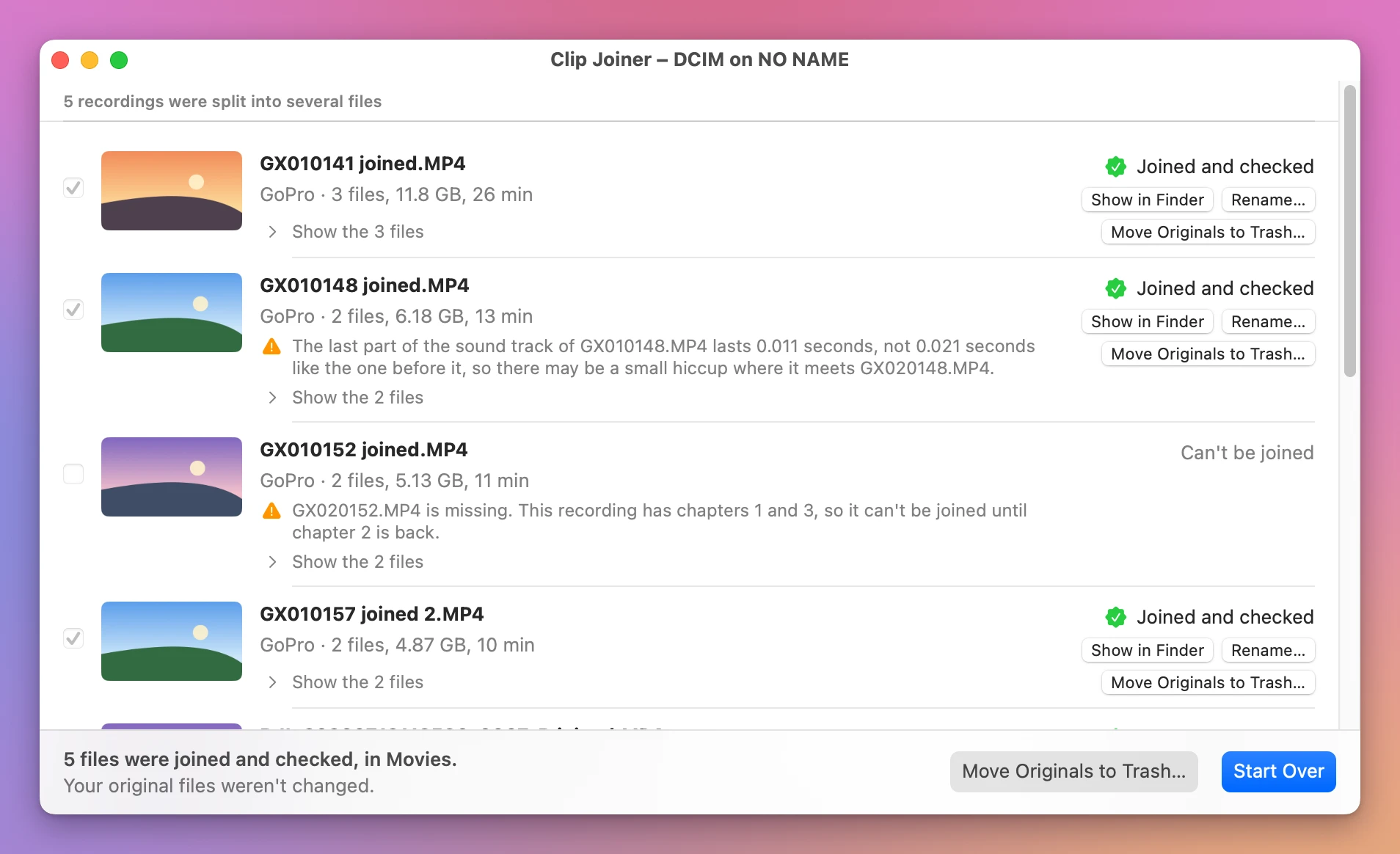
Because the originals are on a card, the alert says where the Trash is: “In the Trash, they stay on NO NAME and keep taking up space there until you empty the Trash.” It has three buttons:
- Keep Originals, the default. Return, Escape and Space all pick it.
- Move to Trash moves them to the card’s Trash, so you can still put them back from the Finder.
- Delete Now deletes them from the card. The alert says it plainly: “Delete Now frees the space right away and can’t be undone.”
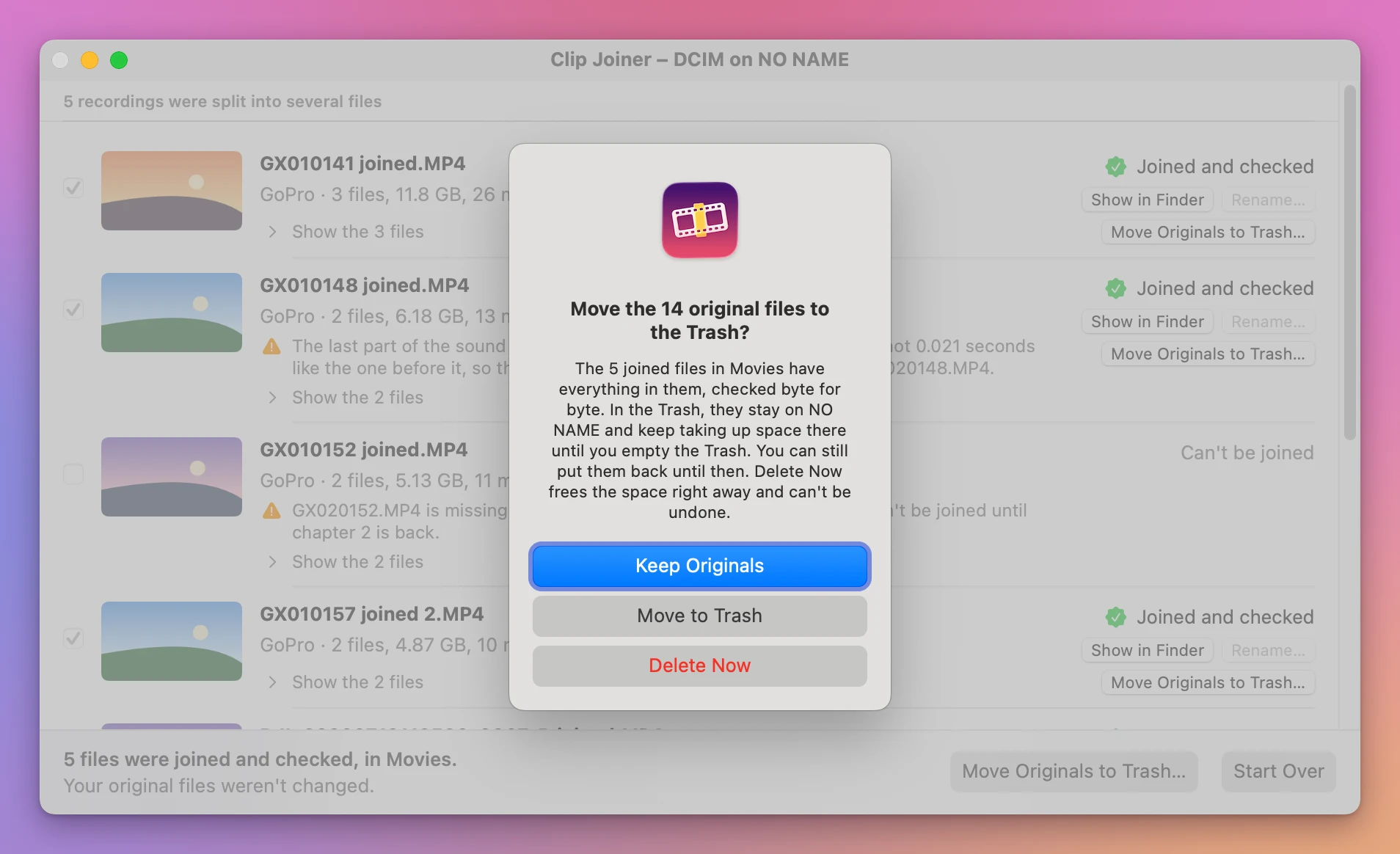
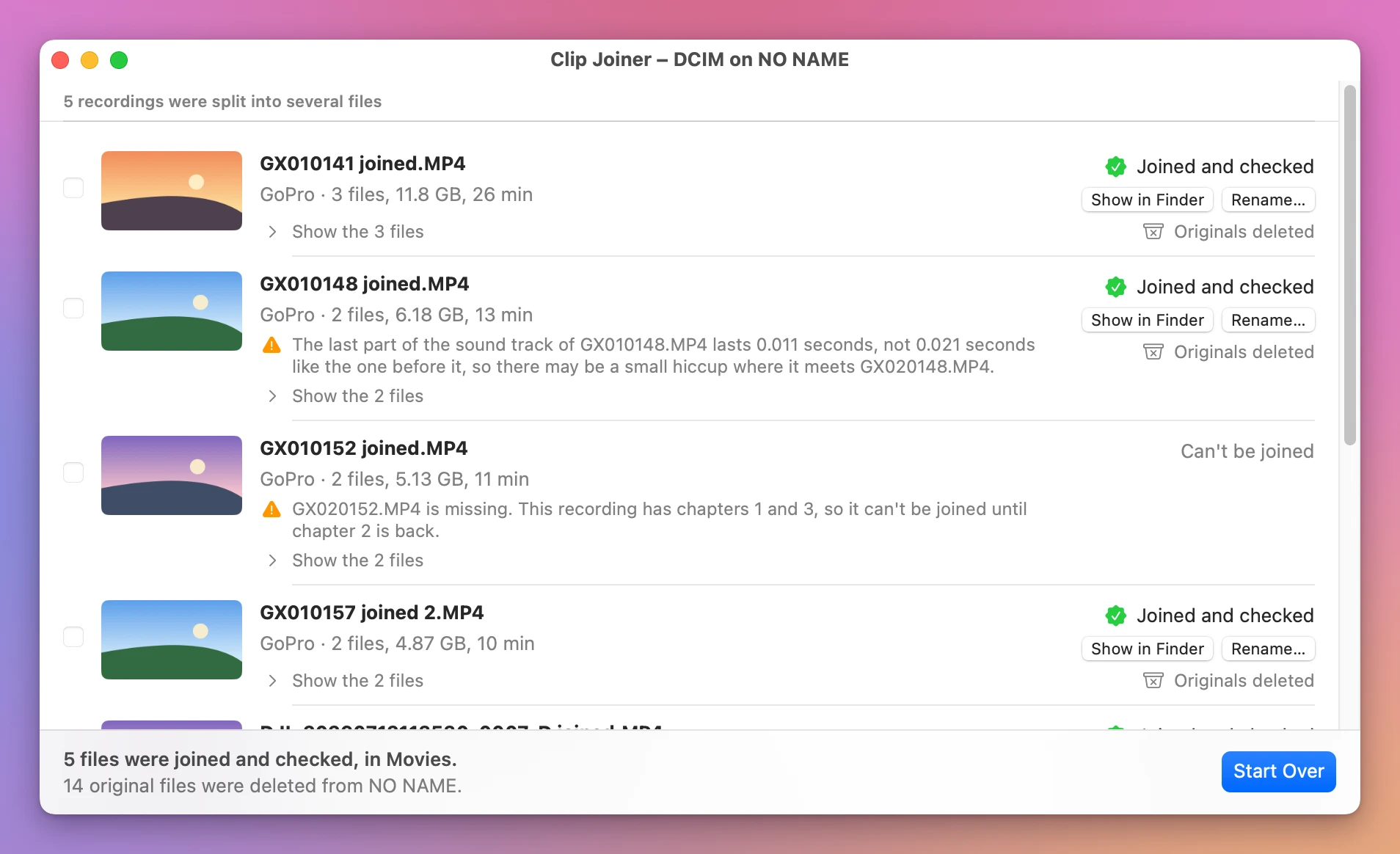
Delete Now only shows up when every original is on a card or a drive you can take out. For files on the Mac’s own disk you get the first two. After Delete Now, the line under the list says how many files were deleted from the card.
Get Clip Joiner
Join the videos on a memory card into one file on your Mac, straight from the card. Nothing loses quality, and every join is checked before your originals go.
See Clip Joiner → · Read the docs · $20. See the app page for tax details.
Want me to talk about your product? You can sponsor this site.