Free up iPhone storage after a Blackmagic Camera shoot
By Flavio
Your iPhone is full of Blackmagic Camera clips. Find where the space went, what not to delete, and how to get it back without losing any footage.
You shot with Blackmagic Camera, and now the iPhone says its storage is almost full. You deleted videos from Photos and nothing changed. That’s because the clips aren’t in Photos at all.
Blackmagic Camera keeps its clips in its own storage, inside the app. I shoot with it on an iPhone 16 Pro, and its option to save each clip to the photo library never worked for me, so everything stayed there. When I finally cleared it out, there were 69 clips and 15 GB waiting in Blackmagic Camera.
I get that space back with Footage Ferry, my Mac app. Here’s the whole process, and what to avoid.
Where your storage went
Open Settings, tap General, then iPhone Storage. You get a list of apps with how much space each one uses, largest first. Look for Blackmagic Camera.
That number is the clips. In the Files app they’re in the folder called Blackmagic Camera under On My iPhone, inside Media, with names like A001_08080949_C006.mov. A Photos or Image Capture import never sees them, and cleaning up Photos doesn’t touch them.
What not to do
Don’t delete Blackmagic Camera to get the space back, because deleting the app deletes the clips stored inside it.
Offload App won’t help either. Apple describes it as freeing the storage used by the app while keeping its documents and data, and your clips are exactly that data.
And don’t delete clips from the phone on a guess. When I tried saving clips to Photos by hand, nothing told me when the export had finished, the phone locked itself in the middle, and I couldn’t tell whether a clip had made it. I wasn’t going to delete the originals after that.
The order that matters
- Copy the clips to your Mac.
- Check that each copy is identical to the file on the iPhone.
- Back up the Mac copies.
- Delete the clips from the iPhone.
Only the last step frees space, and it’s the only one you can’t undo.
Do it with Footage Ferry
Plug the iPhone into the Mac with a USB cable and unlock it. Footage Ferry lists every clip in Blackmagic Camera’s storage, and the title bar shows the iPhone model, the number of clips and their total size. The full walkthrough covers the import in detail.
Click Import All (⇧⌘I), or select some clips and use Import Selected (⌘I). They go to ~/Movies/Blackmagic Camera unless you pick another folder.
That covers copy and check together. After each copy, the Mac reads it back from disk and computes its SHA-1, the iPhone computes the SHA-1 of its own file, and the clip shows Imported only when the two match. With a USB 2 cable my imports run at about 40 MB/s.
Now back up the folder, the way you back up everything else on the Mac. The app can’t do this step for you.
Then delete. When an import finishes, the app offers to delete those clips from the iPhone, with Keep on iPhone as the default button. If you’d rather back up first, keep them, and come back later: select the clips and choose Delete Selected from iPhone… (⌘⌫).
The clips in these screenshots are made up for the demo. Here the five largest of 14 imported clips are selected:
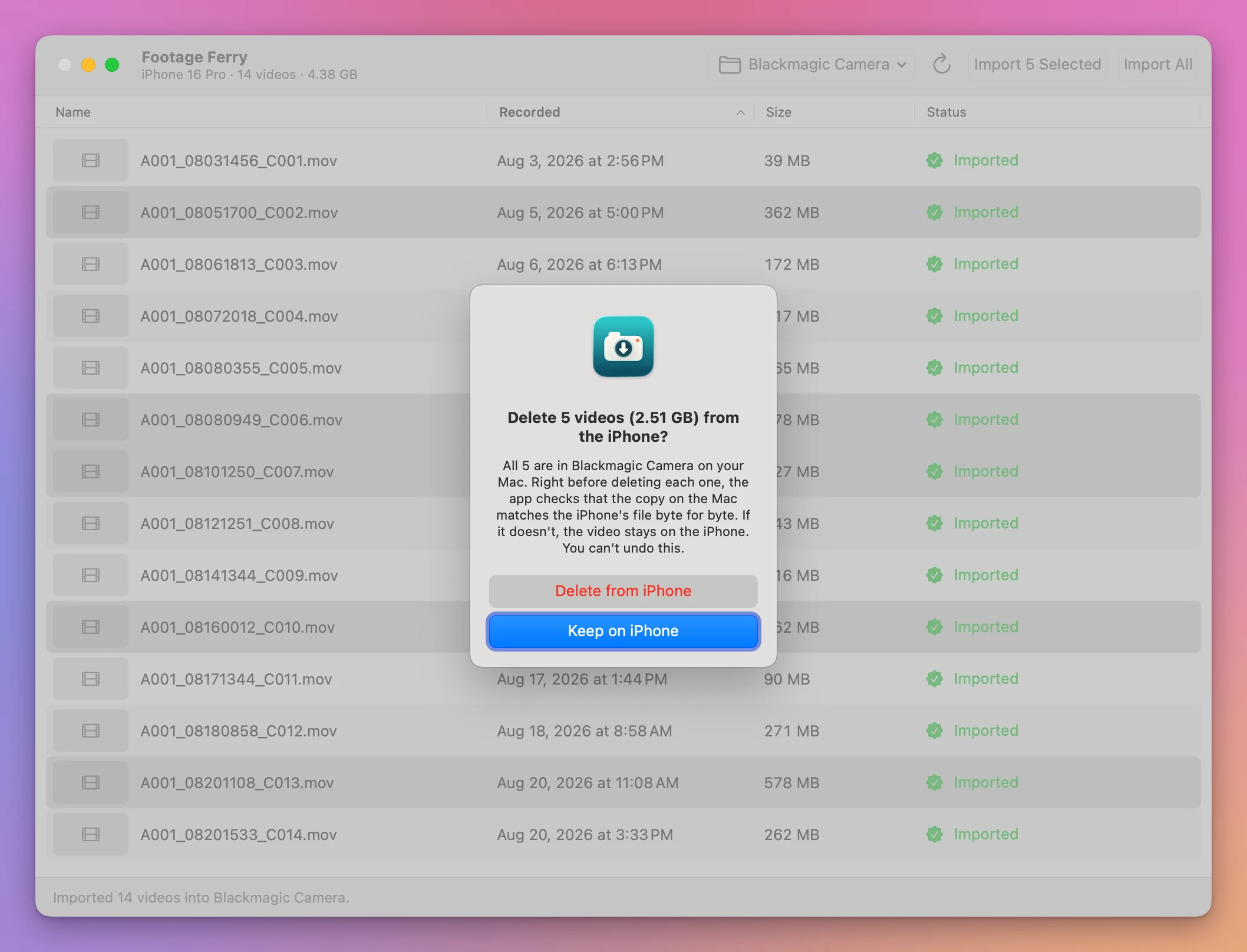
The alert gives the count and the size you’re about to free. Click Delete from iPhone and the app checks every clip again, right before deleting it: the copy must still be in the folder, with the same size and the same SHA-1 as the iPhone’s file. If you moved or edited a copy since the import, that clip stays on the iPhone and an alert tells you why.
Afterwards the list shows what’s left on the phone:
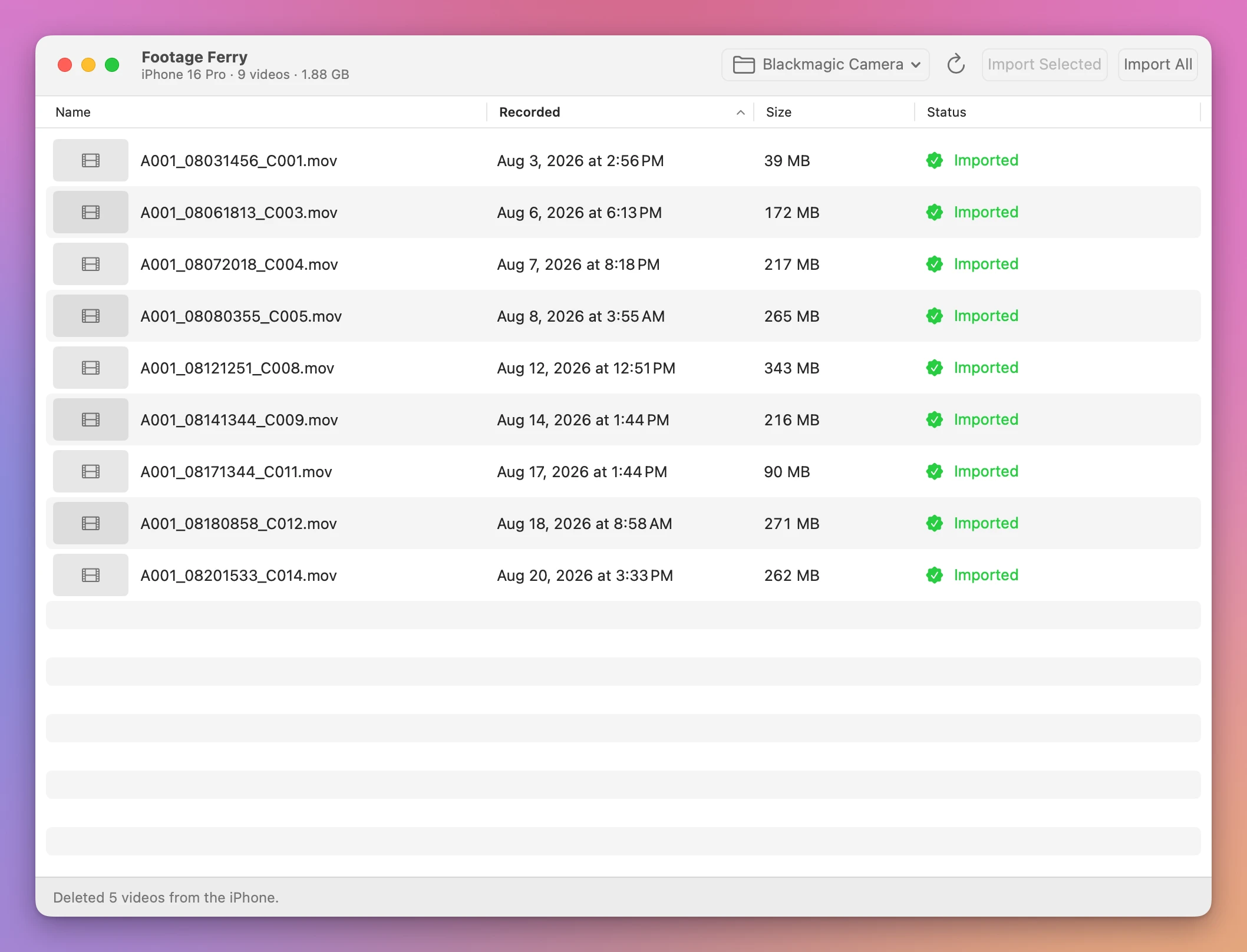
Before and after
These are the numbers from the two screenshots:
| Clips | Size | |
|---|---|---|
| On the iPhone before | 14 | 4.38 GB |
| Deleted from the iPhone | 5 | 2.51 GB |
| Left on the iPhone | 9 | 1.88 GB |
In ~/Movies/Blackmagic Camera on the Mac | 14 | 4.38 GB |
If you subtract, you get 1.87 GB, but the app shows 1.88 GB. Each figure is rounded from the exact byte count, and the remainder is 1.875 GB. Deleting from the iPhone doesn’t touch the Mac copies, so all 14 are still in the folder.
Footage Ferry is my own project. It isn’t made by, affiliated with, or endorsed by Blackmagic Design.
Get Footage Ferry
Import Blackmagic Camera clips from your iPhone over USB. Preview videos, verify every copy and choose when to delete the originals.
See Footage Ferry → · Read the docs · $20. See the app page for tax details, with full source code.
Want me to talk about your product? You can sponsor this site.