
An app by Flavio
Footage Ferry (for Mac)
Import Blackmagic Camera clips from your iPhone over USB. Preview videos, verify every copy and choose when to delete the originals.
Buy Footage Ferry (for Mac) · $20One-time purchase. Tax included.
macOS 14 or later · Apple silicon and Intel
Latest version 1.6.0, released November 20, 2026
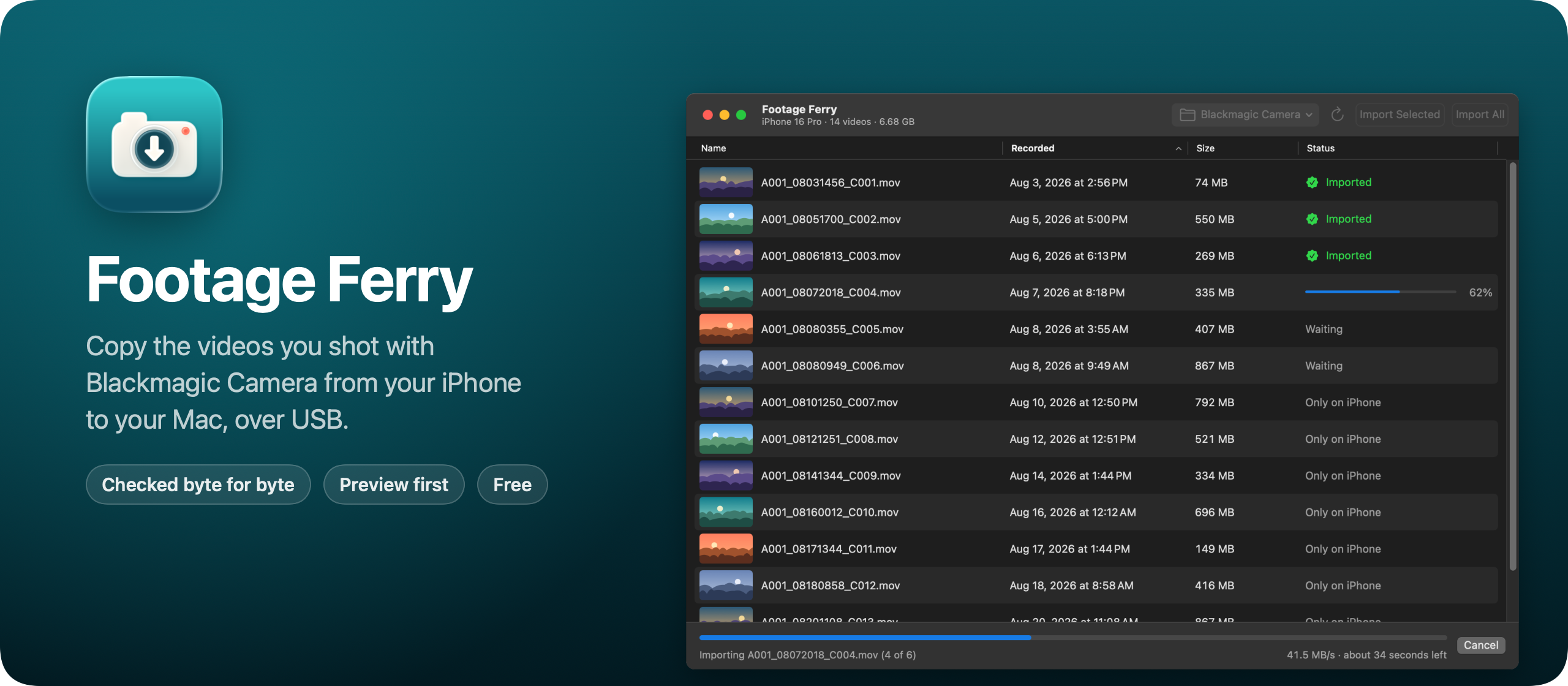
$20 including tax, one-time purchase.
Footage Ferry is a Mac app that copies the videos you record with Blackmagic Camera on your iPhone to your Mac. Plug in the iPhone with a USB cable, see every clip with a thumbnail, play the ones you’re not sure about, and import all of them or just a few.
Here’s the app at work, sorting, previewing, importing and deleting. The clips are made up for the demo:
I shoot with Blackmagic Camera on my iPhone 16 Pro. In theory it can save each clip straight to the iPhone’s photo library, but that setting never worked for me, so my clips stayed in Blackmagic Camera’s own library. That’s where the problem started.
The clips are huge, and getting them out of there kept putting me in a weird situation. When I saved them to my photo library by hand or exported them, nothing told me when the export had finished, and the iPhone would lock itself in the middle of it. Then I didn’t know whether the videos had made it to my library or not.
Many of those videos are important to me, and I wasn’t going to delete them from the phone on a guess. So I built this app to know for sure. It shows every clip and how far along its copy is, and a clip only counts as imported once the copy on the Mac matches the one on the iPhone. When I finally used it, I had 69 clips and 15 GB waiting in Blackmagic Camera.
Who it’s for
- Filmmakers shooting on an iPhone. You record ProRes or HEVC in Blackmagic Camera, and a day of takes is tens of gigabytes. You want them in a folder on the Mac, ready to bring into DaVinci Resolve, with their names and recording dates.
- YouTubers who film every day. Each session adds a few big clips, and the phone fills up by Thursday. You want to import the new ones and free the iPhone’s storage without wondering which clips already made it.
- Wedding and event shooters with an iPhone as a second angle. The iPhone sat on a tripod for the whole ceremony. Those clips are the only copy until they’re on the Mac, so you delete nothing until every copy is checked.
- People whose “save to Photos” never worked. The clips are stuck in Blackmagic Camera, and Photos and Image Capture can’t see them. Footage Ferry reads them where they are.
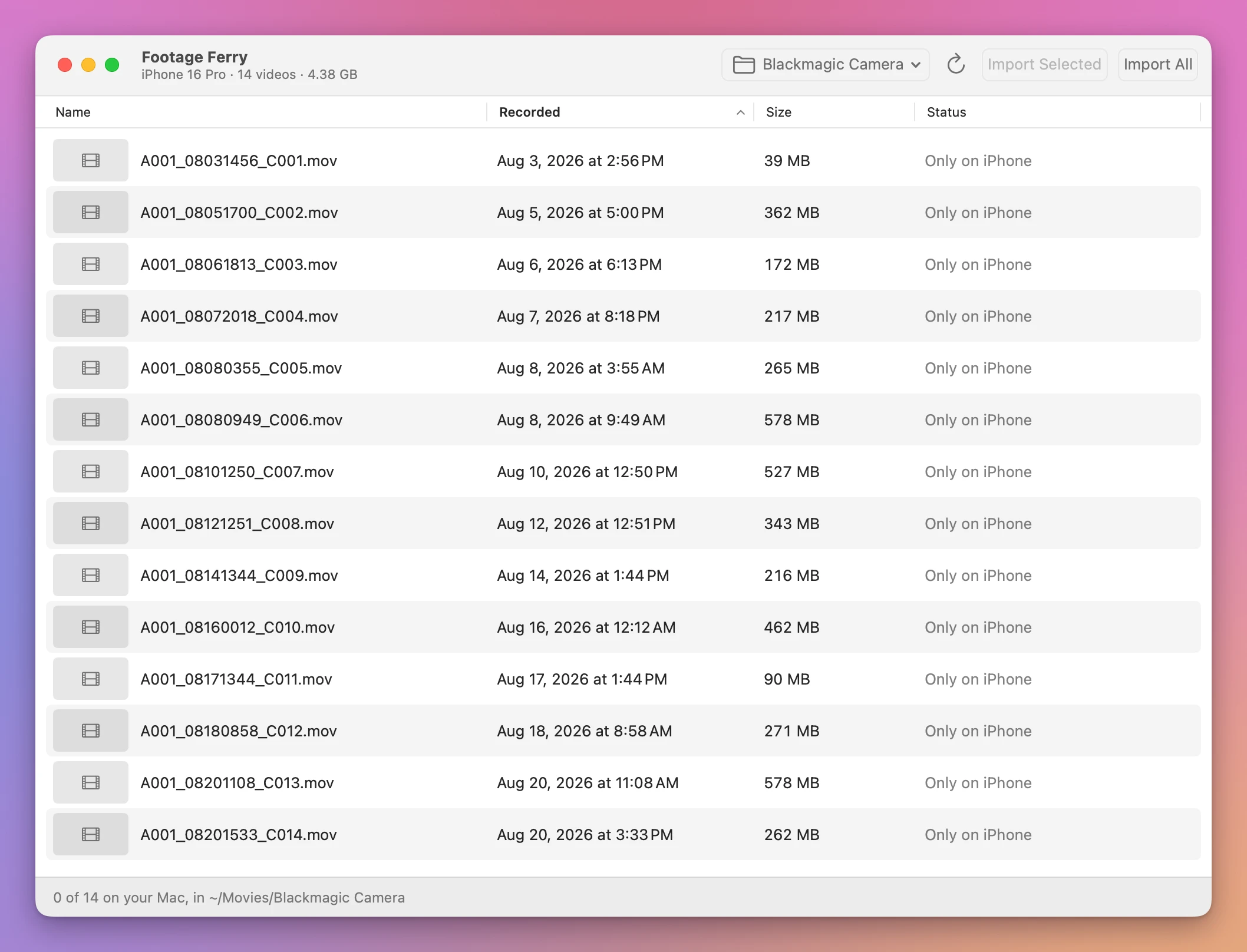
- Anyone who lost track halfway through an export. The phone locked, the export stopped somewhere, and now you don’t know which clips are on the Mac. The Status column says it for every clip: Only on iPhone, On Mac or Imported.
After a shoot, start to finish
Say you shot 14 clips today and want them on the Mac, then off the phone.
- Plug the iPhone into the Mac with a USB cable and unlock it. If it never trusted this Mac, tap Trust on the iPhone.
- The title bar shows the phone and what’s on it, like “iPhone 16 Pro · 14 videos · 4.38 GB”. Every clip has a thumbnail, its recording date, its size and a status.
- Not sure about a take? Select it and press Space to play it straight from the iPhone. Nothing is saved to the Mac while you watch.
- Check the folder button in the toolbar. It’s Blackmagic Camera at first, the folder of that name in your Movies folder. Click it for Choose Folder….
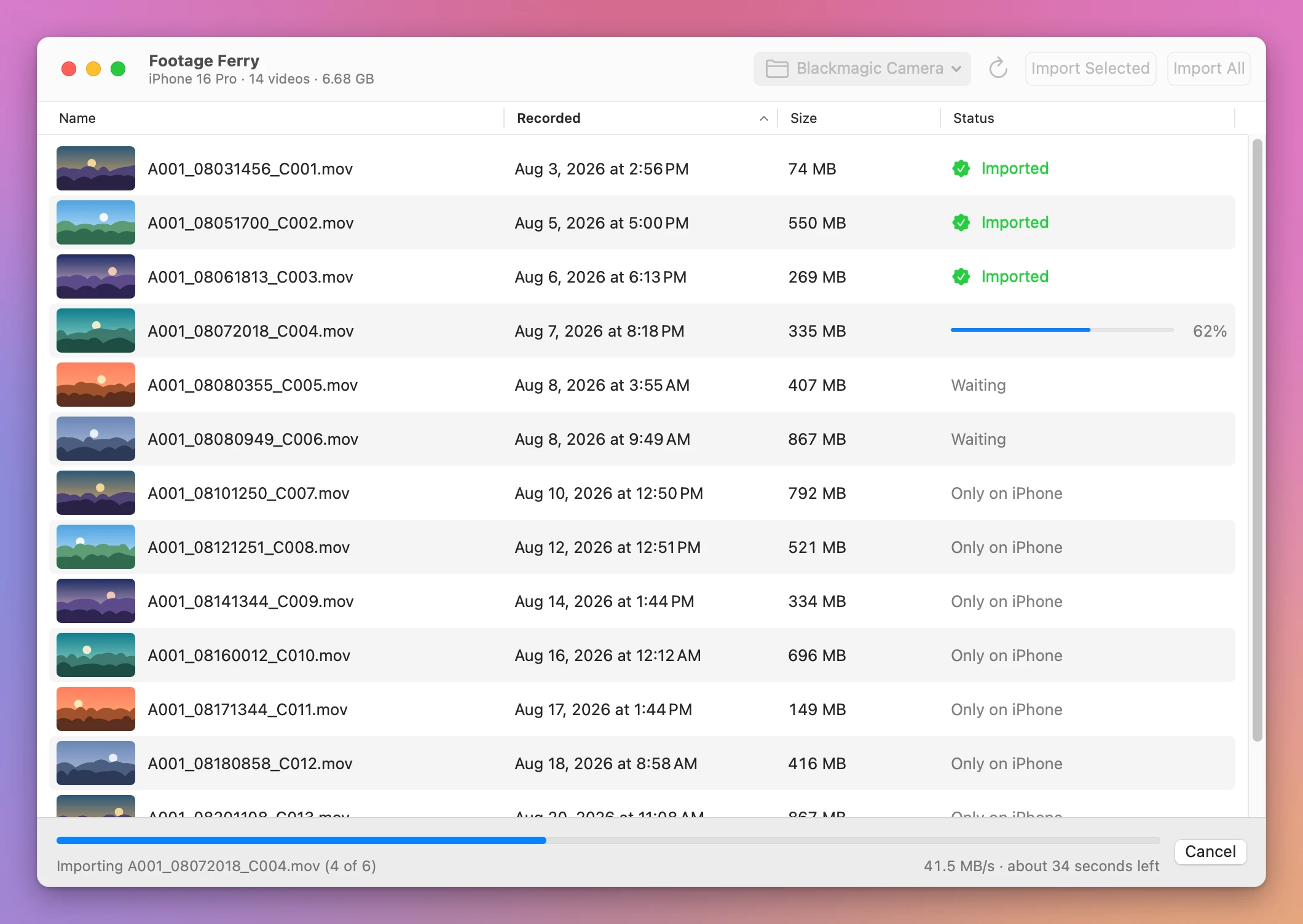
- Click Import All, or select a few clips and click Import Selected. The bottom bar shows the clip being copied, the speed and the time left, and the Mac stays awake.
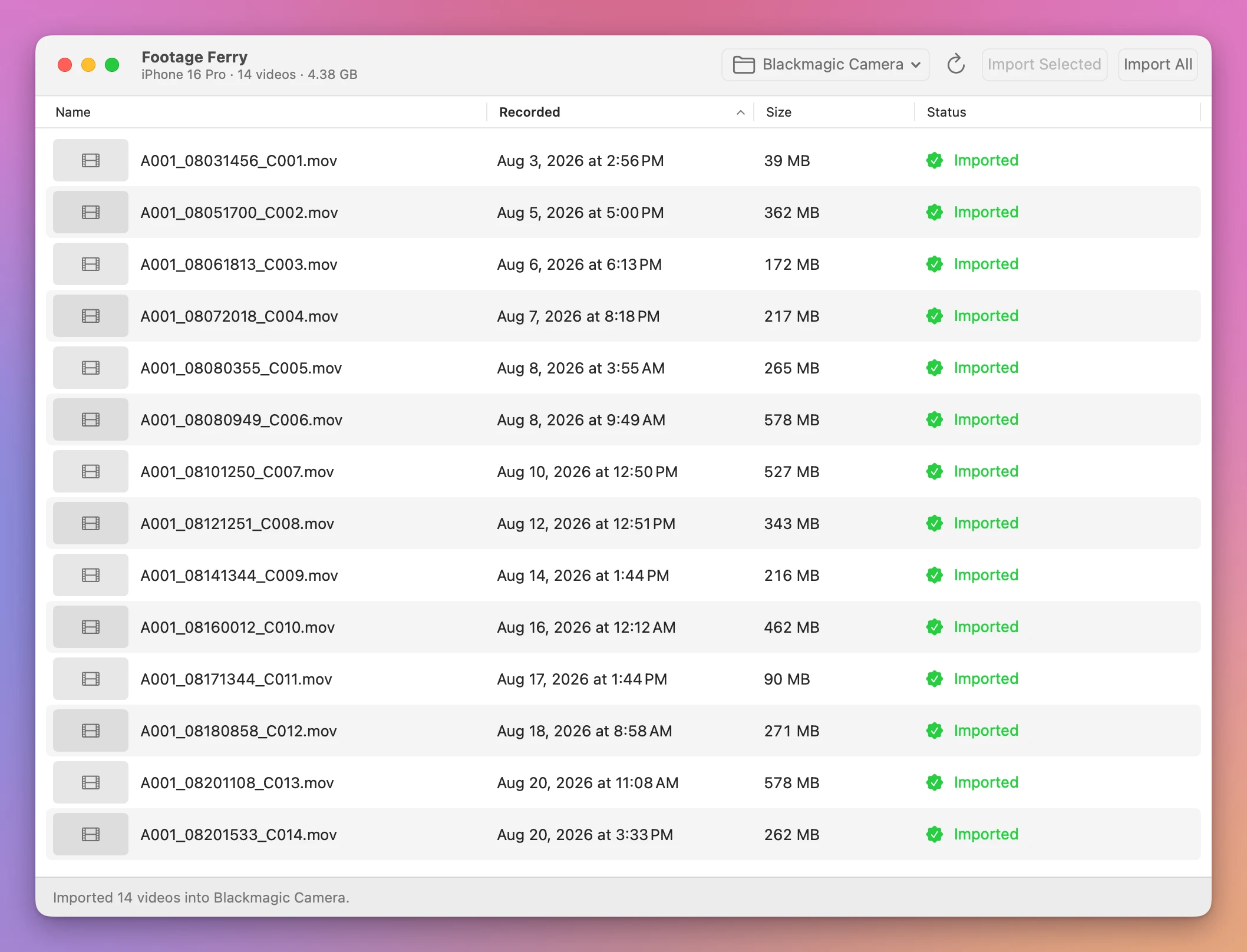
- Each clip goes from a percentage to Checking to Imported.
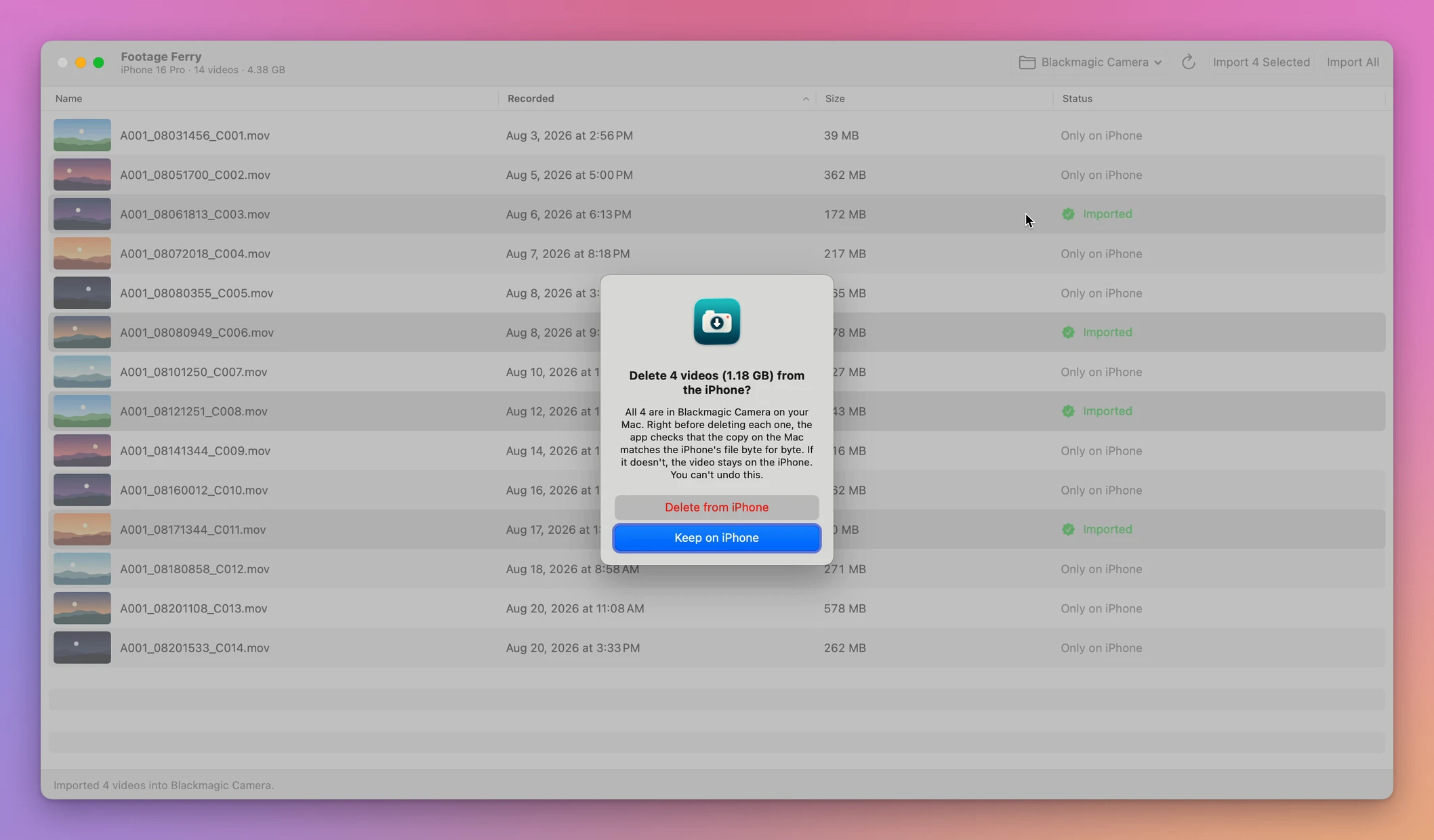
- The app asks whether to delete the clips from the iPhone. Click Keep on iPhone if you want to back up the Mac copies first.
- Later, select the clips and choose Delete Selected from iPhone…. Each copy is checked again right before its clip goes.
With a USB 2 cable, my imports run at about 40 MB/s, so 15 GB is roughly six or seven minutes of copying. You don’t have to watch it, because the Status column tells you what made it.
Checked byte for byte
Every clip is copied into a hidden temporary file first, and written all the way to disk. Then the app reads the file back from the disk, skipping any cached copy, and computes a fingerprint of it, called a SHA-1 hash.
The iPhone computes the same fingerprint of its own file, from its own storage. It takes about a second per gigabyte, so the check doesn’t need a second download. The copy gets the clip’s real name and its recording date only when the two match. Otherwise it’s thrown away.
It never overwrites a file either. Clips already in the folder are checked instead of copied again, and if a different file has the same name, the copy gets a new name, like A001_02211024_C001 2.mov.
Delete only what’s checked
When the import is done, the app asks whether to delete the clips from the iPhone. Keep on iPhone is the default button, so pressing Return never deletes anything. If you click Delete from iPhone, the app runs the whole check again, right before it deletes each clip: the copy has to still be there, have the same size as the iPhone’s file, and the same hash. If anything doesn’t match, that clip stays on the iPhone and an alert tells you why.
Preview before you copy
Click a column to sort by name, recording date or size. Select a clip and press Space, or double-click it, and it plays straight from the iPhone. Nothing is saved to the Mac while you watch.
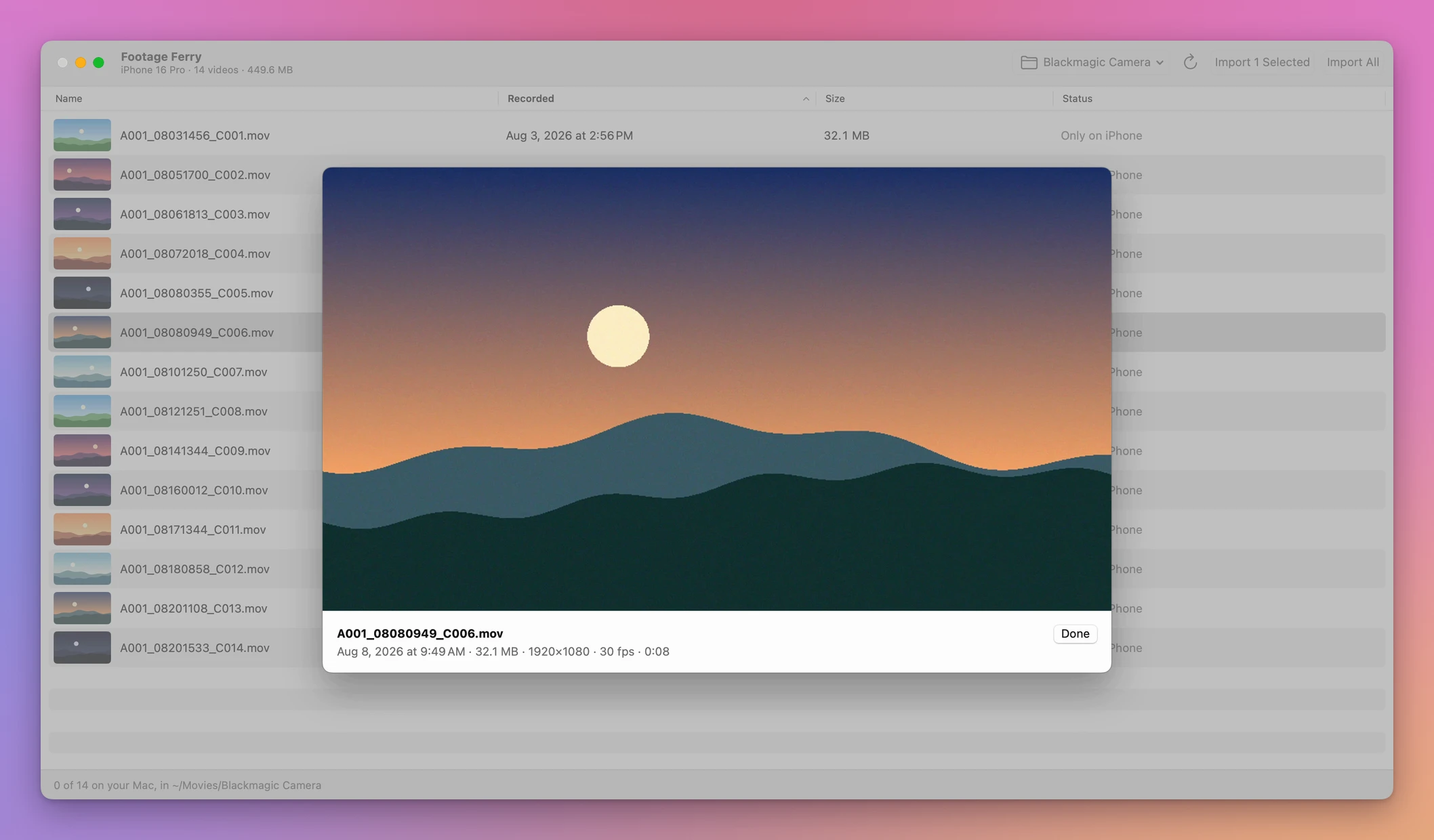
The app reads only the pieces of the clip the player asks for. Blackmagic Camera writes each clip’s index at the end of the file, so a thumbnail of my largest clip, 1.4 GB, reads about 4 MB: the index and one frame. The thumbnails are kept on the Mac, so the list fills in instantly the next time.
Why not drag the files out in the Finder
The Finder can see Blackmagic Camera’s folder when the iPhone is plugged in, and you can drag the clips to a folder on the Mac. Saving to Photos by hand from Blackmagic Camera works too, when it works. For a couple of short clips, either is fine.
For a shoot you care about, they leave you guessing. A file showing up in a Mac folder doesn’t tell you the copy is complete and identical. Nothing tells you which clips are already on the Mac. And when you then delete from the phone, nothing checks the copies first.
| Finder or Photos | Footage Ferry | |
|---|---|---|
| See what’s on the phone | A list of file names | Thumbnails, dates, sizes and a status per clip |
| Watch a take first | Copy it, then open it | Plays straight from the iPhone |
| Know a copy is complete | The file shows up in the folder | Fingerprint matched against the iPhone’s file |
| Clips already on the Mac | You compare by name | Checked, not copied again |
| A file with the same name | You decide in a dialog | Kept, the new copy gets a new name |
| Deleting from the phone | Nothing is checked first | Every copy checked again right before |
What it doesn’t do
- It only sees Blackmagic Camera’s own storage. Clips it saved to Photos or to an external drive don’t show up.
- It doesn’t use Wi-Fi. It needs a USB cable.
- It doesn’t make a backup for you. It copies to one folder. Back that folder up the way you back up everything else.
- It doesn’t convert or trim clips. They arrive as Blackmagic Camera recorded them.
- It doesn’t delete anything you didn’t confirm.
Questions
Why is my import slow?
The cable sets the speed. The 15 Pro and later Pro iPhones support USB 3, up to 10 Gb/s, and when one of them is connected at USB 2 speed, the app says so at the bottom of the window. A USB 3 cable plugged straight into the Mac can make imports much faster.
Does anything get uploaded?
No. Your videos go only from the iPhone to the folder you picked. The app goes online to check for updates, and there are no accounts or analytics.
Why isn’t it on the Mac App Store?
To talk to the iPhone, the app uses the same part of macOS the Finder uses to see your iPhone and its apps’ files. Apple doesn’t document it for other apps, so it can’t be on the Mac App Store, and a macOS update could change it. If one does, check your purchase page for a newer version.
Do I need Xcode or other software?
No. Everything it needs ships with macOS 14 Sonoma or later.
Who makes it?
Footage Ferry is my own project. It’s not made by, affiliated with or endorsed by Blackmagic Design.
It’s provided as is, without warranty. The app checks every copy before it offers to delete anything, but I’m not responsible for lost videos or damage to your devices. Keep a backup of footage you care about, and look at your copies before you delete the originals.
The documentation covers every step, and the transfer tutorial walks through a full import.
Buy Footage Ferry and get started
Footage Ferry costs $20 including tax, paid once. The download contains the notarized Mac app.
Download the app from your purchase page, unzip it, and drag Footage Ferry to Applications. It runs on macOS 14 Sonoma or later on Apple silicon and Intel Macs.
The Creem and Paddle download checks for updates without a license key. If you bought through Polar, your original receipt still has its downloads and your key for in-app updates.
On a PC? There’s a Windows version of Footage Ferry. It’s a separate app with its own purchase.