
A developer tool by Flavio
Skill Cabinet
Find agent skills on your Mac, see which agents load each one, share them across folders, and track how often you use them.
Buy Skill Cabinet · $20One-time purchase. Tax included. Source code included.
macOS 14 or later · Apple silicon and Intel
Latest version 1.8.0, released November 20, 2026
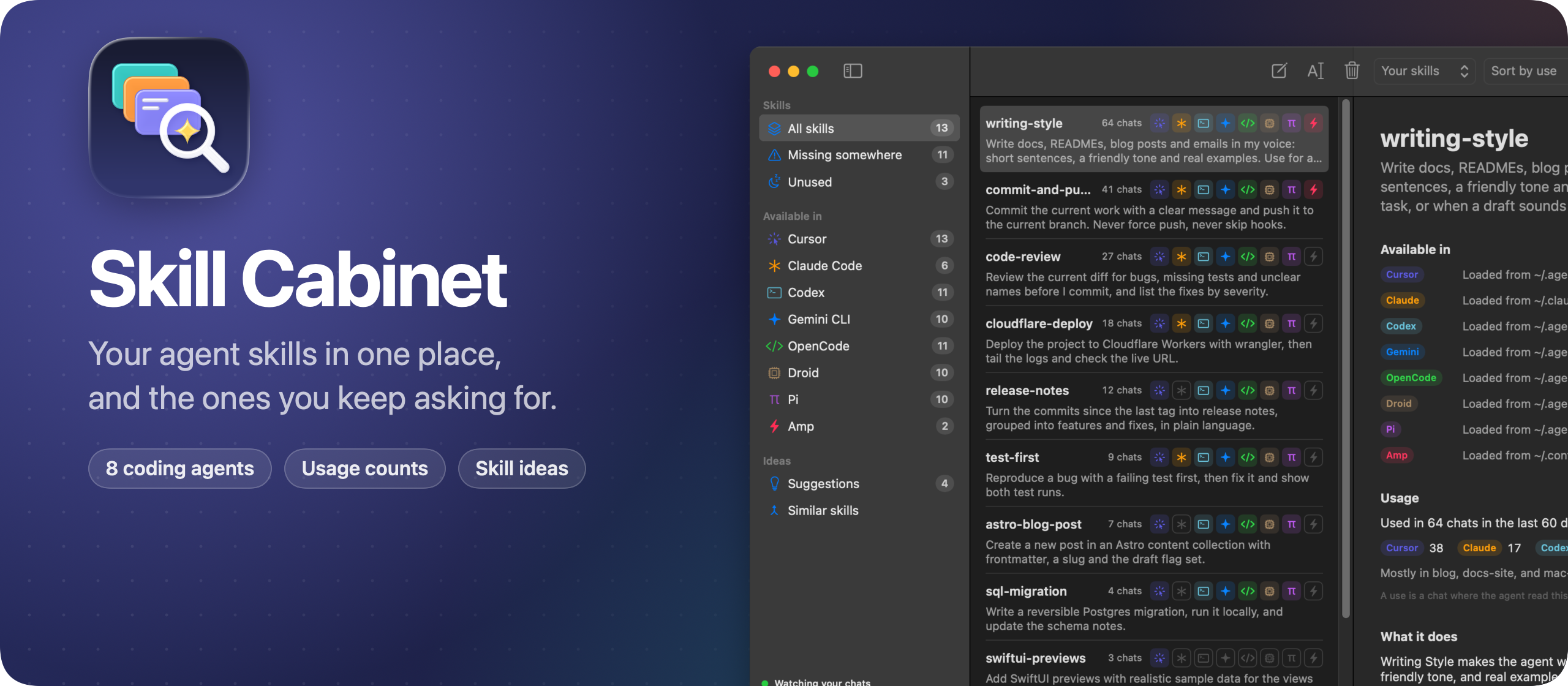
You wrote a skill for Claude Code. Does Codex see it?
A skill is a folder with a SKILL.md file that teaches an agent one task. You write one for release notes, one for your deploy, one for the way you like PR descriptions. A month later you have 40 of them, spread over five folders.
Each agent reads skills from its own folders, and some also read the folders of the others. A skill you wrote for Claude Code loads in Cursor, but not in Codex. You switch agents for a day and wonder why it ignores the rule you wrote last week.
Skill Cabinet is a macOS app that shows every skill on your Mac, which agents load it, and how often your chats used it. One click links a skill into an agent that can’t see it.
Here it is, going through a made-up set of skills and chats:
The skills, chats and projects in the video and the screenshots are made up.
Who it’s for
- Developers who switch between agents. You use Claude Code at your desk and Codex for long runs. Your
release-notesskill lives in~/.claude/skills, so Codex never loads it. Missing somewhere shows you that, and Add to fixes it. - People moving from one coding tool to another. You’re trying OpenCode or Amp after months in Cursor. You want your 30 skills to come along without copying folders by hand and ending up with two versions of each.
- Anyone whose skills folder got messy. You have
deploy,cloudflare-deployanddeploy-worker, written months apart. Similar skills pairs the ones that read alike, and Merge with AI writes oneSKILL.mdfrom both. - Developers who install plugins. Plugins bring their own skills, and Cursor and Codex ship built-in ones. The toolbar filter shows yours, the plugin ones, the built-in ones, or all.
- People who keep typing the same request. “Check the links before deploying.” “Bump the version and tag it.” Find repeated tasks spots those in your chats and drafts a skill for each.
The agents it knows
Skill Cabinet knows 8 agents: Cursor, Claude Code, Codex, Gemini CLI, OpenCode, Droid, Pi and Amp. It finds the skills in all their folders and groups the copies of a skill under one name.
It also knows which folders each agent reads. Six of them share ~/.agents/skills, Cursor and OpenCode also load ~/.claude/skills, and Claude Code and Amp only read their own folder. So every skill gets a row of icons with the agents that load it. You can turn off any agent in Settings.
Clean up your skills in ten minutes
Here’s a typical first session with the app.
- Open Skill Cabinet. The list starts with your own skills, the newest first. Press ⌘F to search by name or description.
- Click Missing somewhere. It lists the skills that at least one of your agents can’t see.
- Pick a skill, like
release-notes. Available in lists all 8 agents, with the folder each one loads it from. The others get an Add to button. - Click Add to Claude Code. Skill Cabinet links the skill folder into that agent’s skills folder. Every agent now loads the same
SKILL.md, so an edit reaches all of them. - Click Unused. It lists the skills no chat touched in the last 60 days. Read each one and decide if it still earns its place.
- For a skill you’re done with, click Uninstall this skill. Skill Cabinet tells you which agents will stop loading it, then moves every copy to the Trash, links included.
- Open Similar skills. Pick a pair, choose the name to keep and click Merge with AI. Read the merged
SKILL.md, edit it if you like, then click Merge into.
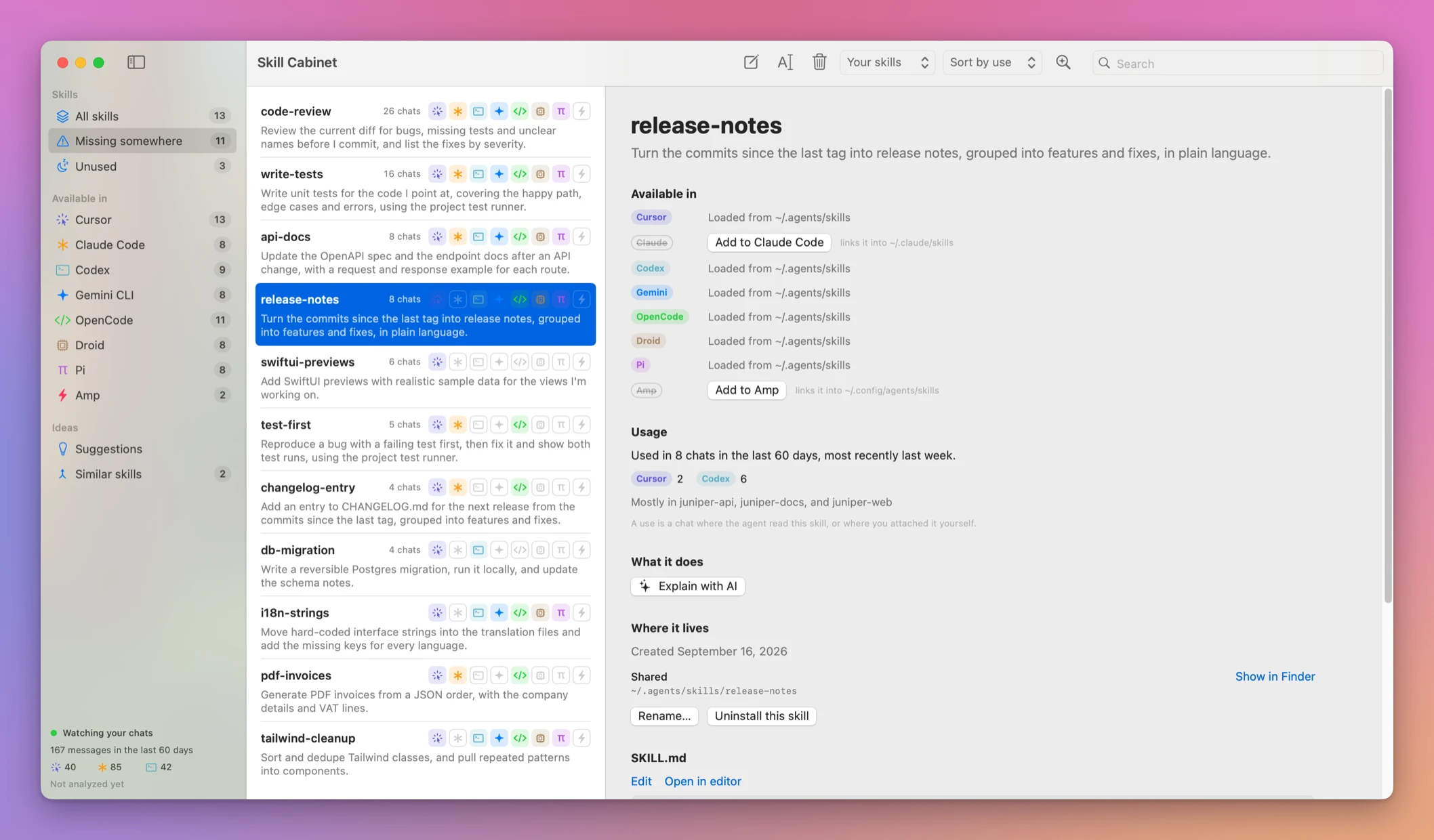
Share, edit, rename and remove
Add to creates a symbolic link to the skill folder. Plugin skills are copied instead, because a plugin update replaces its folders.
Edit and rename
Click Edit to change a skill’s SKILL.md in the app. Skill Cabinet saves the text to every copy that had the same text, and leaves differing and plugin copies alone. If an agent changes the file while you’re editing, the app warns you before saving over it.
Rename… moves the skill’s folders and links to the new name and changes the name in its SKILL.md. Names use lowercase letters, numbers and hyphens. The chats that used the old name keep counting.
Remove one copy, or uninstall them all
Remove takes a skill out of one folder only, which undoes an Add to. Uninstall this skill moves every copy to the Trash. Either way, it tells you first which agents will stop loading the skill.
Merge similar skills
Similar skills compares the words in each skill’s name, description and SKILL.md, with rare words counting more than common ones. It runs on your Mac, without AI, and only pairs your own skills. Click They’re different skills to hide a pair for good.
When you merge, the other skill’s extra files come along and the skill goes to the Trash. The kept skill gets linked wherever the other one was, so no agent loses it.
How often you use each skill
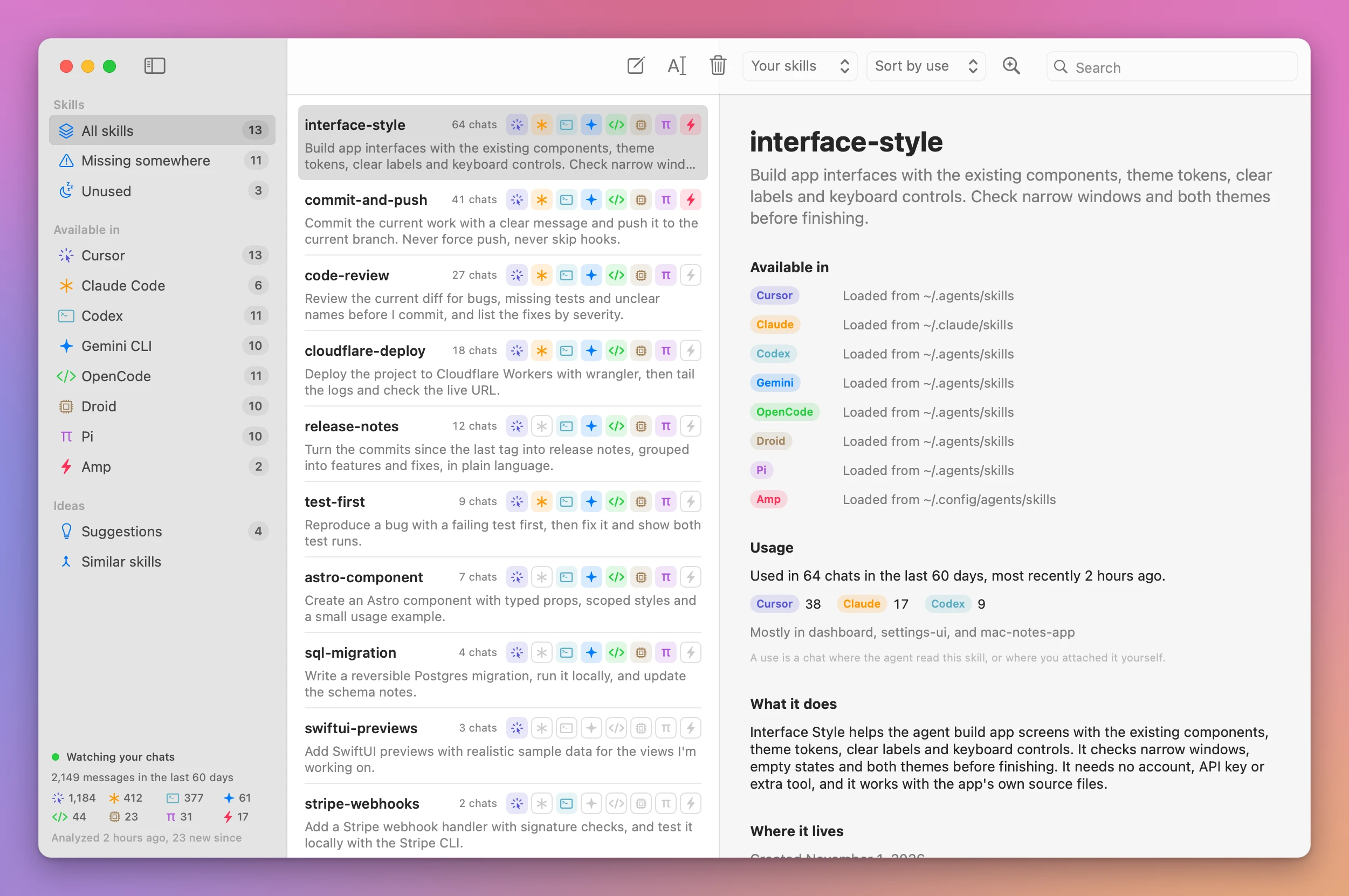
Every agent keeps its history on your Mac, in JSONL or JSON files, or in a SQLite database for OpenCode. Skill Cabinet counts a use when an agent opens a skill’s SKILL.md, or when you attach the skill yourself. A chat counts once per skill.
For each skill you see how many chats used it, from which agents and projects, and when you last used it. It reads 60 days of chats by default, or 30, 90 or 180 if you change it in Settings. A file watcher keeps the counts current while you work.
Skills from the requests you repeat
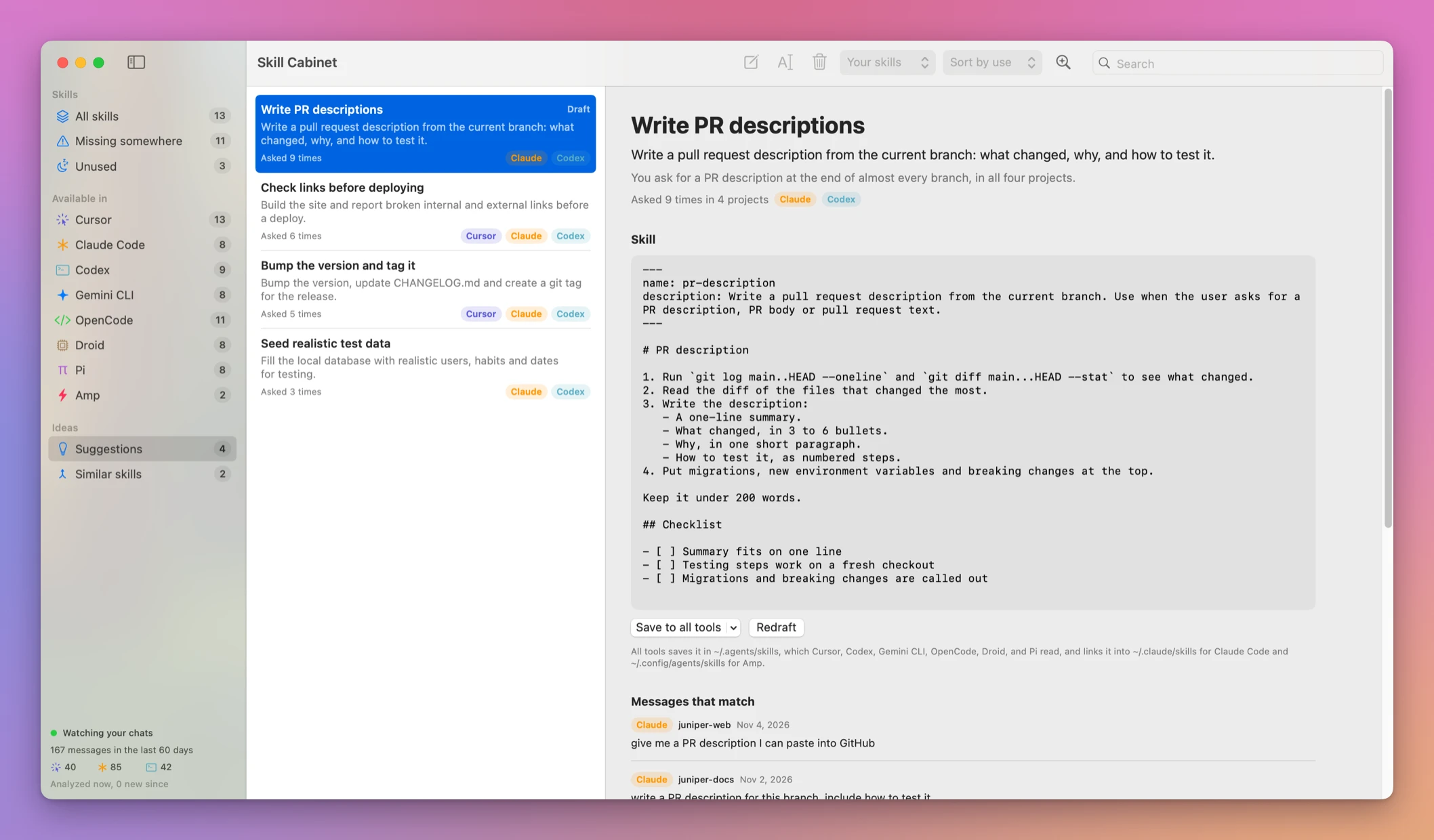
Your chats also hold the requests you type again and again. Find repeated tasks sends your 2,000 most recent messages to the Claude Code or Codex CLI you’re logged in to. It asks for requests a skill could handle, and skips the ones your skills already cover. Each idea shows how many times you asked, in which projects, and the matching messages.
Pick an idea, click Draft the skill with AI, and you get a SKILL.md to edit. Save to all tools writes it to ~/.agents/skills and links it so all 8 agents load it. The menu next to it saves the skill for a single agent.
Explain with AI asks what a skill does, when the agent uses it, and what it needs to work.
The skillscout command
The same data is in your terminal, with the skillscout command that ships inside the app. Install it with Skill Cabinet → Install Command Line Tool….
skillscout list --missinglist shows a column per agent, with a dot where an agent can’t see the skill. Add --json to use it from scripts. The command can add, rename, merge and uninstall skills too, and skillscout merge --dry-run shows the merged SKILL.md first.
Why not do it by hand
You can. Skills are folders, and ls, ln -s and grep work on folders. For three skills and one agent, that’s all you need.
It gets slow with 8 agents and a few dozen skills. You have to remember which agent reads which folder. A symlink with the wrong path fails quietly. And no shell command tells you which skills your chats used last month, because each agent stores its history differently.
| By hand | Skill Cabinet | |
|---|---|---|
| Which agents load a skill | Know the folder rules for 8 agents, ls each folder | A row of icons per skill |
| Sharing a skill | ln -s per agent, with the right paths | Add to, one click |
| Usage | Read JSONL, JSON and SQLite chat logs | Chats per skill, by agent and project |
| Duplicates | Read the skills and remember | Similar skills, compared on your Mac |
| Removing a skill | rm -rf each copy, links break | Trash, with the agents that lose it listed first |
| Repeated requests | Notice them yourself | Find repeated tasks |
What it doesn’t do
- It doesn’t manage plugin or built-in skills. It lists them and can copy a plugin skill to another agent, but their agents own them.
- It only knows 8 agents. An agent outside that list isn’t scanned.
- It doesn’t judge a skill by its usage. Unused only describes the chat history it could read.
- The AI features need Claude Code or Codex. Explain with AI, Find repeated tasks, Draft the skill with AI and Merge with AI run the CLI you’re signed in to. Without one, the rest of the app still works.
- It doesn’t sync anything. There are no accounts and no cloud. It works on the folders of one Mac.
Questions
Does anything leave my Mac?
Skill Cabinet reads your skills and chats on your Mac, and there are no accounts. Your chats leave your Mac only when you use the AI features, through your own Codex or Claude Code account. Repeated-task analysis sends recent messages, and merging sends both skill files. Keep that in mind for private material.
Can I undo an uninstall?
Yes. Every copy goes to the Trash, links included, so you can put it back from there. Remove on a single folder leaves the target folder in place.
Does it work on Intel Macs?
Yes. It runs on macOS 14 Sonoma or later, on Apple silicon and Intel. Under the hood it’s a SwiftUI app with no dependencies.
Is the source code included?
Yes. The purchase page delivers a source ZIP along with the app. A build you make yourself doesn’t check for updates.
The documentation covers every view and command.
What you get
Skill Cabinet costs $20 including tax, paid once. The purchase includes the signed Mac app and automatic updates.
Download and install
After purchase, download the signed and notarized Mac app ZIP from your purchase page.
Unzip the Mac app and drag Skill Cabinet to your Applications folder. It runs on macOS 14 Sonoma or later, on Apple silicon and Intel.
Skill Cabinet is signed with my Apple Developer ID and notarized by Apple.
Skill Cabinet checks for updates once a day. Choose Skill Cabinet → Check for Updates… to check now and Install and Relaunch to install.
For another look at what your coding agents know, I also made Architecture Dissector, a Mac app that draws how your apps are built from maps the agents write.