
An app by Flavio
PDF Pages to Images
Save a PDF's pages as PNG or JPEG files with a chosen resolution, range and destination.
Buy PDF Pages to Images · $20One-time purchase. Plus tax where it applies.
macOS 14 or later · Apple silicon and Intel
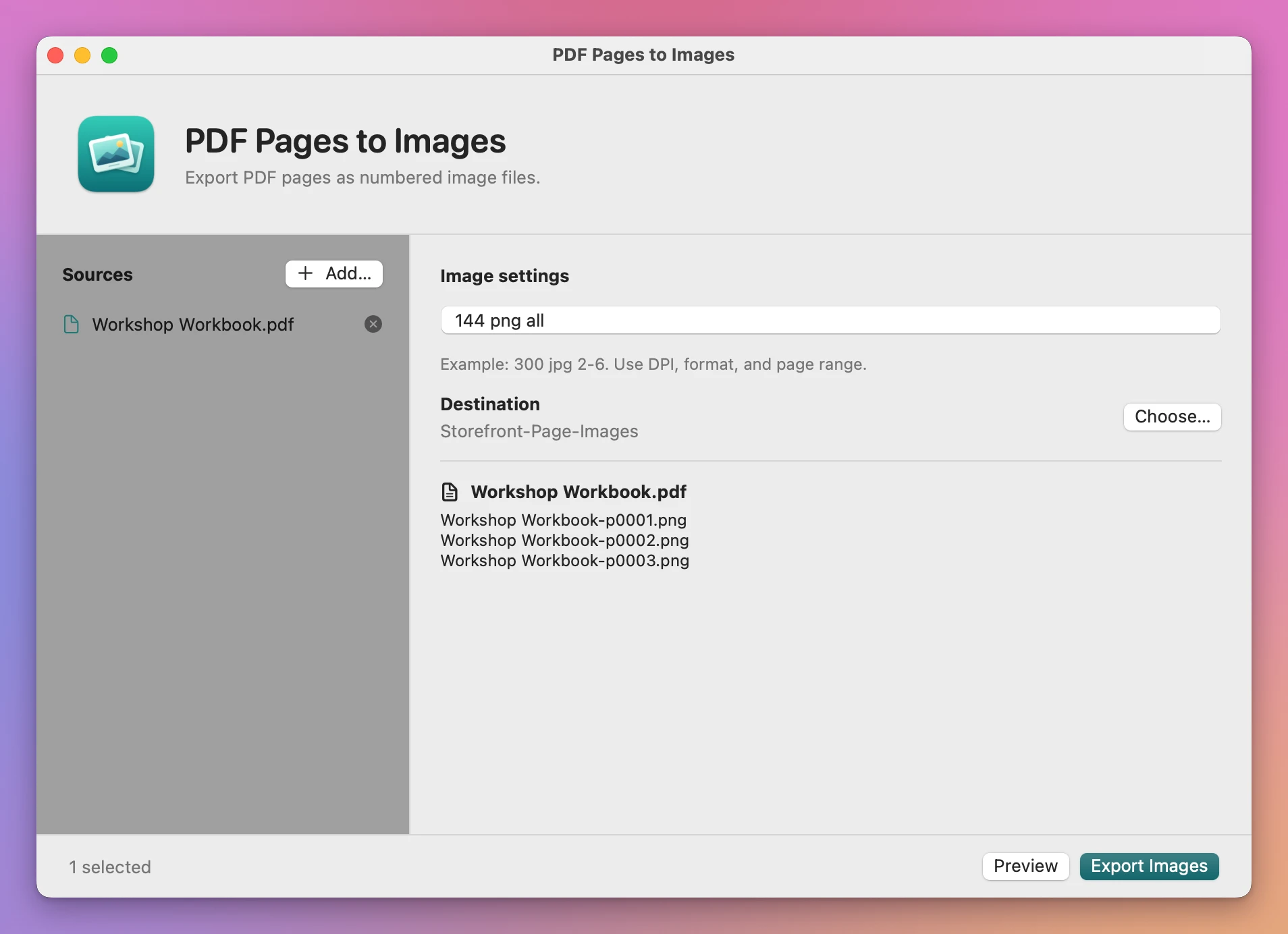
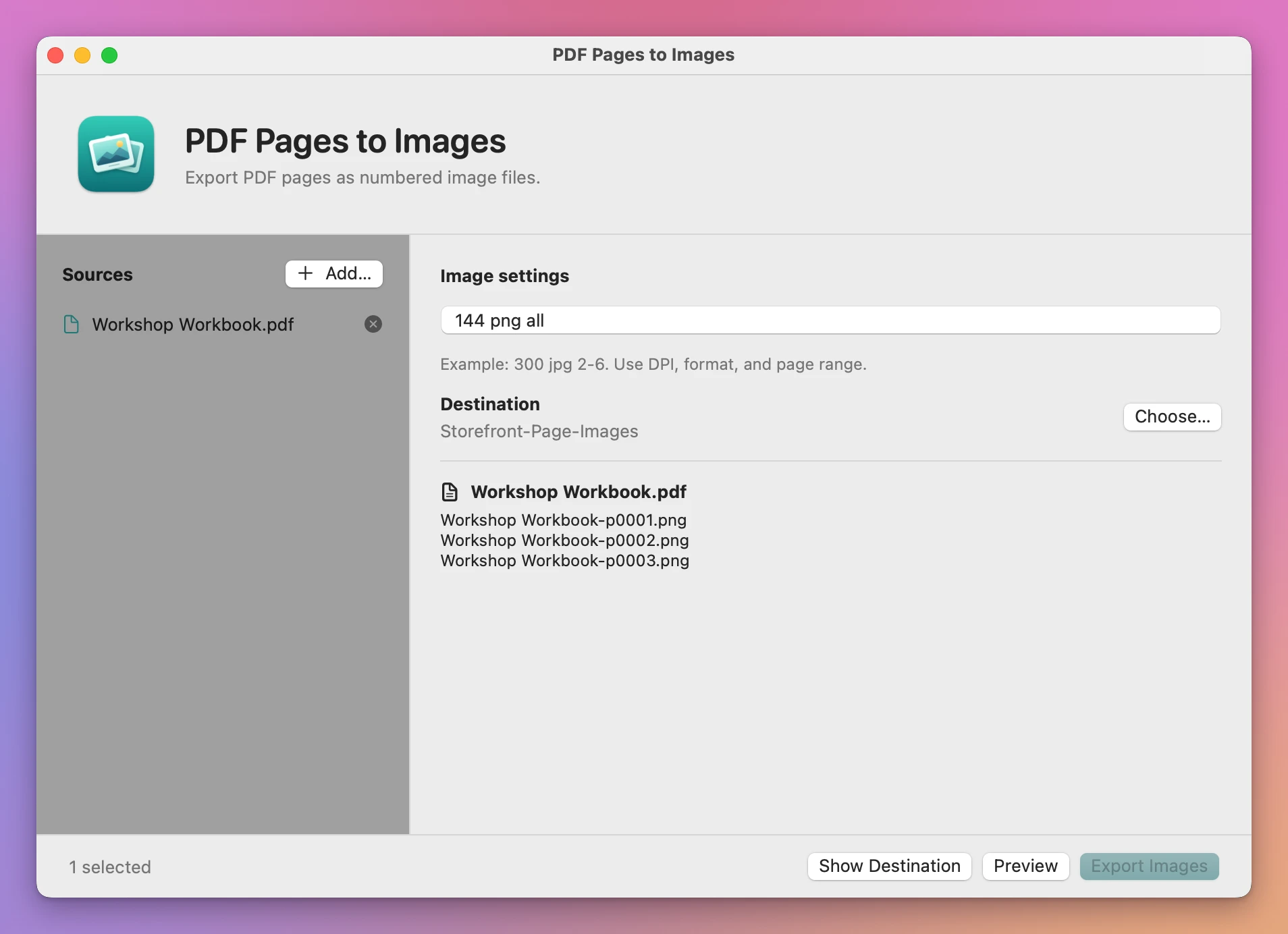
You need the second and third pages of a workbook as images for slides. Add the PDF to PDF Pages to Images, select your settings, then preview the filenames before exporting.
Who it’s for
- Teachers and trainers. You want a page from a worksheet or a textbook on a slide in Keynote or PowerPoint. Export it as an image at the size you need.
- Marketers and course creators. You sell a PDF guide or an ebook. Export a few pages as JPEGs to show on the sales page or in social posts.
- Designers. A client sends a brochure or a menu as a PDF, and you need the pages as images for a mockup or a website.
- Real estate and architecture. Floor plans and brochures arrive as PDFs. Listings and websites want PNG or JPEG.
- Anyone uploading documents to a form. Some sites only accept images. Turn a signed PDF into one image per page.
Why not use Preview
Preview exports one page at a time, and you pick the format and type a name each time. That’s fine for one page. For a 40-page document, or ten PDFs, it’s an afternoon.
PDF Pages to Images exports every page you choose, from every PDF you add, with the same resolution and with names that tell you which page each image came from.
Choose the pages and resolution
Use 144 png 2-3 to save pages 2 and 3 as PNGs at 144 DPI. The app writes Workshop Workbook-p0002.png and Workshop Workbook-p0003.png. The numbers follow the source PDF, so you can trace each image back to its page.
Add more PDFs to apply the same settings to a batch. A file with fewer pages than the requested range gets its own error.
Use it on your Mac
PDF Pages to Images runs on macOS 14 Sonoma or later, on Apple silicon and Intel.
Processing happens on your Mac.
Buy PDF Pages to Images
$20 plus tax where it applies, paid once.
Download the ZIP after checkout, unzip it and drag the app to Applications. The download is signed and notarized.
The app checks for updates once a day. When a new version is ready, click Install and Relaunch. To check anytime, choose PDF Pages to Images → Check for Updates….