
An app by Flavio
PDF Metadata Mapper
Fill the empty title, author and date of hundreds of PDFs from their filenames or a CSV. Preview every field, then save copies. Originals stay as they are.
Buy PDF Metadata Mapper · $20One-time purchase. Plus tax where it applies.
macOS 14 or later · Apple silicon and Intel
You have 300 PDFs with good filenames, like Ada Studio - Color Workshop.pdf. The author and the title are right there in the name. Inside the files, the title and author fields are empty.
Those empty fields show up in more places than you’d think. A browser tab shows the PDF’s own title when it has one. Reader apps, library tools and document systems read those fields to sort and search. With empty fields, you get a list of blanks, or of filenames cut off halfway.
Filling them by hand means opening each PDF’s properties in an editor, pasting the title, pasting the author and saving. For 300 files, that’s a day of copy and paste. PDF Metadata Mapper reads the values from the filenames, or from a spreadsheet you already have, shows you every field it will add, and saves copies with the fields filled in.
Who it’s for
- Course creators and small publishers who upload 40 lesson PDFs to a store. Some came out of the export with an empty title or author, and you want every file to carry the lesson title and your name before a customer opens it.
- Libraries, archives and school offices with a scanned collection. Scans often come out with empty fields, and the catalog is already in a spreadsheet with the filename, title, author and date of each document.
- Website owners hosting a few hundred PDFs: reports, manuals, menus. Visitors who open one see the PDF’s own title in the browser tab, when it has one.
- Readers with a big PDF library whose files are named
Author - Title.pdfbut have nothing inside. Any app that reads the metadata can sort and search them properly once the fields are filled. - Offices filing documents into a records or document management system that indexes the title, author and date. You fill them from the filenames before the import, instead of typing them into the system one record at a time.
From filenames to filled-in PDFs
Say your files are all named Author - Title.pdf.
- Open PDF Metadata Mapper and click Add PDFs…, or drop the PDFs onto the window.
- Under Metadata source, leave Filename pattern selected and type the pattern your names follow:
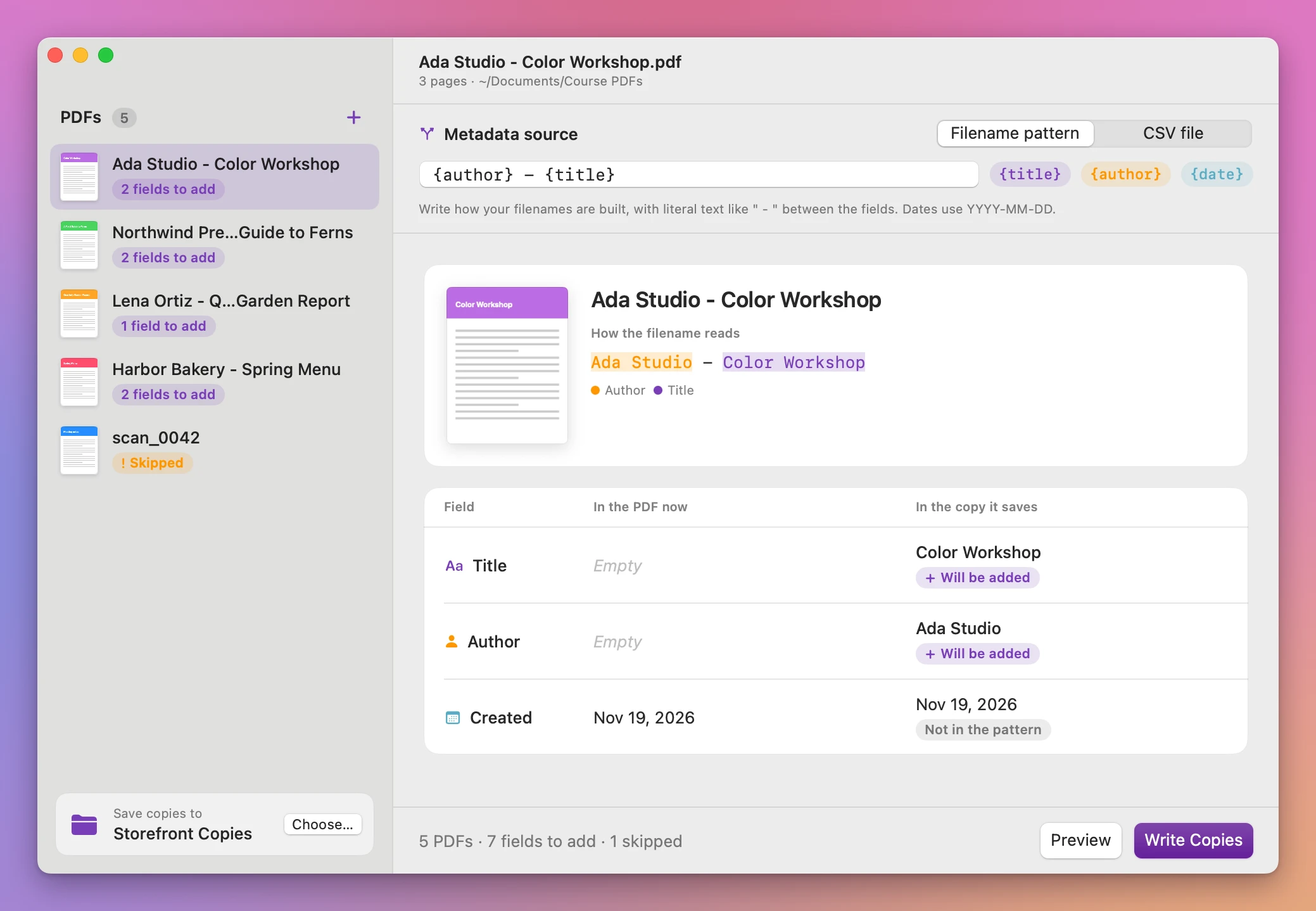
{author} - {title}. That’s the default, and the app remembers what you type. The buttons next to the field add{title},{author}or{date}for you, and the selected file’s name is colored to show which part goes where. - Next to Save copies to, at the bottom of the sidebar, click Choose… and pick a folder for the copies.
- Click Preview. Each PDF in the sidebar now says how many fields it gets. Select one to see its title, author and creation date as they are in the PDF and as they’ll be in the copy, like Color Workshop and Ada Studio marked Will be added.
- Read down the list. A file whose name doesn’t follow the pattern is marked Skipped, with “This filename doesn’t match the pattern.” Fix its name, or leave it out of the batch.
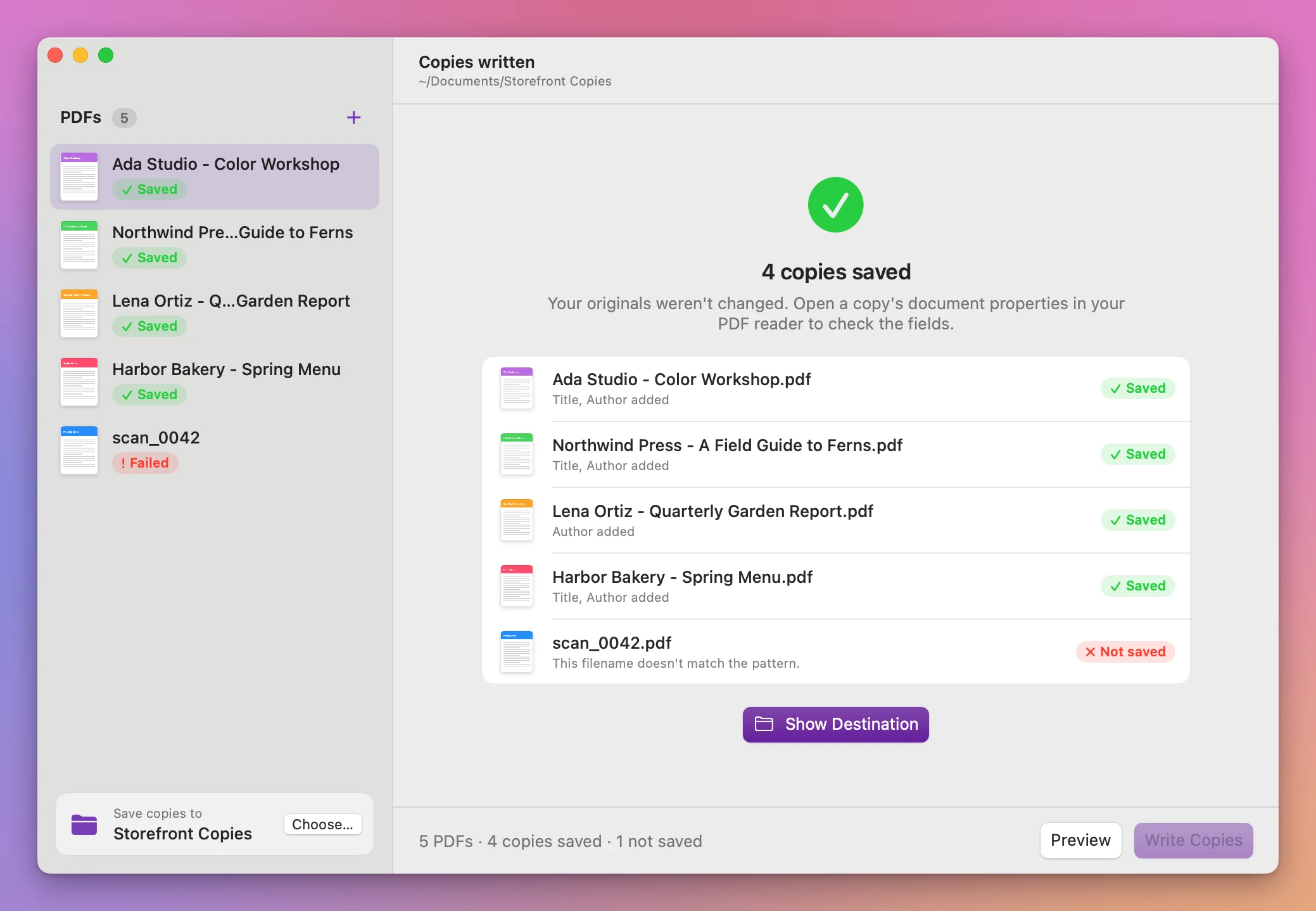
- Click Write Copies. Each copy is saved in the folder with its original filename. The summary lists every copy with the fields it got, and any file that wasn’t saved. Show Destination opens the folder.
Then open one of the copies and check its document properties in your PDF reader, to see the fields the way your readers will.
Patterns from filenames
A pattern uses up to three fields, {title}, {author} and {date}, with the literal text that sits between them in your filenames. A few examples:
| Filename | Pattern | Result |
|---|---|---|
Ada Studio - Color Workshop.pdf | {author} - {title} | Author Ada Studio, title Color Workshop |
2026-03-14 Annual report.pdf | {date} {title} | Date March 14, 2026, title Annual report |
Color Workshop (Ada Studio).pdf | {title} ({author}) | Title Color Workshop, author Ada Studio |
The pattern has to match the whole name, without .pdf. Each field must be separated by some text, like - or a space, so the app knows where one ends and the next starts.
When the separator appears more than once, the first field takes the shortest match. With {author} - {title}, the file Ada Studio - Color - A Workshop.pdf gets the author Ada Studio and the title Color - A Workshop.
Dates use YYYY-MM-DD and fill the PDF’s creation date. A date like 14-03-2026 gets the message “Use YYYY-MM-DD for date.”
A CSV when the names don’t help
When filenames are inconsistent, or the titles live in a spreadsheet, use a CSV instead. Its first row must be exactly this:
filename,title,author,date
Ada Studio - Color Workshop.pdf,Color Workshop,Ada Studio,2026-11-17
Each row names a PDF exactly, including .pdf, and gives its values. Leave a cell empty to skip that field for that file. Titles with commas work when they’re in quotes, like "Color, Shape and Light".
Export the sheet as CSV from Numbers, Excel or Google Sheets. Then, under Metadata source, switch to CSV file, click Choose CSV… and pick it.
A PDF with no row, or with two rows, is marked Skipped with the reason. The others still go through.
Existing values are kept
The app only fills fields that are empty. If a PDF already has a title, the preview shows the current title marked Kept, already set, and the copy keeps it. The same goes for the author and the date.
Most PDFs already have a creation date from the app that made them, so in practice the date is usually kept.
Keeping values makes the app safe to run on a mixed folder: files that were already set up correctly stay as they were. It also means the app can’t replace a wrong title that’s already there. More on that below.
Copies, not changes
Your PDFs are only read. The copies are saved in the destination you choose, with the same filenames.
If a file with that name already exists there, the copy gets a number, like Ada Studio - Color Workshop (2).pdf. Nothing is replaced. If you pick the folder the originals are in, you get numbered copies next to them, so an empty folder is easier.
Why not edit it one file at a time
Preview shows a PDF’s title and author, but it doesn’t let you type new ones. Apps that can edit them usually do it through a properties window, one file at a time. That’s fine for three files. For 300, it’s open, paste, paste, save, 300 times.
If you’re at home in Terminal, a tool like exiftool can set these fields in bulk too. You write the commands, and there’s no preview of what each file will get.
| One file at a time | PDF Metadata Mapper | |
|---|---|---|
| 300 PDFs | 300 rounds of open, paste, paste, save | One pattern, one preview, one click |
| Where the values come from | Copied by hand from the filename | Read from the filename or a CSV |
| Checking first | Not possible | Every field listed before saving |
| Fields that are already set | Easy to overwrite by mistake | Kept, and marked as kept |
| Your original files | Changed in place | Only read, copies saved separately |
What it doesn’t do
It fills three fields: title, author and creation date. Subject, keywords and the modification date aren’t changed.
It doesn’t overwrite. A PDF whose title is already set to something like “Document1” keeps that title, and the preview marks it as kept. This app is for empty fields.
It doesn’t rename files. If your filenames need fixing first, CSV File Renamer makes renamed copies from a two-column CSV.
The copies are saved again by macOS’s PDF engine, so the file isn’t byte-identical to the original. Don’t use it on digitally signed PDFs, since rewriting a signed file can break its signature.
Multi-line cells in the CSV aren’t supported.
Locked or damaged PDFs need to be unlocked or repaired first.
Questions
Does it change my original PDFs?
They’re only read. The fields are written into copies in the destination you choose.
Does anything get uploaded?
Nothing leaves your Mac. The app reads the PDFs and your CSV locally, and goes online only to check for updates.
Can it fix titles that are wrong?
It only fills fields that are empty. A title that’s already there is kept, and the preview tells you so.
Do I need the date?
Use only the fields your names contain. {author} - {title} is enough, and empty CSV cells are skipped.
How do I know the fields worked?
The preview lists every field before you save. After saving, open a copy and look at its document properties in your PDF reader.
The PDF Metadata Mapper documentation has more on patterns and CSV files.
Use it on your Mac
PDF Metadata Mapper runs on macOS 14 Sonoma or later, on Apple silicon and Intel.
Processing happens on your Mac.
Buy PDF Metadata Mapper
$20 plus tax where it applies, paid once.
Download the ZIP after checkout, unzip it and drag the app to Applications. The download is signed and notarized.
The app checks for updates once a day. When a new version is ready, click Install and Relaunch. To check anytime, choose PDF Metadata Mapper → Check for Updates….