
An app by Flavio
Mind Map
A native Mac mind map app that AI agents can drive through its included CLI. Use a whole map or a focused branch as context in a Codex chat.
Buy Mind Map · $20One-time purchase. Tax included. Full source code.
macOS 15 or later · Apple silicon and Intel
Start with an idea in the middle. Add a branch, write a few topics, and move things around as the idea takes shape.
Mind Map keeps those ideas in a native Mac window. The same map can become an editable outline or a presentation with speaker notes.
AI agents can create and edit your maps through the included mindmap CLI. Ask an agent to build a map from your notes, break an idea into smaller steps or reorganize a branch. Its edits appear in the app automatically.
You can also bring a whole map or one branch into an AI chat to discuss and develop it. The Codex toolbar button prepares the draft for you.
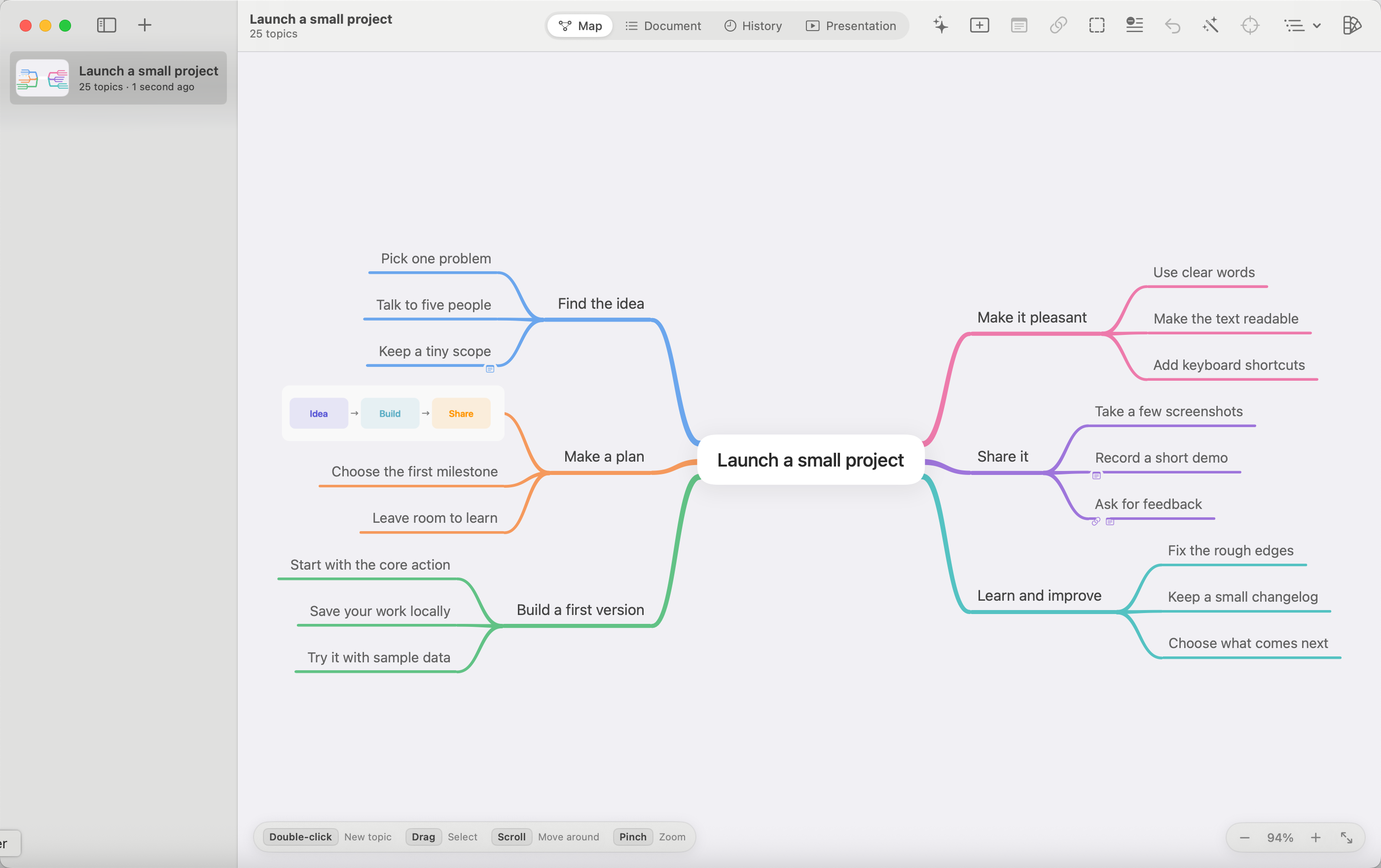
A new installation includes Launch a small project, a fictional sample you can change. File → New Sample Map creates another copy whenever you want to try something.
Work on your ideas with a coding agent
The included CLI lets a local AI agent read your map, add or rename topics, move branches, and update notes and links. Codex, Cursor and Claude Code can use it through local command-line access. You can ask an agent to create a new map or work on one you’ve already started.
You can also “feed” your map to an agent as context for a chat. Click Codex in the toolbar to open a prepared draft in the installed Codex app. It includes the map ID and instructions for reading the map through the CLI. Add a question such as “What am I missing in this plan?” or ask it to turn your ideas into implementation tasks. Send the message when you’re ready.
To work on a portion of a map, select a topic and press Shift-Command-F to focus on its branch before clicking Codex. The draft asks the agent to work on that topic and its descendants, leaving the rest of the map alone. This sets the task’s scope; the CLI can still read the whole map.
For example, ask: “Turn the Build branch into a checklist I can finish over the weekend. Suggest the changes before editing.” CLI edits appear in Mind Map automatically and support undo.
The one-click toolbar button opens Codex. For Cursor or Claude Code, use the CLI setup and copyable prompt in the documentation. Install and configure your chosen agent separately; any service costs are separate from Mind Map.
Build a map with the keyboard
Select a topic and press Tab to add a child. Return adds a sibling. Space edits the selection, and the arrow keys move between topics.
The map arranges branches as you write. Text wraps inside its topic, and deeper topics become smaller. You can also double-click empty canvas to start a separate group.
Paste an indented outline or bullet list to add several topics at once. Supported rich-text headings keep their bold formatting.
Drag a topic’s ⊕ handle onto another topic to connect them. Select the arrow and give it a name. Cross-connections let you show a relationship between ideas that belong to different branches.
Maps save automatically. Command-Z undoes an edit, including adding, deleting and moving topics.
Arrange it the way you think
Drag a topic and its branch moves with it. Move it between siblings to reorder them, or drop it on another topic to give it a new parent. A branch moved farther from its usual position stays where you put it and continues to follow its parent.
Select several topics with Shift-click, Command-click or a rectangle dragged on empty canvas. Move the selection together. The corner dot on a single selected topic changes its width, with text wrapping as you resize it.
Use Reset Position to put a moved topic back with its siblings. Size to Fit Content clears a custom width. Auto Layout fits the topics to their content and arranges separate groups. You can undo it if you prefer the earlier layout.
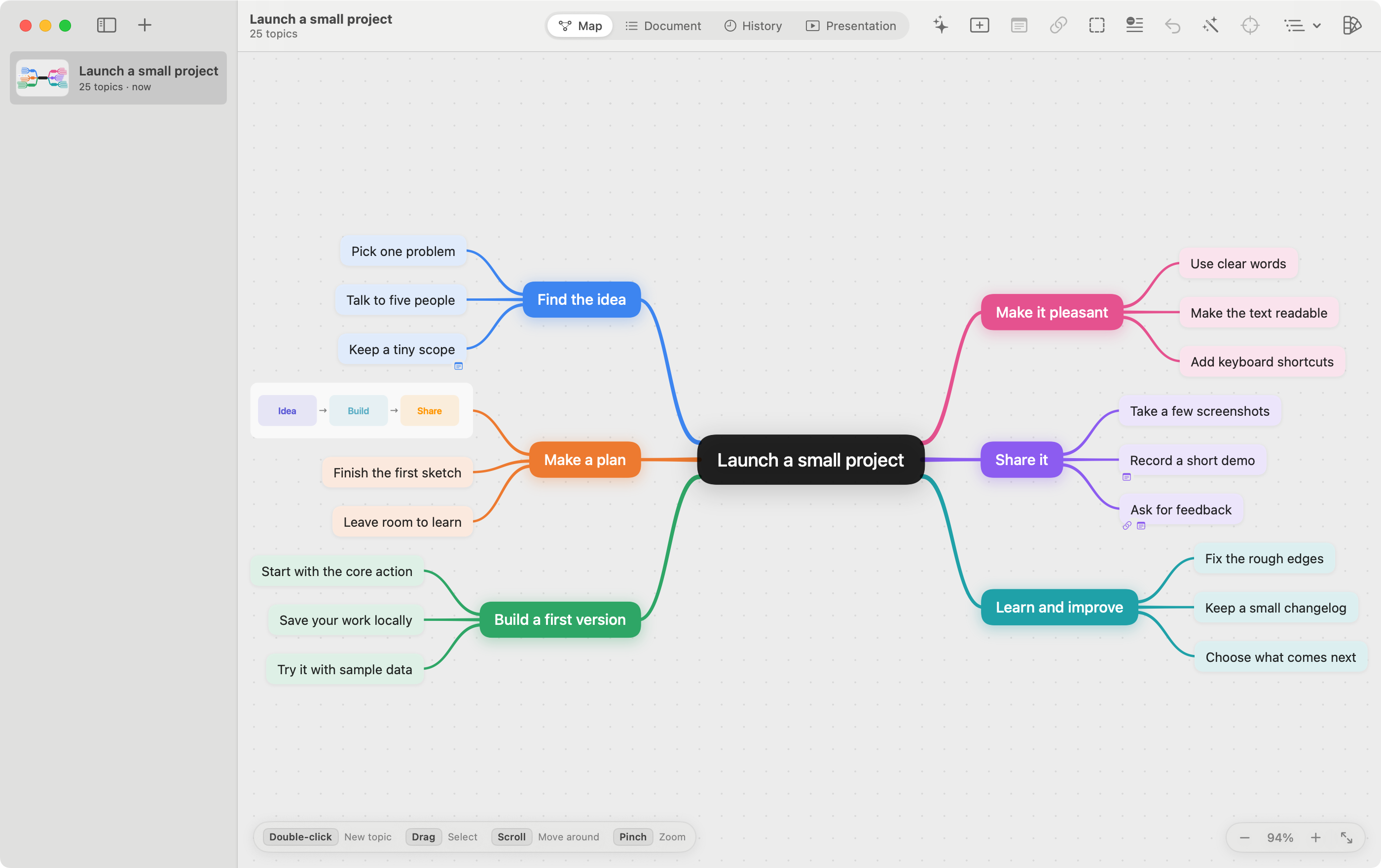
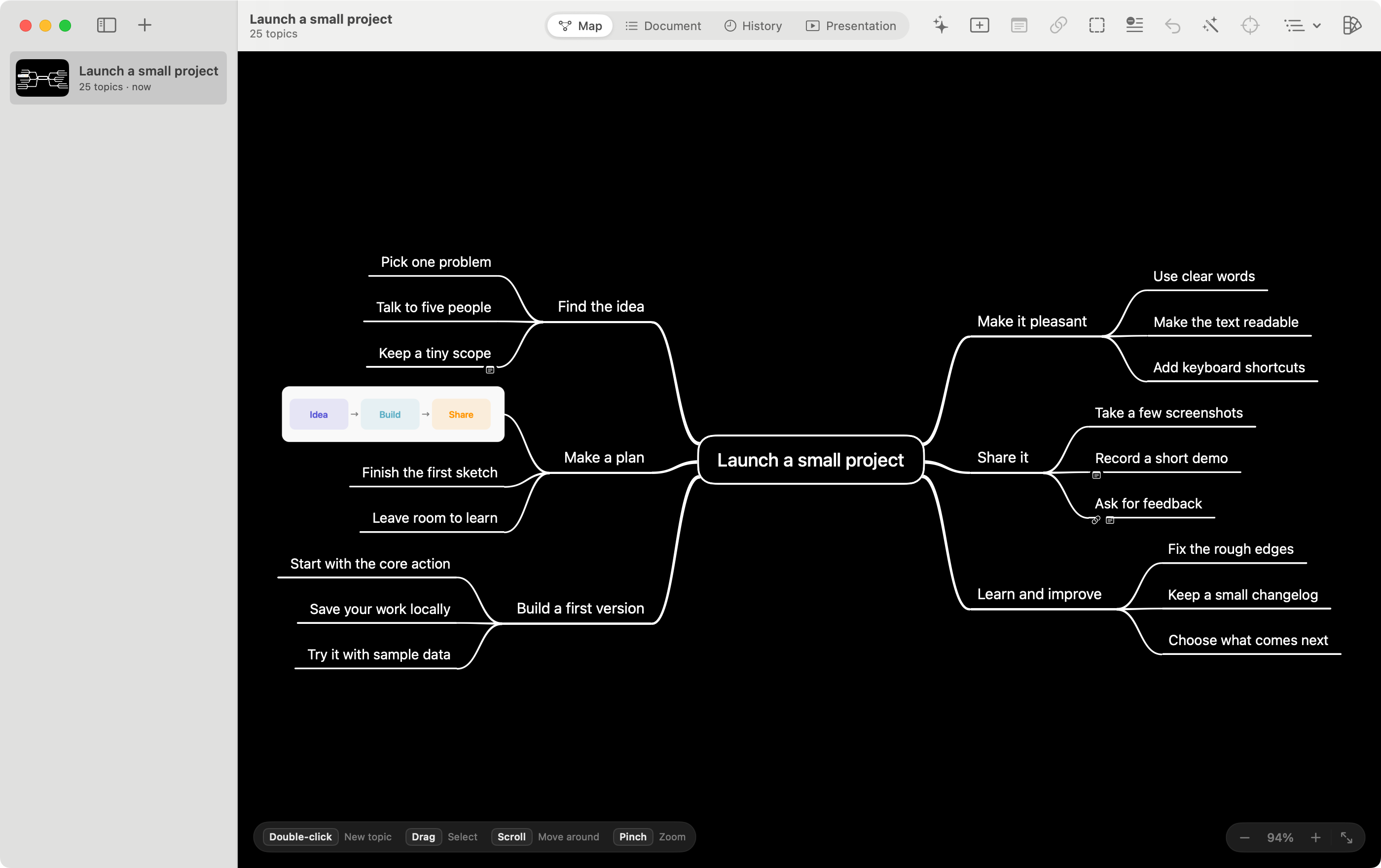
Each map has its own theme. Boxes uses colored topics and follows your Mac’s appearance. Colorful puts text on soft branches against a light canvas. Black and White uses white branches on black.
Recolor a branch, make selected topics bold or italic, and choose centered or left-aligned text in Settings. The alignment preference also applies to presentations.
Compare Boxes and Black and White
Work on one branch, or several maps
Collapse a branch to put its detail away. Click its marker to open it again. The Levels menu lets you show a chosen depth or expand the whole map.
Focus fills the canvas with one branch. Move up through its ancestors or return to the whole map when you need the wider picture. Scroll to pan, pinch to zoom, or fit the map with Command-0. Dragging empty canvas selects topics.
Maps you’ve opened stay ready while the window is open. Option-1 through Option-9 selects maps in sidebar order. You can also open several windows, each with its own selected map, zoom and undo.
Copy a branch with Command-C, select its destination in another map, and paste. Its notes, links, images and internal connections travel with it. Move to New Map turns a branch into a separate map. Make Root Topic keeps it as a separate group in the current one.
Edits to the same map appear in its other windows. Older undo steps for that map are cleared in those windows so they cannot overwrite the new edit.
Keep the detail beside the idea
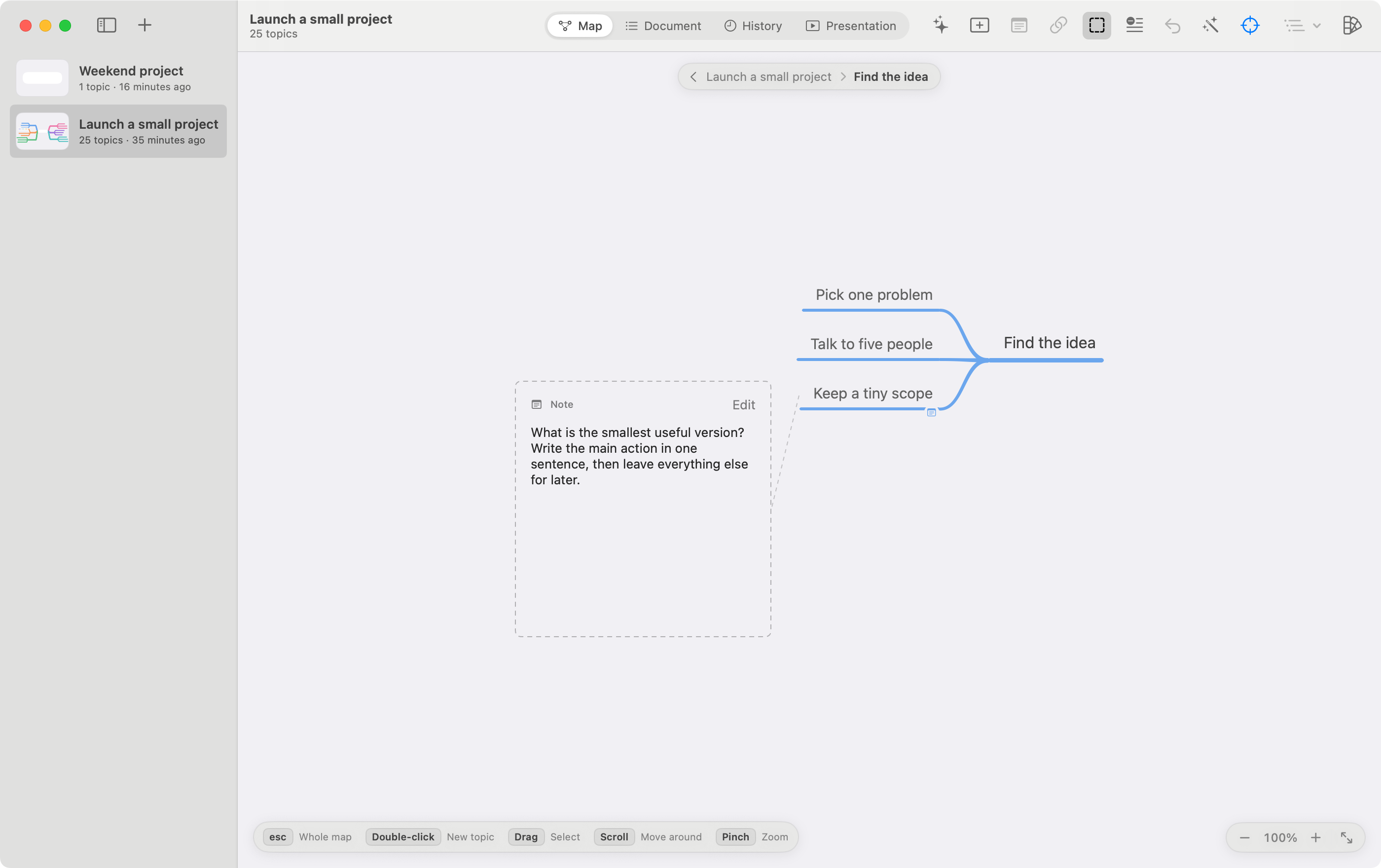
Attach a note when the explanation would make a topic too large. Hover to read it, or enable Show Notes to display note cards on the canvas. A topic can also have one web link, opened from its menu.
Paste or drop an image onto a topic, or drop it on empty canvas to add an image topic. Resize it proportionally, open a larger preview with Space, or remove it. Images stay inside the saved map.
Turn into Note moves an eligible leaf’s text into its parent’s note. Topics to Notes does this for eligible visible leaves together. Both can be undone; topics with their own notes, links, images or extra connections are kept.
Image topics show the image on its own. Imports become still PNG images up to 4096 pixels on the longest side. If you attach an image to an existing text topic, its text stays saved and returns when you remove the image.
Pasting a public X post URL can capture its official embed as an image, with the source link attached. Capture and Reload X Post need internet access and depend on the post being available. A successful saved capture remains visible offline.
See notes on the canvas
Edit the outline, revisit a change, or use the CLI
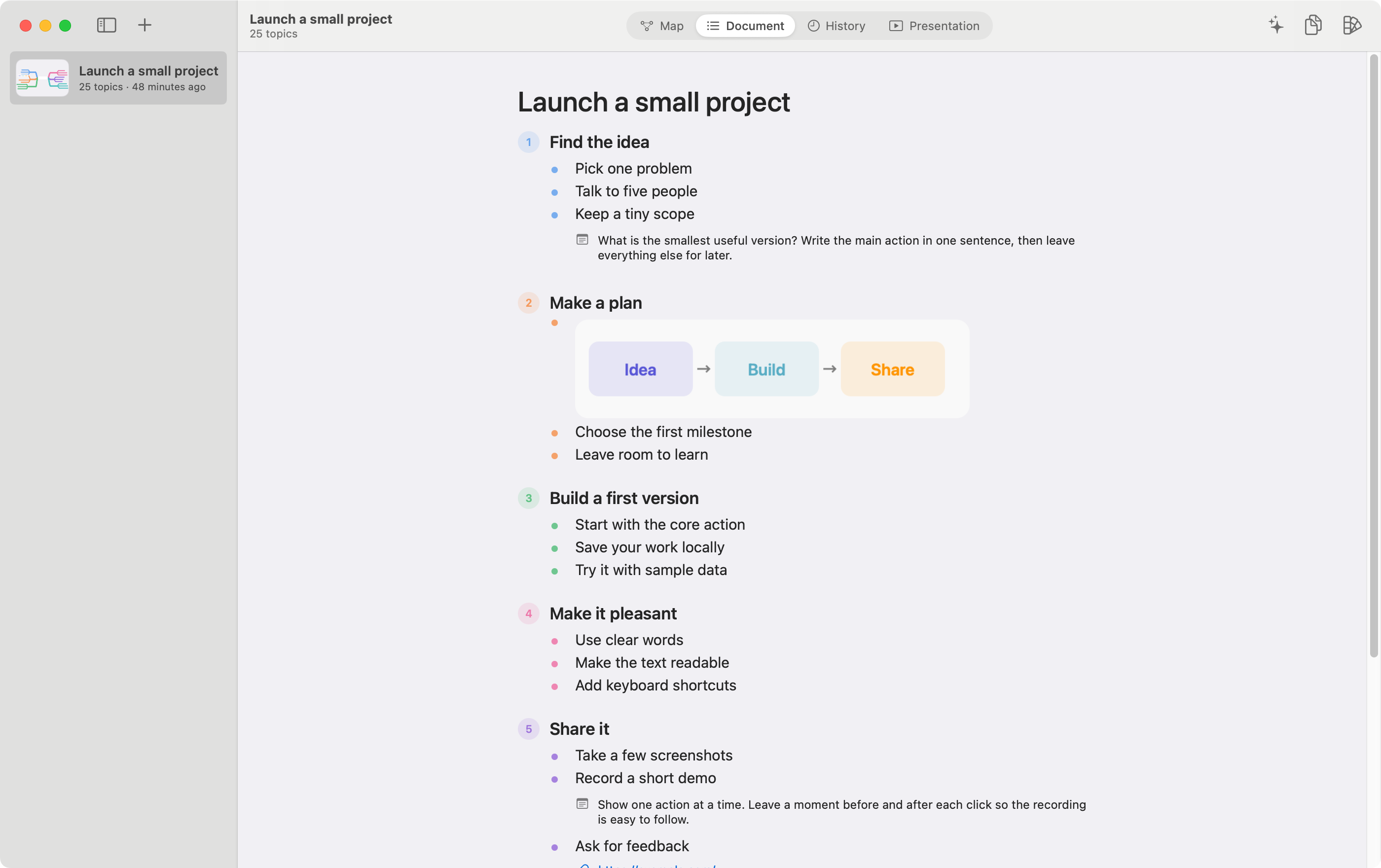
Document reads the map as an outline, left side first. Click a line to edit it. Notes appear under their topics, web links can be opened, and collapsed branches remain available. Copy puts a plain text outline on the clipboard.
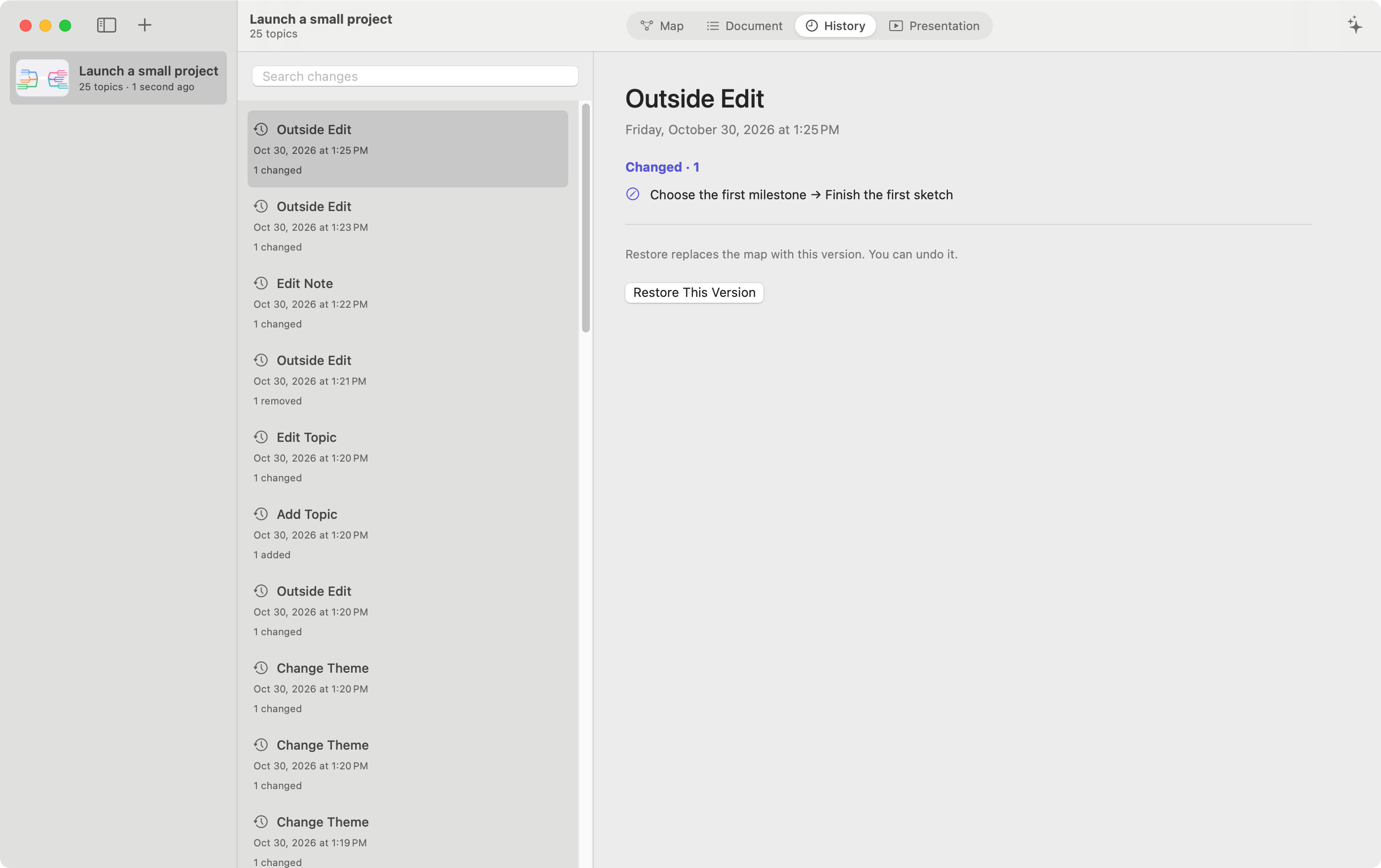
History shows recorded content edits. Search by topic or action, inspect what changed, and restore a version. Restoring can also be undone. History keeps the latest 40 recorded edits plus the starting version; ordinary undo handles position, width and collapse changes during the session.
The CLI demo above runs a real mindmap rename command in the background. Watch “Choose the first milestone” change to “Finish the first sketch” in Document, then appear in History.
The bundled mindmap command creates maps from indented outlines and can read, add, rename, move or delete topics. It also manages notes and links. The app displays CLI changes automatically and can undo them.
First add the bundled CLI to your PATH, following the setup in the included README. Then create a map from Terminal:
mindmap create --theme colorful <<'OUTLINE'
Weekend project
  Plan
  Build
  Share
OUTLINE
mindmap capabilities --json describes its commands for coding agents.
See Document and History
Present the map
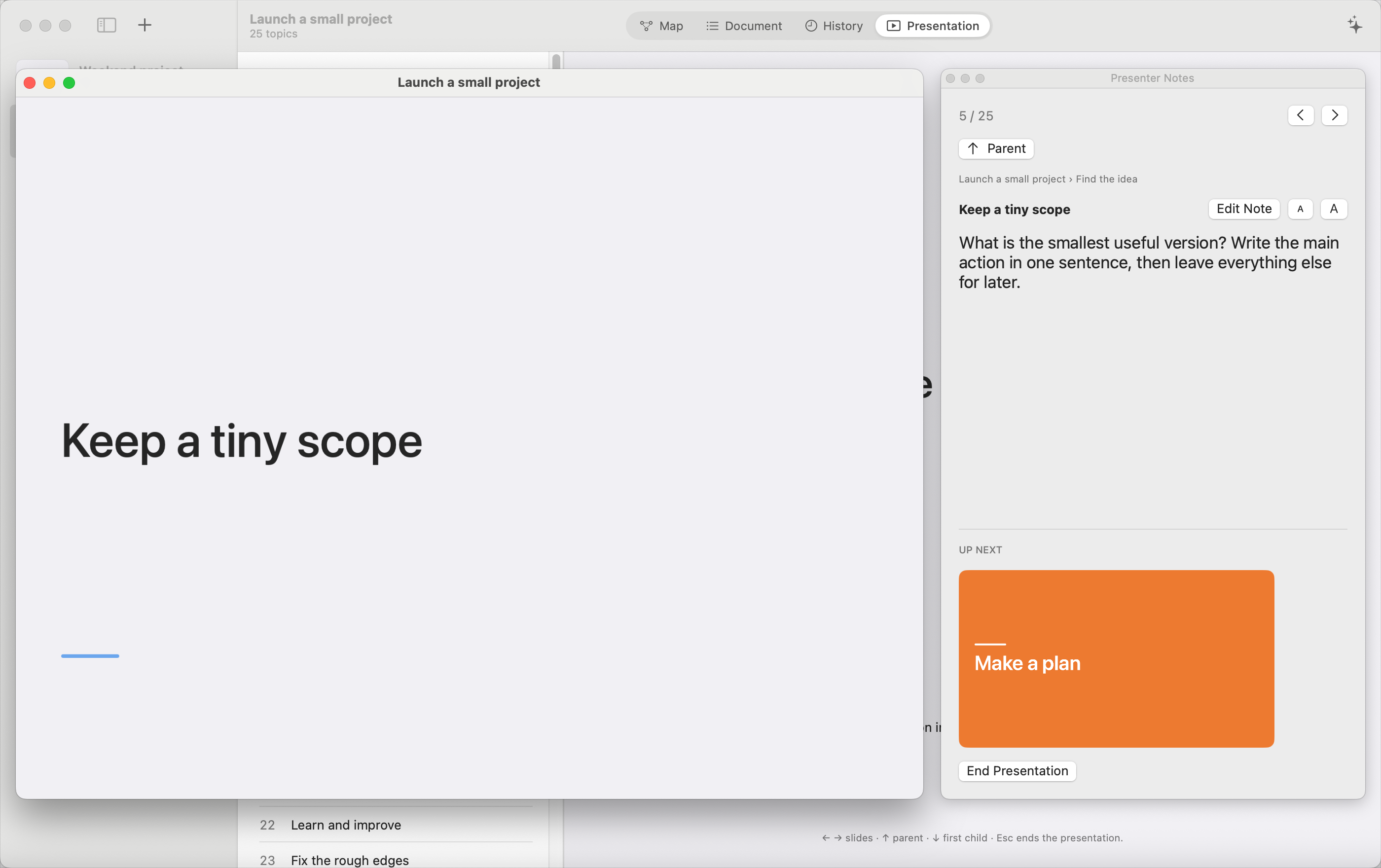
Presentation turns topics into slides, visiting each parent before its children, on the left side before the right. Topics with children become chapter slides. Leaves show their text or image. Collapsed descendants still appear, and a focused branch can become a presentation of its own.
Click Play to open the audience window. The presenter panel stays separate, with the current note, the next slide and cues when you change branches. You can edit notes there and adjust their text size.
Use the arrow keys to advance, return to a parent or enter its first child. Space, Return and a presentation clicker can advance the playing slides. Escape ends the presentation.
Record or share the audience window with your own capture tool to keep the notes out of the recording. Mind Map does not export a video file. Live X embeds in Presentation require an internet connection and depend on X’s availability.
See a presentation from the sample map
Your files stay on your Mac
Maps are saved as JSON files in ~/Library/Application Support/Mind Map/Maps/. Their saved versions live in the adjacent History folder. Quit the app and copy both folders to back up maps and History, including images and connections.
Core editing, local saving, History and ordinary presentations work offline. The files are unencrypted, and the app does not provide cloud sync or collaboration. Optional X capture and live embeds use the network; opening a web link or the Codex draft invokes an external application.
Plain outlines contain text and nesting. CLI JSON output adds topic IDs, notes, links, formatting and collapsed state, but omits image bytes, geometry and extra cross-connections. Use the native map files for complete backups. PDF and image export are not included.
A few useful shortcuts
| Shortcut | Action |
|---|---|
| Tab / Return | Add child / sibling |
| Space | Edit a topic or arrow; preview an image |
| Option-Return while editing | Insert a new line |
| Command-B / Command-I | Bold / italic |
| Command-C / Command-V | Copy / paste branches |
| Command-Z / Shift-Command-Z | Undo / redo |
| Shift-Command-F | Focus selected branch or exit focus |
| Shift-Command-L | Auto Layout |
| Shift-Command-N | Add or edit a topic’s note |
| Command-0 | Fit the map |
| Command-1 / 2 / 3 / 4 | Map / Document / History / Presentation |
| Option-1 through Option-9 | Select a map |
| Command-N / Option-Command-N | New map / new window |
| Command-comma | Settings |
| Command-Return in Presentation | Play |
Text fields keep their normal editing shortcuts. The full feature and shortcut guide is included in the private repository after purchase.
What the $20 includes
The one-time price includes tax, the signed and Apple-notarized Mac app, the companion CLI and the full MIT-licensed source code. Mind Map runs on macOS 15 or later, on Apple silicon and Intel Macs.
After paying through Polar, connect your GitHub account and accept the invitation to the private Mind Map repository. A GitHub account is required for delivery. Download the ready-to-run app from its Releases page, or inspect, modify and build the source yourself. A paid Apple Developer membership is not required for a local source build.
Updates are downloaded manually from the private repository’s Releases page. There is no subscription.