
An app by Flavio
Filename Compatibility Fixer
Find the file and folder names Windows refuses, preview the fixed names, and make a delivery copy with a map of old and new paths. Your Mac folder keeps its names.
Buy Filename Compatibility Fixer · $20One-time purchase. Plus tax where it applies.
macOS 14 or later · Apple silicon and Intel
On your Mac, Logo: final?.png is a perfectly good filename. So is CON.txt, and so is a project folder 12 levels deep. Then you send the folder to a client on Windows, and their PC refuses some of those names. They get an error when they unzip it, or files go missing, and you get an email asking what went wrong.
Windows reserves a few characters in names: <, >, :, ", /, \, |, ? and *. It also refuses names like CON, NUL, COM1 and LPT1, with any extension. And long paths get into trouble once the receiver puts your folder inside their own.
Filename Compatibility Fixer checks every file and folder name, shows you the Windows-safe name for each one, and makes a delivery copy with those names. Your Mac project keeps its original names.
Who it’s for
- Designers and photographers delivering to clients. You named files the way you think:
Logo: final?.png,Brief "v2".pdf,Option 1 / Option 2.psd. The client’s office runs Windows, and you’d rather they never see an error. - Video editors handing off a project. The Windows editor needs your media folder, with its
Interview | Take 3.movand its folders nested by day, camera and card. One bad name can stop their copy. - People filling a USB stick or a shared drive for a PC. The drive goes to a Windows computer or a NAS that follows Windows naming rules. You want to fix the names before the files leave your Mac, not on the other end.
- Teams on OneDrive or SharePoint. Some files never sync, and the error doesn’t say which ones. Names with
?,*or:are a common cause, and so are very long paths. - Anyone archiving for the long run. A folder with only safe names opens on any system, now and in ten years.
From a Mac folder to a safe delivery
Say you’re sending a folder called Harbor West to a client who uses Windows.
- Pick the folder. Click Choose… next to Folder to prepare, or drop the folder on it.
- Pick where the copy goes. Choose a Save in location outside the folder, and type a name under New output folder. The default is
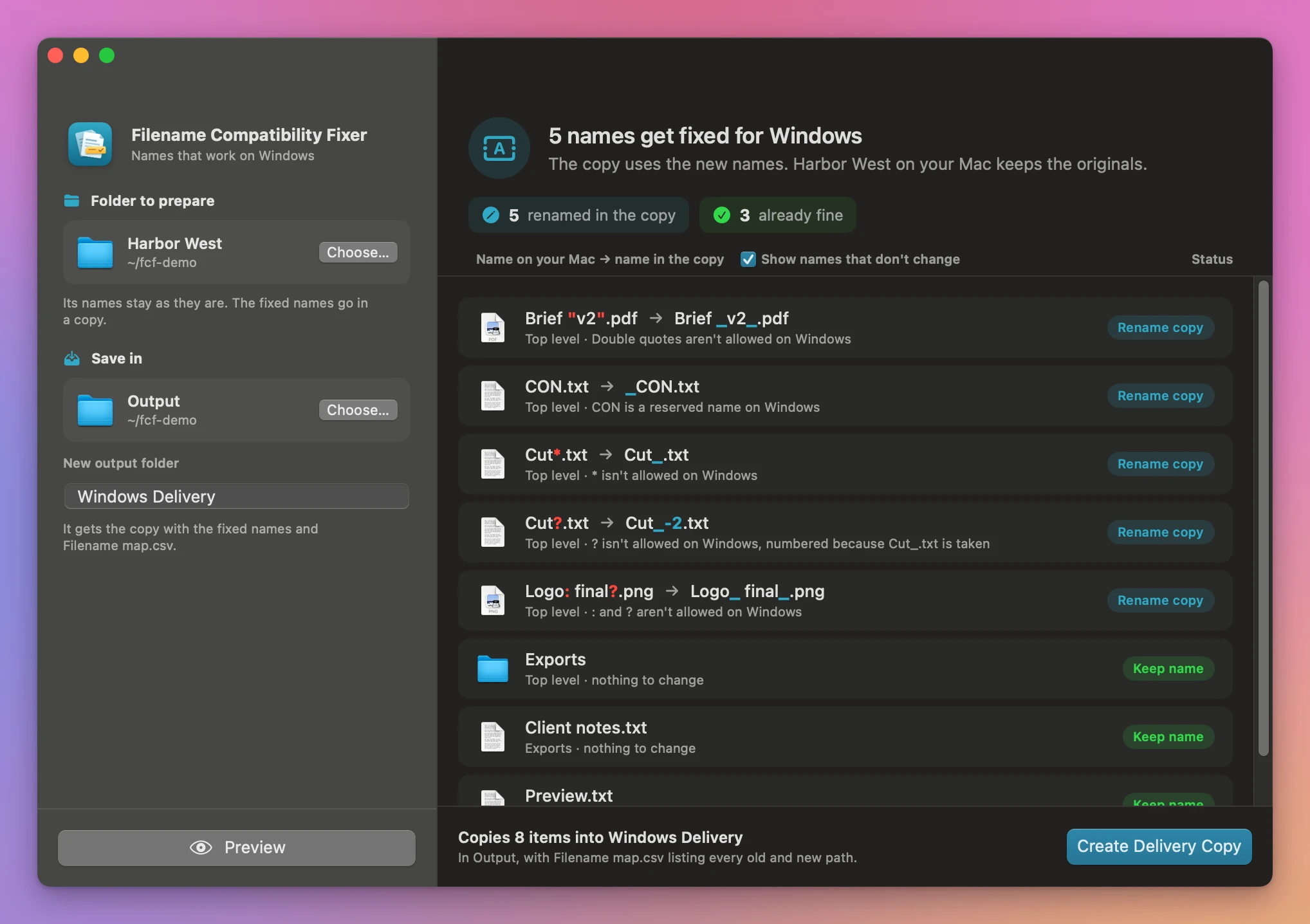
Windows Delivery. - Click Preview. The top says how many names get fixed. Every file and folder appears with its name on your Mac and its name in the copy, the characters Windows refuses in red, the reason in words, and a status: Keep name when nothing changes, Rename copy when the name gets fixed. Names that change come first.
- Look for paths that are too long. Rows marked Too long in red won’t be copied. Shorten those folder names in the source, then preview again.
- Click Create Delivery Copy. The new folder has the same structure with the fixed names, plus Filename map.csv. The app lists what it renamed and what it left out. Zip the folder and send it.
Finding these names by eye in a folder of 2,000 files means reading 2,000 names for nine characters and a list of reserved words. Then you rename each one, and check that the new name doesn’t clash with another file. As an estimate, an hour of squinting, with no guarantee you caught them all.
What it changes
Reserved characters
Each of <, >, :, ", /, \, |, ? and * becomes an underscore, and so do invisible control characters. Cut?.txt becomes Cut_.txt.
A slash you typed in a Finder name counts too. Finder lets you type Client / v2.psd, and the app turns it into a safe name for the copy.
Reserved device names
Windows refuses CON, PRN, AUX, NUL, COM1 to COM9 and LPT1 to LPT9 as names, even with an extension and in any capitalization. The app puts an underscore in front: CON.txt becomes _CON.txt, and nul.backup.txt becomes _nul.backup.txt.
Trailing dots and spaces
Windows drops a dot or a space at the end of a name, which can make two names identical or a file impossible to open. The app removes them from the copy. A name that ends up empty becomes Untitled.
Collisions after fixing
Fixing names can create duplicates. Cut*.txt and Cut?.txt both become Cut_.txt. Windows also ignores capitalization, so Notes.txt and notes.txt can’t sit in the same folder. The app checks the fixed names the way Windows does and numbers the second one: Cut_-2.txt.
Folder names too
Folders get the same treatment as files, and everything inside a renamed folder moves with it. The folder structure is kept.
Long paths
The app gives each path inside the delivery 220 characters, counted the way Windows counts them. The receiver’s own folders still need room in front of yours, like C:\Users\Name\Downloads\. A path over the budget isn’t copied. It stays in the preview and the map, and anything inside a skipped folder is listed as Skipped with parent folder.
What you get
The delivery folder has the copies with fixed names and Filename map.csv. Each row of the map has the original path, the delivery path and the status. When the client says _CON.txt is weird, you look it up and see it was CON.txt.
Your original folder isn’t touched. The new folder appears only once every copy has finished, so a failure or a Cancel leaves no half-made delivery. If a file changes after you preview, the app asks you to preview again. Links, macOS packages and special files are skipped and listed.
Why not rename the files yourself
Finder can rename files one at a time, and its batch Rename can replace text across a selection. That works when you know what to look for. It can’t find the reserved device names, the trailing spaces or the paths that are too long. And it won’t warn you when a fixed name matches another file in the same folder.
You could also zip the folder and hope. The trouble shows up on the client’s PC, after you’ve sent it.
| Renaming by hand | Filename Compatibility Fixer | |
|---|---|---|
| Finding bad names in 2,000 files | Reading every name | All found in one preview |
Reserved names like CON or LPT1 | Easy to miss | Prefixed with _ |
| Two names that become the same | Found by the client | Numbered before copying |
| Paths too long for Windows | No warning | Listed with the 220-character budget |
| Your Mac project | Renamed for good | Unchanged, the fixes are in a copy |
| A record of what changed | None | Filename map.csv |
What it doesn’t do
- It doesn’t shorten long paths for you. It lists them and leaves them out, and you choose the shorter names.
- It doesn’t update references inside your files. If a project, a web page or a document links to
Logo: final?.png, that link still points to the old name. Check linked assets after renaming. - It doesn’t zip the delivery. When you do, Clean Client Zips leaves out the Mac housekeeping files.
- It doesn’t fix names in place on your Mac, only in the copy.
- It copies every file, hidden ones like
.DS_Storeincluded.
Questions
Are my original files renamed?
No. The app makes a new folder with the fixed names. Your folder keeps every original name.
Does anything get uploaded?
No. File processing happens on your Mac. The app goes online only to check for updates.
Why 220 characters and not the Windows limit of 260?
Your folder doesn’t land at the root of the client’s drive. It goes inside their Downloads or a project folder, and that path counts too. The 220 budget leaves room for it.
What if the output folder already exists?
The app won’t write into it. Choose a different name or location and preview again.
Does it change the files themselves?
No. The contents are copied as they are. Only the names change.
The documentation links to Microsoft’s naming rules and walks through the example in the screenshot.
Buy Filename Compatibility Fixer
$20 plus tax where it applies, paid once. Download the app from the purchase page or your Creem receipt.
Unzip the download and drag the app to Applications. It runs on macOS 14 Sonoma or later on Apple silicon and Intel Macs. File processing happens on your Mac.
The app checks for updates once a day. When a new version is ready, click Install and Relaunch. To check anytime, choose Filename Compatibility Fixer → Check for Updates….