
An app by Flavio
Exporter for Voice Memos
A Mac app that saves every recording in Voice Memos to a folder you pick, named with the date and title, in its folders, with its transcript as text and an index of everything. Run it again and it saves only what's new.
Buy Exporter for Voice Memos · $20One-time purchase. Tax included.
macOS 14 or later · Apple silicon and Intel
You have years of voice memos. Song ideas, interviews, lectures, notes to self. And you want them somewhere safe, on a drive or in a folder you back up.
Voice Memos has no “export everything” button. On the Mac you drag recordings to the Finder one by one, and each file gets today’s date instead of the day you recorded it. Your folders are gone. The transcripts stay behind, unless you copy them by hand, one recording at a time.
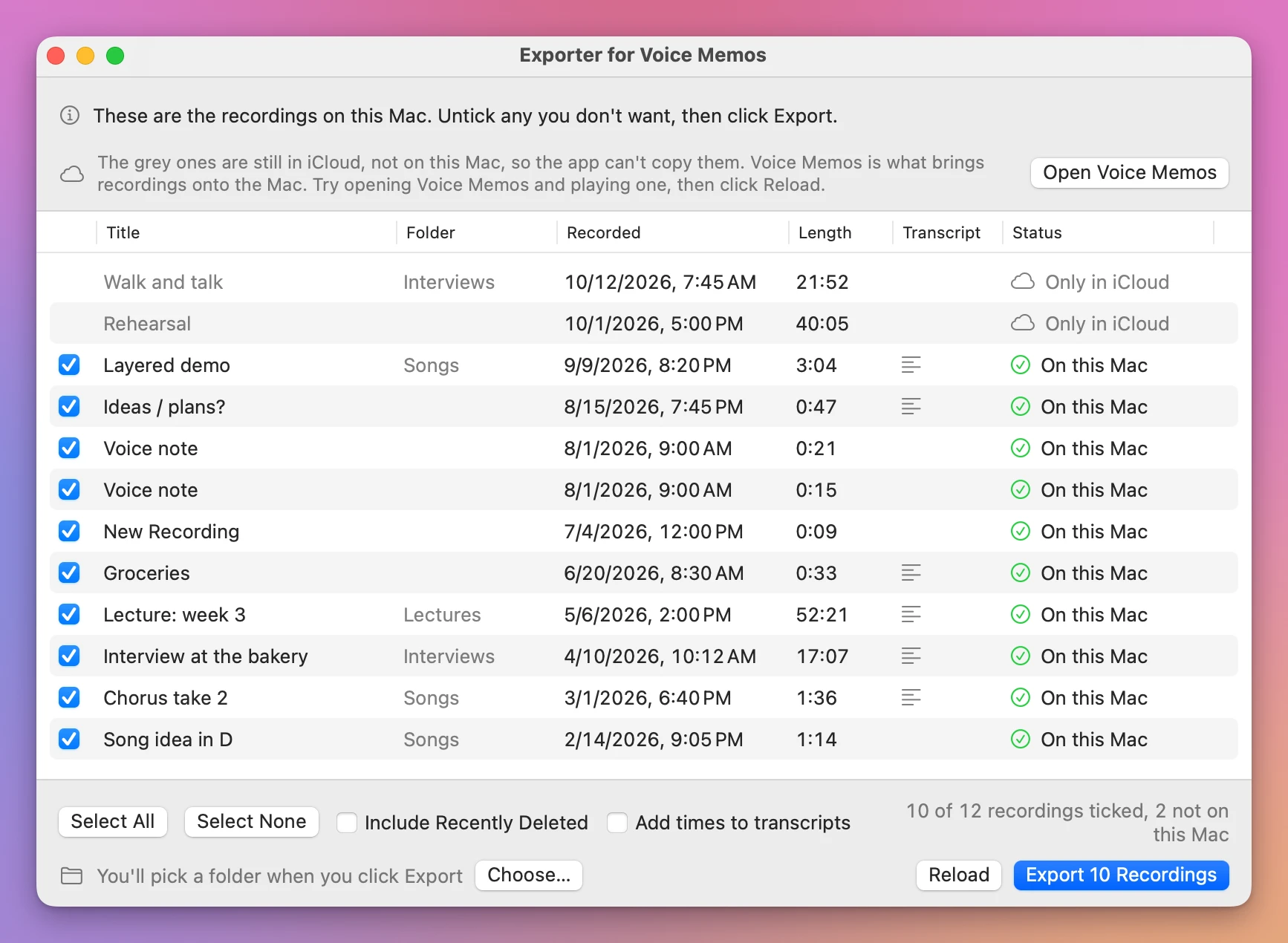
Exporter for Voice Memos is a Mac app that saves them all at once, or just the ones you tick. Each recording keeps the day it was recorded, its title, its folder and its transcript.
The app shows the recordings that are on this Mac. For your iPhone’s recordings to be there, Voice Memos has to be turned on in iCloud on your iPhone and on your Mac, and the recordings have to show up in Voice Memos on the Mac. If they don’t, the app has nothing to export.
$20 including tax, paid once.
What you get
Click Export, pick a folder, and you get:
- Files named with the date and the title, like
2026-03-01 18.40 Chorus take 2.m4a. They sort by date in any folder. - The right dates on the files. The Finder shows the day and time you recorded each one, not the day you exported it.
- Your Voice Memos folders as folders on disk.
- Each transcript Voice Memos made, saved as a text file next to its recording, in paragraphs. Tick Add times to transcripts and each paragraph starts with its time, like
[1:05]. - An
.m4acopy of every.qtarecording. Newer recordings can be.qtafiles that other apps don’t open. The app keeps the original and adds a copy that plays anywhere. index.csv, a list of every recording with its title, date, length, folder and file. It opens in Numbers or Excel.
Every recording is checked after it’s copied: the app reads the copy back and compares it with the original, byte for byte. A recording only counts as saved when its copy is on the disk and matches. The .m4a made from a .qta is a new file, so it can’t match byte for byte. The app opens it instead and checks that it’s as long as the recording, give or take a second.
How it works
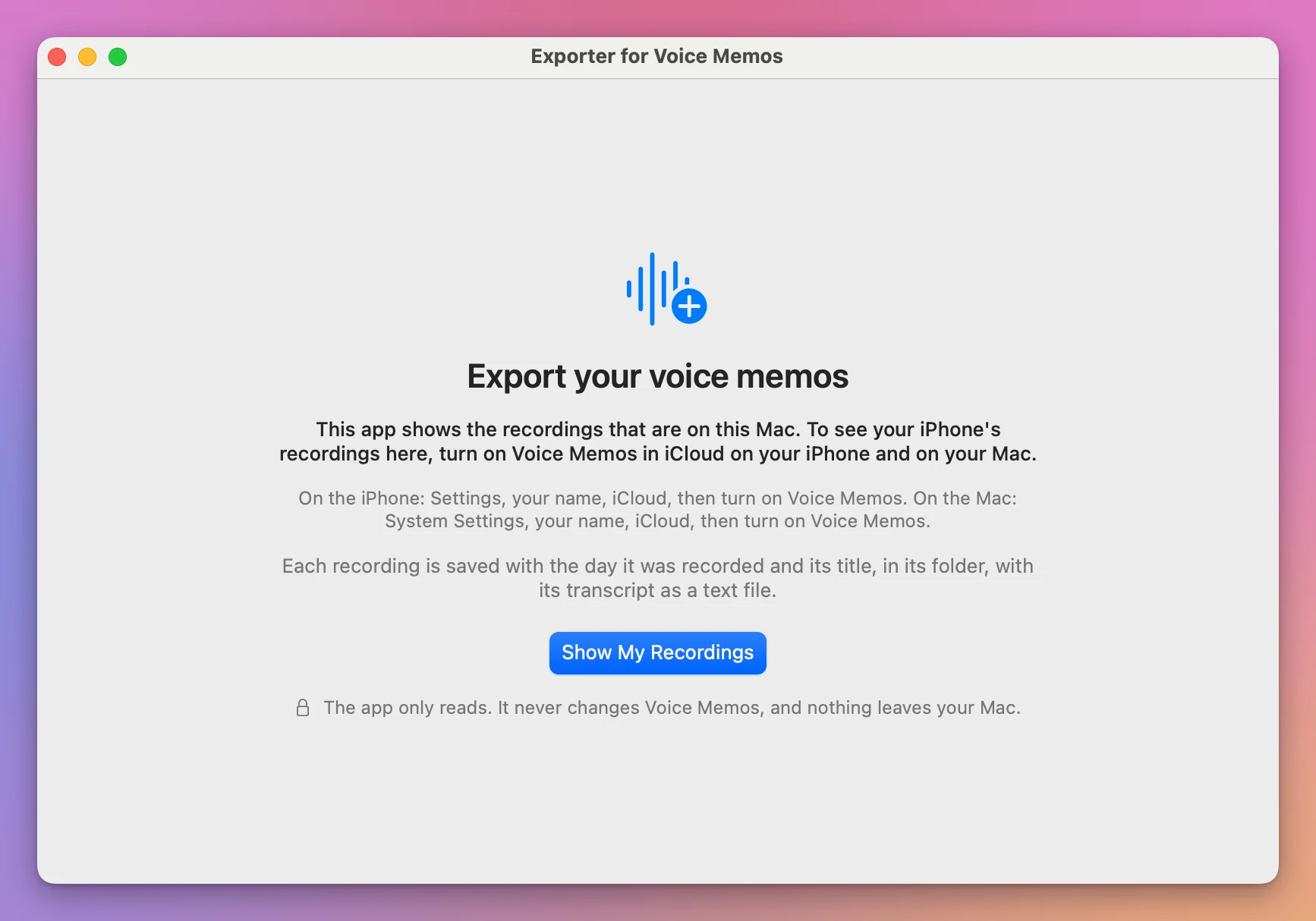
- Open the app and click Show My Recordings. The start screen says first that the app shows the recordings on this Mac.
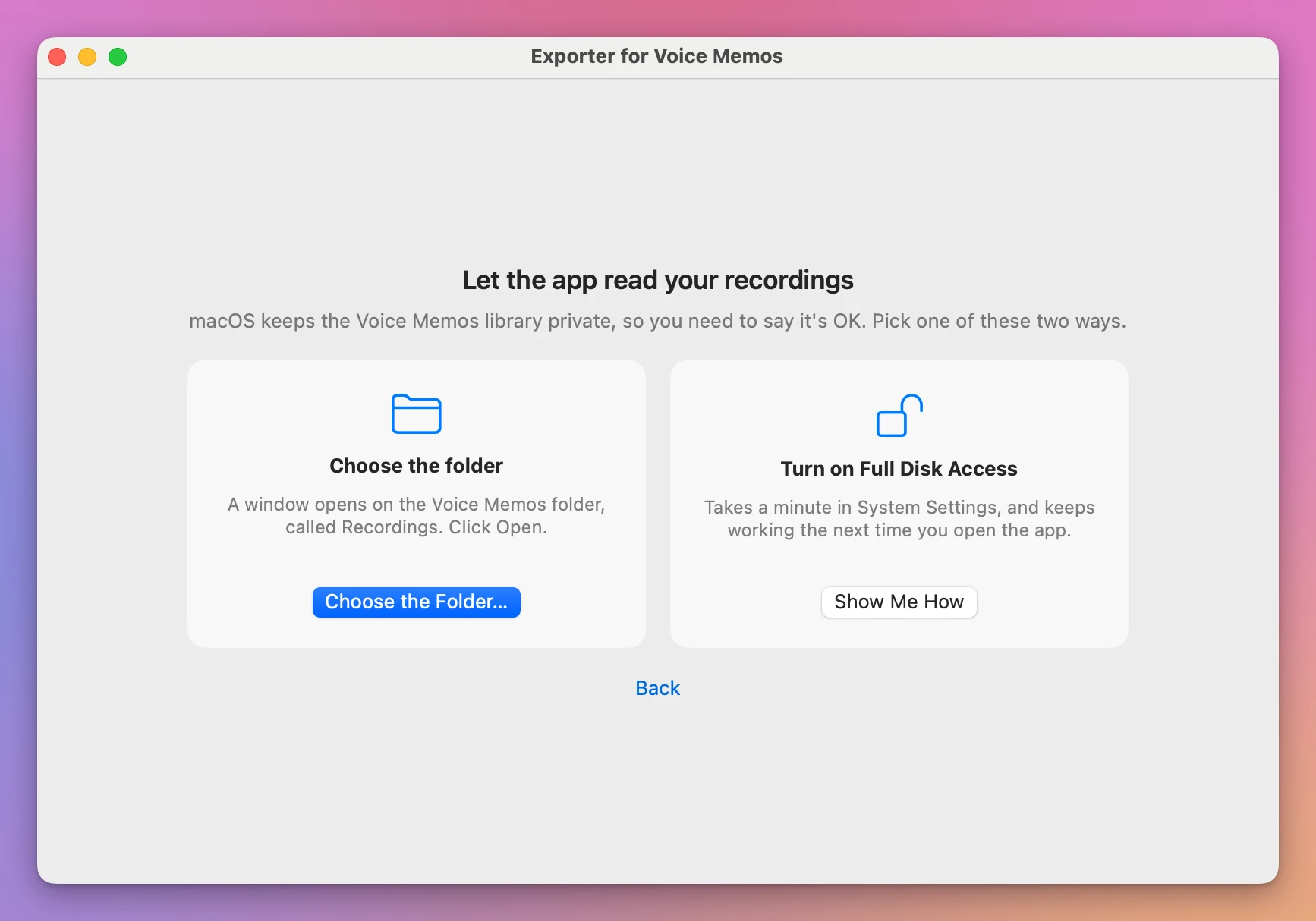
- macOS keeps the Voice Memos library private, so it may ask you whether the app can read it. If it refuses, the app shows two ways to let it in: choose the Voice Memos folder in a window that opens right on it, or turn on Full Disk Access with three steps it walks you through.
-
Your recordings show up in a list, with their folder, date, length, and whether they have a transcript. They’re all ticked: untick any you don’t want, or use Select None and tick a few. A line above the list says what to do next. Click Export, like Export 131 Recordings, and pick where they go, on the Mac or on a drive. Stop ends it after the recording being copied, and the next export picks up what’s left.
-
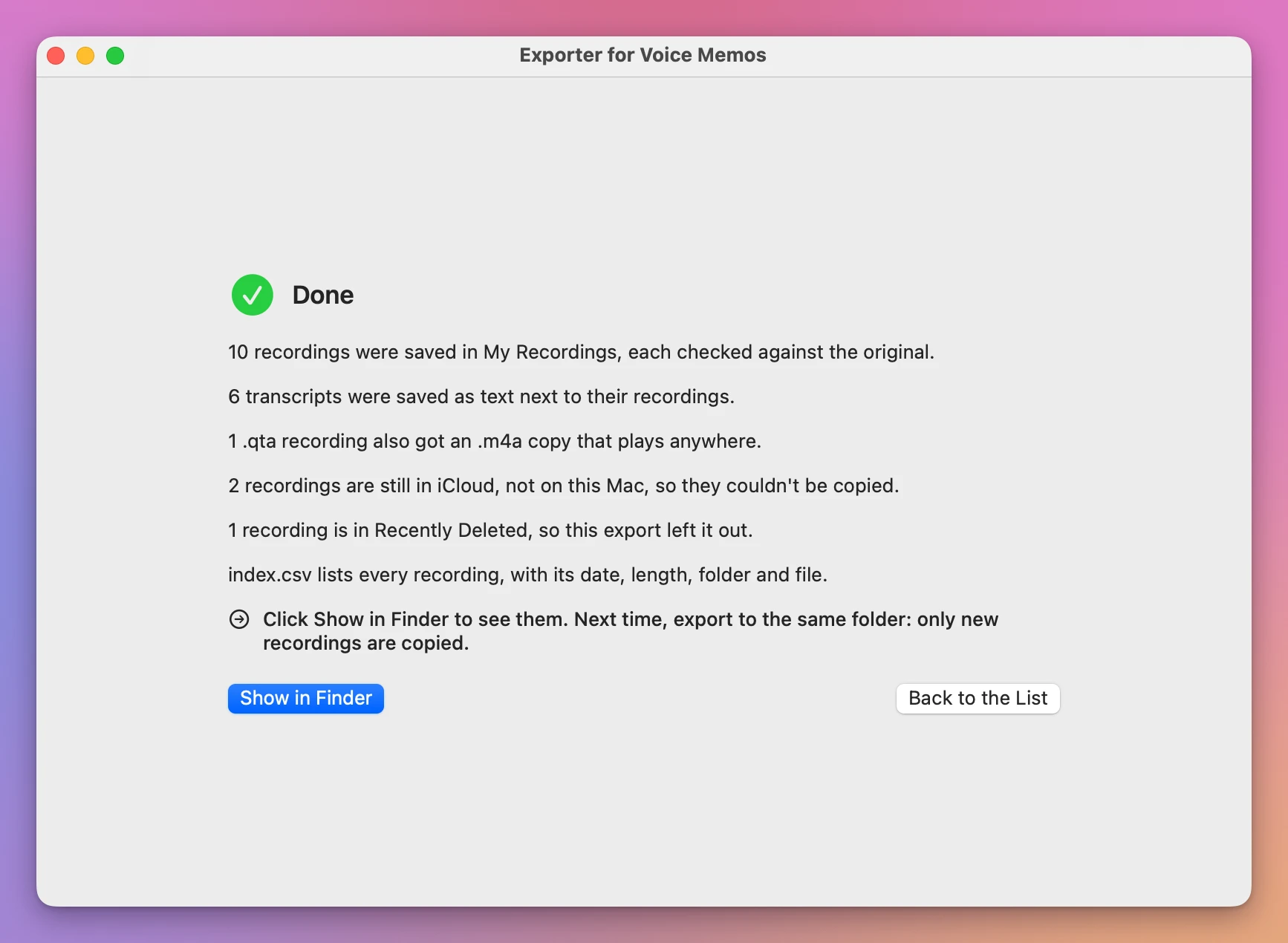
When it’s done, the app tells you what was saved, what was skipped, and why.
Next month, only what’s new
Open the app again. The recordings already in your folder say Already saved, and the button counts only the new ones, like Export 2 New Recordings. Recordings that are already there are left alone. If nothing you ticked is new, the app says so. Recordings you unticked are named in the report and listed as not picked in index.csv, so you always know what isn’t there.
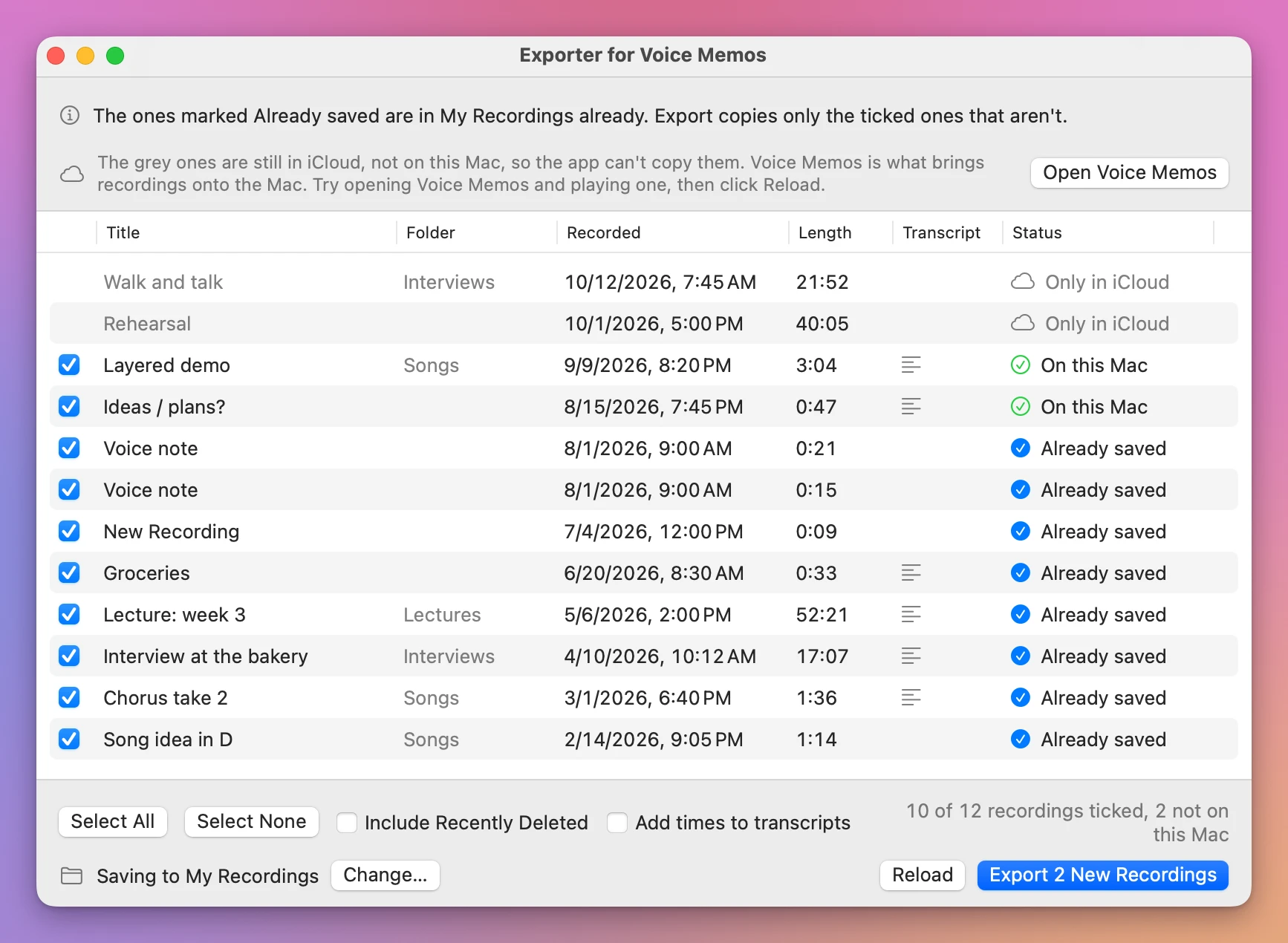
The app never replaces a file. If a file with the same name is already in the folder, the new one gets a number, like Voice note 2.m4a. File names work on any drive, Windows ones too: characters like : / and ? are swapped or left out.
By hand, or with Exporter for Voice Memos
| Dragging recordings to the Finder | Exporter for Voice Memos | |
|---|---|---|
| All your recordings | One by one, or a selection at a time | All of them with one click, or only the ones you tick |
| File dates | The day you dragged them | The day you recorded them |
| File names | The title only, so two “New Recording” files clash | The date and the title, numbered when two are the same |
| Folders | Lost | Kept as folders |
| Transcripts | Copied by hand, one at a time | A text file next to each recording |
.qta recordings | Many apps can’t open them | An .m4a copy that plays anywhere |
| Next month | Find what’s new yourself | Only the new ones are copied |
What it doesn’t do
- It doesn’t read your iPhone directly, or an iPhone backup. It reads the recordings Voice Memos has on the Mac.
- Recordings that are only in iCloud show as “Only in iCloud”, grey and without a checkbox, and aren’t saved. The app can’t copy a recording that isn’t on the Mac. Voice Memos is what brings it over, and the window has an Open Voice Memos button to try it, then Reload.
- It doesn’t make transcripts. It saves the ones Voice Memos already made.
- It doesn’t convert to MP3. Each recording is saved in the format Voice Memos keeps it in:
.m4a, which plays on any computer and phone, or.qta, which is saved as it is next to its.m4acopy. - Recently Deleted recordings are only saved if you tick Include Recently Deleted. They go in their own folder.
Good to know
Exporter for Voice Memos is my own app. It’s not made by, affiliated with or endorsed by Apple.
The app only reads. It never changes, moves or deletes anything in Voice Memos: it reads a copy of the list of recordings and deletes that copy right away. It writes only in the folder you pick. Your recordings and transcripts never leave your Mac.
Apple doesn’t document how Voice Memos stores its recordings, and has changed it before. The app checks what it finds before it reads anything. If a new version of macOS lays it out differently, the app says it can’t read it yet and changes nothing, and an update fixes it.
I tested the app on a test Mac running macOS 15, with Voice Memos’ own library and with a library I made of spoken test recordings, laid out the same way. It found the library, read its list, and exported, named, dated and checked every recording. On my own Mac it listed my library, with the recordings that are still in iCloud marked as such. What I couldn’t test are real recordings from an iPhone all the way through an export: the test Mac can’t record, so transcripts, .qta files and recordings that are only in iCloud were tested on my test recordings, not on Apple’s. On your Mac, macOS may also ask before the app can read Voice Memos, which the test Mac didn’t. If something doesn’t come out right, write to me and I’ll fix it.
Buy Exporter for Voice Memos and get started
Exporter for Voice Memos costs $20 including tax, paid once. There’s no subscription.
After buying, your receipt has the app and a license key. Unzip the app and drag Exporter for Voice Memos to your Applications folder. It runs on macOS 14 Sonoma or later, on Apple silicon and Intel Macs. It’s signed with my Apple Developer ID and checked by Apple, so it opens like any other app you download.
Enter the license key in Exporter for Voice Memos → License… to get updates automatically. A key works on 3 Macs. Once a day, the app checks for a new version, shows what’s new, and installs it with Install and Relaunch. Your receipt always has the latest version, too.