
An app by Flavio
Clean Eject
Remove the ._ and .DS_Store files your Mac leaves on memory cards and USB drives, then eject them. When a drive won't eject, see which apps are using it and quit them.
Buy Clean Eject · $20One-time purchase. Tax included.
macOS 14 or later · Apple silicon and Intel
You copied some songs to a USB stick on your Mac, plugged it into the car, and the car lists songs you didn’t copy. They’re called ._Song.mp3 and they won’t play. A TV shows photos that won’t open, and a Windows PC shows .DS_Store files in your folders. Your Mac made all of them, and it hides them from you.
Or the card won’t come out at all, because “one or more programs may be using it”, and the Mac doesn’t say which.
$20 including tax, paid once.
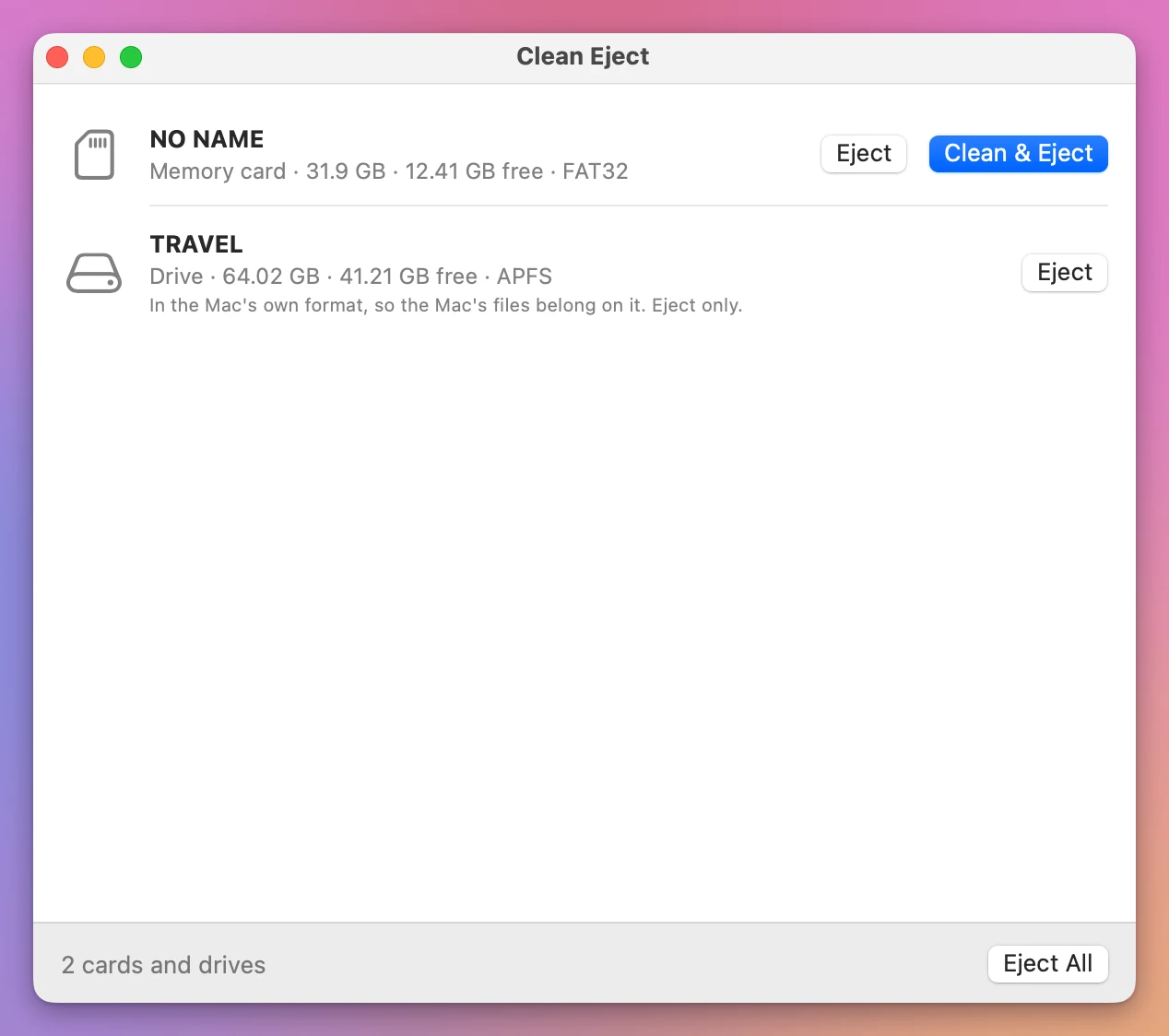
Clean Eject is a Mac app for memory cards and USB drives. Click Clean & Eject and it shows the hidden files your Mac left on the drive, removes them when you confirm, and ejects it. When a drive won’t eject, it tells you which apps are using it and quits them for you.
What the Mac leaves on a drive
Every time the Finder opens a folder or you copy a file, the Mac writes a few small files of its own next to yours. On the Mac you never see them. On anything else, they show up.
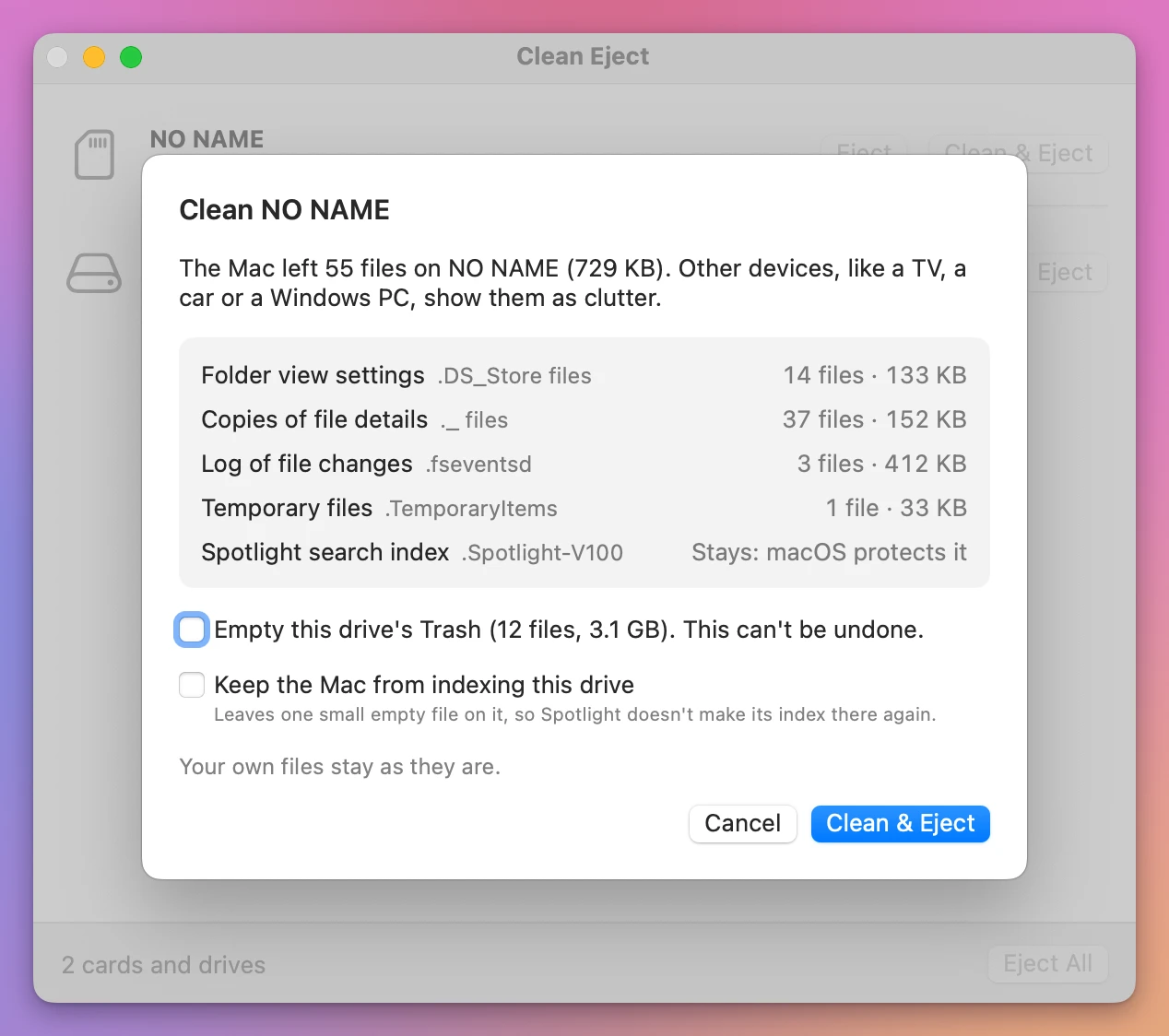
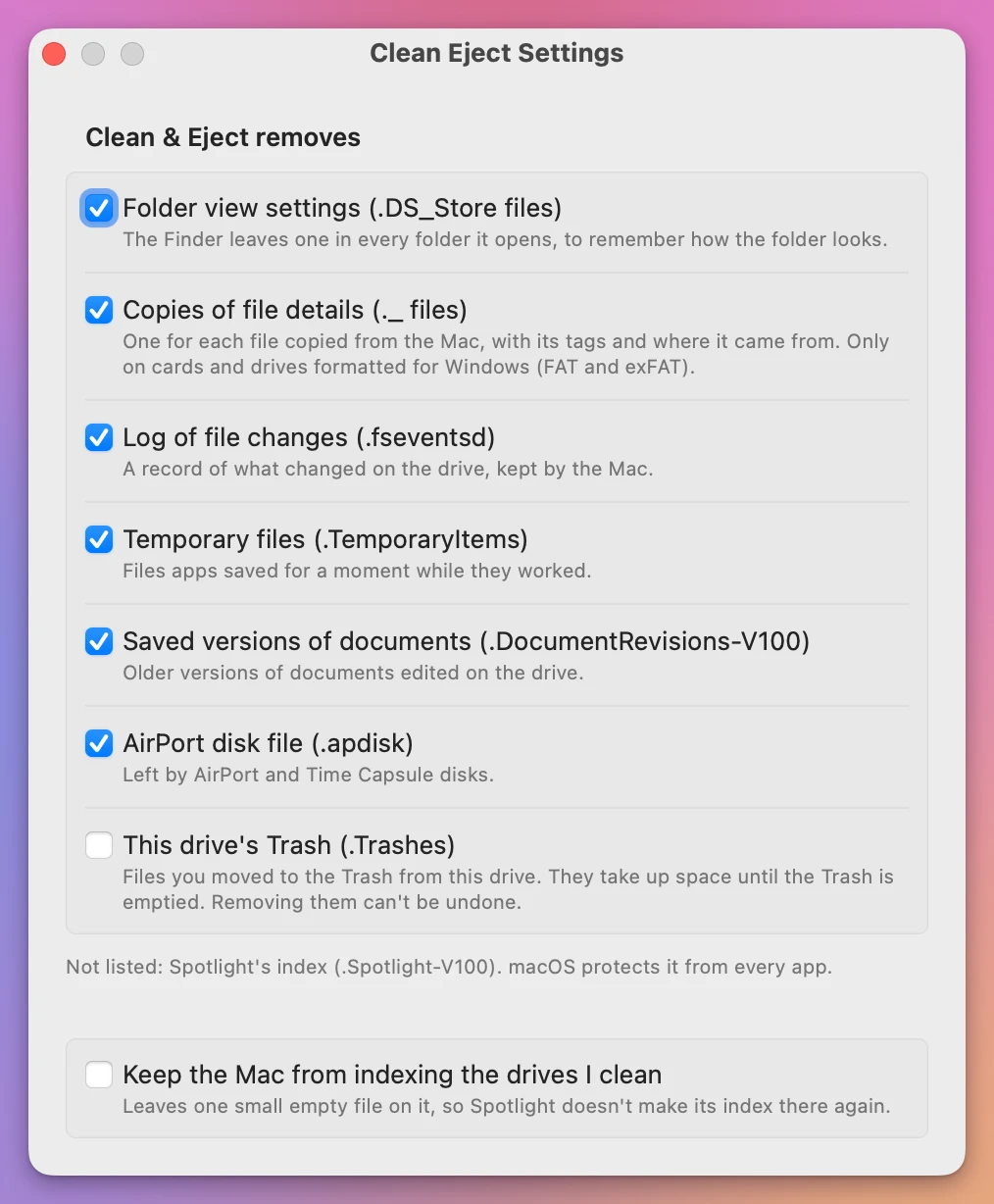
This is what Clean & Eject removes, with the names the app uses:
| In the app | On the drive | What it is |
|---|---|---|
| Folder view settings | .DS_Store | The Finder’s note of how a folder looks. It comes along with a folder you copy from the Mac |
| Copies of file details | ._IMG_0042.JPG, ._Song.mp3 | A twin of each file that has extra details on the Mac, like when it was last opened and with which app |
| Log of file changes | .fseventsd | A record of what changed on the drive, kept by the Mac |
| Temporary files | .TemporaryItems | Files apps saved for a moment while they worked |
| Saved versions of documents | .DocumentRevisions-V100 | Older versions of documents edited on the drive |
| AirPort disk file | .apdisk | Left by AirPort and Time Capsule disks |
| This drive’s Trash | .Trashes | Files you moved to the Trash from this drive. Only when you tick the box |
What it never touches:
- Your own files.
- A file that only looks like a Mac file. A
._file is removed only when it really is one the Mac made, so a file of yours whose name starts with._stays. - The drive’s Trash, unless you tick Empty this drive’s Trash. The box says how much is in there, like “12 files, 3.1 GB”, and that it can’t be undone.
Each kind has its own checkbox in Clean Eject → Settings…, if you want to keep one.
Spotlight’s folder stays
There’s one folder Clean Eject can’t remove: .Spotlight-V100, where Spotlight keeps its index of the drive. macOS doesn’t let any app but itself open it or remove it. The window lists it with “Stays: macOS protects it”, so you know it’s there.
What you can do is stop the Mac from making it again. Tick Keep the Mac from indexing this drive and Clean Eject leaves one small empty file on the drive that tells Spotlight to stay away.
Only on drives made for other devices
Clean is for cards and drives in a format other devices read, like FAT32 and exFAT. That’s how cameras, cars and TVs want them.
A drive in the Mac’s own format (APFS or Mac OS Extended) is made to be used by a Mac, and the Mac’s files belong on it. Some of them are saved versions of your documents. So for those drives Clean Eject only offers Eject, with a line that says why.
When a drive won’t eject
The Finder says the disk wasn’t ejected because one or more programs may be using it, and stops there. Clean Eject asks macOS which apps have a file open on the drive and lists them, with the names of the files and a Quit button for each.
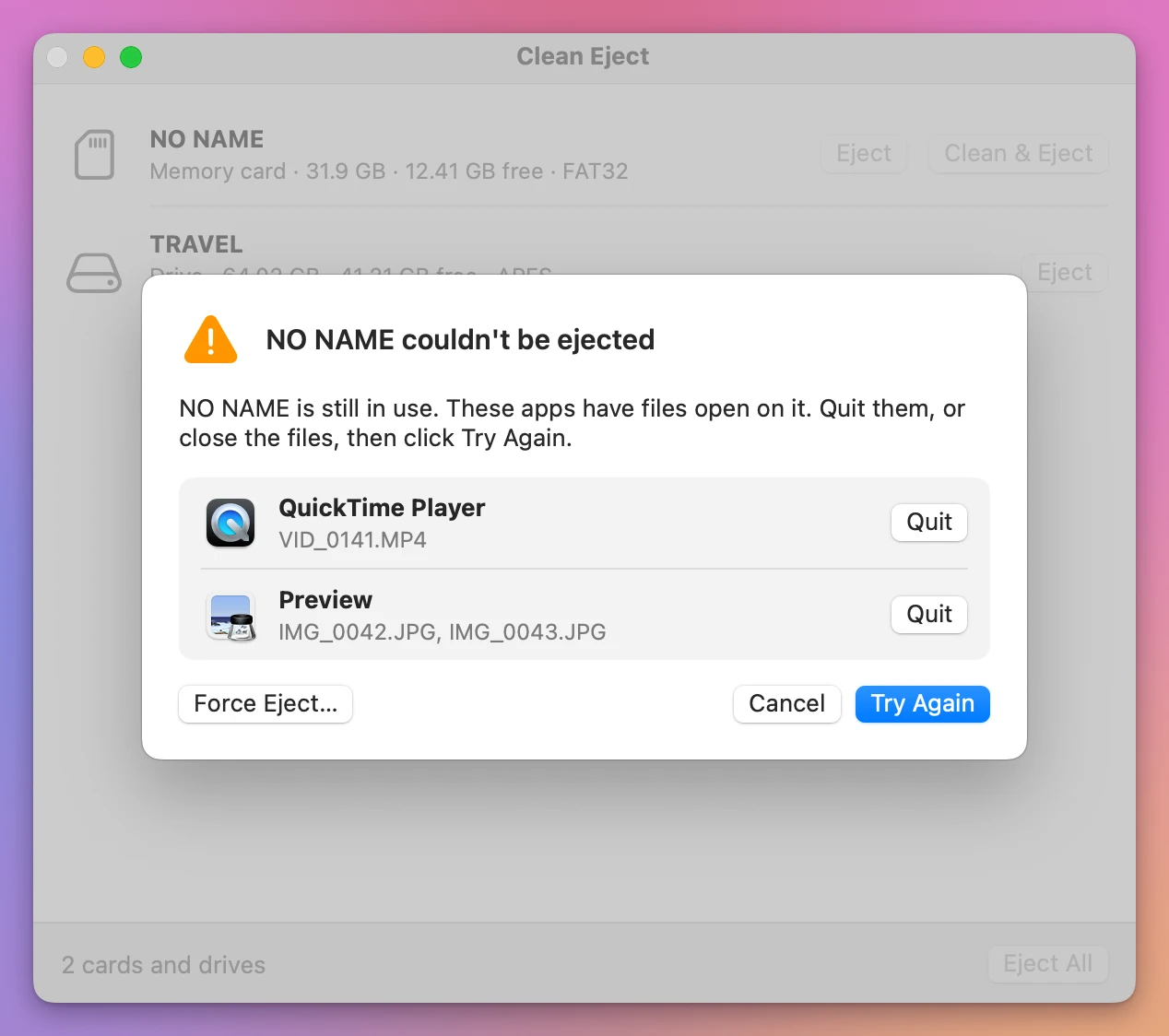
Click Quit (an app may ask you to save first), then Try Again. Some apps write one more hidden file as they quit, so Try Again cleans the drive once more before it ejects it.
I tried it with a video open in QuickTime Player. macOS took between 6 and 20 seconds to refuse the eject. Then the window named QuickTime Player and the video, Quit closed it, and Try Again ejected the card.
Sometimes no app is listed. Then macOS itself is using the drive, often Spotlight looking through it, and Clean Eject can’t see inside that. The window says so: wait a few seconds and click Try Again.
Force Eject… is last, behind a warning. The apps using the drive lose what they haven’t saved there, and a file that’s being copied can end up damaged.
Safe to unplug
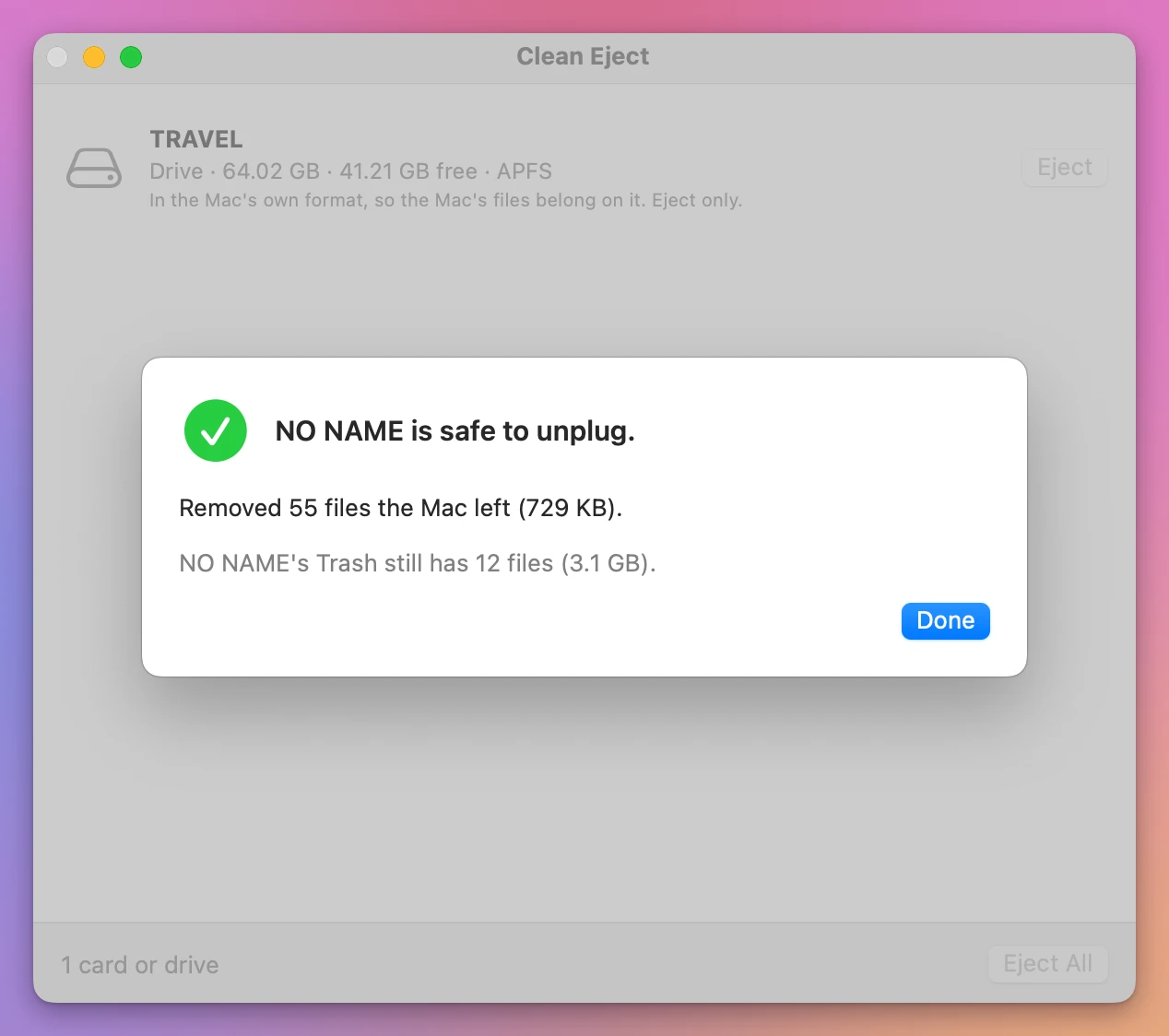
When the drive is out, the window says so in plain words, with what was removed.
Clean Eject also lives in the menu bar, under an eject icon. Every card and drive is there with Clean & Eject… and Eject, and Eject All ejects them all at once, without opening the window.
By hand, or with Clean Eject
| In the Finder | Clean Eject | |
|---|---|---|
| See the hidden files | ⇧⌘. shows two folders at the top of the drive, never the ._ and .DS_Store files | Listed by kind, with how many and how much space |
| Remove them | Nothing to select, since the Finder doesn’t list them | One click, after you confirm |
A file of yours whose name starts with ._ | Looks the same as the Mac’s | Stays: only the Mac’s are removed, checked by what’s inside |
| Spotlight’s folder | Can’t be removed | Stays, and the Mac can be told not to make it again |
| ”One or more programs may be using it” | Guess which app, quit things until it works | The apps and their files, with a Quit button each |
| Many drives | Eject each one | Eject All in the menu bar |
Good to know
Clean Eject is my own app. It’s not made by, affiliated with or endorsed by Apple.
It only lists cards and drives you can take out. It never touches your Mac’s own disk, a network drive or a Time Machine backup disk, and it never follows a shortcut to somewhere else.
It can’t remove Spotlight’s folder, and when macOS itself is holding a drive, it can’t say what macOS is doing. It can only tell you to wait and try again.
Nothing is removed until you click Clean & Eject in the window that lists the files. Removed files don’t go to the Trash, so keep a copy of the files you care about.
The first time you clean a card, macOS asks whether Clean Eject can read it. Click Allow. The app never looks at a card or a drive until you click.
Buy Clean Eject and get started
Clean Eject costs $20 including tax, paid once. There’s no subscription.
After buying, your receipt has the app and a license key. Unzip the app and drag Clean Eject to your Applications folder. It runs on macOS 14 Sonoma or later, on Apple silicon and Intel Macs. It’s signed with my Apple Developer ID and checked by Apple, so it opens like any other app you download.
Enter the license key in Clean Eject → License… to get updates automatically. A key works on 3 Macs. Once a day, Clean Eject checks for a new version, shows what’s new, and installs it with Install and Relaunch. Your receipt always has the latest version, too.