
An app by Flavio
Busy Calendar Mirror
Copy the events of your private calendars into a shared calendar as plain Busy blocks, with no titles, people, places or notes, and keep them in step when your events move or go away.
Buy Busy Calendar Mirror · $19One-time purchase. Plus tax where it applies.
macOS 14 or later · Apple silicon and Intel
Latest version 1.0.1, released November 22, 2026
Your client gave you an account in their company calendar. The project manager looks at it, sees a free afternoon, and books a call at 3:30. That’s when you pick up your kids from school, and it’s in your family calendar, which nobody at the client can see.
You could share your family calendar with them. Then they’d also read “Therapy”, “Dentist, Dr. Bianchi” and the address of your kid’s school. You could copy each event into their calendar by hand and call it “Busy”. Then the dentist moves to the afternoon, and the old block stays there on the morning, telling everyone you’re busy when you aren’t.
Busy Calendar Mirror copies your private events into the calendar the other person sees, as plain Busy blocks. Only the start and the end go across. Tick the calendars to copy from, pick the calendar to put the blocks in, check the preview and click Mirror Now. When an event moves, the block moves. When it’s deleted, the block goes away.
Who it’s for
- Freelancers inside a client’s calendar. The client gave you an account in their Google Workspace or Microsoft 365. Your school pickups, doctor’s visits and other clients’ calls show up there as “Busy”, so nobody books over them, and nobody reads what they are.
- Employees with personal appointments. Your work calendar has to show that you’re out on Thursday at 4. It doesn’t have to say it’s therapy. Mirror your personal calendar into one your work account can see, and your team sees a block.
- Couples and families. You share one “Busy” calendar. Each of you mirrors your work and personal calendars into it, so you can plan an evening without reading each other’s meeting titles.
- Consultants with several clients. Each client has their own account. Make one Busy calendar per client, each fed by the other clients and your personal calendar.
- Anyone with a booking page that reads one calendar. The booking tool only looks at one calendar, so it offers slots that are taken in the others. Mirror the others into it as Busy.
From private calendars to plain Busy blocks
- Allow Calendar access. Click Allow Calendar Access… and choose Allow Full Access when macOS asks. The app reads when your events start and end, and writes Busy blocks into the one calendar you pick.
- Tick the calendars to copy from. Under 1. Copy busy times from, each calendar has a checkbox, its color and its account (On My Mac, iCloud, Google…).
- Pick where the blocks go. Under 2. Put Busy blocks into, choose a calendar the other person can see. Read-only, subscribed and birthday calendars aren’t offered, and neither are the calendars you copy from. If you don’t have one yet, Make a New “Busy” Calendar… makes it in the account you choose, and then you share it from Calendar.
- Choose what counts. Under 3. What to copy, set the Block title (“Busy” by default), whether to Include all-day events, whether to Skip events marked as free, words to skip in Skip events whose title contains (like “Gym, Focus time”), and how many Weeks ahead to cover.
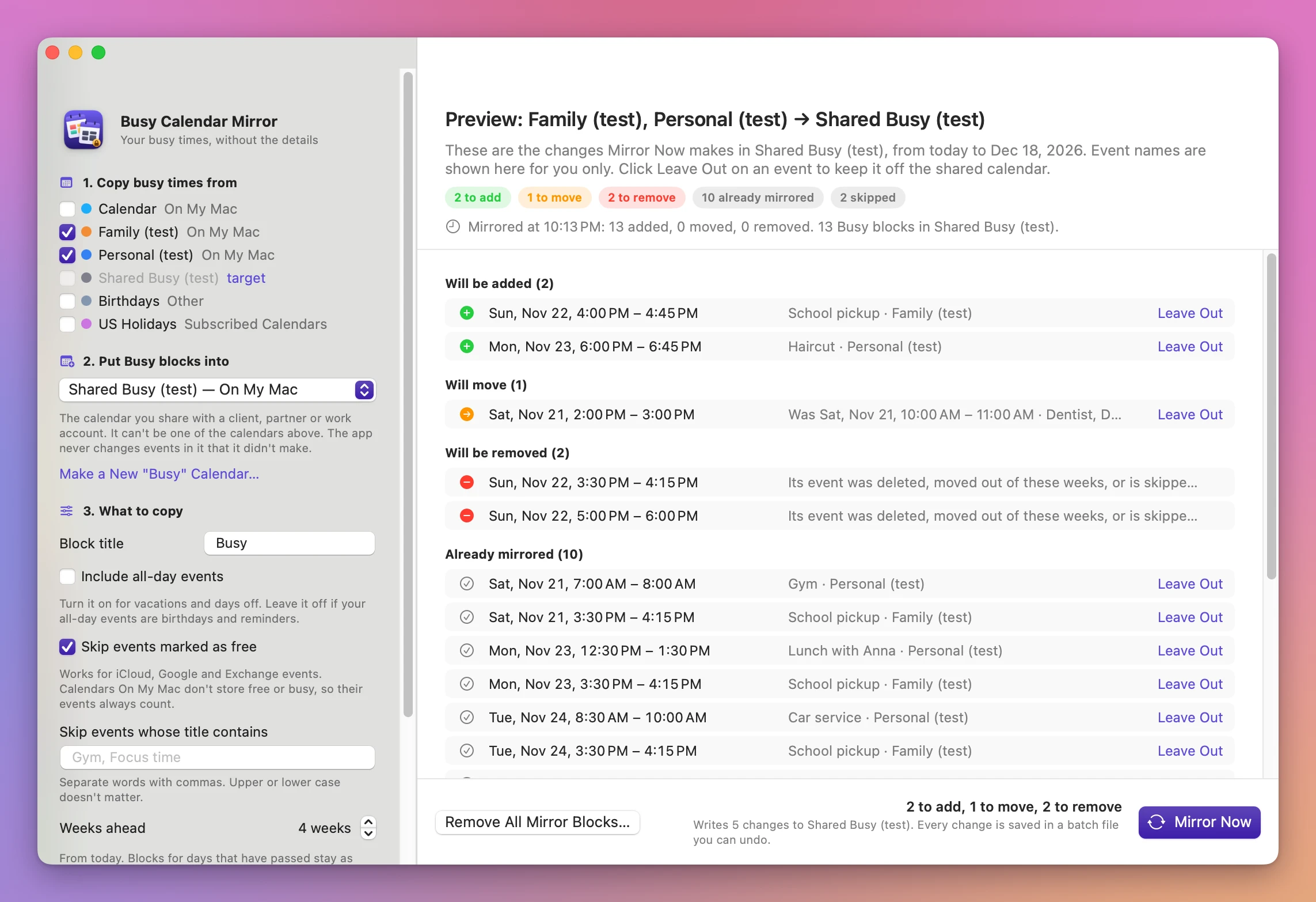
- Check the preview. It lists what will be added, moved and removed, what’s already mirrored and what’s skipped, with the event names. Those names are shown only to you. Click Leave Out on any event to keep it off the shared calendar.
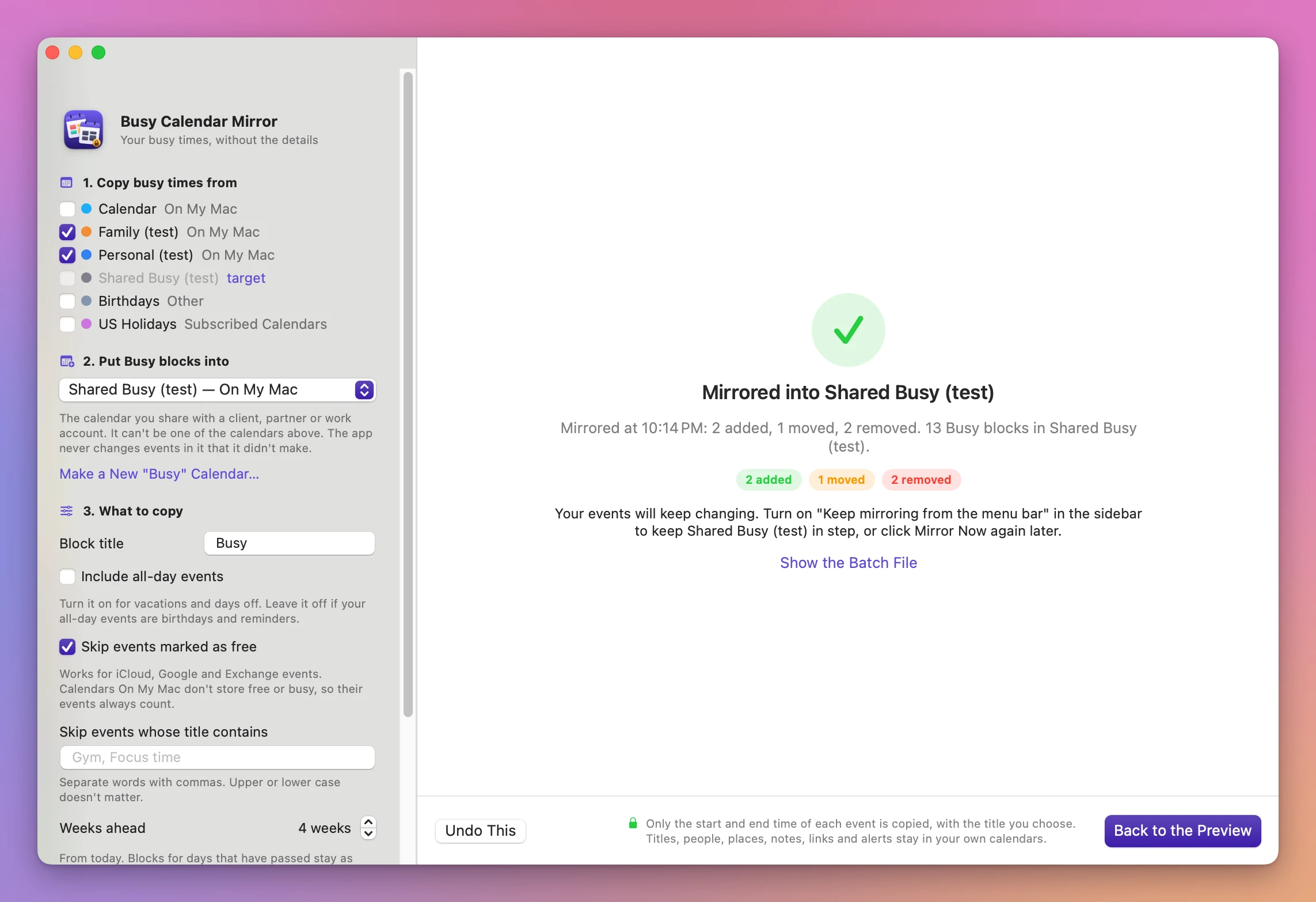
- Click Mirror Now. The done screen says what changed, and Undo This puts it back.
What you get
Only the time goes across
Each block has the title you chose and the start and end of your event. No location, no alerts, no people, no notes from your event. The app never changes your own events, and it never changes an event in the target calendar that it didn’t make: a meeting someone else put there stays as it is.
Blocks that follow your events
Every time you mirror, the app compares your calendars with the blocks it made. A moved event moves its block (“Was Sat, Nov 21, 10:00 AM – 11:00 AM”). A deleted event, or one that’s now skipped, loses its block. A new event gets one. The same meeting in two of your calendars gets a single block.
Blocks for days that have passed are left as they are, so your history in the shared calendar doesn’t change.
Keep it in step from the menu bar
Turn on Keep mirroring from the menu bar under 4. Keep it in step. The app mirrors right away, then every time your calendars change and every 15 minutes. Close the window and it keeps running in the menu bar, with the last sync as a sentence, Mirror Now, Open Busy Calendar Mirror and Stop Mirroring. Open at login adds it to your Mac’s login items, so it can start when you log in.
Undo, and a way out
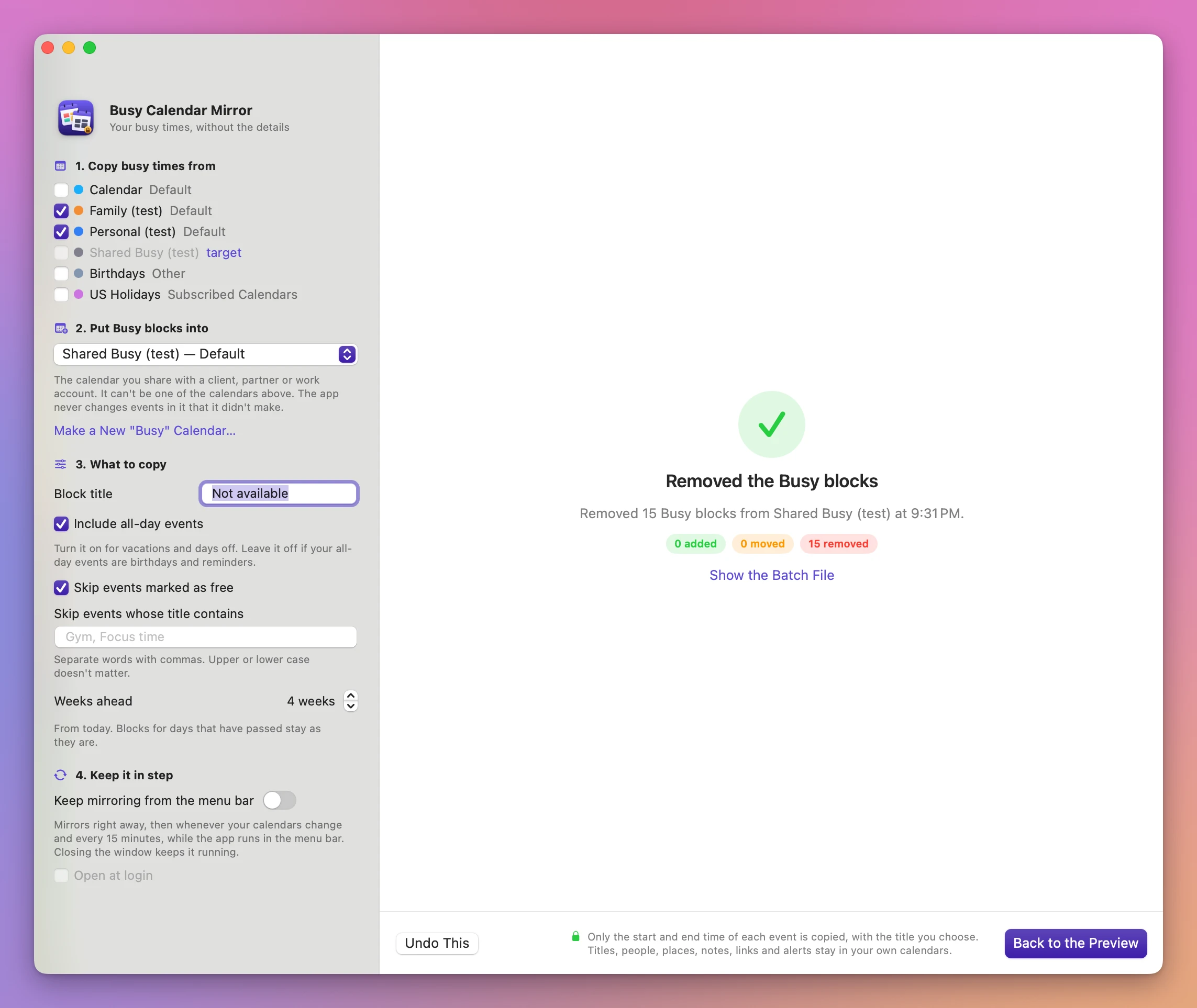
Every mirror is saved as a batch file with the times and nothing else, and Mirror › Undo Last Mirror puts the last one back. Remove All Mirror Blocks… removes every block the app made in the target, including past ones, after asking. Events you or others made there stay.
Why not do it another way
Copying events by hand
You can duplicate each event into a shared calendar and rename it “Busy”. You have to do it for every new event, and move or delete the copy every time the original changes. The copy you forget becomes a block on a morning you’re free.
Sharing your calendar from Calendar or iCloud
It shares everything: titles, locations, notes. iCloud calendar sharing has no “free/busy only” option.
Google Calendar’s free/busy sharing
Google Calendar can share a calendar with See only free/busy (hide details). If all your calendars are in Google and the other person uses Google, that is enough, and you don’t need this app. It doesn’t help when your private events are in iCloud or On My Mac, when the other side is a work account that only looks at one calendar, or when you want to pick which events count.
Outlook and Exchange free/busy
It works inside one organization. Your personal iCloud calendar doesn’t feed it.
Sync services like Reclaim, OneCal and CalendarBridge
They do this and more, across accounts, and they run on their servers all day, so the blocks update even when your Mac is off. That’s a real advantage. They also need an account, a monthly subscription, and access to your calendars from their servers. Busy Calendar Mirror runs on your Mac with the calendars Calendar already shows, and it only updates while your Mac is on and the app is running.
| By hand | Calendar sharing | Sync service | Busy Calendar Mirror | |
|---|---|---|---|---|
| What the other person sees | What you type | Everything | Busy blocks | Busy blocks |
| A moved event | You move the copy | Follows | Follows | Follows |
| iCloud and On My Mac calendars | Yes | Shares all details | Depends on the service | Yes |
| When it updates | When you remember | Always | Around the clock | While your Mac is on and the app runs |
| Who reads your calendars | You | The other person | The service’s servers | Only your Mac |
| Cost | Free | Free | A monthly subscription | $19 once |
What it doesn’t do
- It goes one way. Busy blocks go from your calendars into the target. Nothing comes back, and the app never edits your own events.
- It doesn’t run in the cloud. Blocks update while your Mac is awake and the app is running. If your Mac is off for the weekend, the shared calendar catches up when it’s back.
- It doesn’t share the calendar for you. You share the target calendar with the other person in Calendar, iCloud, Google or Outlook, the way you share any calendar.
- It doesn’t copy the past. It covers today to up to 26 weeks ahead.
- A single moved occurrence of a repeating event is shown in the preview as one block removed and one added, not as a move. The result in the shared calendar is the same.
Questions
Which calendars does it work with?
Any calendar that Calendar on your Mac shows and lets you write to. I tested it with calendars stored On My Mac. I haven’t tested the real use yet, a target in iCloud, Google or Exchange shared with someone else, so I can’t tell you how quickly the blocks reach the other person: that depends on your calendar account’s sync. Make a New “Busy” Calendar… may not work for Google accounts. If it fails, make the calendar in Calendar or on the web and pick it in the list.
How does the app find its own blocks?
Each block carries a code in its link and in its notes, made from the event it belongs to but not from its title. The app only moves or removes events with that code, so events without it are never changed.
Does “Skip events marked as free” work?
It works for calendars that store free and busy, like iCloud, Google and Exchange. Calendars stored On My Mac don’t store it, so their events always count, and the app says so in the sidebar. I checked this option with the app’s automated tests only, since my test calendars were On My Mac ones.
What happens to declined and canceled events?
They’re skipped. Like the free option, I checked this in the automated tests, since it needs a calendar on a server.
Does anything leave my Mac?
The app works with your calendars through macOS. The only thing that goes anywhere is the Busy blocks, which your calendar account syncs like any event. The app uses the internet only to check for updates.
What it needs
Busy Calendar Mirror runs on macOS 14 Sonoma or later, on Apple silicon and Intel Macs. It needs full access to your calendars.
The Busy Calendar Mirror docs walk through each setting. If you also want prep time around your meetings as busy blocks, there’s Meeting Buffer Blocks, and to send free times in an email, Availability Text Copier.
Buy Busy Calendar Mirror
$19 plus tax where it applies, paid once.
Download the app from the order page or your Creem receipt, unzip it and move it to Applications. I sign the app with my Apple Developer ID, and Apple notarizes the download.
The app checks for updates once a day. When a new version is ready, click Install and Relaunch. To check anytime, choose Busy Calendar Mirror → Check for Updates….