
An app by Flavio
Availability Text Copier
Pick a few free times from your Mac calendars and copy them as text, in the other person's time zone, with buffers, working hours and minimum notice applied for you.
Buy Availability Text Copier · $20One-time purchase. Plus tax where it applies.
macOS 14 or later · Apple silicon and Intel
Latest version 1.0.0, released November 20, 2026
A new client in New York asks for a call next week. You’re in Rome. So you open Calendar, look for gaps, leave some room around the calls you already have, work out what 4 PM your time is in New York (10 AM, or 11 AM in the weeks when the clocks change on different dates), and type five lines into the email.
It takes a few minutes, and one wrong hour means a missed call.
Availability Text Copier does that part. Tick the calendars that hold your busy times, pick the other person’s city, and the app writes your next free times as text in their time zone, with your own time in brackets. Click Copy Text and paste it into the email.
Who it’s for
- Freelancers with clients abroad. A designer in Rome replying to a lead in New York sends five 30-minute slots in Eastern Time, with her own time in brackets so she doesn’t misread them when the client picks one.
- Consultants with rules about their calendar. You want 15 minutes free before and after every client call, and no calls with less than a day’s notice. Set it once, and every list you copy follows it.
- Coaches and tutors with clients in Asia. A client in Tokyo only takes calls between 8:00 and 21:00 their time. The app only offers times inside those hours, so the list never lands in the middle of their night.
- Translators and people who write in another language. An Italian translator writing to an agency in Germany copies the same times in German, on a 24-hour clock, one line per day.
- Anyone who reschedules by email a lot. The menu bar icon copies “my next free times” with the usual settings in one click, without opening the window.
From your calendar to the email
- Allow Calendar access. Click Allow Calendar Access… and choose Allow Full Access in the dialog macOS shows. The app reads when your events start and end, never their names, and never changes your calendars.
- Tick your calendars. Under Calendars with your busy times, keep the calendars that hold your meetings. Untick the ones that don’t, like Birthdays or a holidays calendar.
- Pick their city. Under Recipient’s time zone, type in Search a city, like New York or Tokyo and press Return. Keep Only offer times inside their hours on to stay inside their 8:00 to 19:00, or change the hours.
- Set the meeting. Choose Meeting times for exact slots or Free stretches for longer ranges they pick from. Set the Length, the room you want before and after each event, the Minimum notice, how many days to Look ahead and how many Times to offer.
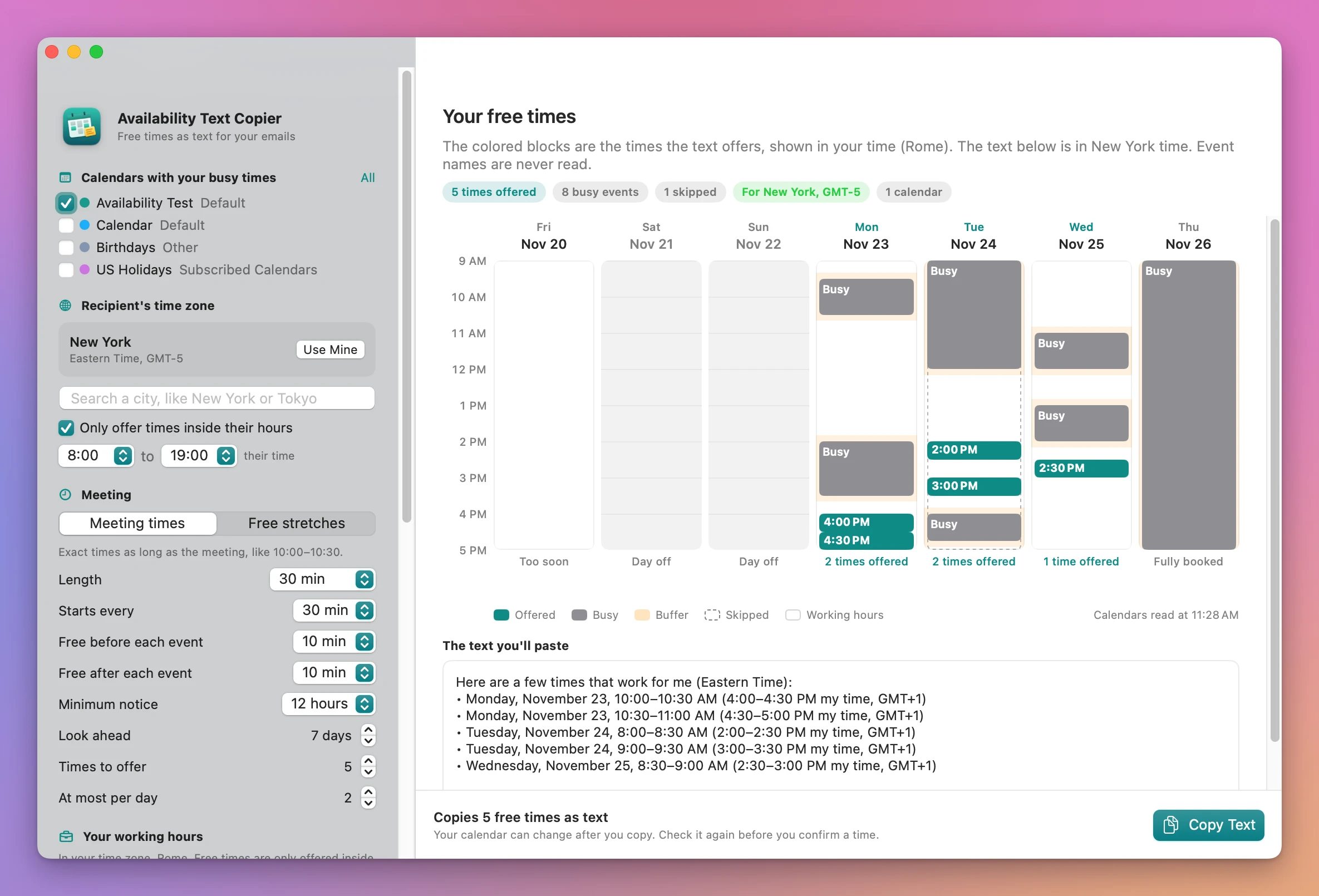
- Check the preview. The week grid shows your working hours, your busy blocks (labeled only “Busy”), the buffers around them and the times the text offers. Under each day a note says why it has no time: Day off, Too soon, Fully booked or Outside their hours. Below it, The text you’ll paste shows the text exactly as it will be copied.
- Click Copy Text (or press Shift-Command-C), then paste it into your email with Command-V.
Here’s what the New York example copies:
Here are a few times that work for me (Eastern Time):
• Monday, November 23, 10:00–10:30 AM (4:00–4:30 PM my time, GMT+1)
• Monday, November 23, 10:30–11:00 AM (4:30–5:00 PM my time, GMT+1)
• Tuesday, November 24, 8:00–8:30 AM (2:00–2:30 PM my time, GMT+1)
• Tuesday, November 24, 9:00–9:30 AM (3:00–3:30 PM my time, GMT+1)
• Wednesday, November 25, 8:30–9:00 AM (2:30–3:00 PM my time, GMT+1)

Let me know which one suits you best.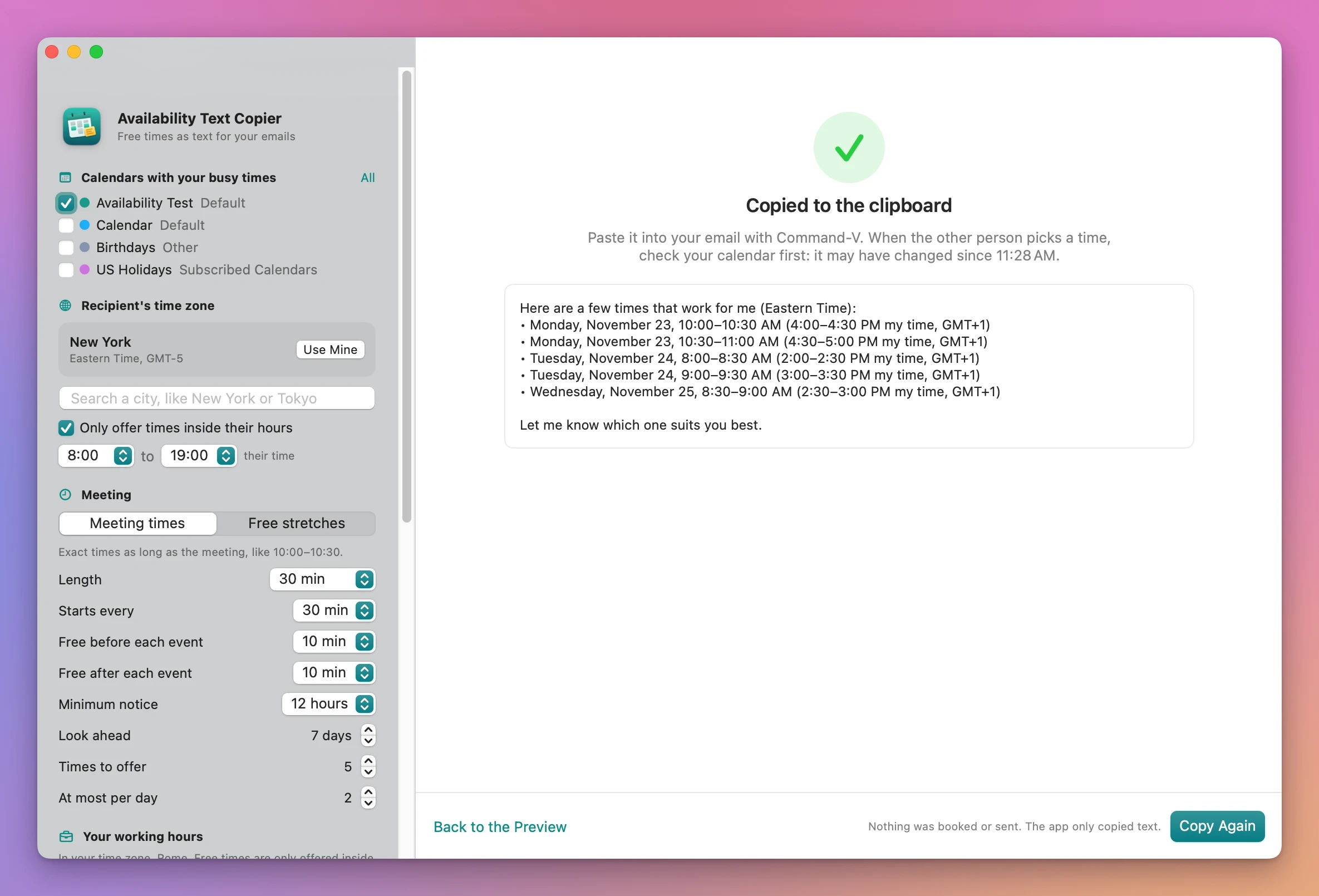
What you get
Times in their zone, with yours in brackets
The text names their time zone (“Eastern Time”) and gives each time in it, followed by your own time and GMT offset in brackets. Turn off Add my own time in brackets if you don’t want them. The app handles the weeks when Europe and the US change their clocks on different dates, when Rome and New York are 5 hours apart instead of 6.
Your rules applied every time
- Your working hours, Monday to Sunday, each on or off with its own start and end, in your time zone. The default is Monday to Friday, 9 to 17.
- Free before each event and Free after each event, from 0 to 60 minutes, so a new call never sits right against another one.
- Minimum notice, from none to two days. The default is 12 hours.
- Starts every 10, 15, 30 or 60 minutes, so times start on round numbers.
- At most per day, so five times are spread over the week and not all on Monday.
- Only offer times inside their hours, 8:00 to 19:00 their time by default.
Every setting is saved for next time.
Events that shouldn’t block time
All-day events and events marked Free don’t block time by default, so a conference marked Free or a holiday in your calendar leaves the day open. Tentative events block time unless you change it. Canceled events and invitations you declined never block time. Skipped events show in the week grid as dashed outlines.
Three styles and five languages
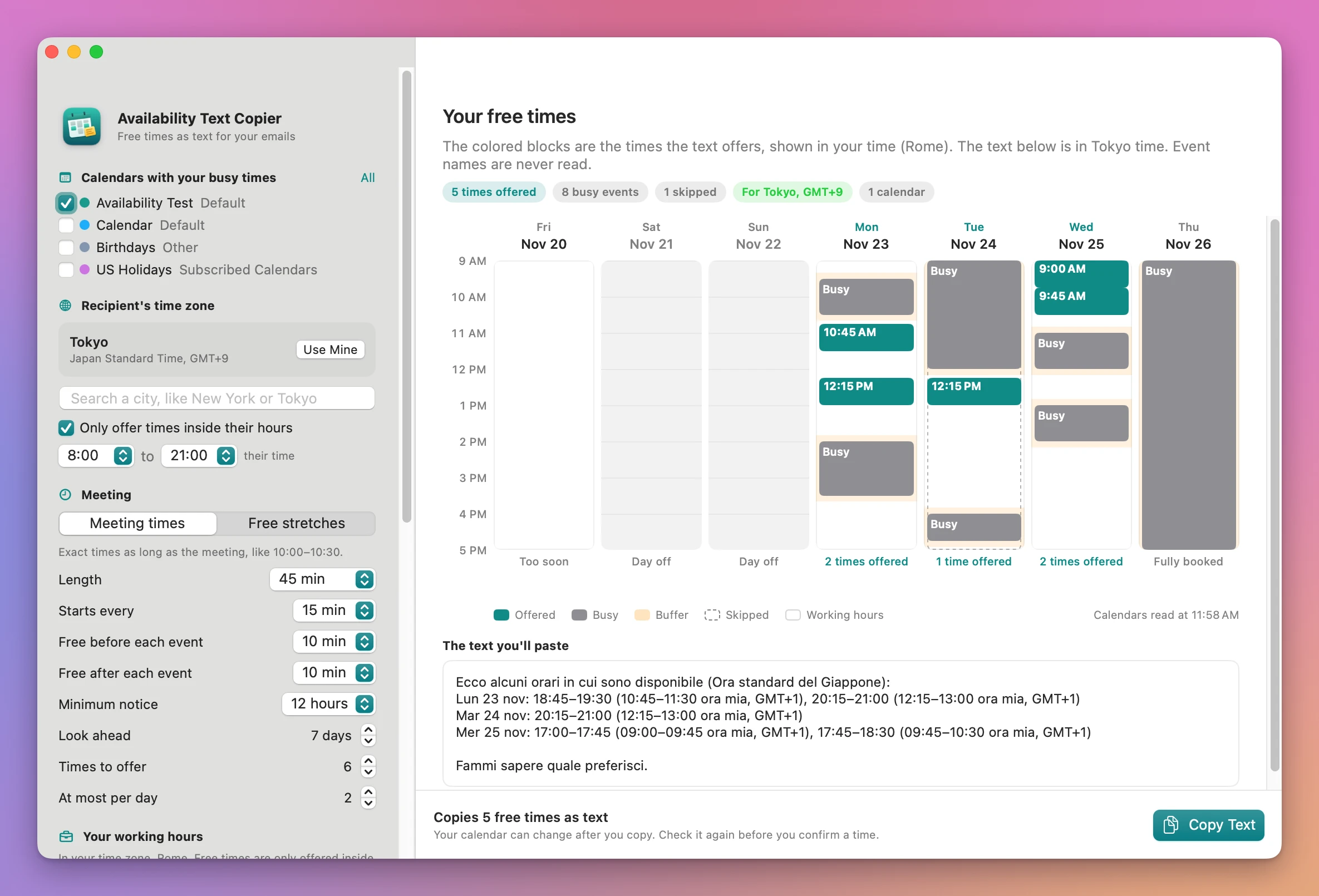
Style is Bulleted list, One line per day or Single line. Language is English, Italiano, Español, Français or Deutsch, and Clock follows the language or forces a 12-hour or 24-hour clock. Turn off Opening and closing sentence to copy only the times, and write your own words around them in the email.
Here are the Tokyo settings in Italian, one line per day, with 45-minute meetings:
Copy from the menu bar
A calendar icon in the menu bar has Copy N Free Times, the city and language it uses, and the times it will offer. It uses the same settings as the window. Turn it off with Quick copy from the menu bar.
A fresh read before every copy
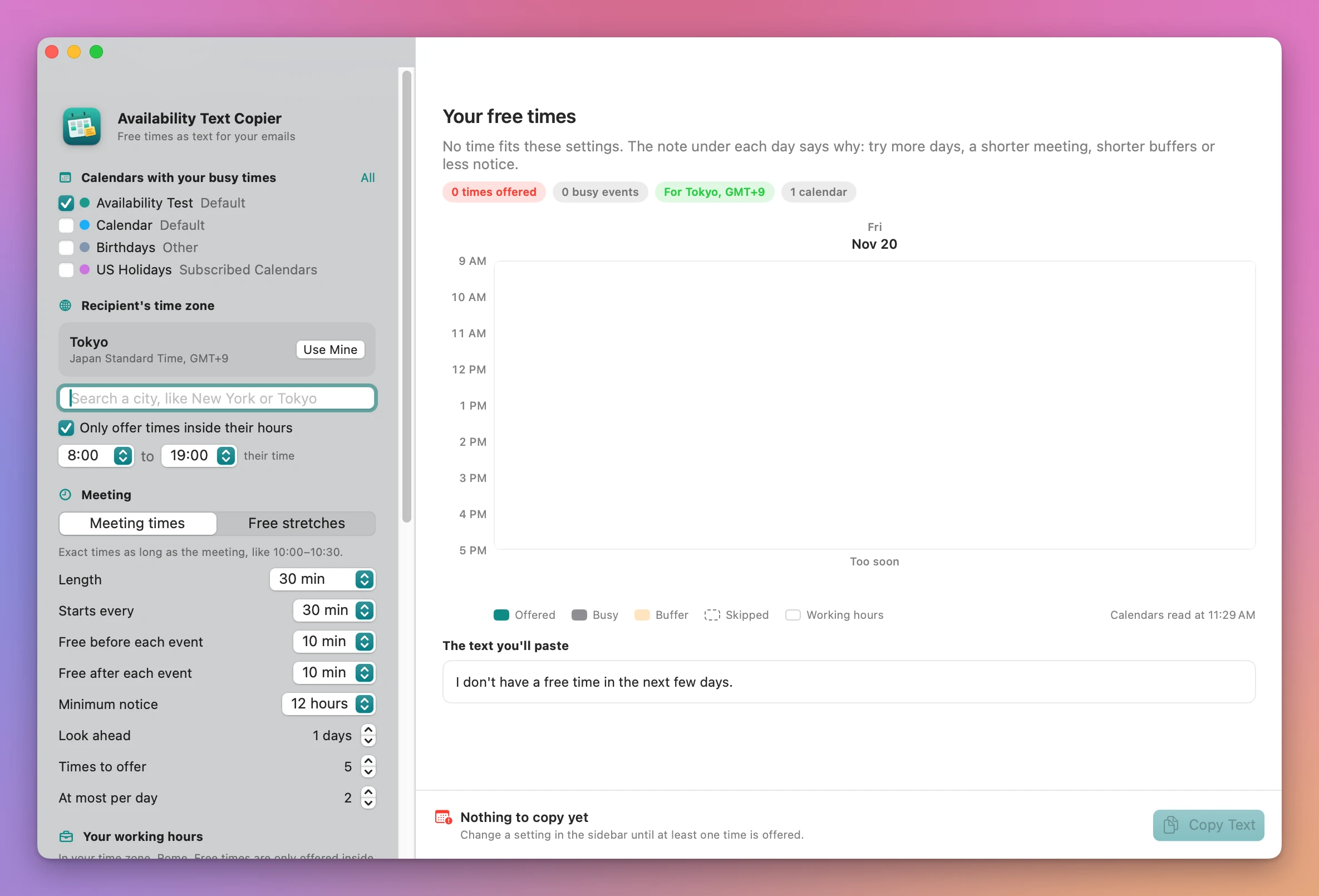
The app reads your calendars again right before it copies, when the window comes back to the front, and when Calendar changes. When nothing fits, it says so and tells you which setting to change, and Copy Text stays off.
Why not do it by hand
Typing it yourself works. You look for the gaps in Calendar, remember the room you want around each call, convert every time to the other person’s zone, and type the days and dates. It’s a few minutes per email, and a time zone conversion is an easy place to get an hour wrong.
Calendar itself shows your events, and its Turn on time zone support setting lets you give an event its own time zone. It can’t list your free times, convert them for someone else or write them as text. Sharing or publishing a calendar shows the other person everything, and they still have to find the gaps themselves.
Booking-link services like Calendly, Cal.com or Google Calendar’s appointment pages are good when people book themselves. They also create the event, send the invitations and stop two people from taking the same slot, which this app doesn’t do. They need an account, most of their features need a subscription, and some people won’t click a booking link, or find one impersonal in a personal email. Availability Text Copier is for when you just want to suggest a few times in the email, with no account and no link.
World clock websites convert one time at a time, and they don’t know your calendar.
| By hand | Booking link | Availability Text Copier | |
|---|---|---|---|
| Finds your free times | You look in Calendar | Yes | Yes |
| Their time zone | You convert each time | Yes, on the booking page | Yes, in the text |
| Buffers and minimum notice | You remember them | Yes | Yes |
| What the other person gets | Your text | A link to a booking page | Plain text in the email |
| Account needed | No | Yes, usually paid for more features | No |
| Books the meeting | No | Yes | No |
| Your calendar leaves your Mac | No | It’s connected to the service | No |
What it doesn’t do
- It doesn’t book anything. It copies text. It doesn’t create events, send invitations or hold the times, and a time can be taken after you copy it. Check your calendar before you confirm.
- It doesn’t send email. You paste the text into your email app.
- It doesn’t make booking links. The other person replies with the time they want.
- Working hours follow this Mac’s time zone. When you travel and the Mac changes zone, your working hours move with it.
- Recipient zones are cities. Search for a big city in their time zone, like New York, Rome or Tokyo. A small town needs the nearest big city.
Questions
Does it read my event names?
The app reads when your events start and end, and whether they’re all-day, free, tentative, canceled or declined. It never reads event names, and the preview labels every event “Busy”.
Does it change my calendars?
It only reads them. Nothing is added, moved or deleted. The done screen says it: “Nothing was booked or sent. The app only copied text.”
Does it work with iCloud, Google or Exchange calendars?
The app reads every calendar you see in Calendar on your Mac, through the same system access. It was tested with calendars stored On My Mac. Skipping invitations you declined needs a calendar account that keeps that information, like a work or Google account.
How good are the other languages?
The days and months come from macOS, in each language. The opening and closing sentences were written for each of the five languages, but they haven’t been checked by native speakers. Turn off Opening and closing sentence to copy only the times and write those lines yourself.
Does anything get uploaded?
Your calendars are read on your Mac and the text goes to the clipboard. The app uses the internet only to check for updates.
What it needs
Availability Text Copier runs on macOS 14 Sonoma or later, on Apple silicon and Intel Macs. It needs full access to Calendar, which macOS asks for the first time. The Availability Text Copier docs explain every setting.
Buy Availability Text Copier
$20 plus tax where it applies, paid once.
Download the app from the order page or your Creem receipt, unzip it and move it to Applications. I sign the app with my Apple Developer ID, and Apple notarizes the download.
The app checks for updates once a day. When a new version is ready, click Install and Relaunch. To check anytime, choose Availability Text Copier → Check for Updates….