
An app by Flavio
Batch Office to PDF
Turn a whole folder of DOC, DOCX, PPT and PPTX files into PDFs in one go, with the free LibreOffice. No Microsoft 365 needed, nothing uploaded.
Buy Batch Office to PDF · $20One-time purchase. Plus tax where it applies.
macOS 14 or later · Apple silicon and Intel
Latest version 1.2.1, released November 20, 2026
Someone sends you a folder of Word documents and PowerPoint decks, and you need them as PDFs. The school portal only takes PDFs, or it’s twenty years of old .doc files you want to keep readable. Perhaps you don’t have Microsoft Office on this Mac at all.
You can open each file and export it. That’s fine for three files. For eighty it’s an afternoon of open, export, check the name, close, next.
Batch Office to PDF converts the whole folder in one go. It uses LibreOffice, the free office suite, to do the actual rendering, and handles the batch around it: the queue, the file names, the checks, and picking up where it left off if you stop halfway.
Who it’s for
- People without Microsoft Office who keep getting
.docxand.pptxattachments. You don’t want a Microsoft 365 subscription to turn a client’s thirty documents into PDFs you can read, annotate and forward. - Teachers with a semester of Word handouts and PowerPoint lessons. The learning platform wants PDFs, so students can open them on a phone or a school Chromebook.
- Office managers and HR with a folder of policies, contract templates and onboarding decks. Publish them as PDFs on the intranet, so nobody edits the master copy by accident.
- Anyone cleaning up an old archive of
.docand.pptfiles from the 2000s. Convert them to PDF while there’s still software that opens them, and keep the PDFs next to the originals. - Trainers and consultants who send course decks and reports after every workshop. The PDF looks the same on every screen, and nobody needs PowerPoint to open it.
From folder to finished
Say you have a Semester 1 folder with 80 handouts and slide decks.
- Install LibreOffice from its website and drag it to Applications, like any app. You only do this once. The app looks for it at
/Applications/LibreOffice.app/Contents/MacOS/soffice. The sidebar says whether it found it. If yours is somewhere else, click Change… next to LibreOffice and pick it. - Open Batch Office to PDF and click Add Documents…. Pick the
Semester 1folder, or individual documents, or drag them onto the window. - Click Choose… next to Save PDFs to and pick a folder for the PDFs, for example
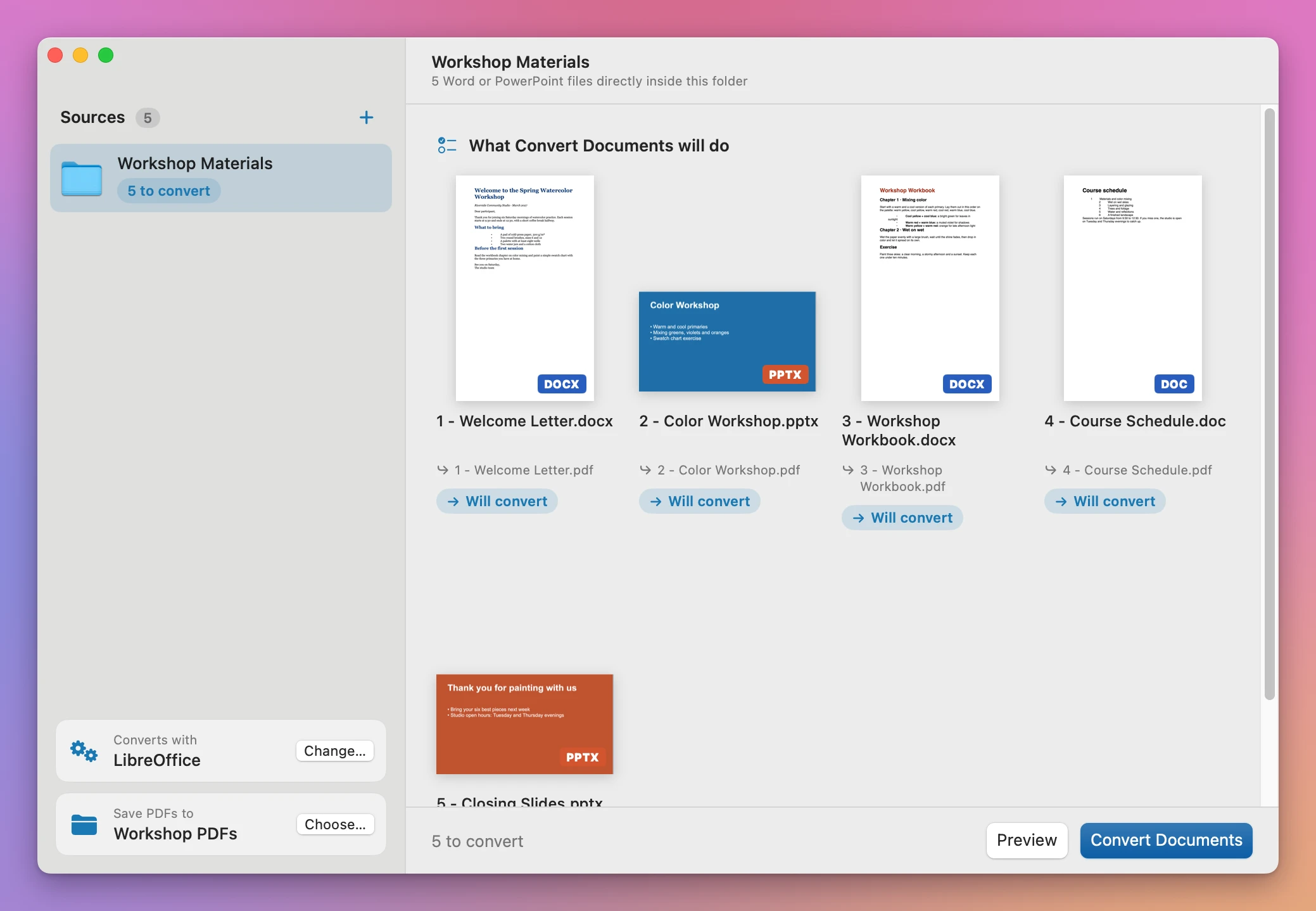
Semester 1 - PDF. - Click Preview. Each document shows a picture of its first page and the PDF it’ll become:
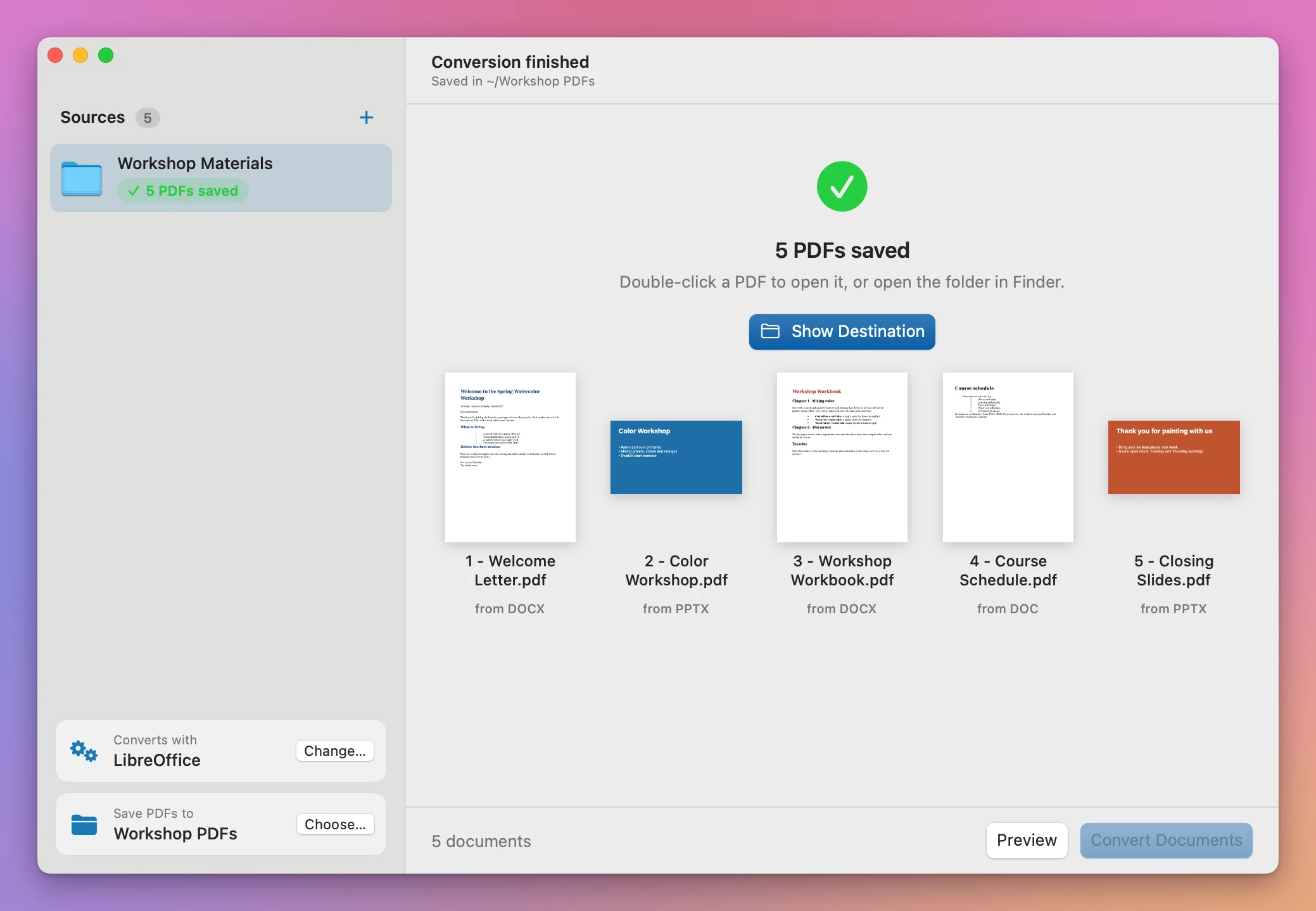
Week 3 - Photosynthesis.docxbecomesWeek 3 - Photosynthesis.pdf. If a PDF with that name is already there, the preview shows the numbered name it’ll get instead. - Click Convert Documents. LibreOffice works in the background without opening any windows. When the batch is done, the window shows the first page of each saved PDF. Double-click one to open it.
- Click Show Destination to open the folder in Finder.
Eighty files by hand is eighty rounds of open, export, name, close. Here it’s two buttons and some waiting.
Before you send the PDFs out, open a few of them, especially decks with custom fonts or complicated slide layouts.
What it does
Which files
The app converts .doc, .docx, .ppt and .pptx. When you add a folder, it takes those files directly inside it, sorted by name the way Finder sorts numbers, so 2 - Intro comes before 10 - Review. Other files in the folder are ignored, and so are subfolders. You can add several folders and loose documents in the same batch.
Names and your originals
Each PDF keeps the document’s name: Lease template.docx becomes Lease template.pdf. Your Word and PowerPoint files are only read, never changed or moved.
If a PDF with the same name is already in the destination, the app doesn’t overwrite it. The new one gets a number, like Lease template (2).pdf.
Every PDF is checked
After LibreOffice finishes a file, the app opens the result and checks it’s a readable PDF with pages in it. If it isn’t, nothing is saved for that document and the report says so. If one document fails, the others in the folder still convert. The failure shows its own line, like “LibreOffice could not render the file. Check the source, its password and fonts.”
A file that takes LibreOffice more than two minutes is stopped with a “timed out” message, so one broken document can’t hold up the whole batch.
Stop now, finish later
You can click Stop in the middle of a big batch. The PDFs already saved stay in the destination.
Next time, add the same folder with the same destination and click Preview. Documents that are already done show Already converted. The app checks that the Word or PowerPoint file hasn’t changed and that the PDF it saved is still there, unchanged. Only the rest get converted. If you edited a document since then, or deleted its PDF, it’s converted again.
Your LibreOffice stays as it is
Each batch runs LibreOffice with its own temporary profile, which is deleted afterwards. Your LibreOffice settings and recent documents aren’t touched.
Why not save them as PDF one by one
Word can save a document as a PDF. Pages opens Word files and Keynote opens PowerPoint files, and both can export a PDF. LibreOffice itself has Export as PDF. All of these are good for a single file.
For a folder, the trouble is the repetition. Each file is open, export, check the name, pick the folder, close. Eighty files is eighty rounds, and it’s easy to skip one or save one in the wrong place. If you stop halfway, you have to work out which ones you already did.
If you’re comfortable in Terminal, LibreOffice can convert a batch with a command. Batch Office to PDF is for when you’d rather click a button and see the list first.
| One by one | Batch Office to PDF | |
|---|---|---|
| 80 documents | 80 rounds of open, export, name, close | Add the folder, click Convert Documents |
| What you’ll get | You find out at the end | Preview lists every file and its PDF name |
| Stopping halfway | Work out which ones are done | Already converted, checked file by file |
| Existing PDFs | Easy to overwrite | Never replaced, numbered instead |
| Software needed | Office, Pages and Keynote, or LibreOffice | The free LibreOffice |
| Your files | Stay on your Mac | Stay on your Mac |
What it doesn’t do
- Word and PowerPoint only. No Excel spreadsheets, no Pages or Keynote files, no OpenDocument or RTF files.
- LibreOffice isn’t included. You install it yourself. It’s free, and the app tells you if it can’t find it.
- It’s not Microsoft’s renderer. LibreOffice draws the pages. If a document uses a font your Mac doesn’t have, a similar one is used, and line breaks or slide text can shift. Check documents that depend on exact layout.
- No password-protected documents. Remove the password in the app that made the file, then convert it.
- No subfolders. Add each subfolder as its own source.
- No combining. Every document becomes its own PDF. To turn a folder of the results into one file, Folder to PDF Packets does that.
Questions
Do I need Microsoft Office?
You don’t. The app uses LibreOffice, which is free, and Office doesn’t need to be installed.
Are my documents uploaded anywhere?
The conversion happens on your Mac, with LibreOffice running locally. The app goes online only to check for updates.
Are my original files changed?
No. They’re read, and the PDFs are written to the destination you choose.
What happens if one file fails?
That file is marked Failed, with the reason. The other documents still convert. Fix the file, or leave it out, and run the batch again. The ones already done show Already converted.
Will the PDF look exactly like it does in Word or PowerPoint?
Usually close, but not always identical. Plain documents and simple decks tend to come out looking the same. Documents with unusual fonts or complex tables are the ones to check. Slide animations and transitions don’t carry over to a PDF.
The documentation covers installing LibreOffice and resuming a batch.
What it needs
Batch Office to PDF runs on macOS 14 Sonoma or later, on Apple silicon and Intel.
Processing happens on your Mac.
Buy Batch Office to PDF
$20 plus tax where it applies, paid once.
Download the ZIP after checkout, unzip it and drag the app to Applications. The download is signed and notarized.
The app checks for updates once a day. When a new version is ready, click Install and Relaunch. To check anytime, choose Batch Office to PDF → Check for Updates….