Fixing TS issues in VS Code - Astro
By Flavio Copes
How to fix common TypeScript issues in VS Code with Astro: reload the window, fix @ path aliases, move to src/content.config.ts and run npx astro sync.
Sometimes I run into issues in VS Code when working in my Astro projects. I don’t know if it’s VS Code, TypeScript or Astro, more likely a combination of it all.
Sometimes errors are subtle and confusing. In one case I created a file and imported it, but I got a red line under the import saying Cannot find module ... or its corresponding type declarations.
Try opening the VS Code command palette and running Developer: Restart Extension Host or Developer: Reload Window. More often than not, the error goes away.
Also try stopping npm run dev and restarting it.
Final try, close VS Code and reopen it.
In one case I created a collection but TS didn’t pick up the type of the posts correctly, and got “any”:
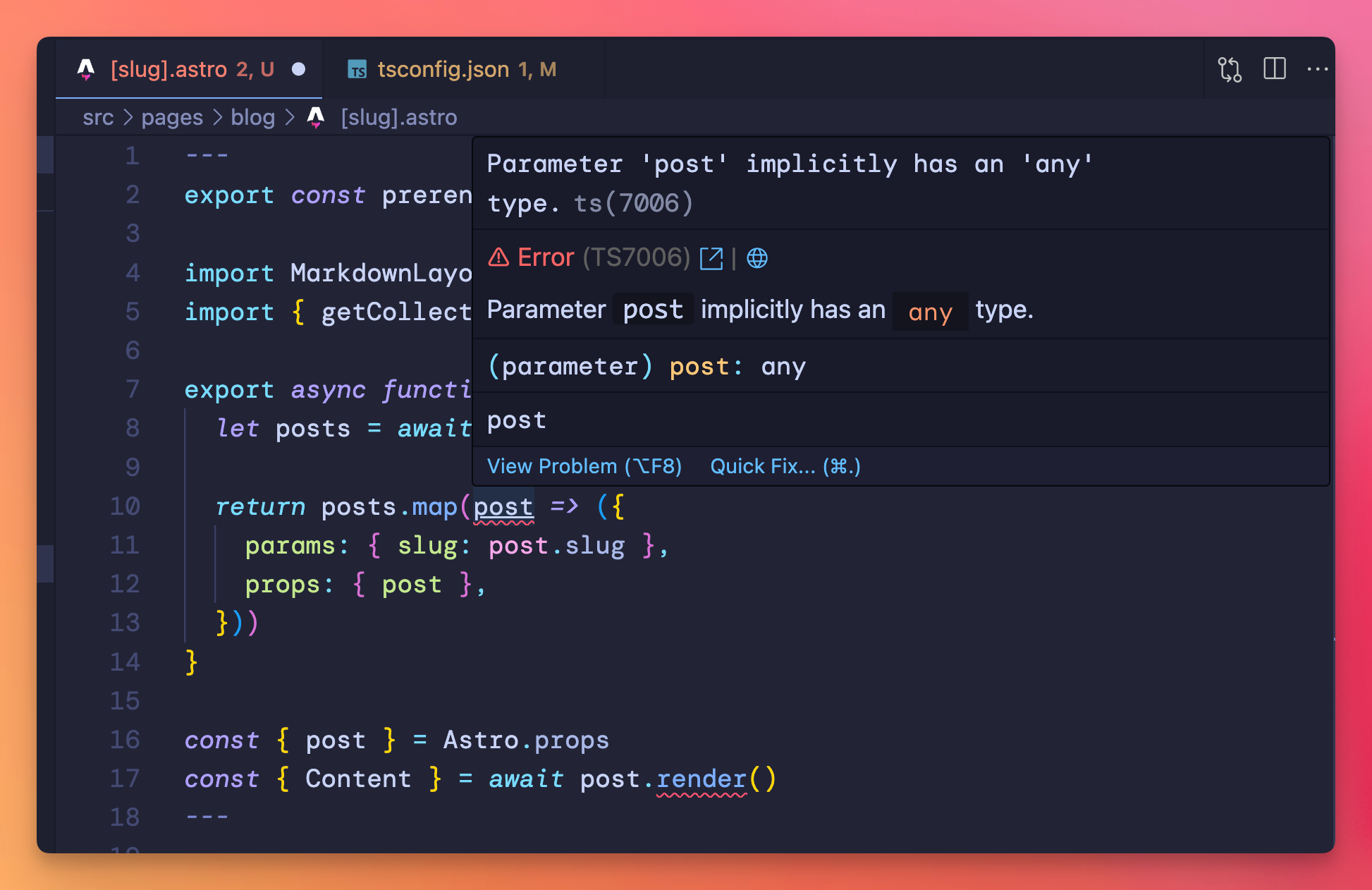
In this case I had to create a markdown file for my content collection first, in src/content/blog/test.md, matching how I defined the collection in my content/config.ts. Then the error went away.
That was easy.
Since Astro 5, the collection is defined in src/content.config.ts, at the root of src. That’s where Astro looks for it.
Error: legacy content config file
Older projects keep that file in src/content/config.ts. Astro 5 still accepted the old location, but Astro 6 removed it, and the build stops with this error:
[LegacyContentConfigError] Found legacy content config file in "src/content/config.ts". Please move this file to "src/content.config.ts" and ensure each collection has a loader defined.Move the file to src/content.config.ts and give each collection a loader. For a folder of Markdown posts that’s the glob() loader:
import { defineCollection } from 'astro:content'
import { glob } from 'astro/loaders'
import { z } from 'astro/zod'

const blog = defineCollection({
  loader: glob({ pattern: '**/*.md', base: './src/content/blog' }),
  schema: z.object({ title: z.string() }),
})

export const collections = { blog }
Then run npx astro sync to generate the types again, and VS Code picks them up. The Astro 6 upgrade guide covers the rest of the migration.
Other times it’s an import error. First, of course, check the path is correct.
If you use @ imports, check that tsconfig.json defines them and that the file is saved.
Start every path with ./ and leave out baseUrl. TypeScript 7 removed the baseUrl option and rejects paths that don’t start with ./. This form works on older TypeScript versions too, and Astro resolves the aliases from the project root:
{
  "extends": "astro/tsconfigs/strict",
  "compilerOptions": {
    "paths": {
      "@components/*": ["./src/components/*"],
      "@layouts/*": ["./src/layouts/*"],
      "@lib/*": ["./src/lib/*"],
      "@data/*": ["./src/data/*"],
      "@src/*": ["./src/*"]
    }
  }
}
A student of mine had an Astro site that used content collections, and the TS types for that collection were not generated. The errors looked like “Property ‘render’ does not exist on type ‘never’”.
Running npx astro sync fixed the issue.
Since Astro 5, a similar error can have another cause. Entries from collections that use the Content Layer API, the only kind of collection since Astro 6, don’t have a render() method. Import render from astro:content and pass it the entry:
import { render } from 'astro:content'

// before: const { Content } = await post.render()
const { Content } = await render(post)Want me to talk about your product? You can sponsor this site.
Related posts about tools: