
A developer tool by Flavio
VM Peek and testvm
See your macOS test VM, the coding agents using it and every command they ran. Includes the testvm CLI, agent skill and full MIT source for both tools.
Buy VM Peek and testvm · $20One-time purchase. Tax included. Source code included.
macOS 15+ · Apple silicon Mac and Tart · testvm included
Latest version 1.5.0, released November 20, 2026
Your agent is testing your app. Where?
My coding agents test the Mac apps they build in a virtual machine, so they never take over my screen while I work. They drive it with testvm, a small shell script that copies an app into the VM, launches it, takes screenshots and clicks through it.
It works, but the VM has no window. I couldn’t see what the agents were doing in there, which agent was testing what, or whether two of them were in the VM at the same time.
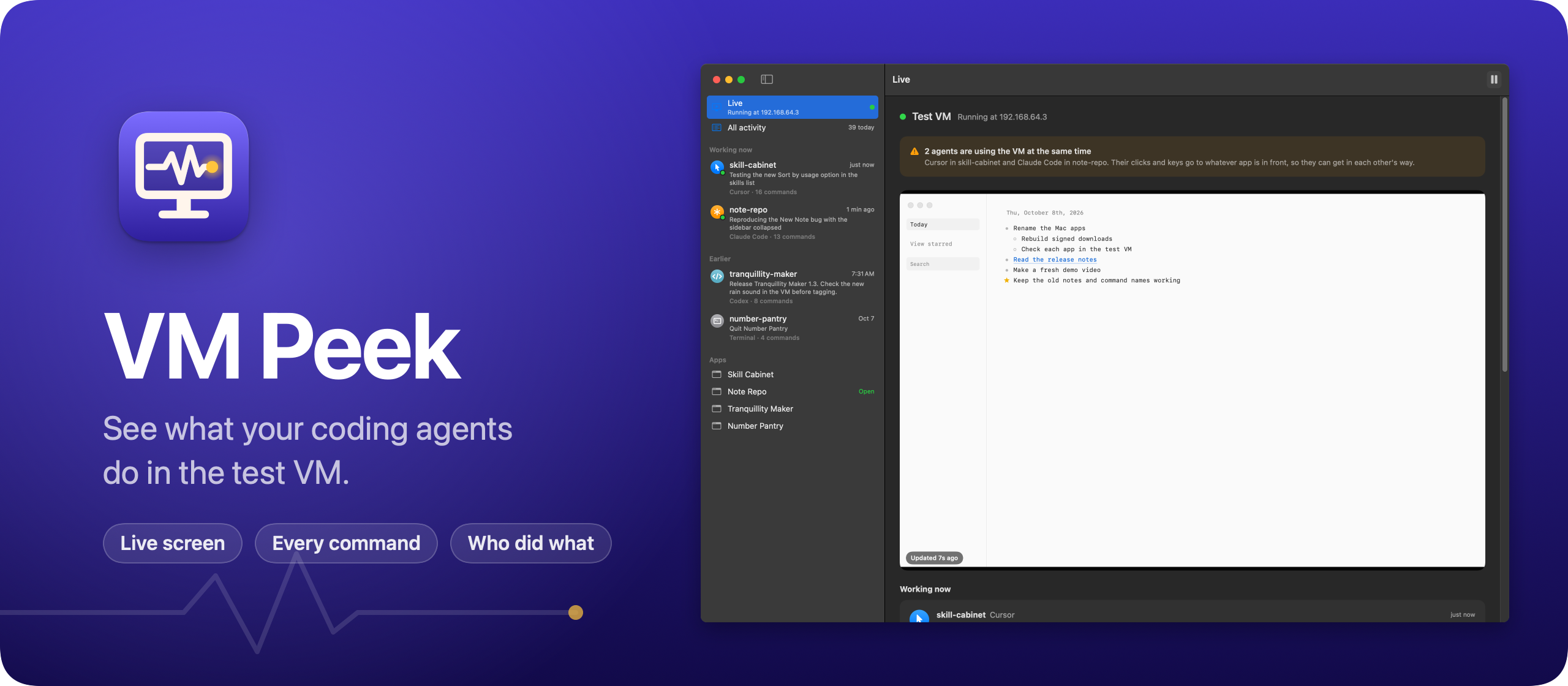
VM Peek shows the VM’s screen, the agents using it right now, and every command they ran. You buy it together with testvm and its agent skill, so you get the whole setup: the VM, the tool your agents use to drive it, and the window that shows you what happens inside.
Here it is in a little over a minute:
The agents, chats, projects and apps in the video and the screenshots are made up, and so is the VM’s screen.
Who it’s for
- Mac developers who let agents test their builds. Your agent finishes a change and wants to open the app, click the new button and take a screenshot. On your Mac that steals focus while you type. In the VM it doesn’t, and VM Peek shows you the run.
- People running several agent chats at once. A Cursor chat fixes the sort menu while Claude Code works on the export. Both reach for the VM. The orange banner tells you they overlap before one of them clicks in the other’s app.
- Anyone who leaves agents working overnight. In the morning, the chat timeline shows each command in plain words, with every screenshot the agent took. You see what it checked before you trust its “all tests pass”.
- Indie developers with more than one app. The app timeline tells you which agent put the latest build in the VM, so the screenshot you’re looking at is of the build you think it is.
- Developers with a spare Mac. Point
testvmat a Mac mini on your network instead of a VM. VM Peek watches that one the same way.
What you see
The Live view
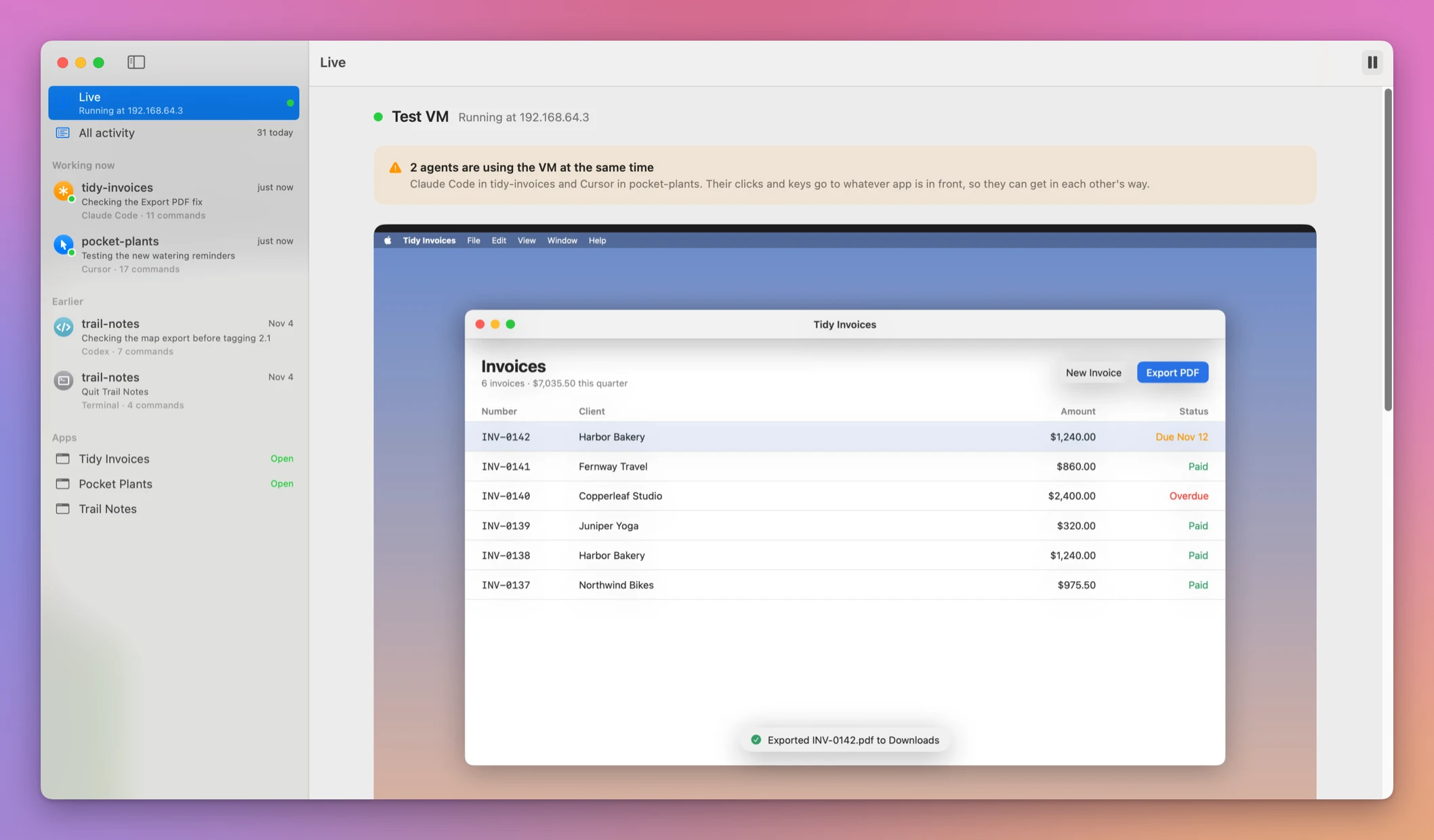
The Live view shows the VM’s screen, refreshed every 2 seconds while the window is visible. Under it are the agents that used the VM in the last 3 minutes. Each one shows the prompt that started its chat, the note it left, and the command it’s running right now.
When two chats use the VM at once, an orange banner says so. Their clicks and keys go to whatever app is in front, so one agent can end up clicking in another agent’s app.
It already happened twice. While I was building VM Peek, another Cursor chat spent four and a half minutes in the VM rendering screenshots for one of my other apps, while I clicked around in the same VM, and neither of us knew. Later, while I made the screenshots for the README, another agent opened its app in front of mine halfway through, and that’s the app my screenshot caught. This time the log VM Peek reads told me which agent it was.
Every command, in plain words
The sidebar lists every chat, with the agent that ran it and the project it works on. Click one and you get its timeline, the newest command first.
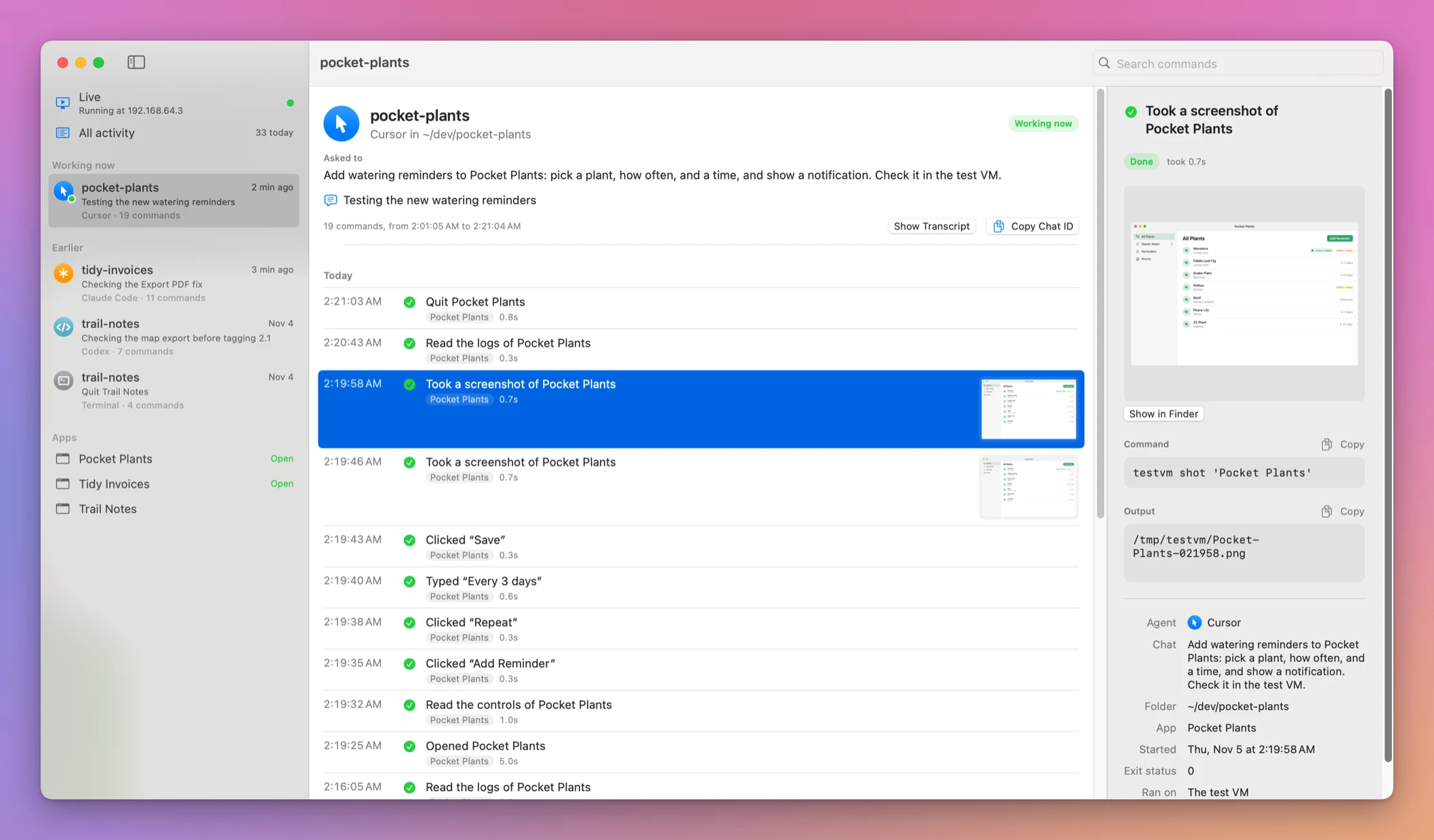
Commands read like sentences: “Opened Skill Cabinet”, “Took a screenshot of Skill Cabinet”, “Pressed ⌘A”. A click names the control it hit, like “Clicked “Find repeated tasks””. The agent clicks by coordinates, so VM Peek finds the control at that point in the list of controls the agent read just before.
Screenshots show up as thumbnails. Click any command to see it in full: the screenshot, the exact command line, what it printed, and who ran it. Search finds earlier commands across every chat.
There’s also a timeline per app, which tells me which agent put the latest build in the VM before I trust a screenshot of it.
From build to checked screenshot
Here’s how one test run goes, once the VM is set up.
- You ask your agent to add a sort menu to your app. Your agent rules tell it to test in the VM with
testvm. - The agent builds the app, then runs
testvm note 'Checking the new sort menu'. The note shows up next to its chat in VM Peek. - It runs
testvm openwith the path of the build. That copies the app into the VM, replaces the running test copy and waits for a window. You see the app appear in the Live view. - It runs
testvm uito list the app’s controls and their coordinates, thentestvm clickon the menu. VM Peek writes “Clicked” with the control’s name. - It runs
testvm shotand looks at the screenshot. You see the same thumbnail in its timeline. - When the chat says it’s done, you click through its timeline. Each step has its screenshot, command line and output.
You never switch windows to watch it, and the agent never moves your mouse.
How it knows who’s who
Since every agent goes through testvm, it logs every command to a file in ~/Library/Logs/testvm, with a line when the command starts and one when it ends.
Each line says which agent ran it. Cursor and Codex put the chat’s id in the environment of every command they run. Claude Code doesn’t, so testvm looks for the claude process up the process tree. Anything else counts as me in a terminal.
VM Peek reads the new lines every second. To say what each agent is working on, it finds the chat in the agent’s own transcripts and reads the first prompt.
Agents can also say what they’re testing:
testvm note 'Checking the new sort menu'The note shows up next to the chat. The included skill for the test VM tells every agent to start with one.
The screen comes over the same SSH connection testvm uses. VM Peek only watches: it never clicks, types or opens anything in the VM.
What testvm does
testvm setup downloads a macOS Sequoia image, about 25 GB, and creates a VM with 4 cores and 8 GB of memory under Tart. It runs in the background, with no window. Files, accounts and app data inside it stay separate from your Mac unless you copy them in.
From then on, agents use a handful of commands:
| Command | What it does |
|---|---|
testvm open <app> | Copies a build into the VM and launches it |
testvm shot <app> | Takes a screenshot of the app’s window |
testvm ui <app> | Lists the controls with their labels and click coordinates |
testvm click, type, key | Clicks at coordinates, types text, presses a shortcut |
testvm push | Copies test files into the VM |
testvm note | Tells VM Peek what the agent is testing |
testvm help lists the rest, and testvm capabilities tells an agent what the tool can do. The agent skill teaches your agent the whole routine.
Why not use a VM window, or test on your own Mac
The free option is to let the agent test on your Mac. That works when you’re away. When you’re at the desk, every open brings the app to the front, and a click lands wherever the agent thinks the button is, even if you’re typing in another window.
You can also run a VM with its own window and watch it. That shows you the screen. It doesn’t tell you which chat is clicking, what it’s checking, or what happened while you weren’t looking. With two agents in there, you can’t tell them apart.
| Test on your Mac | VM with a window | VM Peek and testvm | |
|---|---|---|---|
| Your screen and focus | Taken over | Yours | Yours |
| Which agent is clicking | You guess | You guess | Named, with its prompt |
| Two agents at once | Clicks collide | Clicks collide | Orange banner |
| What happened overnight | Nothing kept | Nothing kept | Every command, with screenshots |
| Which build is in the VM | n/a | You remember | App timeline |
What it doesn’t do
- It doesn’t click or type. VM Peek only watches. The agents drive the VM through
testvm. - It doesn’t prevent overlaps. It warns you. Let one test finish before another starts.
- It only names three agents. Cursor, Claude Code and Codex are told apart. Anything else that runs
testvmshows up as you in a terminal. - The VM needs an Apple silicon Mac. The viewer app also has an Intel build, but a local Tart VM needs Apple silicon.
- The VM can’t run a newer macOS than yours. It’s a Sequoia VM, and Tart can’t boot a newer macOS than the one on your computer.
Questions
What does VM Peek read on my Mac?
The log testvm writes in ~/Library/Logs/testvm, and the first message of each agent chat, from Cursor’s, Codex’s and Claude Code’s own transcript folders. The log can contain agent prompts, command output and screenshots, so treat it as project data. There are no accounts.
Can I test on a real Mac instead of a VM?
Yes. Put TEST_HOST and TEST_USER in ~/.config/testvm/config, pointing at a Mac on your network. testvm and VM Peek both use it.
How much disk space does it need?
The Sequoia image is about 25 GB, plus the apps you test in it.
What if the screen doesn’t show up?
Run a simple testvm command first and read its error. Check that Tart is installed, setup completed and the VM can start. The documentation walks through setup and connection problems.
Can I change the code?
Yes. The full source of both VM Peek and testvm is included under the MIT license.
Buy VM Peek and get started
VM Peek costs $20 including tax, paid once. You get the Mac app, the testvm CLI, its agent skill, and full source code for both under the MIT license, so you can read it, change it and build your own version.
After buying, download the Mac app and the source ZIP from your purchase page. The source ZIP also contains the ready-to-run testvm script and its agent skill.
Unzip the app zip and drag VM Peek to your Applications folder. It runs on macOS 15 Sequoia or later. The test VM is a Sequoia Mac, and Tart can’t boot a newer macOS than the one on your computer. It’s signed with my Apple Developer ID and notarized by Apple, so it opens like any other app you download.
The VM itself runs under Tart, which needs an Apple silicon Mac. The included README shows how to install Tart and testvm, create the VM with testvm setup, and tell your agents to use it.
VM Peek checks for updates once a day. You can also choose Check for Updates… from the app menu. Bookmark your purchase page to get the latest app and source ZIP.