
An app by Flavio
Video Loudness Checker
Measure the integrated loudness, true peak and loudness range of a video or sound file against −14 LUFS, −16, −23 EBU R128 or −24 LKFS. See the loudness over time, jump to the loud and quiet passages, and save a PDF and CSV report with timecodes. It measures and reports, your file is never changed.
Buy Video Loudness Checker · $19One-time purchase. Plus tax where it applies.
macOS 14 or later · Apple silicon and Intel
Latest version 1.0.0, released November 22, 2026
You finished a 9-minute video and exported it. The voice sounds fine on your headphones. Then you upload it, and it plays noticeably quieter than the video before it, or the client’s delivery spec comes back with “−23 LUFS ±0.5, true peak −1 dBTP” and asks for proof.
macOS can’t tell you any of that. QuickTime Player plays the file and shows its format, with no loudness meter anywhere. Your editing app may have a meter for the timeline, but it reads while it plays, and it doesn’t check the exported file someone hands you.
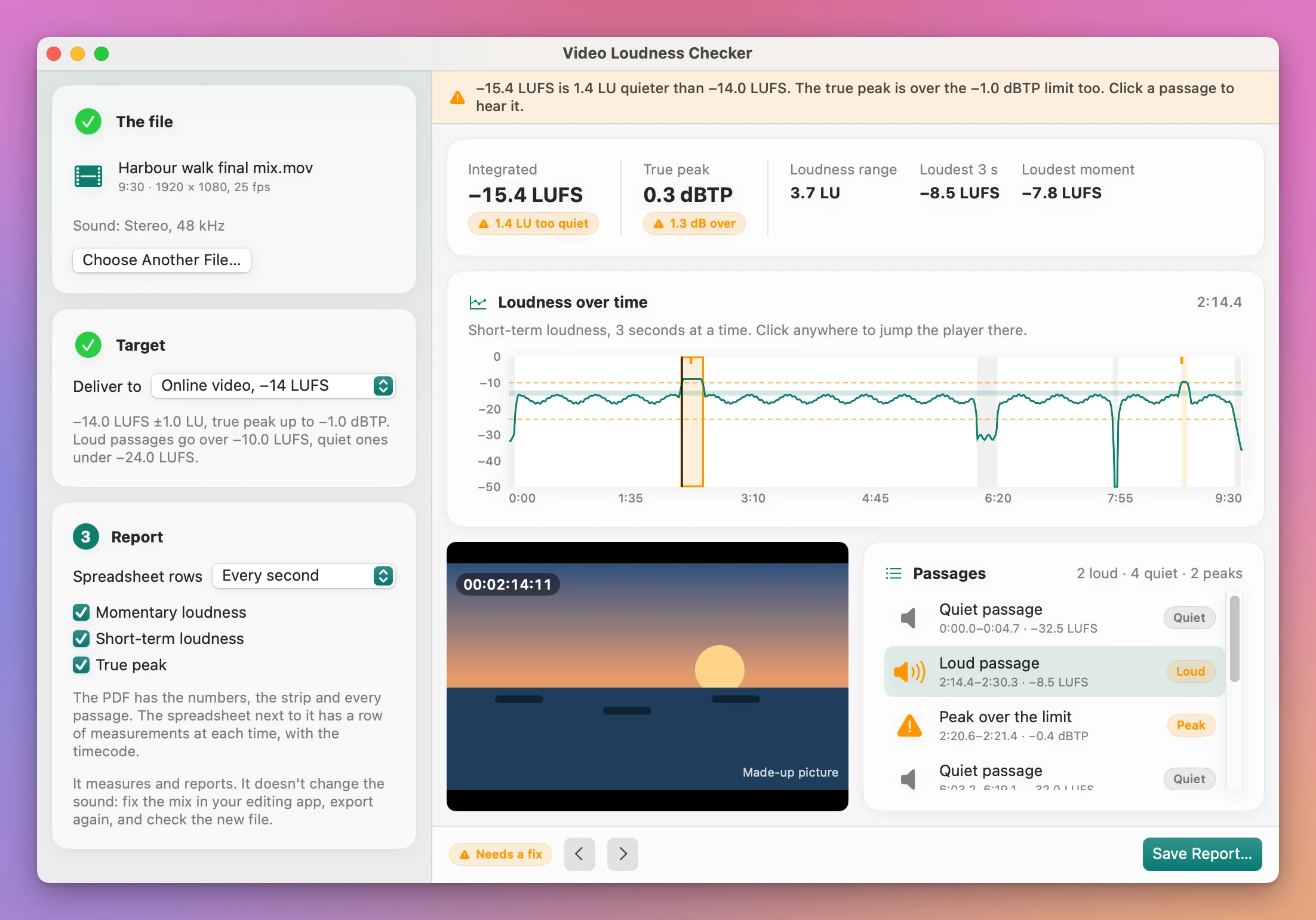
Video Loudness Checker measures the finished file. It plays the sound through a meter built to the broadcast standard (ITU-R BS.1770-4 and EBU R128), faster than real time, and tells you the integrated loudness, the true peak and the loudness range against the target you deliver to. A strip shows the loudness over time, a list shows the passages that are too loud, too quiet or silent, and a click on either jumps the player there. Then it saves a report with timecodes.
Watch a 30-second demo of Video Loudness Checker:
Who it’s for
- YouTubers and course makers. Streaming sites commonly play videos at around −14 LUFS and turn louder ones down. You want your upload near that, and you want to find the music sting that’s 6 LU louder than your voice before your viewers reach for the volume.
- Podcasters who publish video. You deliver at −16 LUFS. The episode is 50 minutes, and you want to know whether the intro music or one guest is far louder than the rest without listening to all of it.
- Freelance editors delivering to broadcast. The spec says EBU R128, −23 LUFS ±0.5 LU and −1 dBTP, or ATSC A/85, −24 LKFS and −2 dBTP. You need the numbers and a PDF to send with the file.
- Corporate and event video teams. A client writes that “the sound is too quiet in the middle”. The report shows the loudness of the whole film and every quiet passage with its timecode.
- Assistant editors doing QC. A finished export lands in your folder and you check it before it goes out. The passages list takes you straight to the silence at 7:48 instead of scrubbing for it.
How it works
- Click Choose a Video…, or drag a video or a sound file onto the window.
- Wait a moment while it’s measured. A ten-minute video takes about a second on a recent Mac.
- Pick the target in Deliver to: Online video, −14 LUFS, Podcast, −16 LUFS, EBU R128 broadcast, −23 LUFS, ATSC A/85 broadcast, −24 LKFS, or Your own target.
- Read the numbers. A pill says how far the loudness is from the target, and whether the true peak is over the limit.
- Click the strip or a passage to hear it. Passages › Next Passage (⌘]) steps through them.
- Choose what goes in the spreadsheet under Report, then click Save Report….
What you get
The numbers a delivery spec asks for
Integrated loudness, the one number most specs give, measured over the whole file with the standard’s gating, so a long silence doesn’t drag it down. True peak in dBTP, measured with four times oversampling, which catches the peaks that fall between samples. Loudness range in LU, and the loudest 3 seconds and moment.
Each of them comes from a meter checked against the European Broadcasting Union’s own test signals (EBU Tech 3341 and 3342): a 1 kHz tone at −23 dBFS reads −23.0 LUFS, a 5.0 mix reads −23.0 with the surround channels weighted, and the true peak tests land within the 0.2 dB the standard allows.
The loudness over time
The strip draws the short-term loudness of the whole file, with the target as a band and the loud and quiet limits as dashed lines. Click anywhere on it and the player jumps there, so you hear what made the curve go up.
The passages, with their times
Every stretch where the loudness goes more than 4 LU over the target is a loud passage. More than 10 LU under it is a quiet one, and no sound at all is a silence. Peaks over the limit get their own rows. Click a row and the video plays from there.
Your own target
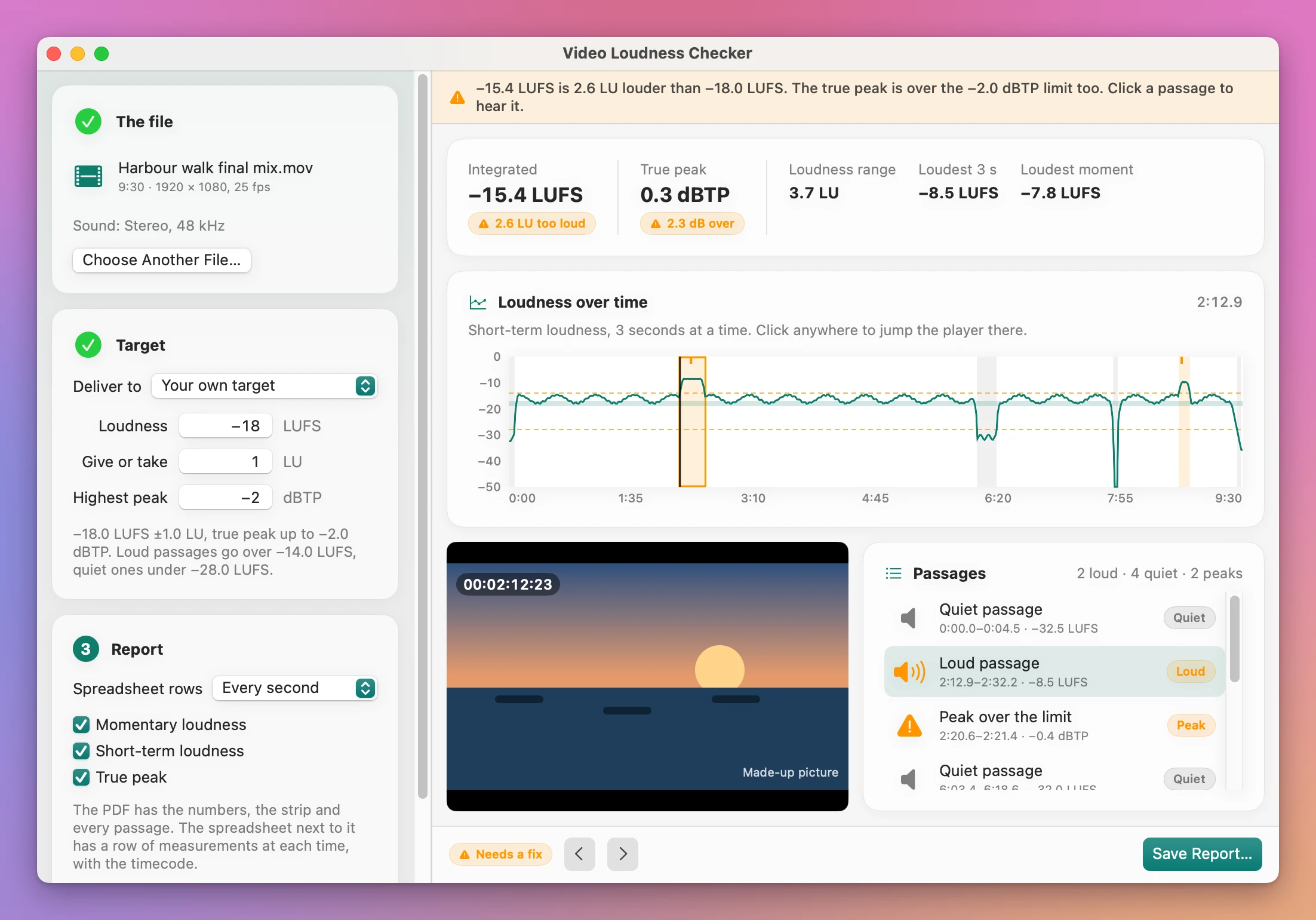
A client’s spec sheet says −18 LUFS ±1 and −2 dBTP? Pick Your own target and type the three numbers. The verdict, the strip and the passages follow at once.
A report to send
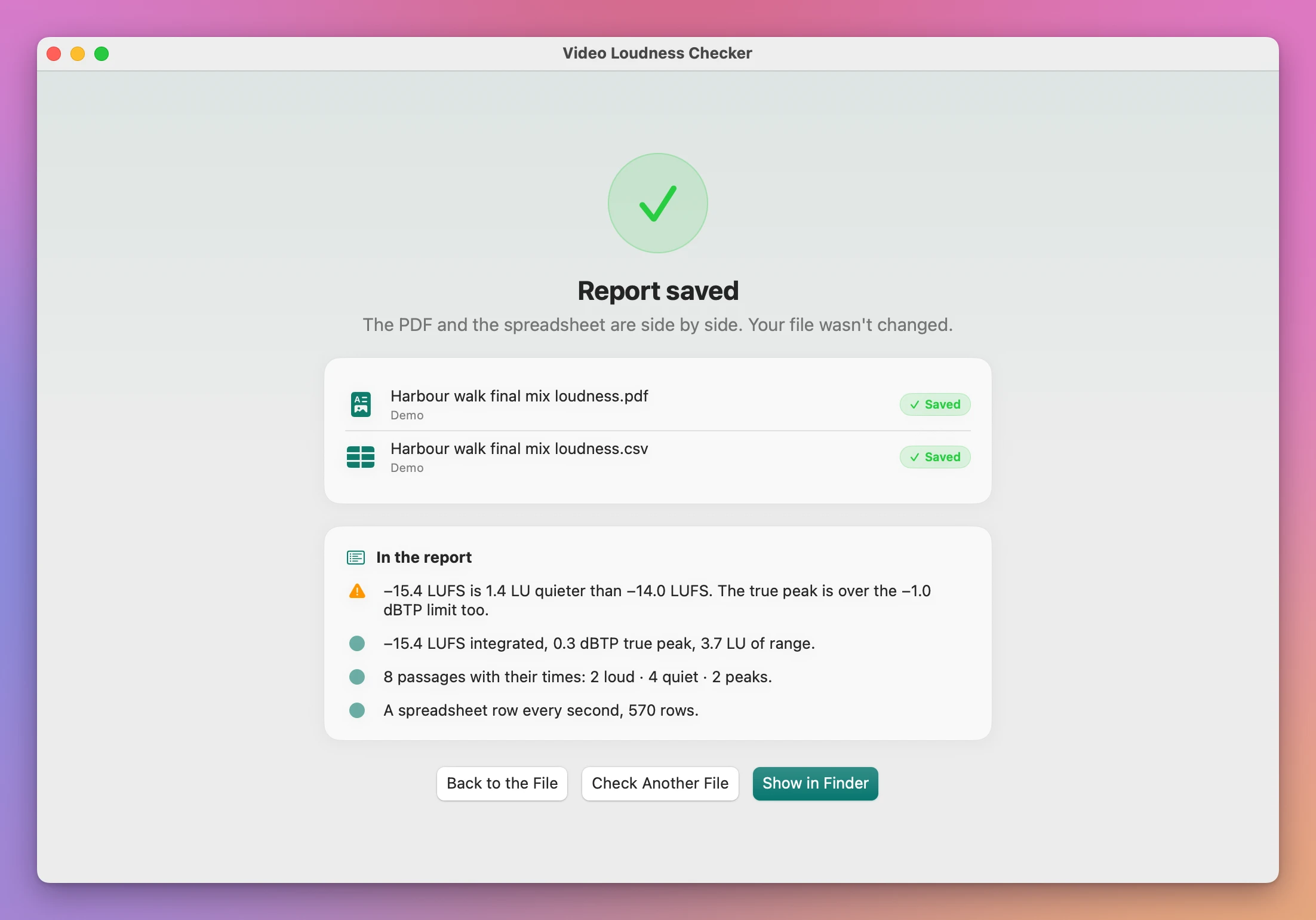
Save Report… writes a PDF with the verdict, the numbers, the strip and every passage with its timecode, and a spreadsheet (CSV) next to it with one row every 0.1, 0.5, 1, 5 or 10 seconds: the time, the timecode for a video, and the momentary loudness, short-term loudness and true peak, whichever you tick.
Why not do it by hand
| What you have for free | Video Loudness Checker | |
|---|---|---|
| macOS | QuickTime Player plays the file and shows its format, with no loudness reading | Integrated, true peak and range of the exported file |
| Your editing app | A loudness meter on the timeline, read while it plays | The finished file, measured in about a second for ten minutes |
| Finding the loud bits | Play it and watch the meter | A strip and a list of passages, a click jumps there |
| Proof for a client | A screenshot of a meter | A PDF with the timecodes and a CSV |
Your editing app is where you fix the mix, and you should. Premiere Pro and DaVinci Resolve both have loudness meters, and a free meter app can measure a file too. None of them gives you a list of the passages with their timecodes, a click that takes the player there, or a report you can attach to the delivery, and those are what this app adds.
What it doesn’t do
- It doesn’t change the loudness. No normalizing, no limiter, no new export. Fix the mix in your editing app, export again, and check the new file.
- It doesn’t measure dialogue-gated loudness. Specs that gate on speech only, like some streaming services’ −27 LKFS, aren’t covered.
- It measures the first sound track. A video with separate tracks for languages or stems gets its first one measured, and the window says so.
- It reads what your Mac can play. MOV, MP4 and M4V videos, and WAV, AIFF, M4A and MP3 sound files.
- It doesn’t meter live sound. It measures files, not a microphone or a running timeline.
Questions
Is it accurate enough for a broadcast delivery?
The meter follows ITU-R BS.1770-4: K-weighting, the −70 LUFS and −10 LU gates, 4× oversampled true peak, and the EBU Tech 3342 loudness range. It reads the European Broadcasting Union’s test signals within the tolerances they set. The timecode in the report counts from 00:00:00:00, non-drop.
Does it change my video?
No, it only reads the file, and the report can’t take the file’s own name.
Does anything get uploaded?
Nothing. Everything is measured on your Mac. The app connects to the internet only to check for updates.
What it needs
macOS 14 Sonoma or later, on Apple silicon and Intel Macs. It asks macOS for no permission.
Video Loudness Checker isn’t made by, affiliated with or endorsed by the ITU, the EBU, the ATSC, YouTube, Google, Apple, Adobe or Blackmagic Design.
Buy Video Loudness Checker
$19 plus tax where it applies, paid once.
Download the app from the order page or your Creem receipt, unzip it and move it to Applications. I sign the app with my Apple Developer ID, and Apple notarizes the download.
The app checks for updates once a day. When a new version is ready, click Install and Relaunch. To check anytime, choose Video Loudness Checker → Check for Updates….