How to save a WhatsApp chat as a PDF on a Mac
By Flavio
Export the chat from WhatsApp on your phone, then turn it into a PDF on your Mac. TextEdit can print the text for free, without the photos. Here's how both ways went, step by step.
A lawyer, a landlord or an insurance company wants a WhatsApp conversation on paper. Screenshots of a long chat get messy fast, and the photos and the dates have to be there too.
The short answer: export the chat from WhatsApp on your phone, move the file to your Mac, and print it to PDF. The Mac can do that for free with TextEdit, as plain text without the photos. Chat to PDF for WhatsApp makes a PDF with the photos in the messages and page numbers on every page.
How do I get the chat onto my Mac?
The export happens on the phone. These steps are WhatsApp’s own, from its Help Center page “How to export your chat history”.
On an iPhone:
- Open the chat.
- Tap the contact’s name or the group’s name, then Export chat.
- If the chat has photos or videos, choose With all media, With selected media… or Without media.
- Choose how to send it, for example Save to Files.
On Android, tap the three dots at the top, then More, then Export chat, and pick Without media or Include media.
WhatsApp’s iPhone page says the chat is exported as a ZIP file. Get it onto your Mac the way you move any other file from your phone.
Everything below starts from that zip, on a test Mac running macOS 15 Sequoia. The chat, between Nora Field and Sam Okafor, and the people in it are made up.
Print it from TextEdit
- Double-click the zip in the Finder. It turns into a folder with the same name.
- Open the folder and double-click
_chat.txt. It opens in TextEdit.
Every message is one line: the date and time in brackets, the sender, then the text. A photo is a line like <attached: 00000012-PHOTO-2023-05-14-21-07-02.jpg>.
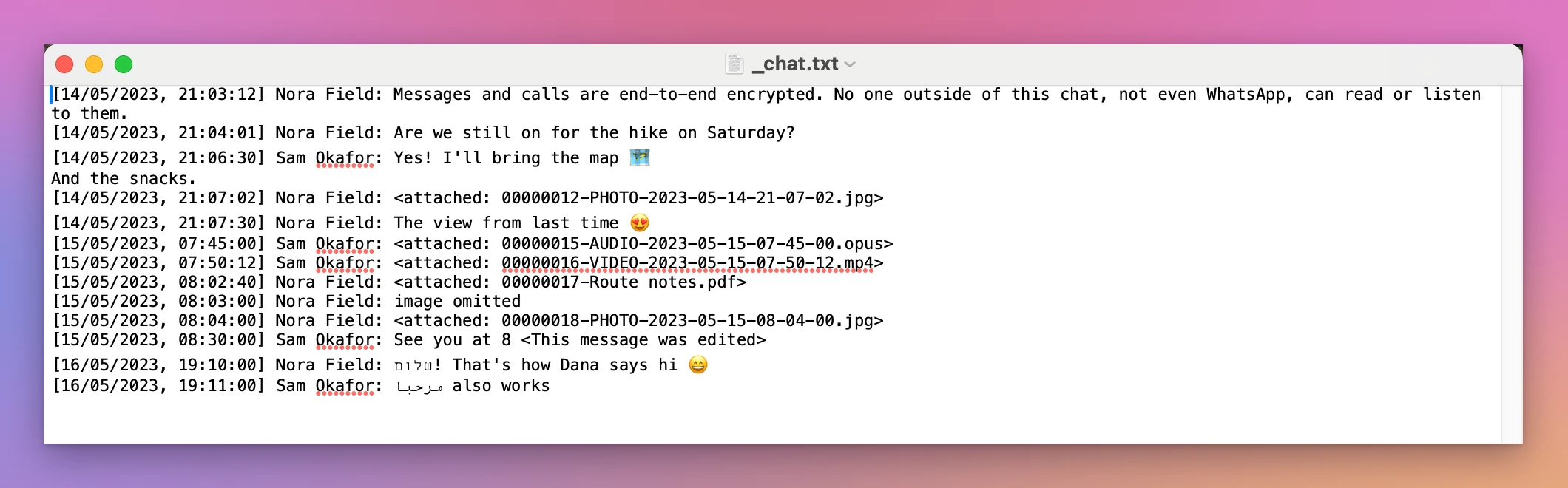
iPhone exports put invisible marks in front of some lines. TextEdit showed them as nothing, on screen and in the PDF.
- Choose File › Print….
- Click PDF at the bottom left of the print window. A save window opens.
- Type a name and click Save.
The PDF opened in Preview as one page of plain lines, the same as the text file. The photos aren’t in it: only their file names are. There are no page numbers either (the print window’s Print header and footer box was off).
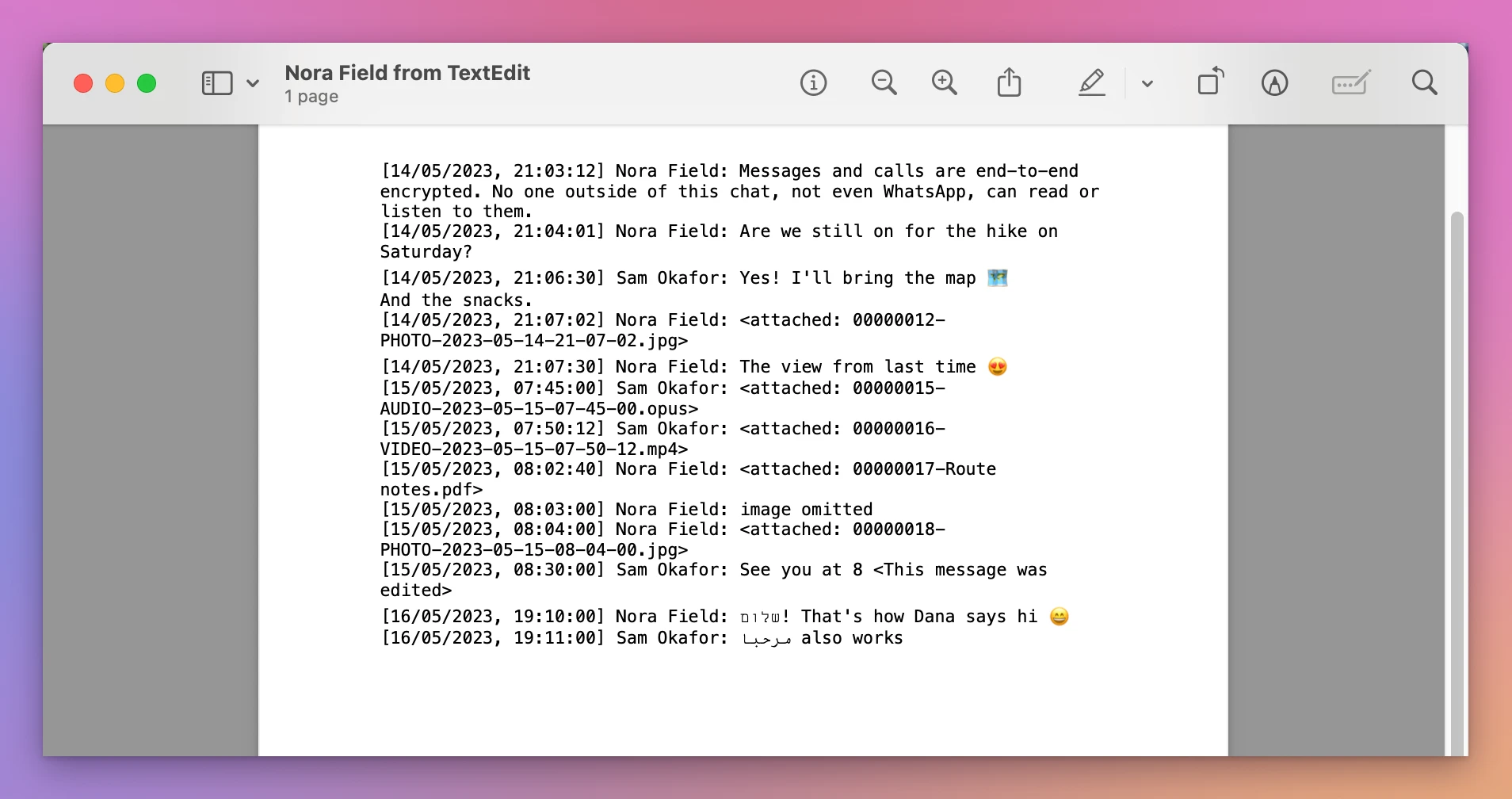
For a short chat with no photos, this can be enough. It’s free and takes seven clicks.
Can I add the photos by hand?
Here’s what happened when a photo from the folder was dragged into the TextEdit window:
- The text file is plain text, so TextEdit pasted the photo’s location on the Mac as text, not the picture.
- After Format › Make Rich Text, the drag worked, but TextEdit asked “Convert this document to RTFD format?” first. Convert put the photo in.
- The photo came in at its full size, wider than the window.
- File › Print… said “Page 1 of 1”. The PDF stopped at the line before the photo: no photo, and none of the messages after it.
TextEdit also saved those changes into the export’s own file, so the folder had _chat.rtfd instead of _chat.txt. The zip still had the original. If you try this, choose File › Duplicate first and work on the copy.
Save it with Chat to PDF for WhatsApp
Chat to PDF for WhatsApp is a Mac app I made that turns the export into a PDF. It’s my own app, not made by, affiliated with or endorsed by WhatsApp or Meta. It costs $20, paid once.
- Click Choose a Chat… and pick the zip. There’s no need to unzip it. Dropping it on the window works too.
- The chat shows as bubbles, with the photos. You are was already set to Sam Okafor, because the chat is named after the other person. Your messages go on the right.
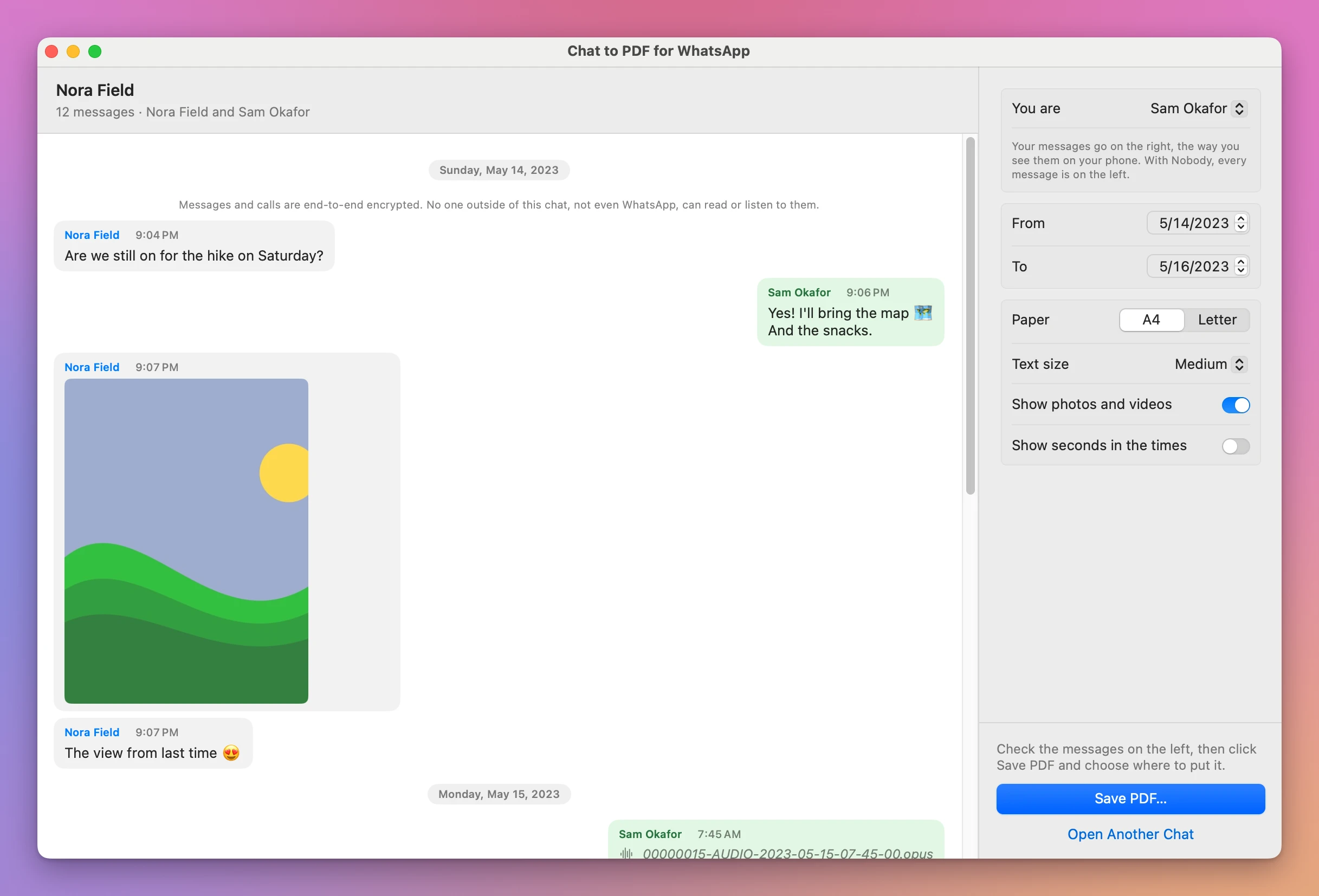
- Click Save PDF…, pick a name and a folder, and click Save.
The window then says what’s in the PDF, and what isn’t: “Saved “Nora Field.pdf”: 12 messages on 3 pages.”, with a note for the photo WhatsApp left out of the export, one for a photo named in the chat that isn’t in the zip, and “2 voice notes and documents can’t go on paper, so the PDF names them.” for the voice note and the document.
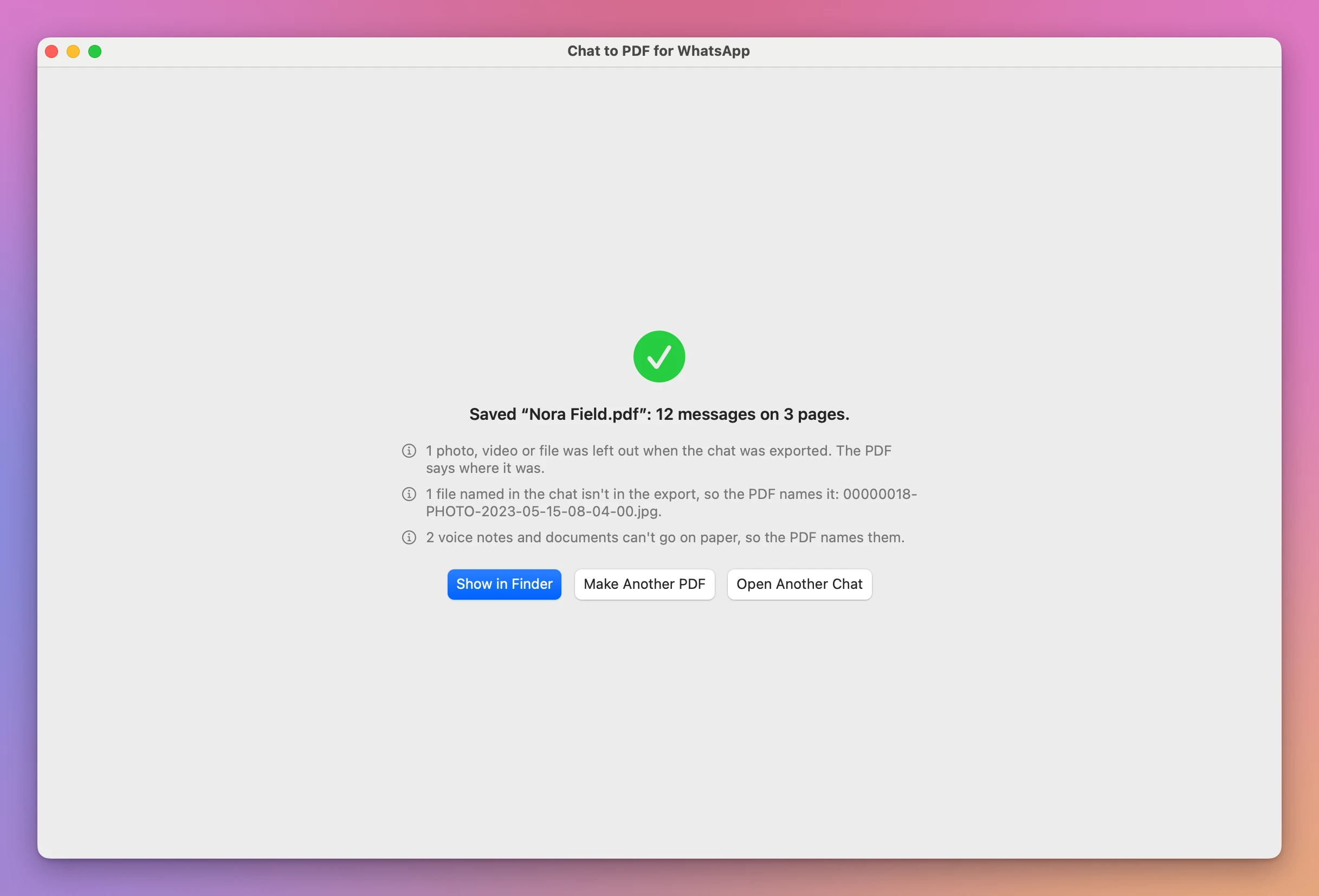
In Preview, page 1 lists the people, the dates (May 14, 2023 to May 16, 2023), the number of messages and the day the PDF was made. Page 2 has a heading for the day, each message with its sender and time, and the photo inside Nora’s bubble. The footer says “Nora Field · WhatsApp chat · made on November 14, 2026” and “Page 2 of 3”.
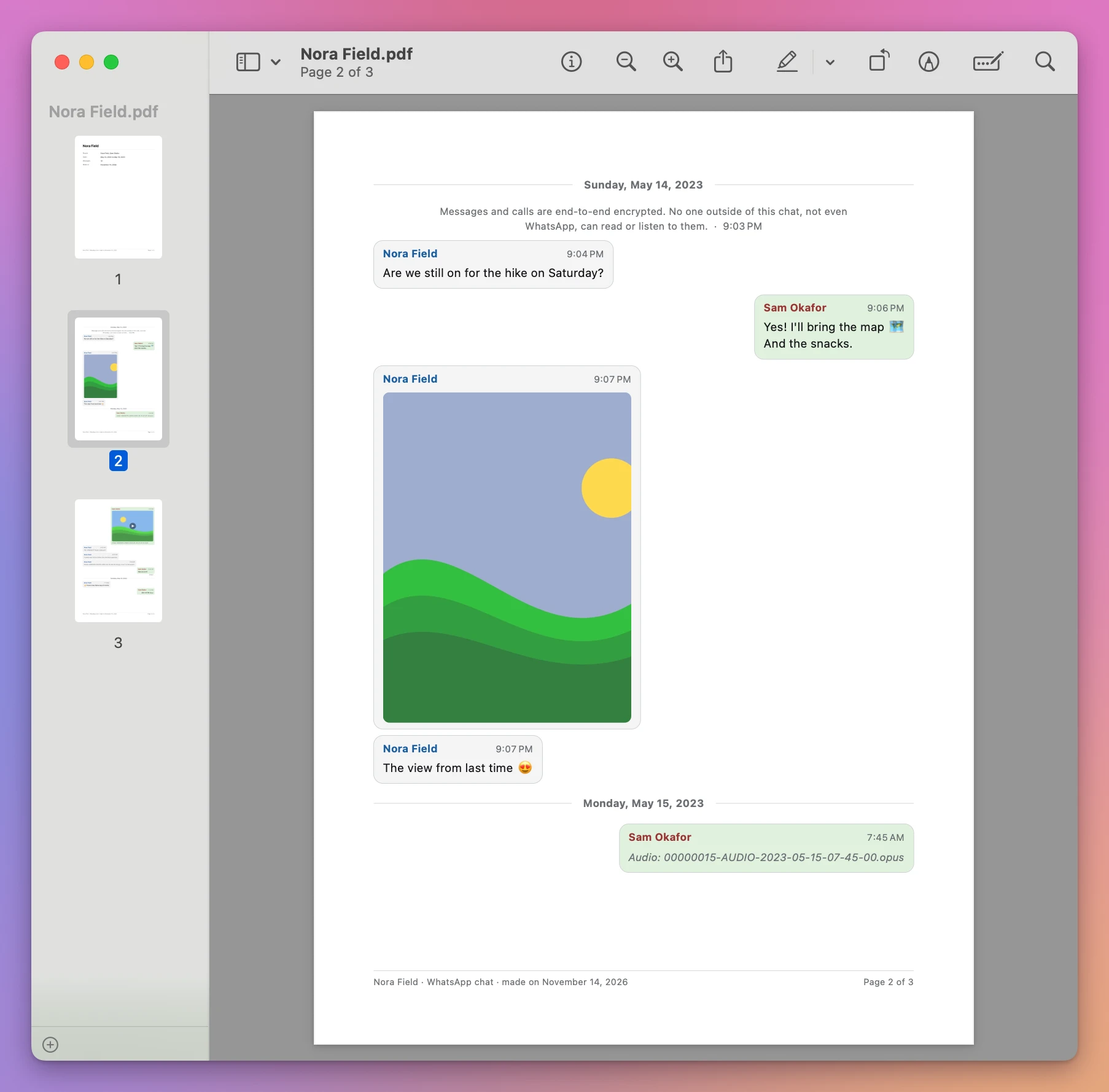
The two PDFs side by side
| TextEdit, then Print | Chat to PDF for WhatsApp | |
|---|---|---|
| Photos | Only their file names | Inside the message they were sent in |
| Sender and time | On each line, as in the text file | On each bubble |
| A heading for each day | No | Yes |
| Page numbers | No | ”Page 2 of 3” on every page |
| A first page with the people and dates | No | Yes |
| Photos that aren’t in the export | Not mentioned | Named where they were, and listed after saving |
| Clicks from the zip to the PDF | 7 | 5 |
Get Chat to PDF for WhatsApp
Turn a chat exported from WhatsApp into a clean PDF: every message with its sender, date and time, the photos where they were sent, and page numbers. For a lawyer, a court, a landlord, or to keep.
See Chat to PDF for WhatsApp → · Read the docs · $20. See the app page for tax details.
Want me to talk about your product? You can sponsor this site.