Find and open the Mac apps you build without cluttering the Dock
By Flavio
Updated
How App Drawer finds the .app builds in your project folders, what puts an app in Working On or Shipped, and how to pin, hide and add folders from the panel or the appdrawer command.
Xcode and SwiftPM leave a .app somewhere inside each project folder. Open a few of them and the Dock fills up with builds, or you end up digging through dist and build/Release folders in the Finder.
App Drawer is a panel on its own Dock icon that lists those builds. Here we’ll see how it finds them, what decides where an app shows up, and how to fix the cases where a build is missing.
Open a build from the panel
Click App Drawer in the Dock and the panel opens above the icon. Type part of a name, move with the arrow keys, and press Return to open the app. Escape or a click outside closes the panel.
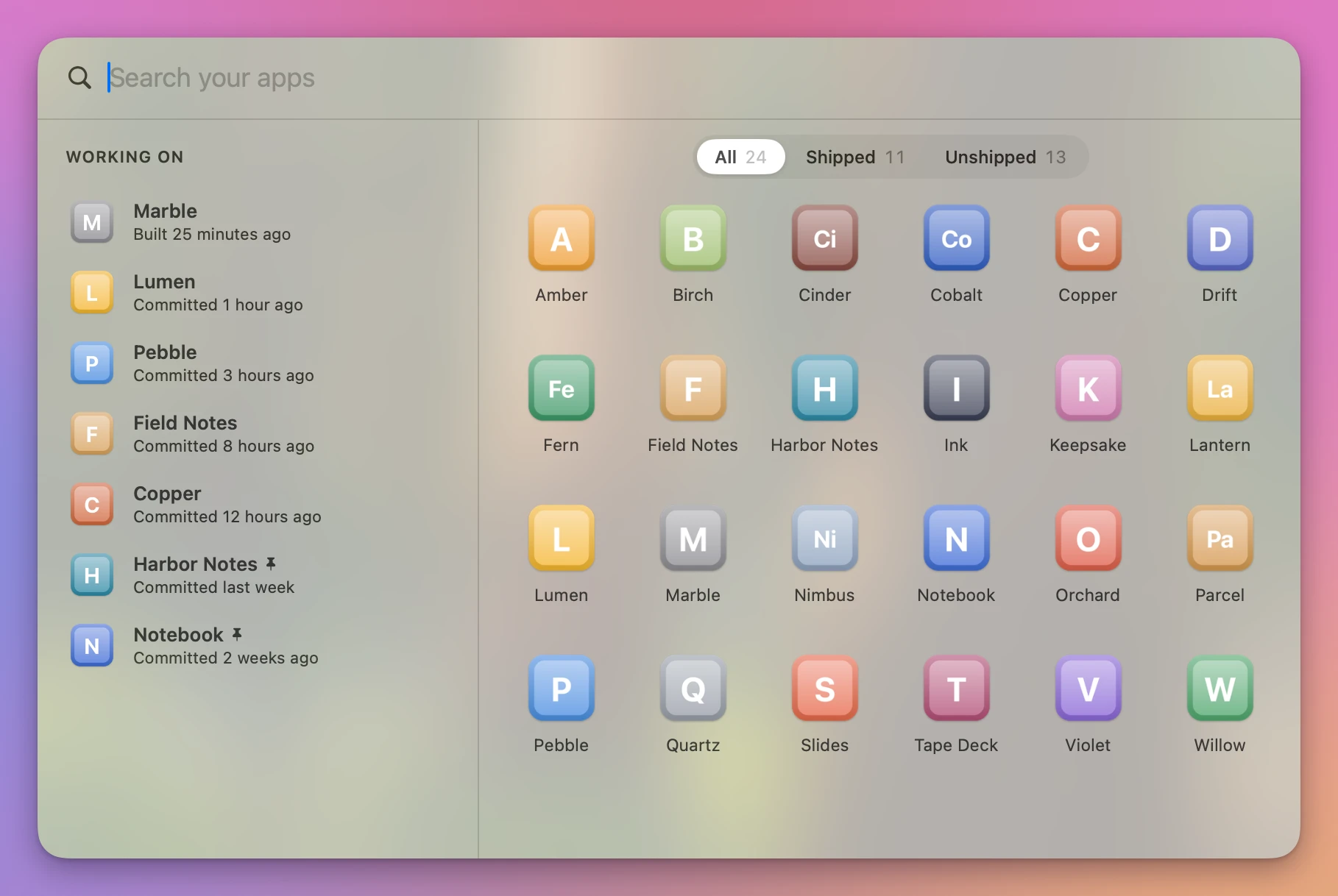
The apps in these screenshots are fictional. On the left, Working On has the apps you built or committed to in the last 16 hours, plus the ones you pinned. Each row says which of the two happened last, like “Built 25 minutes ago” for Marble or “Committed 1 hour ago” for Lumen. The build time is the modification date of the app’s executable or Info.plist, the commit time comes from git log -1 in the project.
Harbor Notes and Notebook have a pin icon, so they stay there even though their last commits are a week and two weeks old.
On the right is every app in a grid, the Working On ones included. Search matches the app’s name or its project folder.
Opening an app from the panel doesn’t add it to the Dock. Quit it and its icon goes away like any other app that isn’t kept there.
How it finds your builds
The first time it runs, App Drawer walks ~/dev, ~/Developer, ~/Projects and ~/www, the ones you have. Each folder inside them counts as a project, and App Drawer looks for .app bundles in each project, up to 8 levels deep.
It skips folders that never hold a build worth listing, or take long to walk: node_modules, Pods, Carthage, vendor, venv, old, archive, backup and backups, plus Xcode’s index and module caches. Hidden folders are skipped too, except .build, where SwiftPM puts its products.
Then it groups the builds by bundle identifier and keeps the newest one. A copy in /Applications or ~/Applications joins in when it has the same bundle identifier as a project build, so if you copied a build there and it’s newer, that’s the one Return opens. Screenshot builds and XCTest runners, like a bundle ID ending in .screenshot or .xctrunner, are left out.
The full walk runs at launch and again every 5 minutes or so. If a fresh project doesn’t show up yet, choose File → Rescan Apps (⌘R).
Shipped, unshipped, and the line
Above the grid you switch between All, Shipped and Unshipped. The rules come from the project’s Git repository:
| Shows up as | When |
|---|---|
| Shipped | .git/config has a github.com remote and there’s a tag like v1.2.0, v1.2 or 1.2.0 |
| Unshipped | No GitHub remote, or no version tag. A tag like v1.2.0-beta doesn’t count |
| Below the line, in Unshipped | No build and no commit in 60 days |
| Working On | Pinned, or built or committed in the last 16 hours |
Working On holds at most 8 apps. Pins always make it in and count toward the 8, so with 8 pins a fresh build only shows up in the grid.
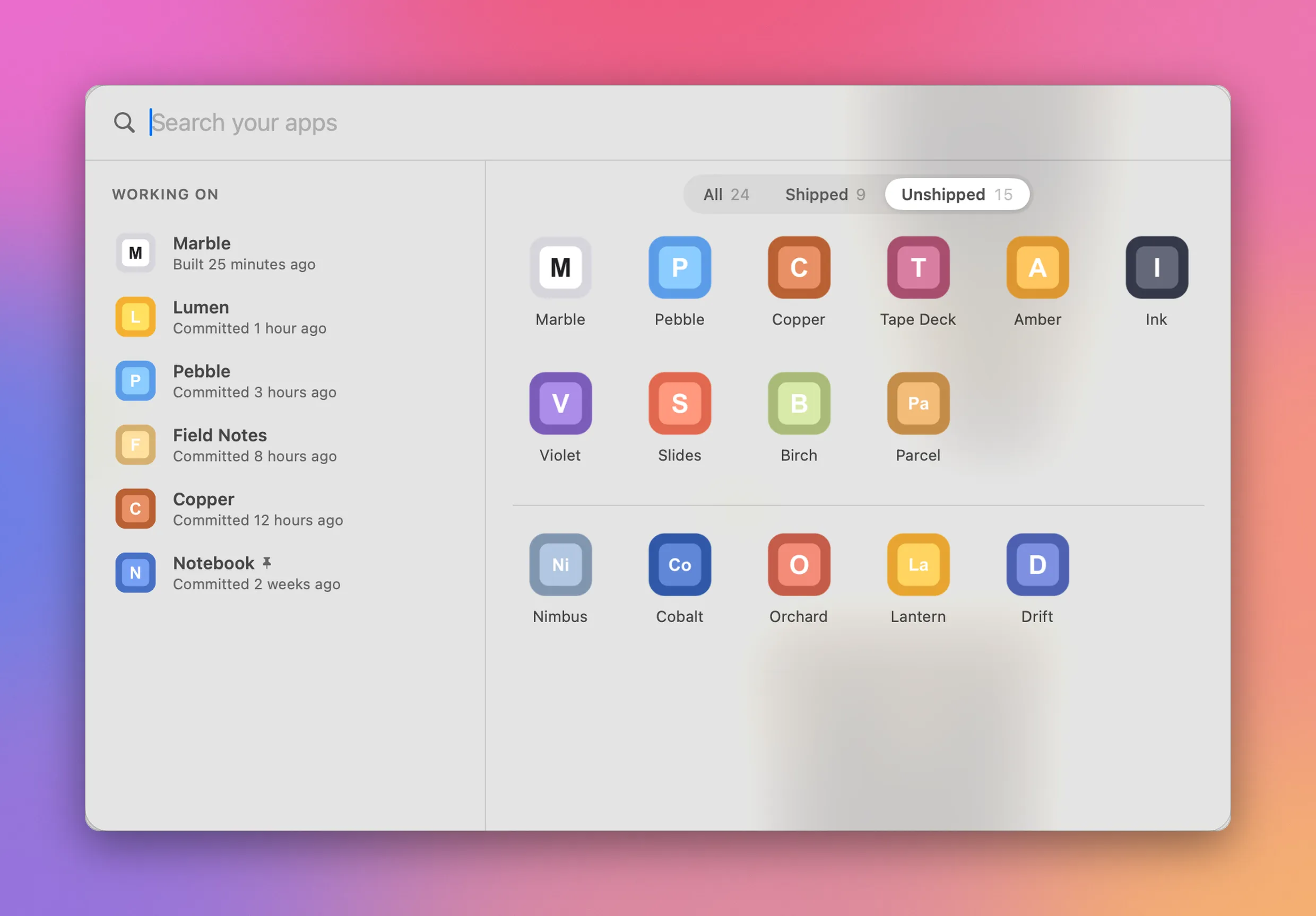
Unshipped lists apps by date instead of by name, the Working On ones first. Anything untouched for 60 days goes below a line:
Add a folder
If your projects live in ~/Code, App Drawer won’t see them until you add the folder. Open Settings with ⌘,:
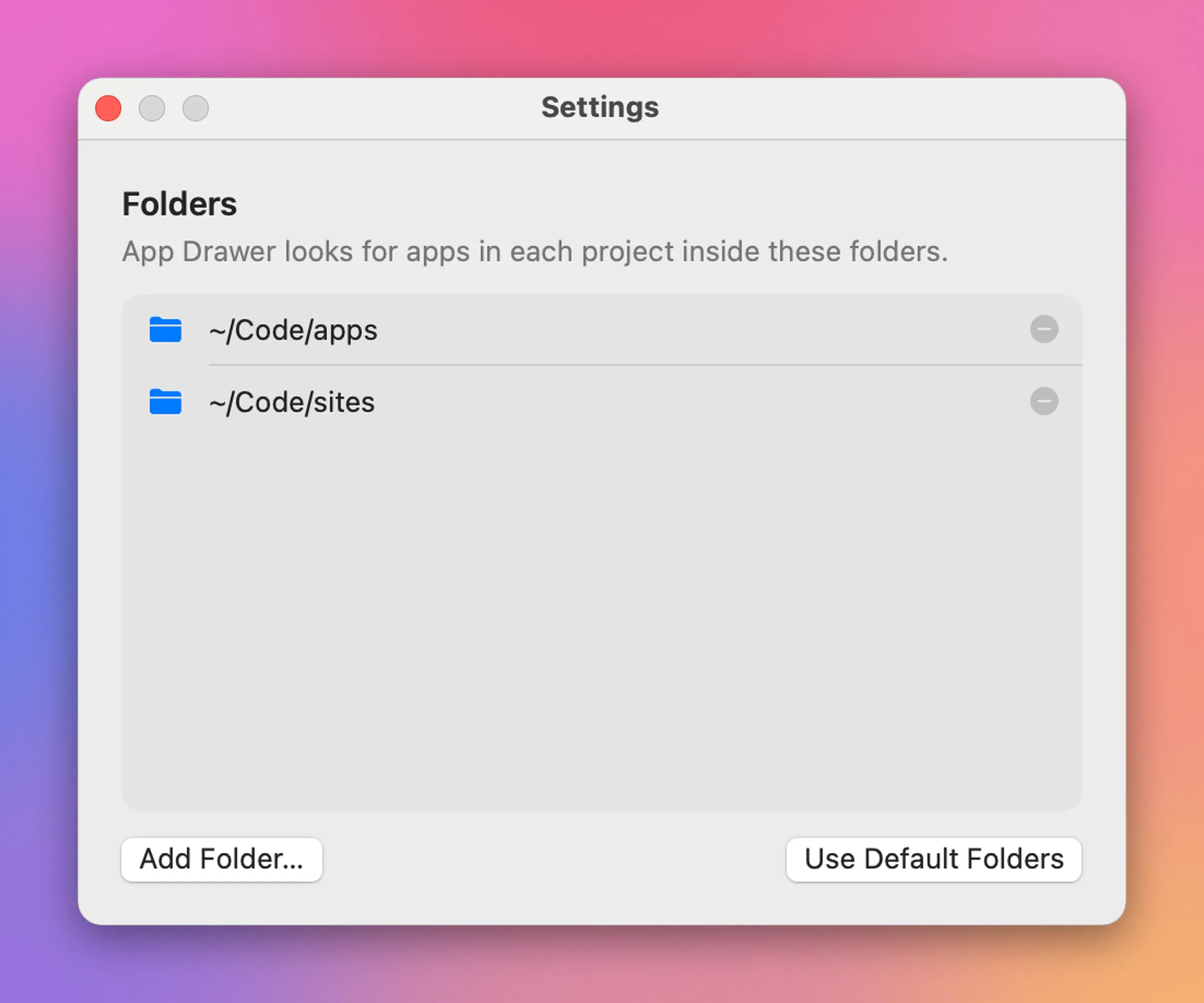
Add the folder that holds your projects, not a project itself. App Drawer treats each folder inside it as a project. Use Default Folders goes back to the four defaults, and removing a folder from the list doesn’t touch anything on disk.
The same list is available from the appdrawer command. It ships inside the app, so link it into a folder on your PATH once:
ln -s "/Applications/App Drawer.app/Contents/Helpers/appdrawer" ~/.local/bin/appdrawerThen list the folders:
appdrawer folders~/dev
~/wwwfolders add checks every folder before it changes anything. On my Mac there’s no ~/Code, so:
appdrawer folders add ~/Codeappdrawer: Not a folder: ~/Code. Nothing changed.Pin, hide and keep in the Dock
Right-click an app for the rest:
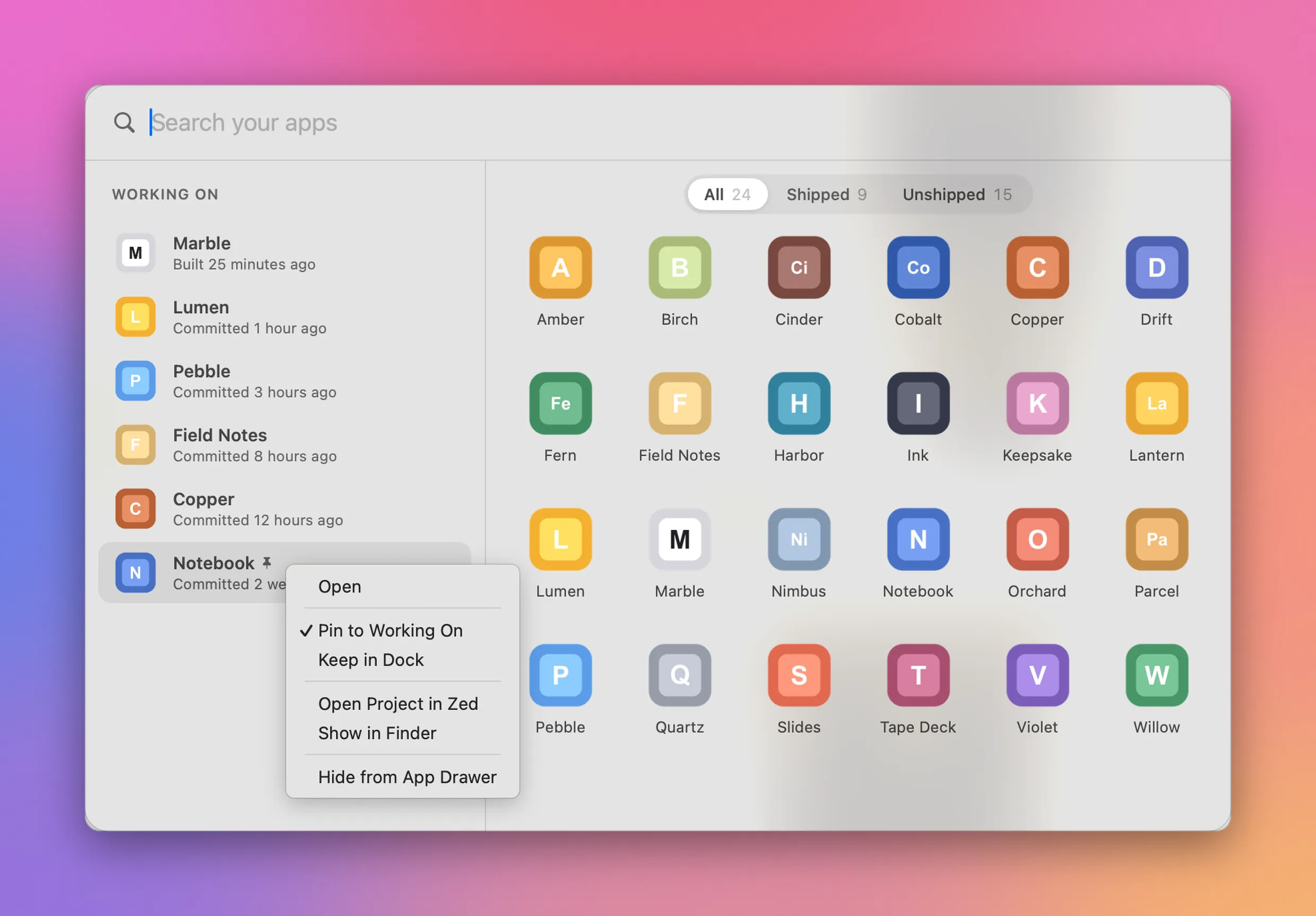
- Pin to Working On keeps the app on the left after its 16 hours are over.
- Keep in Dock adds the app to the Dock and restarts the Dock, once, after a short pause if you toggle a few in a row. That’s the only way App Drawer changes the Dock.
- Open Project opens the project folder in the first editor it finds among Cursor, Visual Studio Code and Zed, in that order. The screenshot says Zed because the Mac in it didn’t have the other two. With none of them installed, the item isn’t there.
- Show in Finder reveals the build, which tells you which
.appyou’re getting. - Hide from App Drawer takes the app out of the panel. File → Show Hidden Apps brings them all back.
App Drawer also keeps a shortcut to every listed app in ~/Applications/App Drawer Apps, so Raycast finds your builds in its main search. File → Show Raycast Apps Folder opens it. A hidden app loses its shortcut.
The same from the terminal
appdrawer does what the panel does, so an agent can pin the app it’s working on, or you can script it. appdrawer help lists list, pin, unpin, hide, unhide, folders, dock and capabilities, plus pinned and hidden to print what’s stored.
list prints both columns, with the filter you picked in the panel unless you pass --filter. Here’s part of mine, from the shipped grid:
appdrawer list --filter shippedAll Apps (shipped):
Architecture Dissector 2 days ago
Broadcast Keep 2 days ago
Broadcast Keep 2 days ago
Chip Pops 2 days ago
CLI Tools Cabinet 2 days agoBroadcast Keep is there twice because the project has two builds with different bundle identifiers, an old com.example.StreamRecorder one and the current com.flaviocopes.broadcast-keep. App Drawer keeps one build per bundle ID, so both stay. appdrawer list --json shows each one’s path and bundleIdentifier.
The commands that take an app accept its name, its project folder or its bundle ID, ignoring case, spaces and accents:
appdrawer pin "Harbor Notes"
appdrawer dock add Marble
A running App Drawer picks up the change right away. A name that matches two apps, like Broadcast Keep above, stops with matches several apps. Use a bundle id: and lists them. Delete the old build, or pass the bundle ID.
When a build doesn’t show up
Check these in order:
- The project is inside one of the folders from
appdrawer folders. - The
.appisn’t under a skipped folder likenode_modulesorold, or deeper than 8 levels in the project. - The last full walk was before the build. Use File → Rescan Apps.
- It’s hidden.
appdrawer hiddenlists the hidden apps,appdrawer unhide --allbrings them back.
If Return opens an older build, right-click and choose Show in Finder. A copy in /Applications with the same bundle ID and a newer date wins over the one in your project.
Get App Drawer
Find the Mac apps you build in your project folders and open them from a panel in the Dock. Includes a native Mac app, CLI and full MIT source.
See App Drawer → · Read the docs · $20. See the app page for tax details, with full source code.
Want me to talk about your product? You can sponsor this site.