How to highlight the important parts of a ChatGPT answer
By Flavio
Paste the answer into Notes, select a sentence and pick a color in the Aa menu. Here's how that works in Notes and TextEdit on a Mac, what goes wrong, and how to see only the parts you highlighted.
ChatGPT answers are long. You read one, three sentences matter, and a week later you read the whole thing again to find them.
You can’t highlight inside the chat itself, so copy the answer to your Mac first. Paste it into Notes, select the sentence, and pick a color from the Aa button: Notes paints it like a marker. TextEdit can do it too, with a catch in dark mode. Answer Keeper is a small app I made that does the same with six pens, and can show only the highlighted sentences.
The chat in these screenshots is made up: a plain page with an answer about standing desks, opened in Safari on a test Mac with macOS 15 Sequoia. The answer was copied with its copy button (selecting it and pressing Command-C works too).
How do I highlight in Notes?
- Open Notes, press Command-N, and press Command-V to paste the answer.
- Drag over the sentence you want to mark.
- Click the Aa button in the toolbar. At the top of the menu there’s a pen, and next to it a colored dot. Click the dot and pick a color: Purple, Pink, Orange, Mint or Blue.
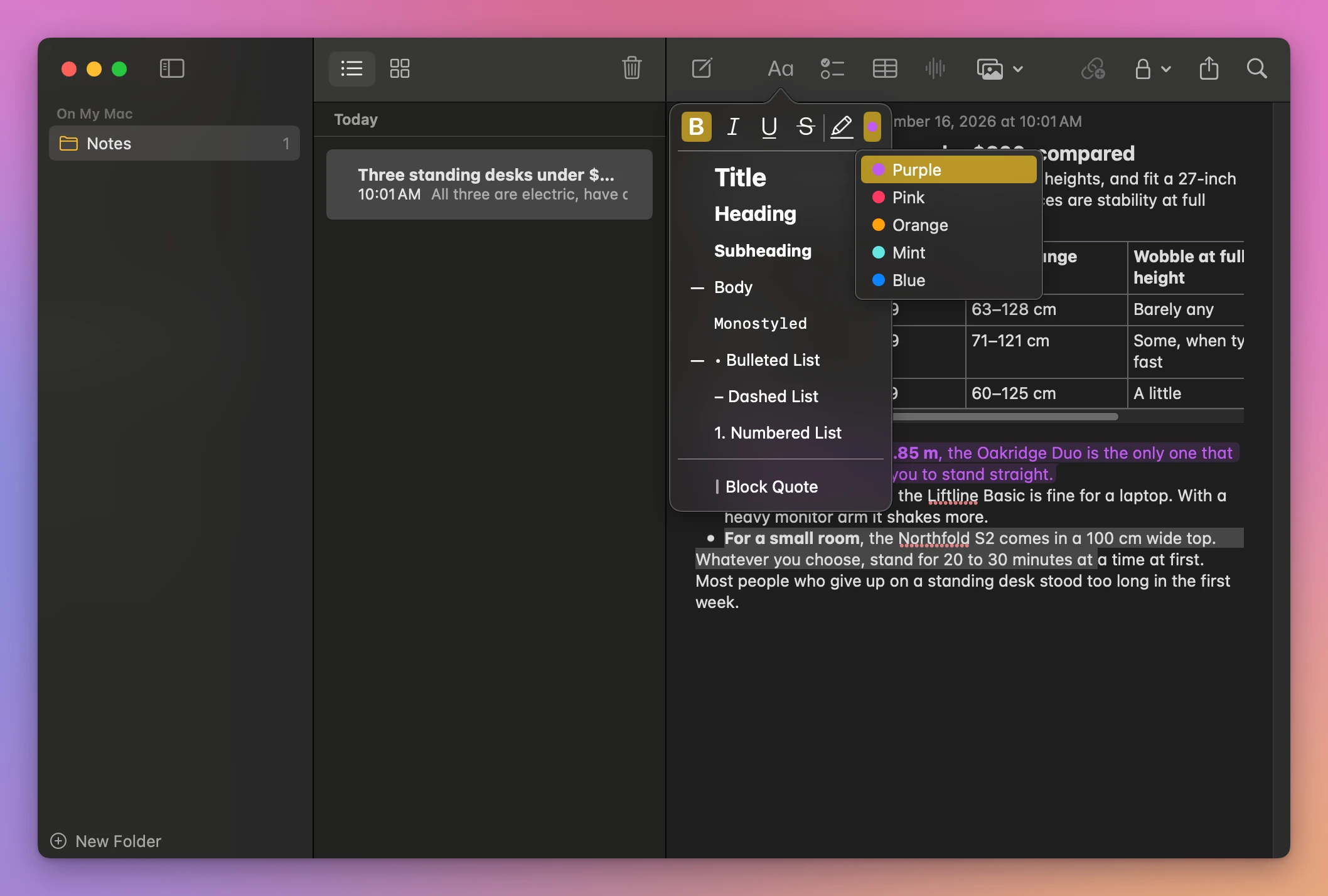
Picking a color marks the selected text right away. The menu bar has it too, as Format › Font › Highlight. On the test Mac that one marked the text in purple.
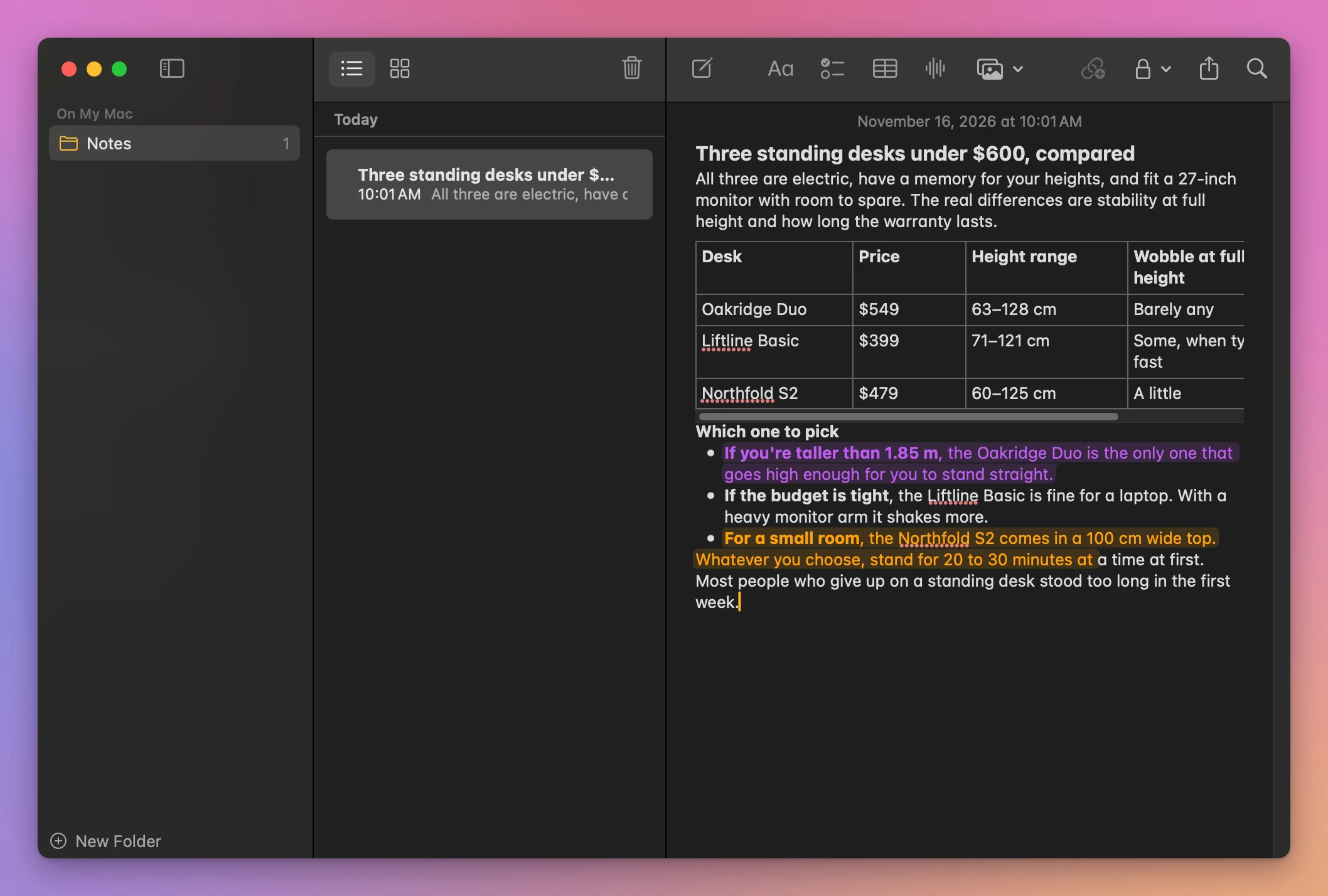
Notes colors the text too, not only the background, so a highlighted sentence reads as purple or orange words on a tinted band. It marks exactly what you selected, letter by letter. In the screenshot the orange mark stops at “at”, in the middle of a sentence, because the drag ended there.
Notes also stays an editable note, so the answer changes if you type in it by mistake.
How do I highlight in TextEdit?
- Open TextEdit, make a new document, and press Command-V.
- Drag over the sentence.
- In the toolbar, click the second color square, the one with a red line through it. That’s the text background color. Pick a color from the grid.
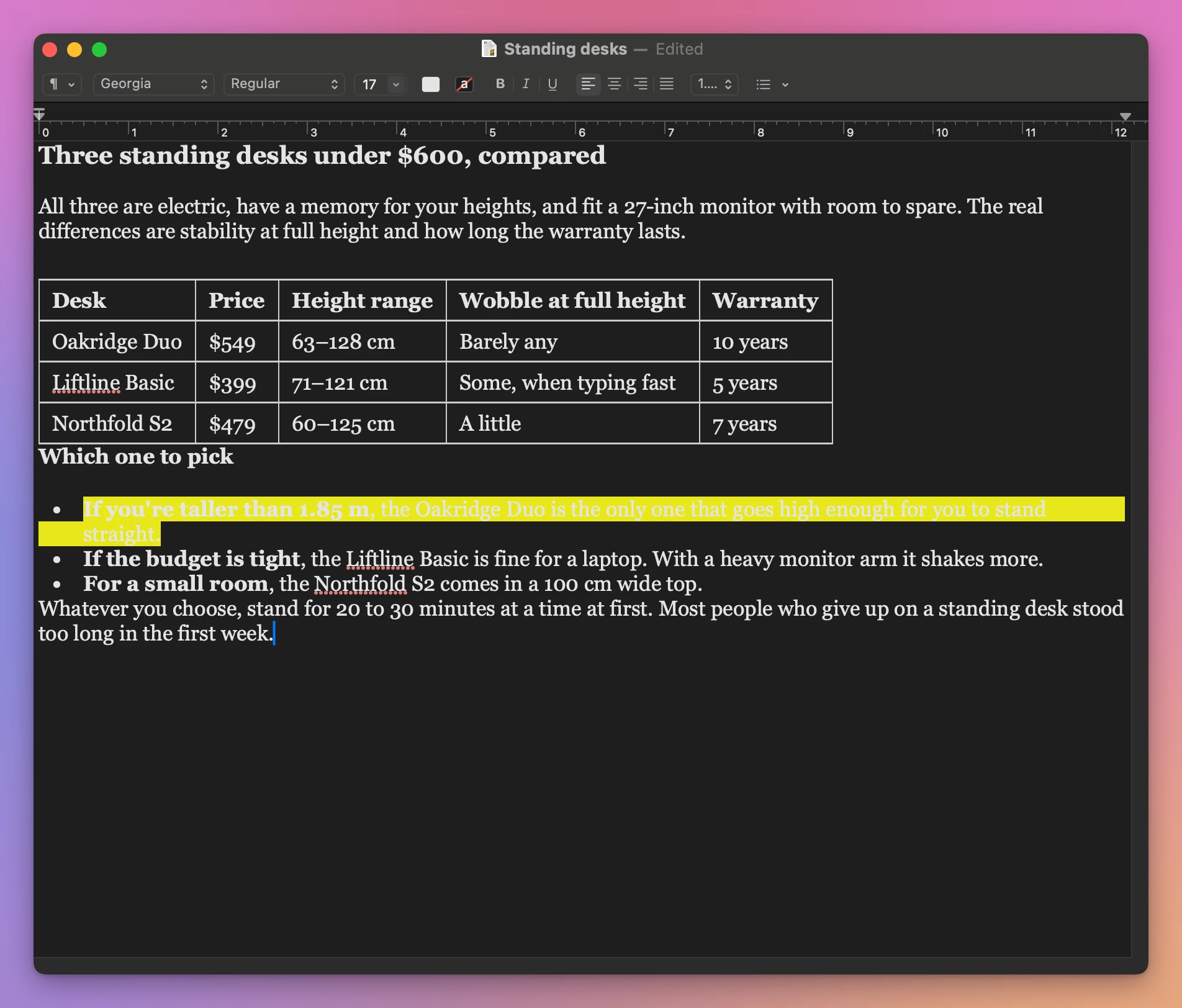
TextEdit has a whole grid of colors. On the test Mac, which was in dark mode, the pasted text was white, and white text on bright yellow is close to unreadable. You end up trying colors until one works with your text.
Can I see only the parts I highlighted?
Not in Notes or TextEdit. The highlights stay where they are, inside the full answer, and you scroll through it to find them. Notes’ search looks for the words you type.
That’s the main reason to use an app made for it.
| Notes | TextEdit | Answer Keeper | |
|---|---|---|---|
| Colors | 5 (Purple, Pink, Orange, Mint, Blue) | Any color | 6 pastel pens |
| How you highlight | Select, then Aa menu or Format menu | Select, then the background color square | Pick a pen, then drag |
| A drag that ends mid-word | Marks exactly what you selected | Marks exactly what you selected | Takes the whole word |
| Readable in dark mode | Yes | Not with yellow on white text | Yes |
| Text can change by mistake | Yes | Yes | No, it’s read-only |
| Only the highlights | No | No | Yes, one button |
Highlight with Answer Keeper
Answer Keeper is a Mac app for keeping chat answers, with pens for marking them. It costs $20, paid once.
- Copy the answer and press Command-V in Answer Keeper.
- Pick a pen at the top of the list on the left: yellow (the default), green, pink, blue, orange or purple.
- Drag over the words.
There’s no menu to open after you select. A drag that starts or ends in the middle of a word takes the whole word. Here the drag started inside “you’re” and ended inside “straight”, and the yellow mark covers both words and the period after “straight”.
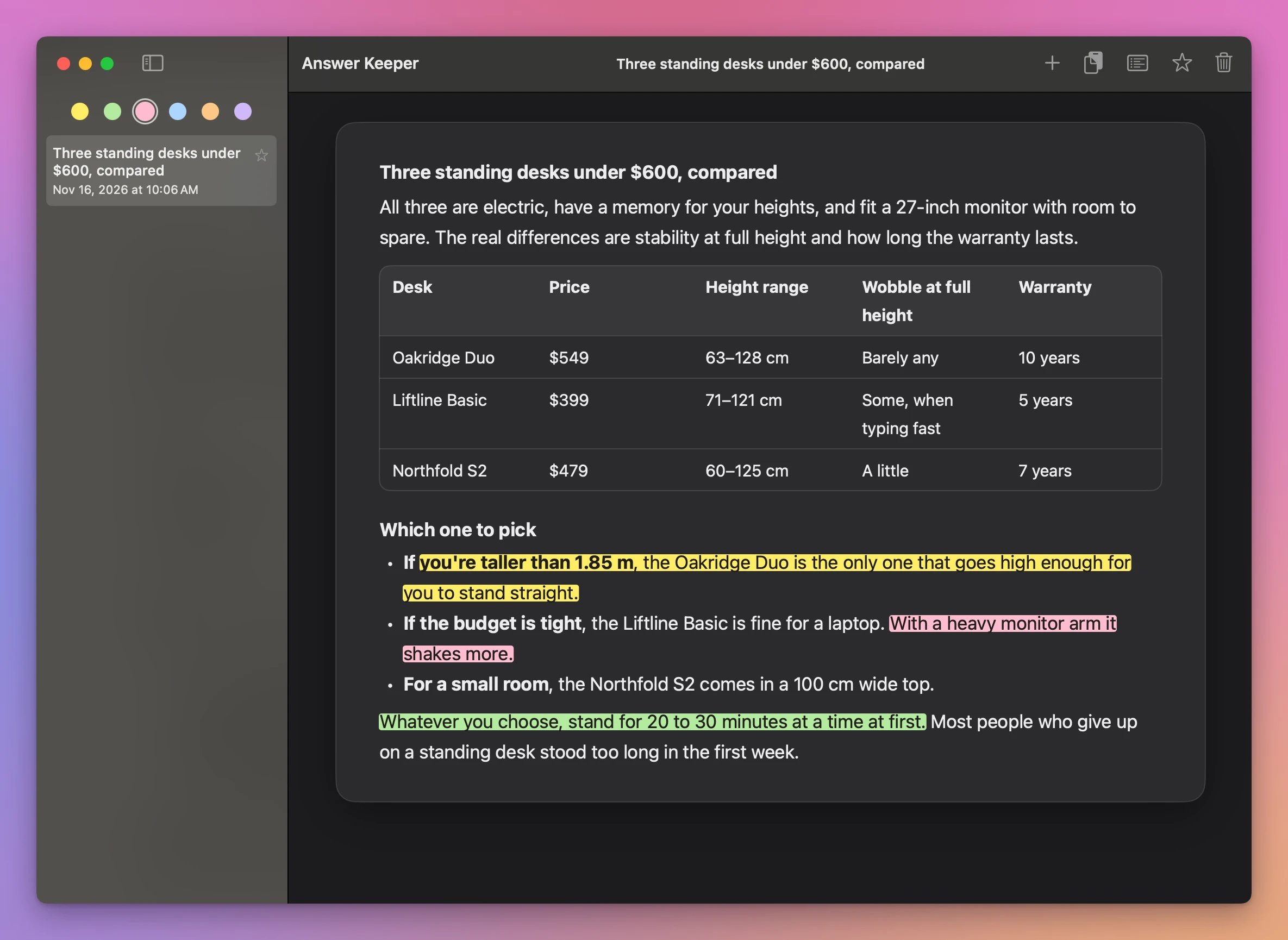
The pens are light pastel colors under dark text, so the marks stayed readable on the test Mac in dark mode. Command-Z takes back the last highlight. The answer itself is read-only, so a stray key can’t type over it.
Then click Only highlights at the top of the page, or the Highlights button in the toolbar, the one that looks like a list. The answer is replaced by the highlighted sentences only, each with the color you gave it.
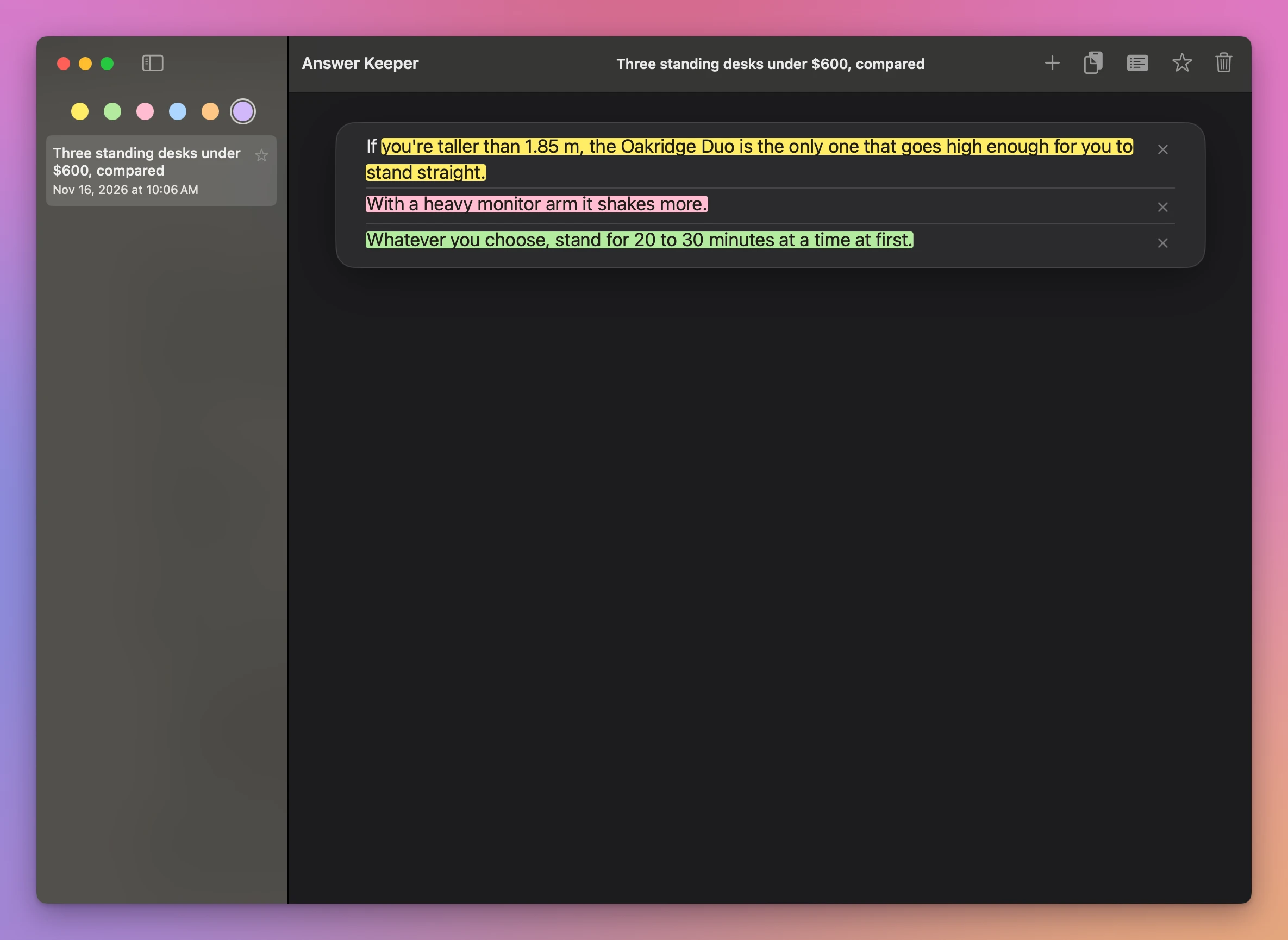
It shows the whole sentence around each mark: “If” isn’t highlighted, but it’s there so the line reads as a sentence. The × on the right removes that highlight. Click Highlights again to go back to the full answer.
Get Answer Keeper
Keep the ChatGPT answers worth keeping on your Mac. Paste a reply and it keeps its headings, lists, tables and links. Highlight what matters with six pastel pens, see only your highlights, star the chats you come back to, and drag one onto another to keep them together.
See Answer Keeper → · Read the docs · $20. See the app page for tax details.
Want me to talk about your product? You can sponsor this site.