How to find which course videos mention a renamed menu, using their subtitles on a Mac
By Flavio
The app you teach renamed a menu, and you need to know which lessons say the old name and when. Search the lessons' subtitle files: one at a time in TextEdit, or all at once with the time of every mention.
You teach a piece of software in video lessons, and the software just renamed something. The Insert menu is now the Add menu. Before you record anything, you want a list: which lessons say “Insert menu”, and at what minute.
The fastest way to get that list is to search the lessons’ subtitle files, not the videos. Subtitles are usually .srt or .vtt files, and they have the words and the time each line is spoken.
Where do the subtitle files come from?
If you added captions to your lessons, you already have them. Many video editors export captions as SRT, and many course platforms and video hosts let you download the captions of each video as SRT or WebVTT (.vtt). Put them in one folder, one file per lesson, with the lesson number at the start of the name: 07 Your first chart.srt.
Lesson notes written in Markdown (.md) or plain text (.txt) can go in the same folder.
The example in this tutorial is a made-up course, Spreadsheet Basics: 12 lessons about Gridleaf, a spreadsheet app that doesn’t exist, with 13 files.
The free way: open each file and search it
Every Mac can do this with TextEdit. Open the first subtitle file, choose Edit › Find › Find… (Command-F), type the old name, and look at each match. The time is a few lines above it, on the line with the arrow:
2
00:00:06,000 —> 00:00:09,500
Select the data, then open the Insert menu.
Write down the lesson and the time, then open the next file and do it again.
It works, and for a five-lesson course it’s fine. It gets slow with more lessons, and there are two things to watch for.
The first is a name split between two subtitle lines. Subtitles break sentences into short pieces, so the words can end up in two different cues, with a time between them. This is from lesson 4’s .vtt file:
00:00:45.000 —> 00:00:48.500
You can also press the Quick
00:00:48.500 —> 00:00:52.000
Fill button in the toolbar.
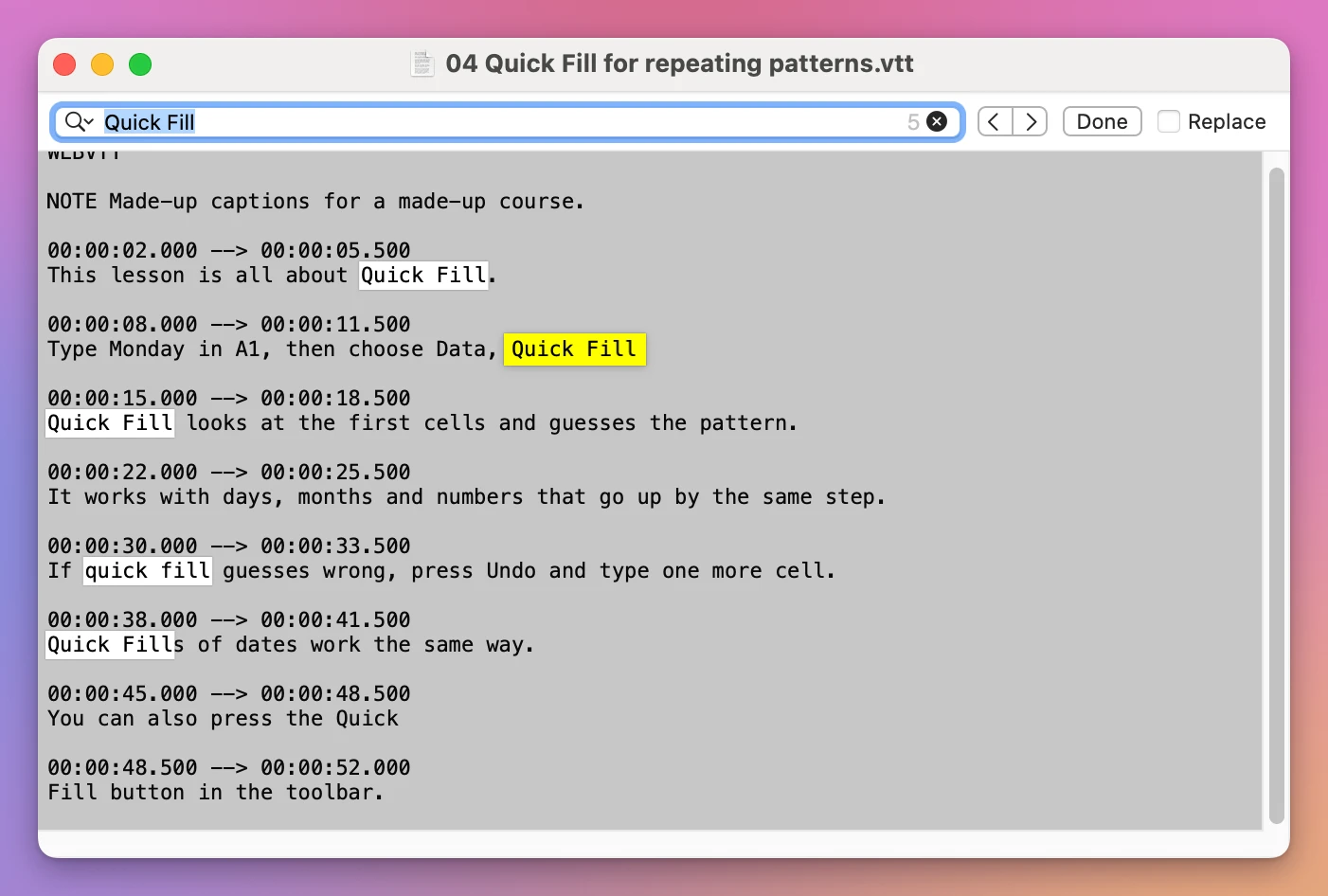
Searching for “Quick Fill” doesn’t find this one, because “Quick” and “Fill” aren’t next to each other in the file. In TextEdit, the search bar counted 5 matches in lesson 4 and highlighted them all, “quick fill” and “Quick Fills” included, but not the split one at 00:45.
The second is keeping track. When you fix lesson 5 and export its subtitles again, the times change, and your notes point at the wrong minute.
The shorter way: search the whole course at once
Course Refresh Finder is a Mac app I made for this job. It reads the whole folder, finds every mention with its lesson and time, and keeps track of what you decided for each one.
Click Choose a Course Folder… and pick the folder. The window shows the course with its number of lessons and files, and asks for the old name.
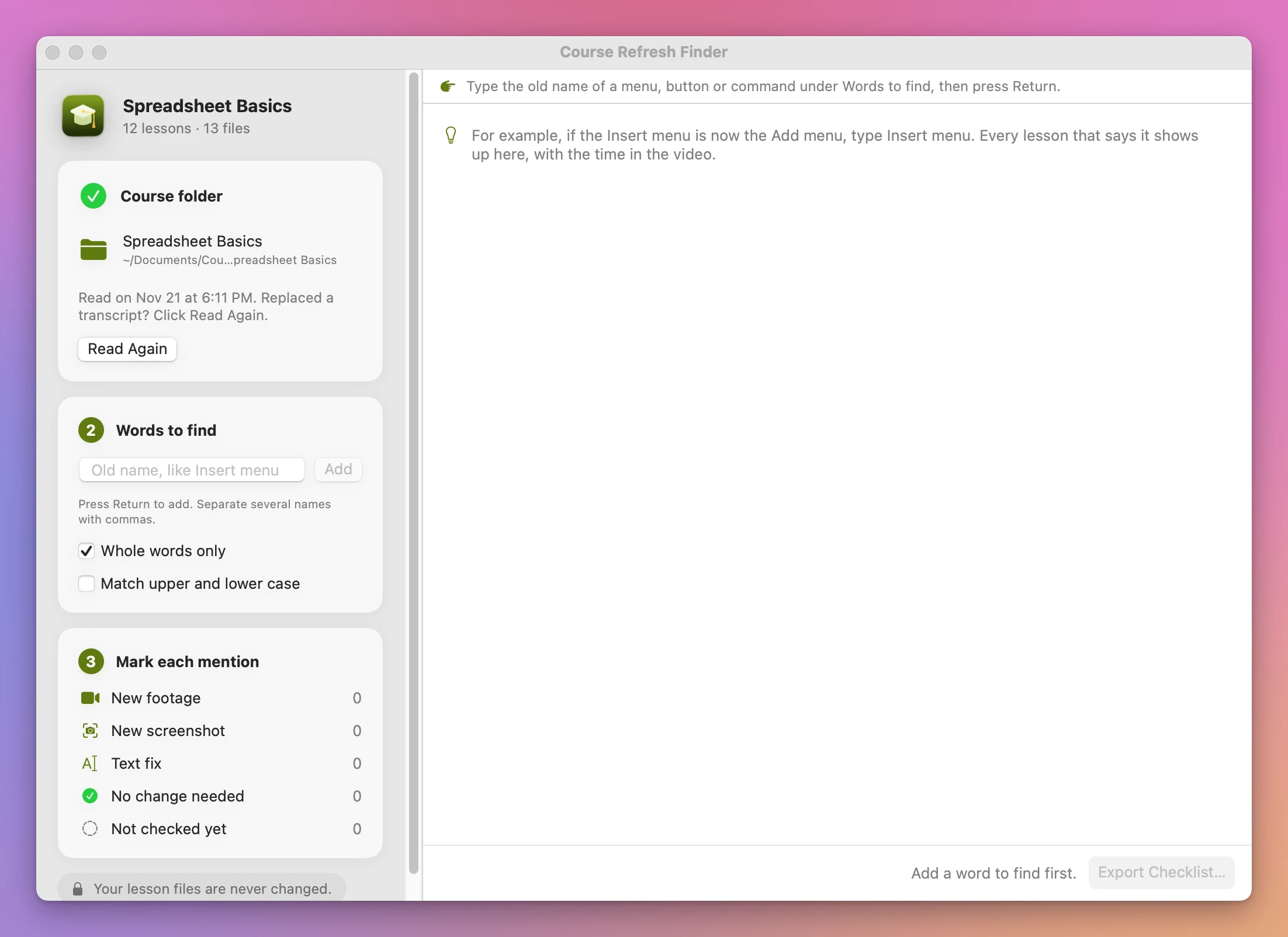
Type Insert menu, Quick Fill and press Return. Each name shows how many mentions it has, and the list shows every lesson that says one of them, in course order. Each mention has its time, its file and the words around it, with the old name highlighted. The split “Quick” / “Fill” in lesson 4 is in the list, at 00:45, the time of its first cue.
In the made-up course, that’s 16 mentions in 9 of the 12 lessons. Lessons 2, 6 and 10 don’t say either name, and a green note at the end of the list says so: three lessons you can skip.
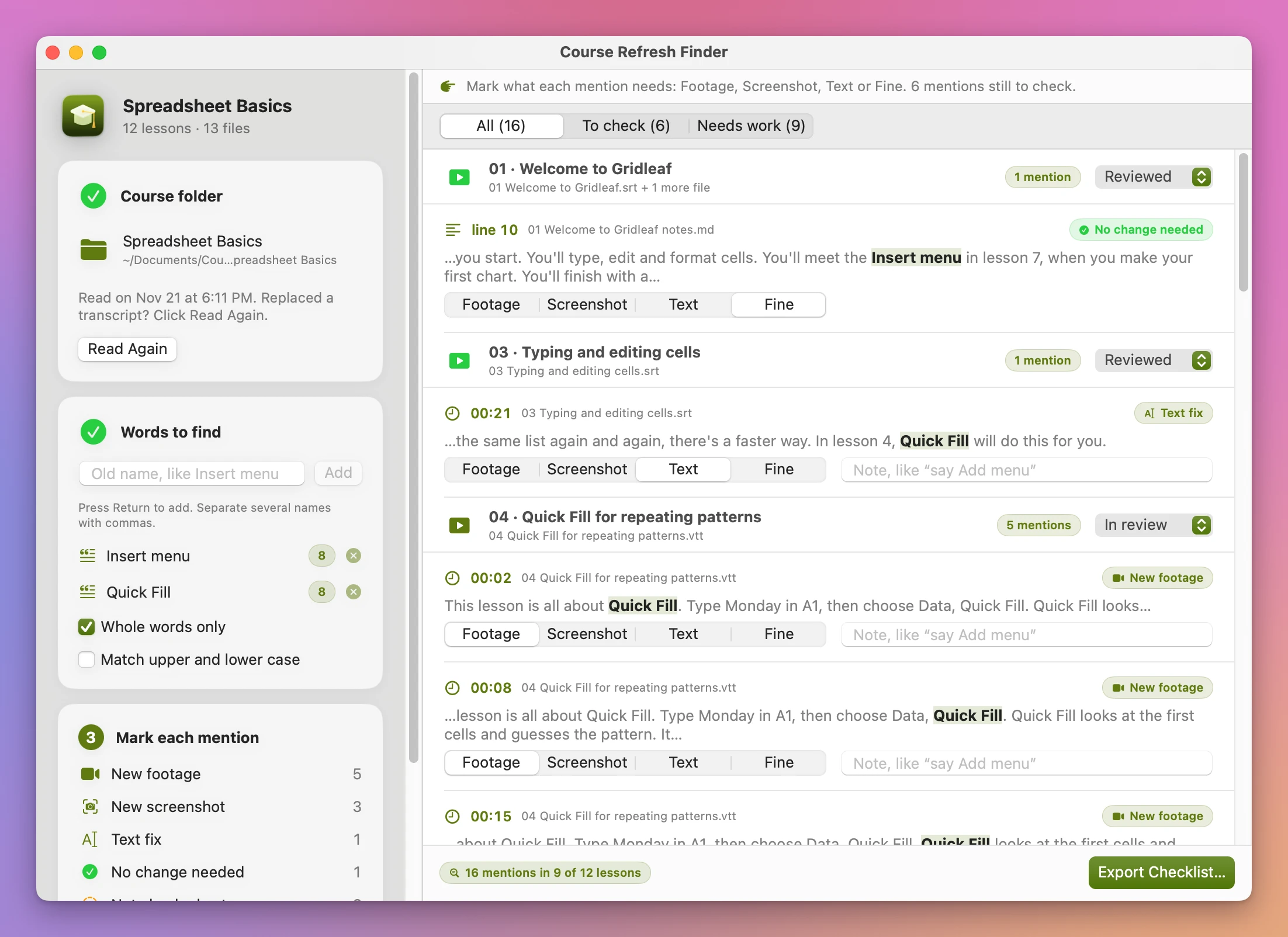
For each mention, click what it needs: Footage if you have to record that part again, Screenshot for a still, Text for a caption or the notes, Fine if it can stay. A note field appears for the first three. Set each lesson to In review or Reviewed from the menu next to its name.
What happens when you replace a transcript?
Export the fixed subtitles into the folder and click Read Again. Your marks follow their mentions, because the app matches them by the lesson and the words around them, not by the time. The yellow line at the top says what moved to a new time, what has new words around it, what isn’t in the lesson any more, and what’s new.
Get a checklist with the times
Click Export Checklist…, pick Markdown, CSV spreadsheet or PDF, and group it by lesson or by kind of fix. Grouping by fix puts all the footage to record together, so you can do it in one session.
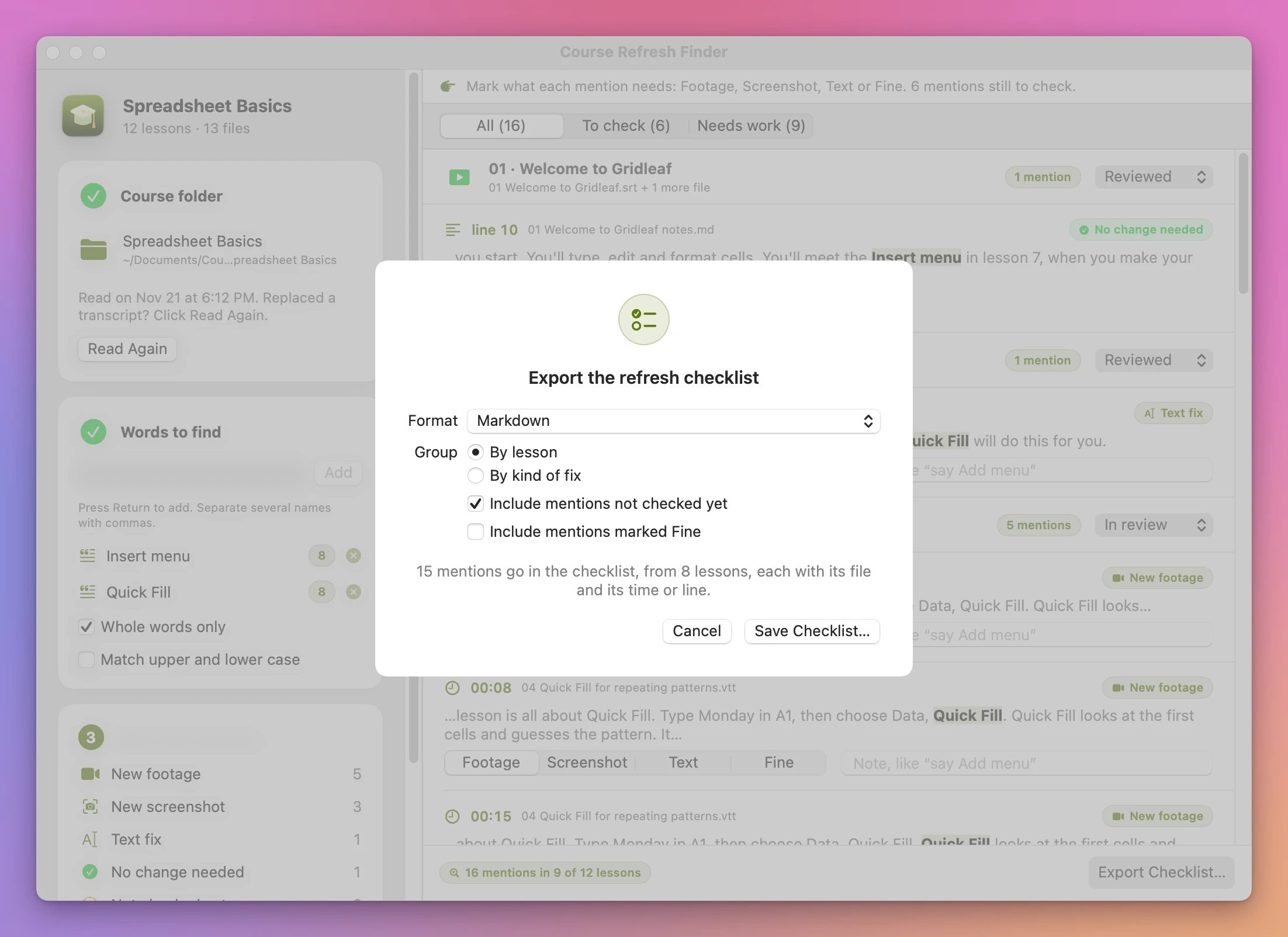
Each line of the checklist has a check box, the kind of fix, the time, the file, the words around the mention and your note. The lessons with no mentions are listed at the end.
The two ways side by side
| One file at a time in TextEdit | Course Refresh Finder | |
|---|---|---|
| Cost | Free | $19 once |
| Files searched | One per search | The whole folder, three levels deep |
| Time of each mention | Read it off the timing line above | Shown next to it |
| A name split across two cues | Not found | Found |
| Your decisions | In a separate list you keep | Saved with each mention |
| After a new export | Check the times again | Read Again, marks kept |
| Changes your files | Only if you edit them | Never |
If your course has a handful of lessons, TextEdit is enough. For a long course, or one you refresh every time the software changes, Course Refresh Finder costs $19, paid once.
Get Course Refresh Finder
Choose your course folder of subtitles, transcripts and notes, type the menu or command names the software renamed, and see every mention with its lesson and timecode. Mark what each one needs and export a refresh checklist as Markdown, CSV or PDF.
See Course Refresh Finder → · Read the docs · $19. See the app page for tax details.
Want me to talk about your product? You can sponsor this site.