
An app by Flavio
Course Refresh Finder
The app you teach renamed a menu. Choose your course folder of subtitles, transcripts and notes, type the old name, and get every mention with its lesson and timecode. Mark what each one needs and export a refresh checklist.
Buy Course Refresh Finder · $19One-time purchase. Plus tax where it applies.
macOS 14 or later · Apple silicon and Intel
Latest version 1.0.1, released November 22, 2026
You teach a piece of software in 40 video lessons. This week it shipped a redesign: the Insert menu is now the Add menu, and Quick Fill is Smart Fill. Students will notice before you do.
The question is where. You have a subtitle file for every lesson, so you can open them one by one and search. A subtitle file splits sentences into short lines, so “open the Insert” and “menu” sit on two different lines and the search misses half the mentions. Then you need to write down which spots need new footage and which only need a corrected caption, and do it all again when you export a fixed transcript.
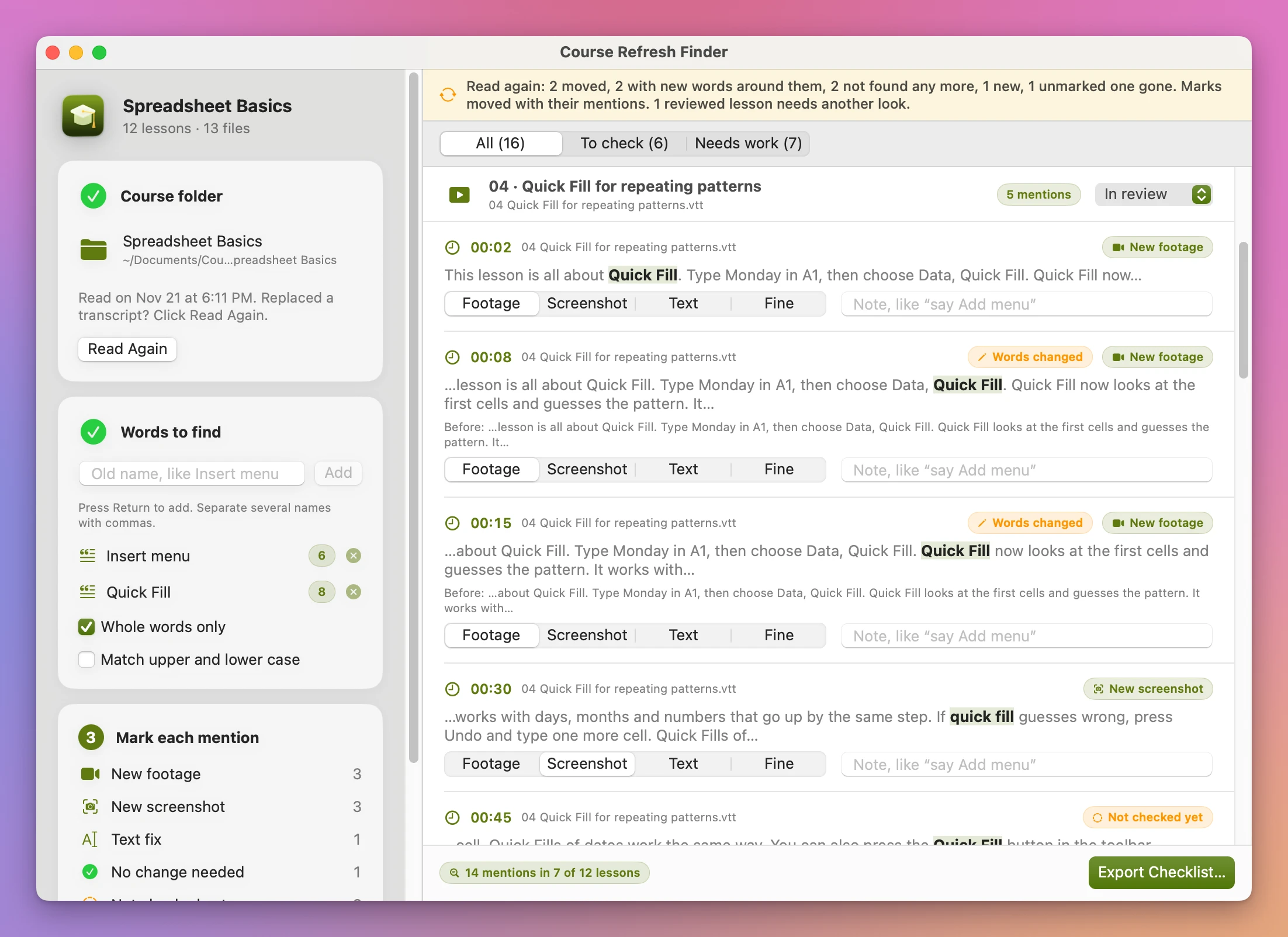
Course Refresh Finder reads the whole course folder at once. Type the old names and every mention shows up with its lesson, its file and the time in the video. Mark each one, and export a checklist of exactly what to record, retake or retype.
Who it’s for
- Instructors with a software course on a course platform. The app you teach moved a button in its big yearly update. You have 40 lessons with
.srtsubtitles and need to know, before students start commenting, which lessons say the old name and at what minute. - YouTube tutorial channels. A playlist of 25 videos about one app. Some need a pinned correction, a few need a remake. The checklist grouped by kind of fix tells you which is which, with the timecode to put in the comment.
- In-house trainers. The onboarding videos for the company’s internal tools say “click Submit Request”, and the button is now “Send”. You have the captions from the video tool as
.vttfiles, and a list to hand to the person who records. - Course editors and assistants. You refresh someone else’s course and hand back a list: lesson, file, time, what to change. The CSV opens in Numbers or Excel, and the PDF prints with a check box on every line.
- Writers with lesson notes in Markdown. Your written lessons and the video captions sit in the same folder. Both get searched, and the checklist says “line 42” for a note and “02:14” for a video.
How it works
- Click Choose a Course Folder… and pick the folder with the lessons’ subtitles, transcripts or notes (
.srt,.vtt,.txt,.md). Files that start with the same lesson number, like07 Your first chart.srtand07 notes.md, count as one lesson. - Under Words to find, type the old name, like
Insert menu, and press Return. Add as many as you need. - Every mention shows its time and the words around it. Click Footage, Screenshot, Text or Fine, and add a note if you like.
- Set each lesson to In review or Reviewed as you go.
- Click Export Checklist… and save it as Markdown, a CSV spreadsheet or a PDF.
What you get
Every mention, with the time in the video
A subtitle file breaks sentences into short cues. The app joins them before it searches, so “open the Insert” on one cue and “menu” on the next is one mention, at the time of the first cue. Text transcripts with timestamps like [00:02:14] get times too. Markdown notes get line numbers, and the app looks through bold and links, so **Insert** menu is found.
Whole words only keeps “Insert menu” from matching “Insert menus”. Match upper and lower case tells “Quick Fill” from “quick fill”.
Marks that survive a new export
You fix lesson 5, export its subtitles again as 05 Formulas v2.srt, and every time in it shifts by four seconds. Click Read Again. The app matches each mention by its lesson, the word and the words around it, not by its time, so your marks move with them.
The line at the top says what changed: how many mentions moved to a new time, how many have new words around them, how many aren’t in the lesson any more, and how many are new. A lesson you marked Reviewed goes back to In review when something in it changed, and the list scrolls to the first change.
A checklist you can hand to someone
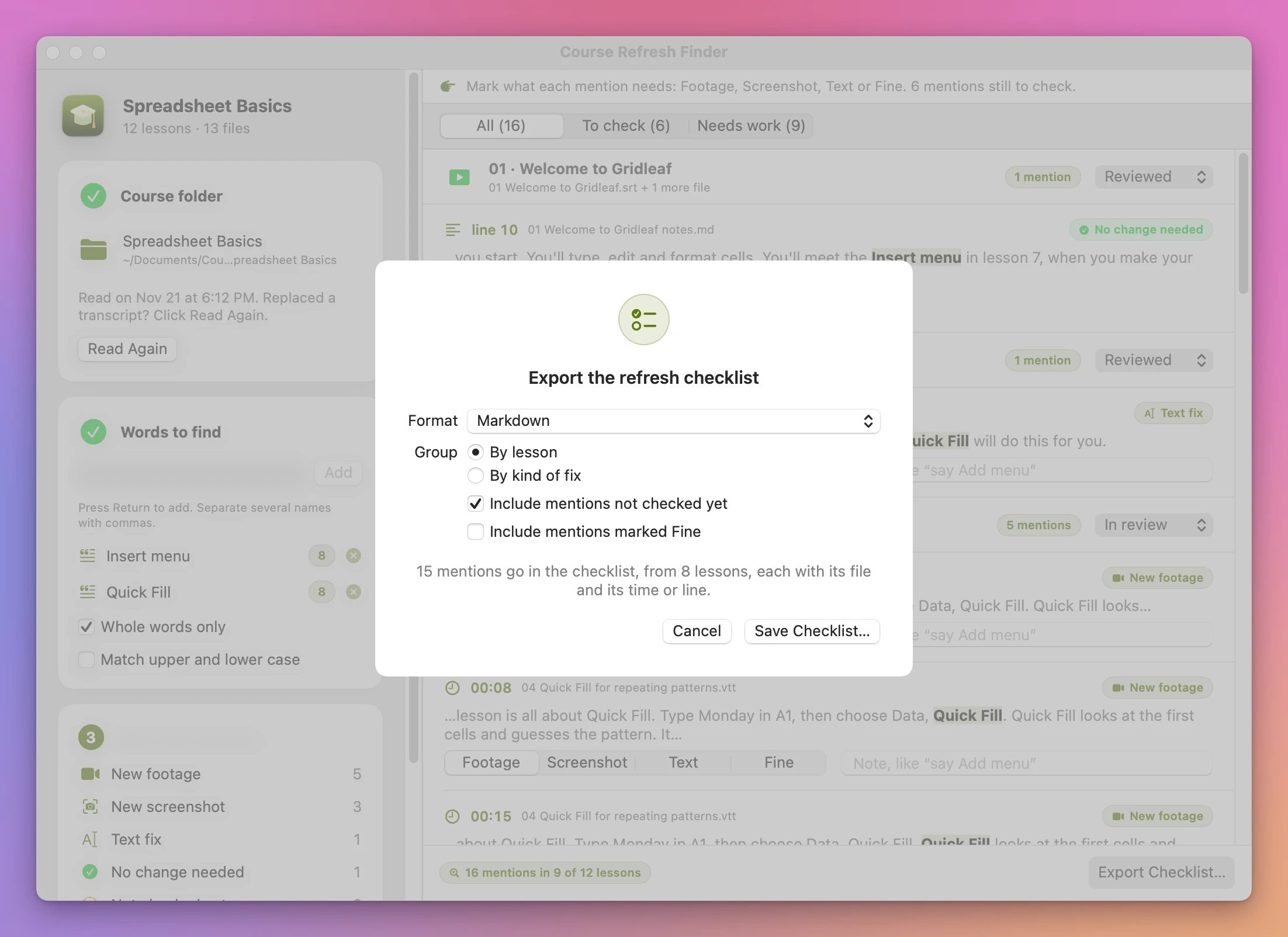
Each line has a check box, the kind of fix, the time or line, the file, the words around the mention with the old name in bold, and your note. Group it by lesson to work through the course in order, or by kind of fix to do all the recording in one session. The lessons that don’t mention the old names are listed at the end, so you know what you can skip.
Pick up where you left off
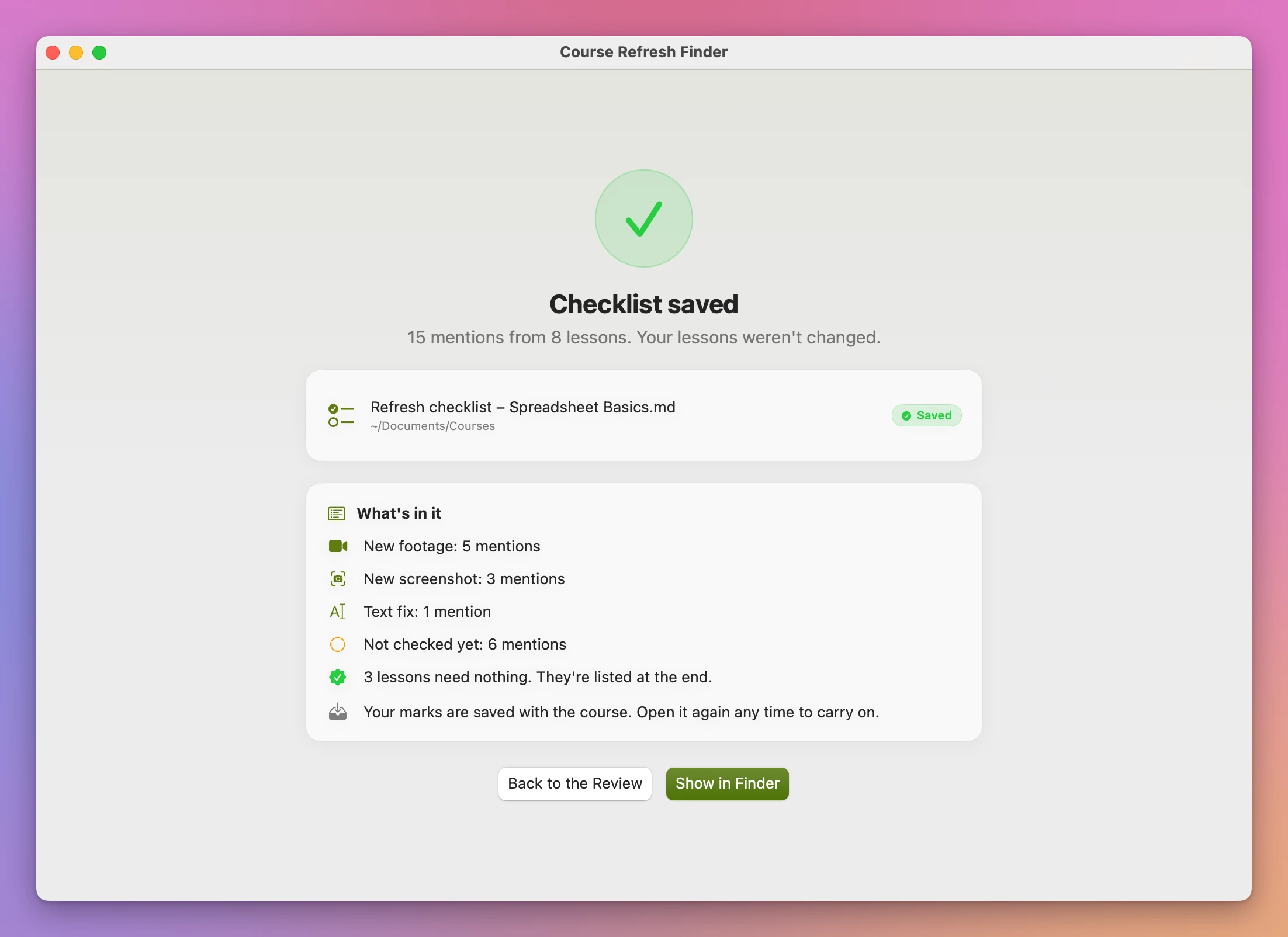
Your words, marks, notes and lesson statuses are saved as you go, on your Mac. The start screen lists the courses you opened, with how many mentions you marked.
Why not search the files by hand
macOS can already search inside text files. Spotlight and the Finder’s search can find files that contain a word, but they show you the files, not the places in them, and not the times. TextEdit finds a word in one file at a time.
A code editor that searches a whole folder at once, like the free Visual Studio Code, gets closer: it lists every matching line. It still misses a name split across two subtitle cues, it shows the line without the time it plays at, and it doesn’t remember which results you already checked. A spreadsheet next to it works, and you fill it in by hand, then again after the next export.
| Spotlight or the Finder | TextEdit | Folder search in a code editor | Course Refresh Finder | |
|---|---|---|---|---|
| Cost | Free | Free | Free | $19 once |
| Searches every lesson at once | Lists files | No | Yes | Yes |
| Shows the time in the video | No | No | No | Yes, 02:14 |
| Finds a name split across two cues | No | No | No | Yes |
| Marks what each mention needs | No | No | No | Footage, screenshot, text or fine |
| Keeps marks after a new export | No | No | No | Yes, and says what moved |
| Exports a checklist | No | No | No | Markdown, CSV, PDF |
What it doesn’t do
- It doesn’t transcribe. It needs subtitles or transcripts you already have. Most video tools and course platforms can export them as
.srtor.vtt. - It doesn’t play the videos or open them at a time. It gives you the time to look up.
- It doesn’t change your files. It never fixes the text for you, and it never writes into the course folder.
- It doesn’t read Word, PDF, Keynote or PowerPoint files. Only
.srt,.vtt,.txtand.md. - It doesn’t connect to course platforms or upload anything.
- It reads up to three folders deep and skips files over 20 MB.
Questions
What if my files aren’t numbered?
The lesson ID comes from the number at the start of the file name when there is one (03, Lesson 3, L03). Without one it comes from the words of the name, leaving out marks like v2, final or (1), so Intro to charts.srt and Intro to charts (1).srt are the same lesson. A course split in module folders keeps the module in the ID, so Module 2/01 Intro.srt isn’t Module 1/01 Intro.srt.
What happens when I fix a lesson and export it again?
Click Read Again. Mentions still there keep their marks, even at a new time or in a renamed file. A marked mention that’s gone stays in the list as “Not found any more” until you click Remove, so you can see that the fix landed.
Does anything get uploaded?
No. The app reads your lesson files on your Mac and never changes them. Your marks are saved on your Mac too. The app uses the internet only to check for updates.
What it needs
Course Refresh Finder runs on macOS 14 Sonoma or later, on Apple silicon and Intel Macs.
Not made by, affiliated with or endorsed by Microsoft, Apple or any course platform, video app or software maker. The course in the screenshots, Spreadsheet Basics, and the app it teaches, Gridleaf, are made up.
Buy Course Refresh Finder
$19 plus tax where it applies, paid once.
Download the app from the order page or your Creem receipt, unzip it and move it to Applications. I sign the app with my Apple Developer ID, and Apple notarizes the download.
The app checks for updates once a day. When a new version is ready, click Install and Relaunch. To check anytime, choose Course Refresh Finder › Check for Updates….