How to export all your Apple Notes at once
By Flavio
Notes on the Mac exports one note at a time, even with many selected. Here's what that costs for ten notes, and how to save every note as a file, in folders named like your Notes folders, with a list of what was saved.
You want all your notes out of the Notes app, as files you can open elsewhere. The job is to save every note, keep the folders recognizable, and choose the format you need.
Notes on macOS 15 Sequoia has no “export all”. Its one export, File > Export as PDF…, saves one note per round, even when you select many. Doing it by hand works for ten notes and gets painful for a few hundred.
The screenshots are from macOS 15 Sequoia, and the notes in them are made up for this tutorial: ten notes in five folders, one of them locked.
Can Notes export several notes at once?
Select all the notes with Command-A in the list of notes, and look at the File menu. Export as PDF… is still there, and the Share menu is greyed out. Pick Export as PDF… and the save panel offers a single file, named after the first note:
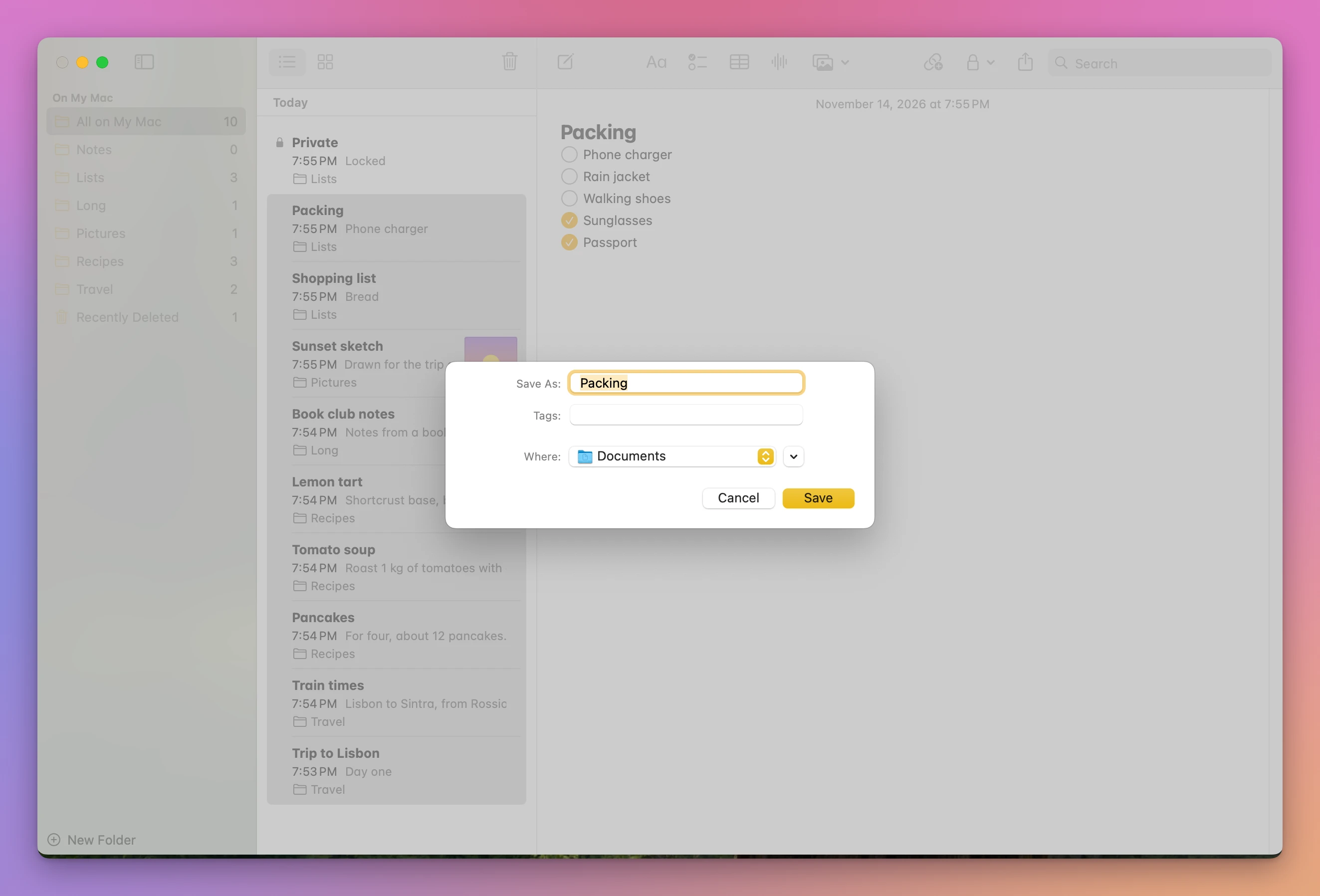
The saved PDF held only that note, Packing. The other eight weren’t in it.
So by hand, it’s one note at a time:
- Click a note.
- Choose File > Export as PDF….
- Click Save.
That’s three clicks for each note, plus a folder to pick now and then. Ten notes took 30 clicks, and every PDF landed in the same Documents folder, with no sign of which Notes folder it came from. With the locked note selected, Export as PDF… is greyed out, so that one needs its lock removed first. The tutorial about saving one note as a PDF has what the PDFs look like.
On macOS 26 Tahoe, Apple’s Notes User Guide adds File > Export as > Markdown, for the note you click. That’s a second format, still one note at a time, and these screenshots can’t show it.
Export every note with the app
Exporter for Apple Notes is a Mac app I made that saves all your notes as files in one go. It’s not made by, affiliated with or endorsed by Apple. It costs $20, paid once.
- Open it and click Show My Notes. The first time, your Mac asks if the app can control Notes. Click Allow.
- Every folder shows up ticked, with its number of notes. Recently Deleted has a trash icon and stays unticked. Click the arrow next to a folder to see its notes.
- Pick a format next to Save as: PDF, Word (.docx), Plain text, Markdown or Web page (.html).
- Click Export…, choose a folder like Documents, and click Export Here.
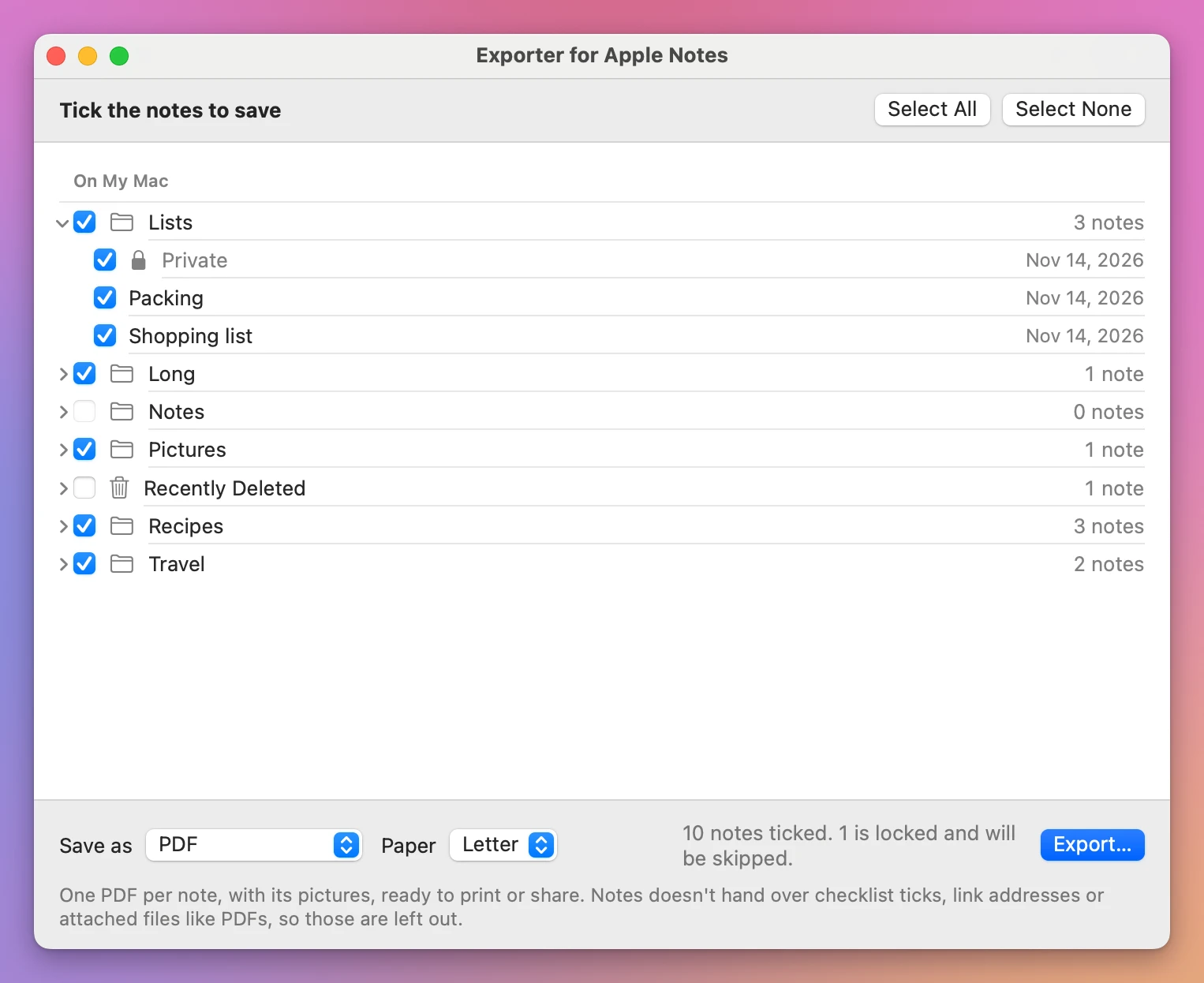
The line at the bottom warns you about the locked note before you start. A note locked with a password can’t be read by any app, this one included.
When it’s done, the report says where they went, and names the note it skipped:
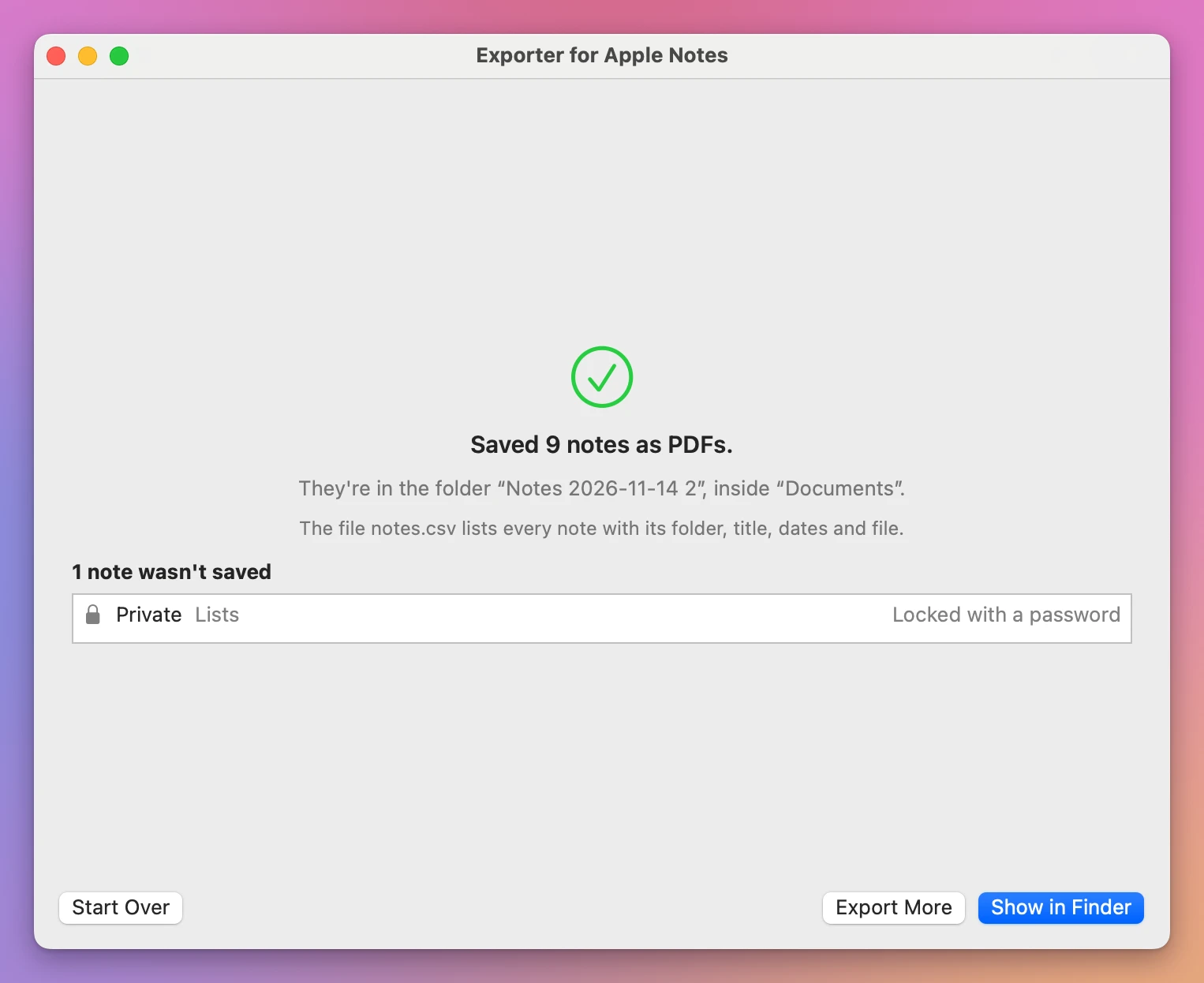
The folder is “Notes 2026-11-14 2” because an earlier export already made “Notes 2026-11-14”. The app never replaces a file: each export goes in a new folder next to the last one.
What do I get in the Finder?
One folder per Notes folder, one file per note, each named after its note:
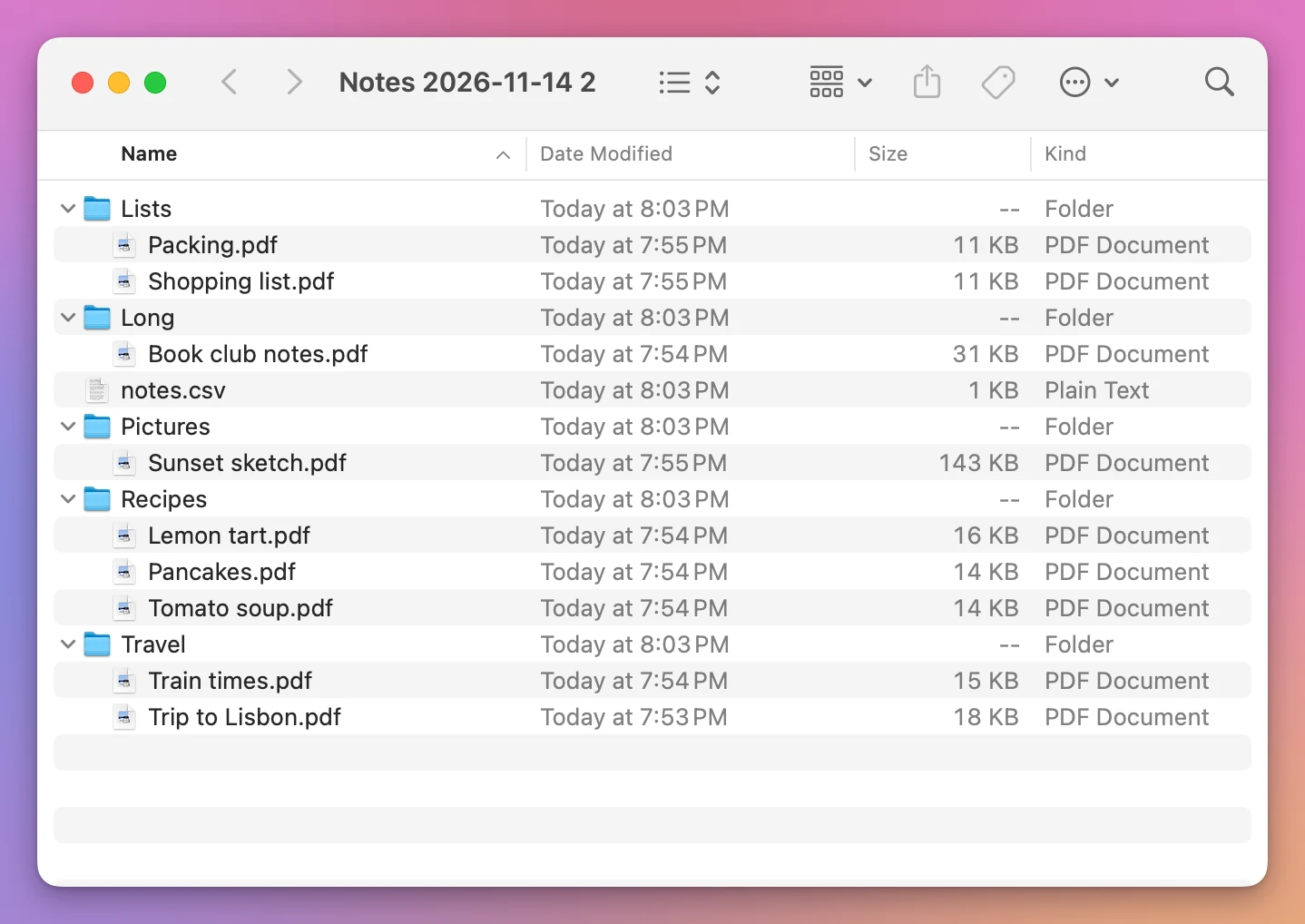
Each file has its note’s dates: the folders say 8:03 PM, the time of the export, and the PDFs say 7:53 to 7:55 PM, when the notes were written. In this test every note was written the same evening, so on your Mac the spread will be years.
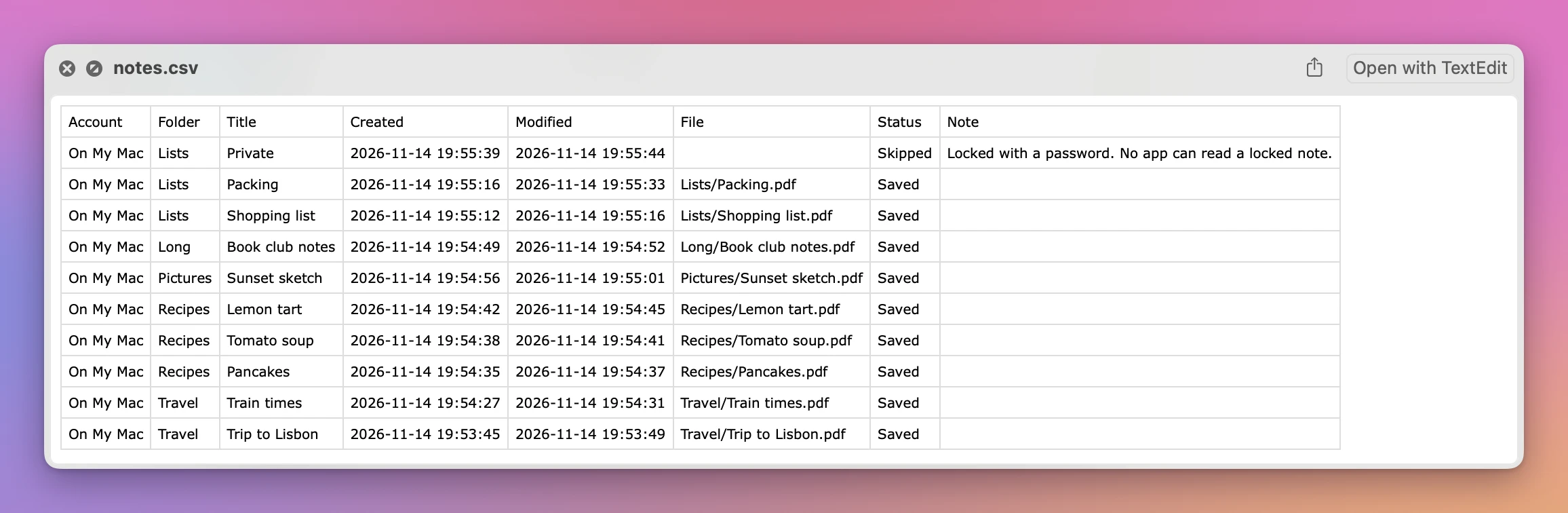
notes.csv is a list you can open in Numbers or Excel. Select it and press Space to look at it in the Finder:
Notes doesn’t hand other apps everything, and the window says so: checklists come out as plain bulleted lists without their ticks, links keep their words but not their address, and files attached to a note, like a PDF, are left out. Pictures you pasted into a note and tables come through.
| Ten notes | By hand in Notes | Exporter for Apple Notes |
|---|---|---|
| Clicks | 30, one round per note | 3: Show My Notes, Export…, Export Here |
| Formats | PDF (Markdown on Tahoe) | PDF, Word, plain text, Markdown, web page |
| Folders | All in one folder | Named like your Notes folders |
| File dates | The time of the export | The notes’ own dates |
| Locked note | Greyed out until you unlock it | Skipped, named in the report and the list |
| A list of what was saved | No | notes.csv |
| Links | Clickable in the PDF | Words only |
Get Exporter for Apple Notes
Save your notes from the Notes app as files: one PDF, Word file, text file, Markdown file or web page per note, in folders named like your Notes folders, with the pictures and the notes' dates.
See Exporter for Apple Notes → · Read the docs · $20. See the app page for tax details.
Want me to talk about your product? You can sponsor this site.