Why does a dashcam record in one-minute files, and how do I play them in a row?
By Flavio
A dashcam cuts every drive into short clips so it can record over the oldest ones when the card is full. Here's how to list one camera's clips in time order in the Finder and play them one after the other, and where that stops.
A dashcam records all the time the car is on, and the card is never big enough to keep everything. So the camera does loop recording: when the card is full, it records over the oldest material and keeps going. To do that one piece at a time, it saves the drive in short clips instead of one long video. The oldest clip goes, the rest stay.
Some clips are kept apart so they aren’t recorded over, like the ones the camera saves after a bump. Those usually go in a folder of their own.
How long a clip is depends on the camera. Some cut every minute, others every three or five minutes, and some let you pick in their settings. Look at the lengths on your own card.
Why the clips are hard to play in a row
I tried this on a stand-in card: a disk image formatted like a dashcam’s card, with made-up one-minute clips named the way a dashcam names them, from a front and a rear camera, and a GPS file next to each front clip. The pictures are a drawn road with a clock, and the files are much smaller than a real camera’s.
In the Finder, a folder sorted by name mixes three kinds of files for every minute: the front video, its GPS file, and the rear video. Quick Look steps through them in that order. Press the down arrow while a front clip plays and the next thing you get is the GPS file, a blank page:
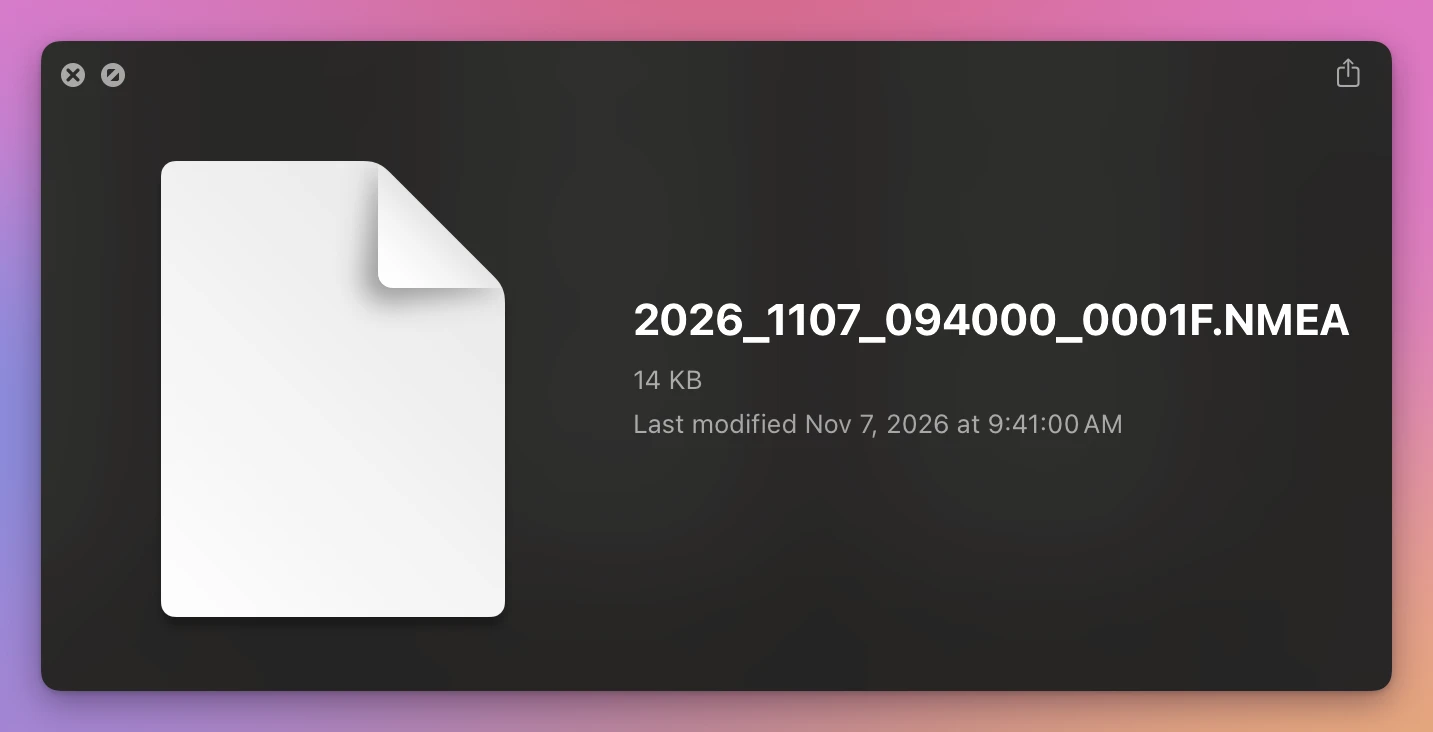
And the clip the camera locked isn’t in that folder at all. On my card, the 9:46 clip of the morning drive is in the Event folder, so the Normal folder jumps from 0006 to 0008.
List one camera’s clips in time order
The Finder’s search can pick out the front camera’s videos from all the folders at once. My stand-in clips end with F.MP4 for the front camera and R.MP4 for the rear. Look at your card for the letter yours uses.
- Open the
DCIMfolder of the card. - Press Command-F.
- Type
F.MP4and choose Name contains “F.MP4” in the menu under the search field. - Next to Search:, click the folder’s name,
"DCIM", instead of This Mac. - Click the Name column so the oldest is at the top.
The name starts with the date and time, so sorting by name puts the clips in the order they were recorded:
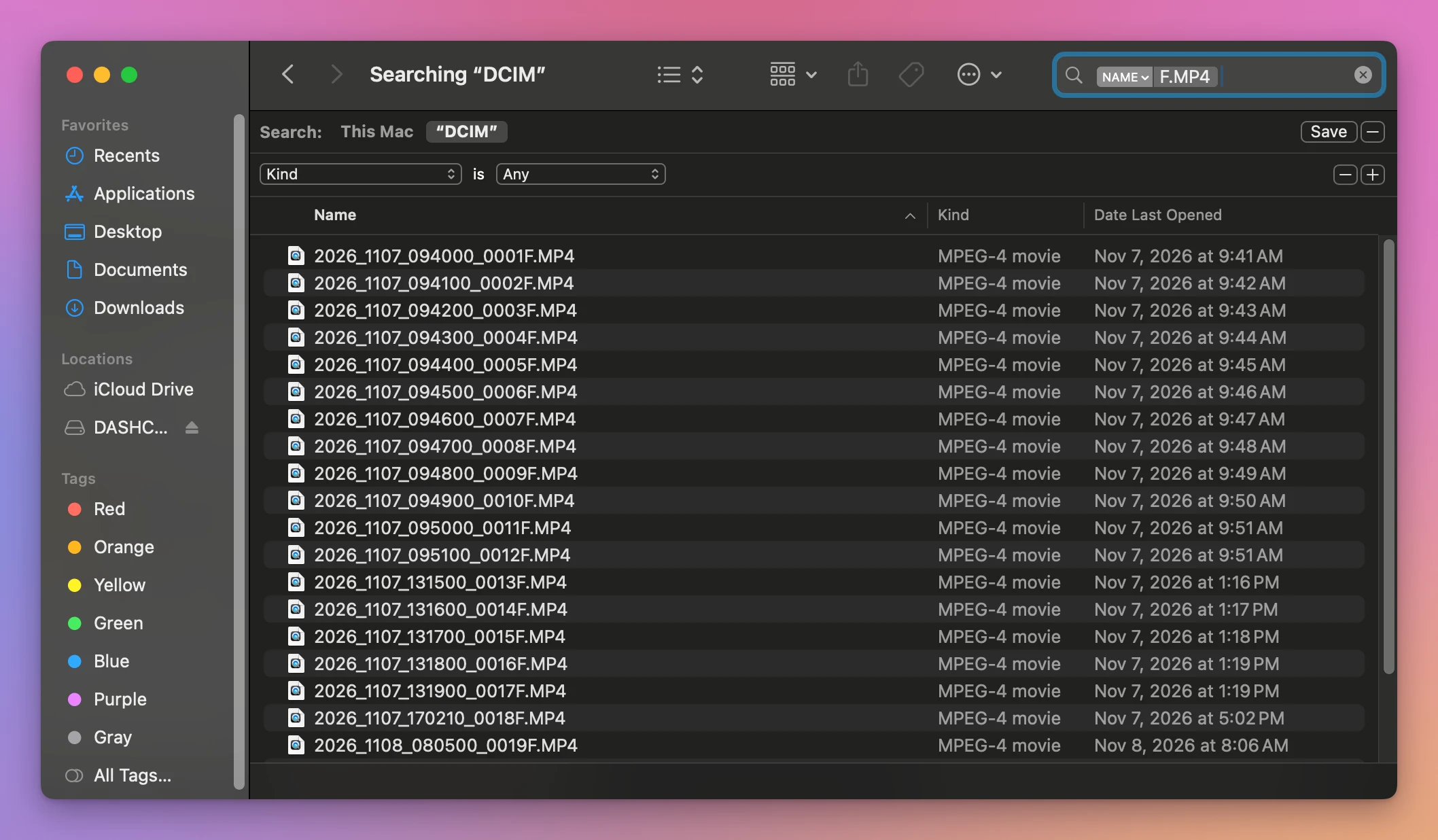
The list had all 24 front clips of the card, including 0007F from the Event folder and 0018F from the Parking folder, each in its place.
Now click the first one and press the Space bar. The down arrow goes to the next front clip, and the next. Search This Mac instead of the card’s folder and you also get copies you made on your Mac, so stick to the card’s folder.
Where it stops
Quick Look still plays one clip at a time. At the end of a clip it stays on the last picture, and you press the down arrow and play again. For the 11 minute 37 second drive that started at 9:40, that’s 12 clips:
| The 9:40 AM drive on my stand-in card | Files |
|---|---|
| Front videos | 12, one is in Event |
| Rear videos | 12 |
| GPS files | 12, only next to the front videos |
| Total | 36 files for one drive |
The search also doesn’t tell you where one drive ends and the next starts. You see it in the names: 095100 is the last clip of the morning, and the next one, 131500, starts at 1:15 PM.
To watch the clips as one video in QuickTime Player, you’d join them first with Edit > Add Clip to End, one clip at a time. The tutorial about joining videos in QuickTime Player shows how.
See the drives, not the files
Trips for Dashcam is a Mac app I made that does the sorting for you. It’s my own app, not made by, affiliated with or endorsed by any dashcam maker. It costs $20, paid once.
It reads the time in each name, pairs the front and the rear clip of the same minute, and puts the clips that follow each other into one trip. When the camera stopped for more than 5 minutes, a new trip starts. My stand-in card became 4 trips on 2 days, with the clips the camera locked listed on their own:
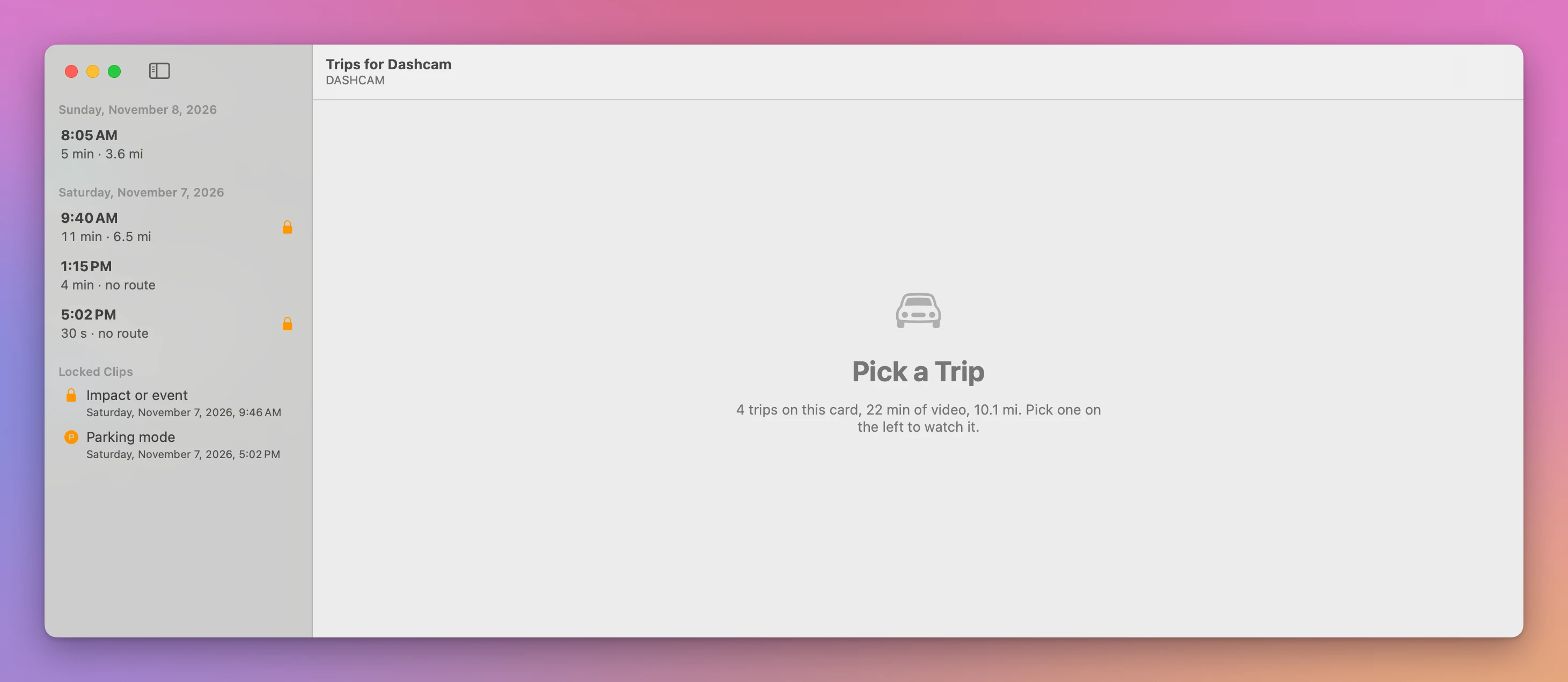
Click a trip and it plays from the first clip to the last, with no stop between them and the rear camera in a corner. The app only reads the card. Nothing on it is moved, renamed or removed.
Get Trips for Dashcam
Watch your dashcam's memory card as trips instead of hundreds of short files, with the rear camera in a corner and the route on a map. Save a stretch of video without losing quality, the route or a picture. Nothing on the card is changed.
See Trips for Dashcam → · Read the docs · $20. See the app page for tax details.
Want me to talk about your product? You can sponsor this site.