How to credit Creative Commons music in a YouTube video description
By Flavio
A Creative Commons track asks for its title, its creator, its license and a link to the license. Here's how to write that credit by hand for every track and clip in a video, and how Video Credits Builder keeps them and writes the whole block for you.
You used a Creative Commons track in your video, and its page says to credit the artist. Most free music and stock sites give you the exact line to paste in the description. With one track that’s a minute of work. With two tracks, three stock clips and a couple of sound effects, it’s where a credit goes missing.
The short answer: for each asset, write its title, its creator, its license and a link to the license, and put them all in the description. You can do it by hand from your notes, or keep them in Video Credits Builder, which writes the whole block for the assets a video uses and tells you which ones are missing a credit.
What does a Creative Commons credit need?
Creative Commons suggests four things, often remembered as TASL:
- Title of the track, clip or photo.
- Author, the creator’s name.
- Source, the page where you got it.
- License, its name and a link to it, like CC BY 4.0 and
https://creativecommons.org/licenses/by/4.0/.
A credit that has all four looks like this:
“Paper Lanterns” by Mira Okafor is licensed under CC BY 4.0. https://creativecommons.org/licenses/by/4.0/
When the source gives you its own credit line, use that wording. Two licenses need more than a credit: a license with NC (non-commercial) doesn’t allow commercial use, and one with ND (no derivatives) doesn’t allow changes. Read them before you put the track in a monetized video, or trim and loop it.
The tracks, creators and links in this tutorial are made up.
How to do it by hand
- When you download a track or a clip, copy its credit line from the download page into a note or a spreadsheet, with the file name next to it.
- When the video is done, go through its media folder and find which files came from a music library or a stock site.
- For each one, find its line in the note and paste it into the description, grouped under Music, Footage and so on.
- For a track with no credit line, write the four parts yourself.
It’s free and it works. The slow part is step 2: matching the files of the edit with the lines of the note, from memory, for every video. A track you swapped at the last minute stays in the note and not in the video, and the one that replaced it may never have made it into the note.
How Video Credits Builder does it
Video Credits Builder is a Mac app I made to keep these credits. It costs $19, paid once.
Keep each credit once
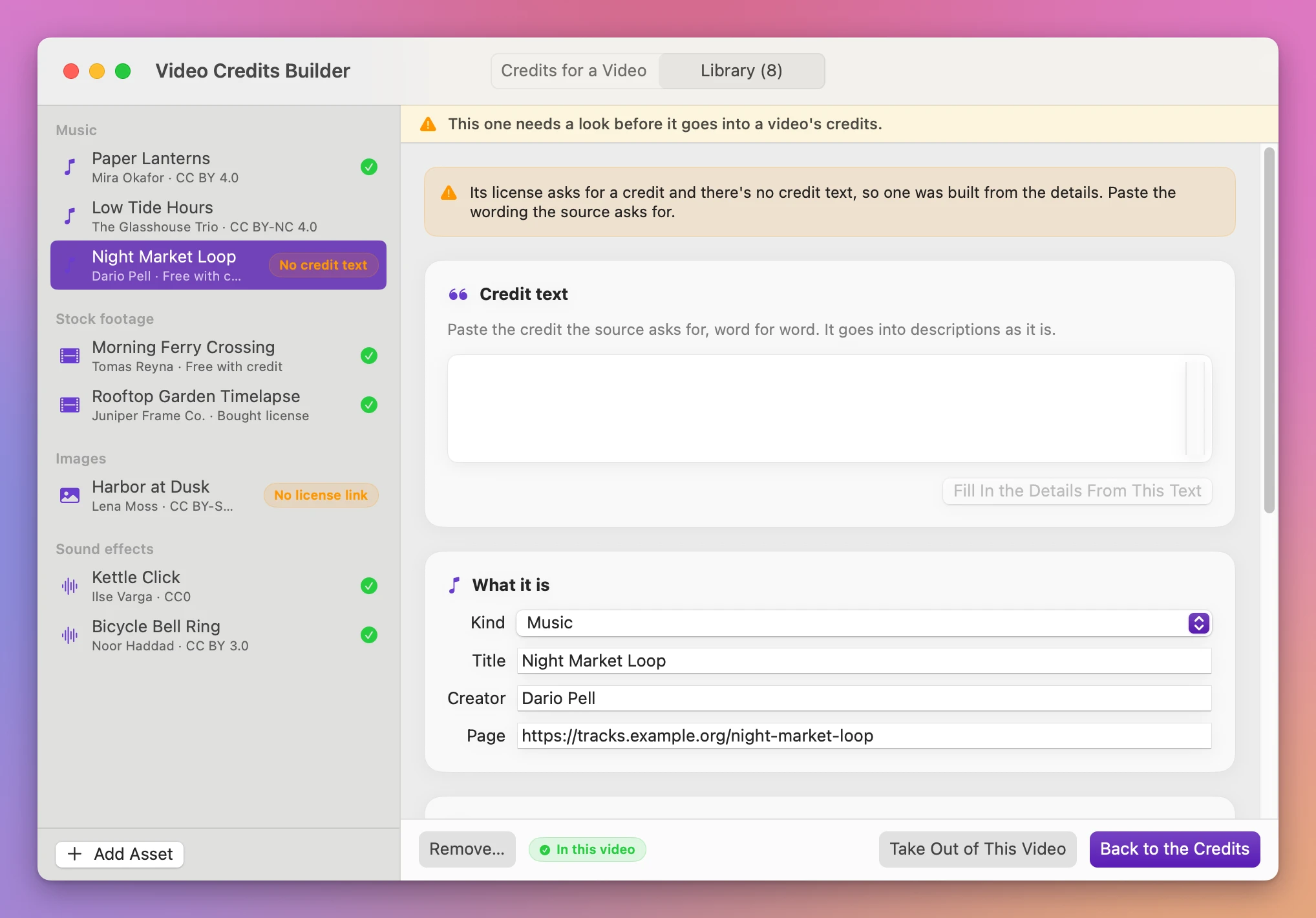
Click Add Asset, paste the credit from the download page into Credit text, and click Fill In the Details From This Text. The app reads the title in quotes, the name after “by”, the license and its link, and fills in the fields. Pick the license by hand if the site wrote it in its own words.
An asset that’s missing something shows an orange pill. Here, a track from a site that asks for a credit has no credit text yet, so the app built one from its title, creator and page, and says to paste the site’s wording.
Find what the video used
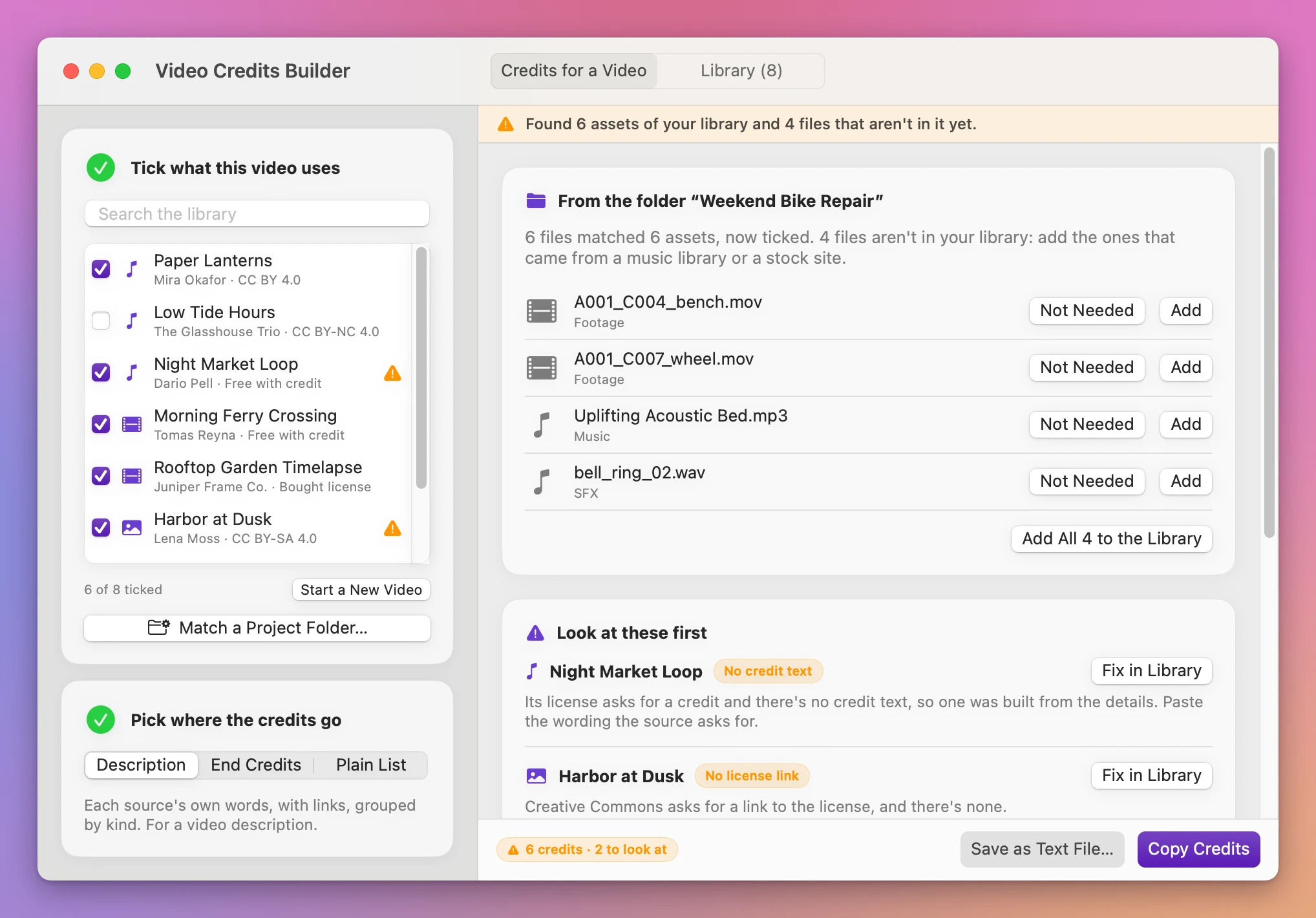
Drag the project’s media folder onto the window, or click Match a Project Folder…. The app reads the names of the music, video and image files and ticks the assets whose file name, or title, is in the folder. Only names are read, and nothing in the folder changes.
In the made-up project “Weekend Bike Repair”, ten files matched six assets. The four left were two of the video’s own clips and two downloads that weren’t in the library yet: Not Needed hides the first kind, Add adds the second.
Copy the block
With Description picked, the credits are grouped under Music, Stock footage, Images and Sound effects, each in the source’s own words. When a Creative Commons credit has no link to its license, the app adds it on the line under it. Anything still missing is listed under Look at these first, with Fix in Library to open it.
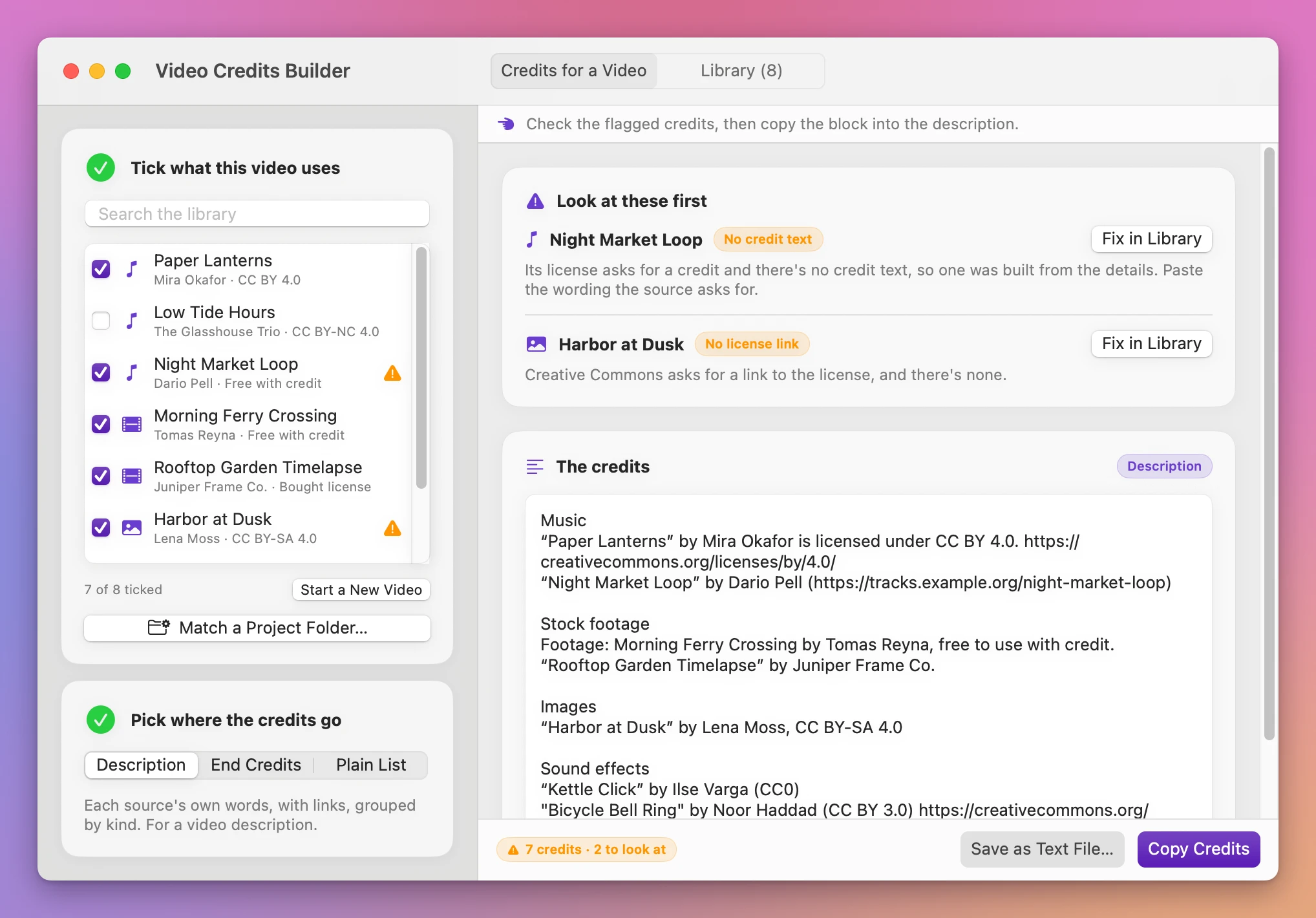
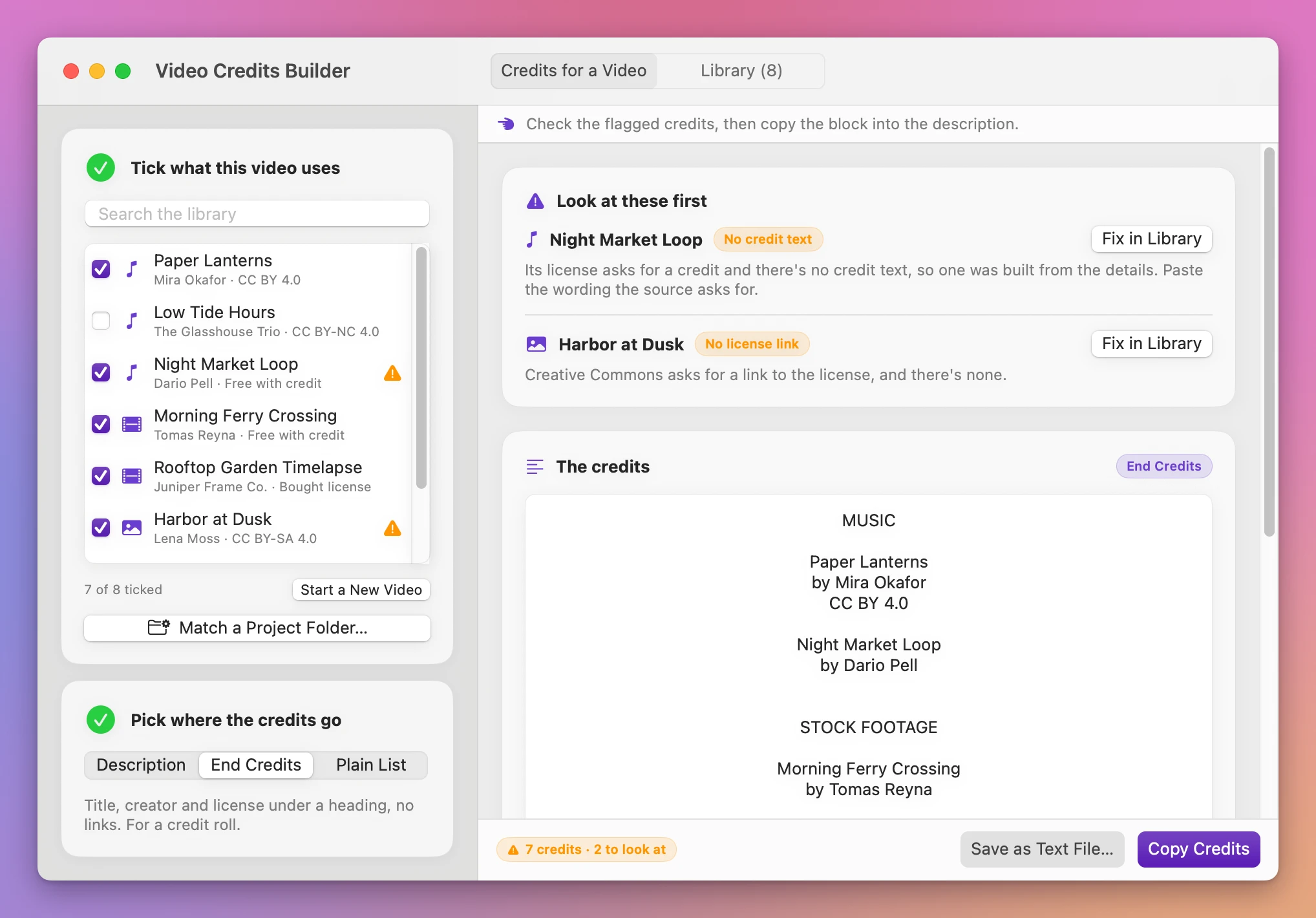
Click Copy Credits and paste the block into the video description. For the end of the video, pick End Credits: headings in capitals, then title, creator and license on separate lines, with no links, ready for a text layer in your editor.
For the next video, click Start a New Video. The library stays, so a track you use every week is credited with one tick.
By hand or with the app?
| A note and copy-paste | Video Credits Builder | |
|---|---|---|
| Cost | Free | $19 once |
| Keeps each source’s wording | If you pasted it | Yes |
| Finds what the video used | From memory | Ticks, or matches the media folder by name |
| Missing credit or license link | You notice, or you don’t | Flagged before you copy |
| Non-commercial licenses | You read each one | Warned |
| End credits too | Rewrite the lines | Pick End Credits |
For a video with one track, a note is enough. With a weekly channel and a dozen assets in rotation, the matching is where credits go missing.
The screenshots are from macOS 15.
Get Video Credits Builder
Keep the credit text and license of every song, stock clip, photo and sound effect you use, entered once. Tick what a video uses, or match its media folder by file name, and copy the credits for the description or the end credits. Anything missing a credit is flagged.
See Video Credits Builder → · Read the docs · $19. See the app page for tax details.
Want me to talk about your product? You can sponsor this site.