
An app by Flavio
Slide Lookout
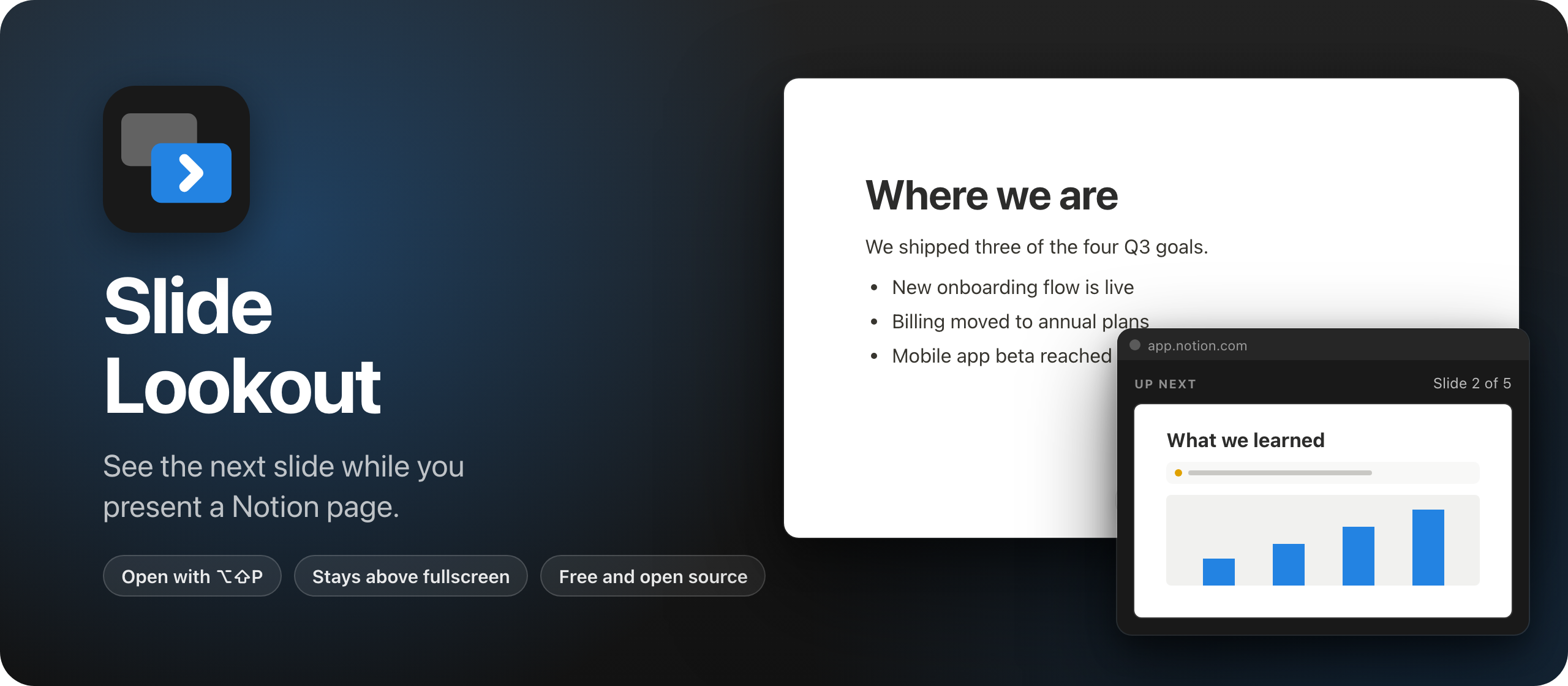
Present a Notion page and see the next slide in a small floating window only you can see, with the slide number. A Chrome extension.
Buy Slide Lookout · $20One-time purchase. Tax included.
Chrome 116+ · Notion presentation mode
Latest version 1.3.0, released November 18, 2026
$20 including tax, one-time purchase.
Present from Notion without guessing what comes next
Your team plan, your onboarding guide or your quarterly review already lives in a Notion page. In March, Notion added a presentation mode. You put a divider between the sections of a page, press ⌘⌥P, and the page becomes a slide deck, one section per slide. The page title is the first slide.
What it doesn’t have is a presenter view. Keynote and PowerPoint show you the next slide on your own screen while the audience sees the current one. In Notion you see exactly what they see, so you find out what comes next when you click. You lose the “and that brings us to…” moment, and you end up opening the page in another tab to peek ahead.
Slide Lookout is a Chrome extension that adds that view. A small floating window shows the next slide and where you are, like “Slide 3 of 12”, and it stays on top of the fullscreen slides.
Here it is going through a short presentation:
The Notion page and the slides in the video and the screenshots are made up. In the video the slides stay inside the browser window instead of going fullscreen.
Who it’s for
- Team leads who run the weekly meeting from Notion. The agenda, the numbers and the decisions are already in a page. You present it on the call and want to know that the next slide is the hiring update before you get there.
- Founders pitching from a Notion doc. Your pitch is a Notion page you keep editing up to the last minute. You want to talk to the investor, not to the slide, and a quick look at the next one keeps the story moving.
- Teachers and workshop leaders. Your lesson notes are in Notion with images and callouts. On the classroom projector the students see the slide, and your laptop shows what’s coming.
- People giving a talk at a meetup. You built the deck in Notion because it was faster than Keynote. A clicker changes the slides, and the panel tells you how many are left, like “Slide 9 of 14”.
- Consultants presenting to a client. You share the Notion tab on a video call. The client sees the slides, and the panel with the next one stays off the shared tab.
A presentation, start to finish
- Open the Notion page you want to present in Chrome.
- Press
Option+Shift+P(Alt+Shift+Pon Windows and Linux), or click the extension’s button in the toolbar. The panel opens. - Drag the panel where only you can see it, on your laptop screen or in a corner.
- Click the Notion page and press
⌘⌥Pto start presenting. - Change slides with the arrow keys, Space or a clicker. The panel shows the next slide and the slide number after every change.
- On the last slide, the panel tells you the presentation is over.
The setup takes about ten seconds before each presentation. After that you don’t touch the panel.
What the panel shows
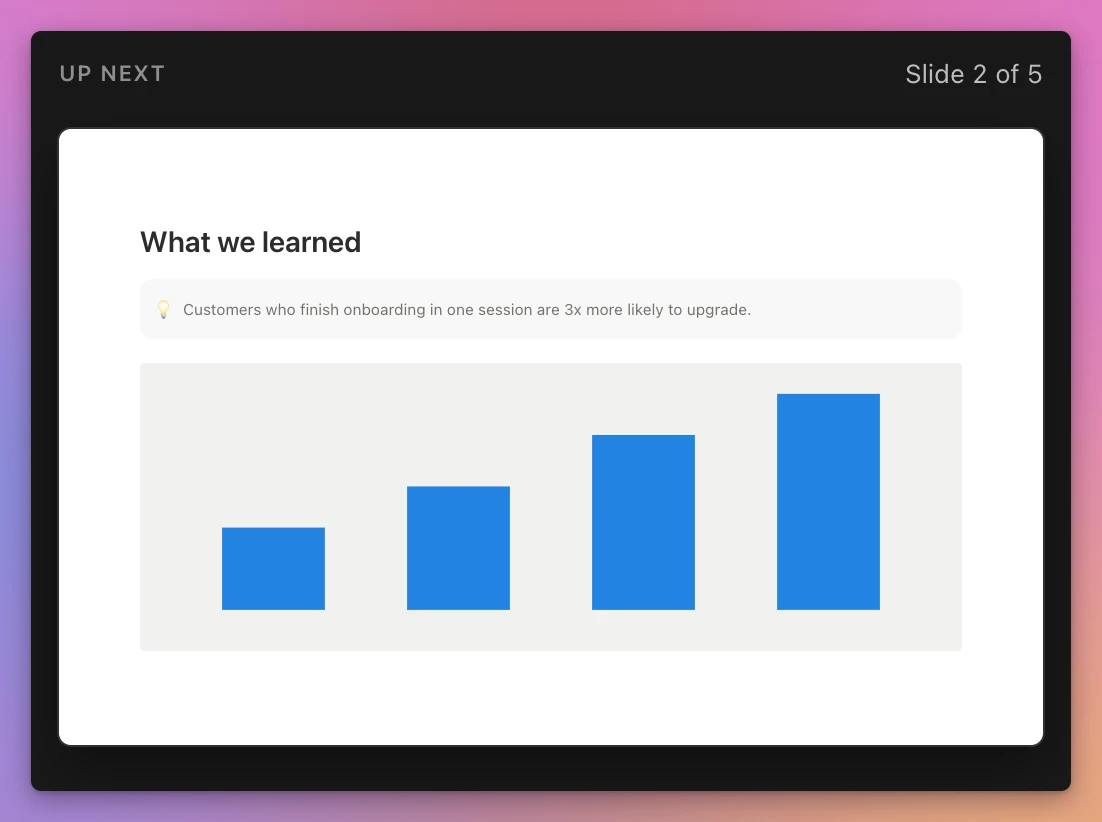
The panel shows the next slide the way Notion will draw it on your screen, with its images, callouts and colors. It follows light and dark mode. It follows every slide change, whether you use the arrow keys, Space or a clicker.
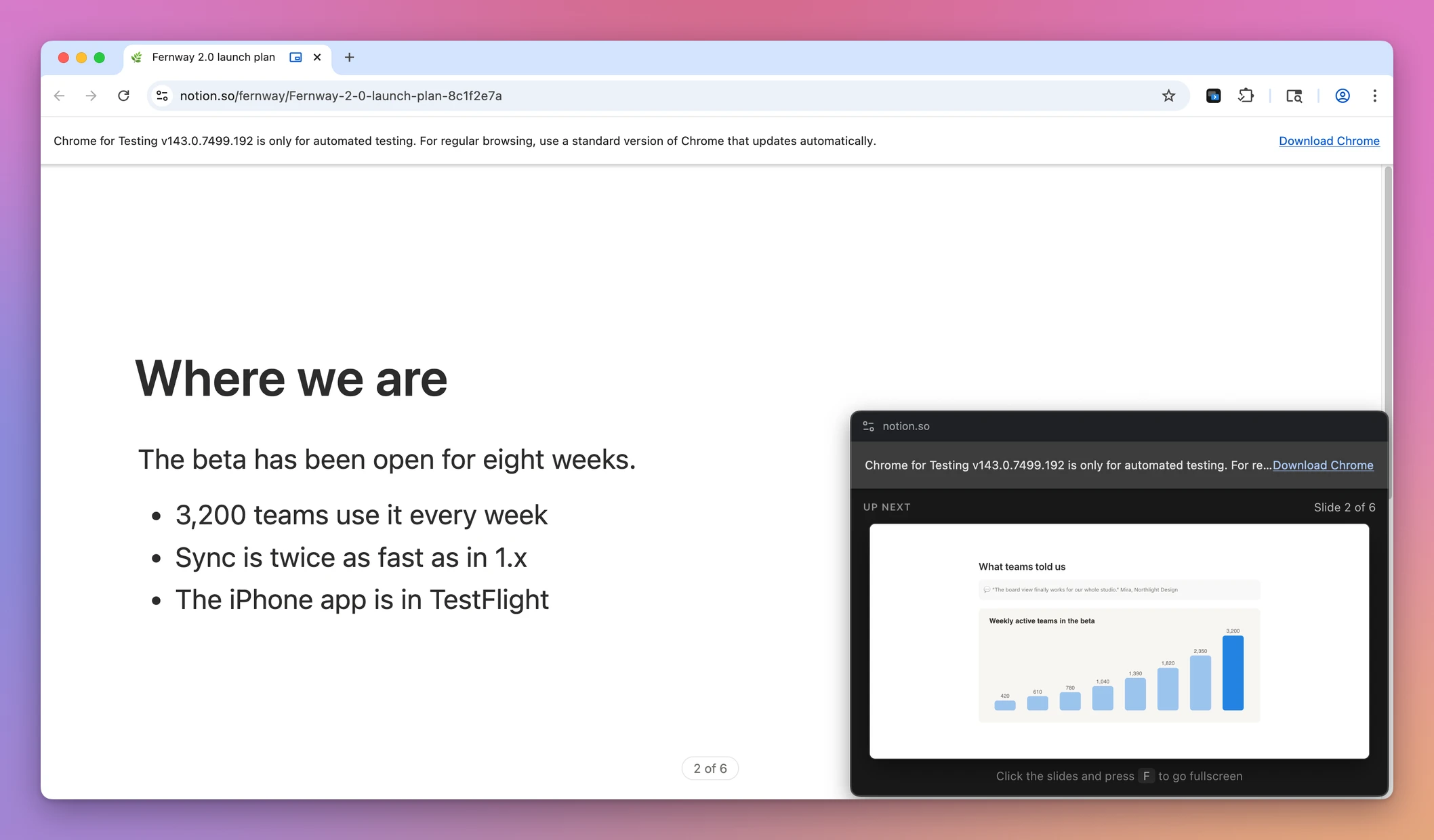
Embeds show as gray boxes, so the panel doesn’t load a second copy of a video or a document while you present.
If you click the panel by mistake, nothing breaks. The keys you press there go to Notion, so the clicker keeps working.
The panel belongs to the Notion tab. Switch to another tab, window or app, and it closes, so it doesn’t float over everything else. Bring it back with the shortcut.
Started presenting and forgot the panel? Move the mouse, and an Open presenter view button shows up in the bottom right corner. Like Notion’s own controls, it fades out when the mouse stops.
If the slides are fullscreen when you open the panel, Chrome takes them out of fullscreen, and an extension can’t change that. Click the slides and press F, and you’re back in fullscreen with the panel on top. If you open the panel before you start presenting, this doesn’t come up.
On a call or with a projector
The panel is a separate window. When you share the Notion tab or the Chrome window in a video call, people see the slides and not the panel. If you share your whole screen, they see it too.
With a projector, set it up as a second display. The slides go fullscreen on the projector and the panel stays on your laptop. If the two displays mirror each other, the audience sees the panel.
Rehearse once before the real thing, and check the call’s sharing preview after you switch windows.
Why not move the slides to Keynote
You can rebuild the page in Keynote or Google Slides and use their presenter view. For a big conference talk you’ll polish for weeks, that’s a fine choice.
For a page you present every week, or edit until five minutes before the call, it’s slow. Every change in Notion means updating the deck too. Images and callouts need redoing by hand, and the two copies drift apart.
The other workaround is a second tab with the same page scrolled one section ahead. You scroll it yourself after every slide, and it shows the page, not the slide as Notion will draw it.
| Keynote copy or second tab | Slide Lookout | |
|---|---|---|
| Edit the page before presenting | Update the copy too | Present the page as it is |
| Setup before each talk | Keynote: rebuild. Second tab: open and scroll | Open the panel, about ten seconds |
| Next slide preview | Keynote: yes. Second tab: you scroll it | Follows every slide change |
| Looks like the slide | Keynote: rebuilt by hand | Drawn with Notion’s own styles |
| Slide number | Keynote: yes. Second tab: no | ”Slide 3 of 12” |
What it doesn’t do
- It doesn’t show speaker notes or a timer. The panel shows the next slide and the slide number.
- It doesn’t work in the Notion desktop app. It runs in Chrome only, with Notion in the browser.
- It doesn’t add presentation mode to Notion. You need a Notion plan with presentation mode. Notion’s help says that’s Plus, Business or Enterprise.
- It doesn’t load embeds in the preview. They appear as gray boxes.
- It doesn’t come from the Chrome Web Store. You load it once, as shown below, and update it by hand.
Under the hood
Notion’s presentation mode keeps three slides in the page: the previous one, the current one and the next one. Each sits in an element with a data-slide-index attribute, and only the current one is visible. So the next slide is already there, fully drawn by Notion, just hidden.
The extension clones it into a Document Picture-in-Picture window. That’s a Chrome API for an always-on-top window you fill with HTML, like a page. The extension copies Notion’s stylesheets and theme colors into it, so the slide looks right in light and dark mode, and scales it the way Notion scales it on your screen. A MutationObserver updates the panel every time the slide changes.
Chrome opens that window only after a user gesture in the page, like a click. A click on the corner button is one. The extension’s shortcut is Chrome’s _execute_action command, which fires the same event as the toolbar button, and Chrome counts both as a gesture in the page when the extension runs its script there.
Forwarding the keys from the panel took one trick. Notion matches its shortcuts on the old keyCode property, which new KeyboardEvent() can’t set. The script runs in the page itself, so it defines keyCode on each event before it sends it.
The repo has a test that loads the extension into Chromium with Playwright and goes through a whole presentation on a mock Notion page, which copies the markup of the real one. It runs on every push. Notion can change that markup at any time, and when it does, the mock and the extension get updated together.
If you want to build an extension yourself, start with my Chrome extension tutorial.
Permissions
Slide Lookout runs on Notion pages only: notion.so, notion.com and notion.site. It needs them to show the corner button while you present, so when you install it, Chrome says it can “read and change your data” on those sites.
It reads the slides Notion already has in the page and adds that one button. It doesn’t change your pages, it never goes online, and there are no accounts or analytics.
Questions
Will the people on the call see the panel?
Not if you share the Notion tab or the Chrome window. The panel is a separate window. If you share your whole screen, it’s included.
The shortcut does nothing. What’s wrong?
Chrome can leave the shortcut unassigned when another extension already uses it. Open chrome://extensions/shortcuts to set one, or click the toolbar button.
Does it work with my clicker?
Yes. It follows the slide changes Notion makes, from the arrow keys, Space, Page Up and Page Down. Those keys still reach Notion if the panel has focus.
What if Notion changes its pages?
The preview depends on Notion’s page markup, so a Notion change can break it. Download the newer version from your purchase page when one comes out.
Does it work on Windows?
It runs in Chrome 116 or later, and the shortcut on Windows and Linux is Alt+Shift+P.
The documentation covers setup, sharing and troubleshooting. The tutorial on a presenter view for Notion presentations walks through a full rehearsal.
Buy Slide Lookout and get started
Slide Lookout costs $20 including tax, paid once.
After purchase, download the ready-to-load Chrome extension ZIP from your purchase page.
It isn’t on the Chrome Web Store, so you load it into Chrome yourself:
- Unzip the extension zip from your purchase page.
- Move the unzipped folder somewhere it can stay, like your Documents folder. Chrome runs the extension from that folder.
- Open
chrome://extensionsand turn on Developer mode in the top right corner. - Click Load unpacked and pick the folder.
- Click the puzzle icon in the toolbar and pin Slide Lookout.
You need Chrome 116 or later and a Notion plan with presentation mode. Slide Lookout works with Notion in the browser; it cannot run in the Notion desktop app.
An extension you load this way doesn’t update itself. When a new version comes out, download it again from your purchase page, then copy its files over the old ones in the same folder, then click the reload arrow on its card in chrome://extensions. The included README has the details.
If you want to ship an extension through the store instead, I wrote how to publish a Chrome extension to the Chrome Web Store.