
An app by Flavio
Practice Loops
Mark the passages you're learning in a recording, give each one a name, a speed and a count-in, and loop it with one key. Your loops are still there tomorrow.
Buy Practice Loops · $19One-time purchase. Plus tax where it applies.
macOS 14 or later · Apple silicon and Intel
Latest version 1.1.0, released November 22, 2026
You’re learning the solo from the band’s rehearsal recording. It’s 42 seconds in, it lasts eight seconds, and you’ve dragged the playhead back to 0:42 forty times tonight. Then you slow the player down, the position jumps, and you’re hunting for the bar again.
Tomorrow you’ll do it all over, plus the bridge at 1:15 and the last chorus run.
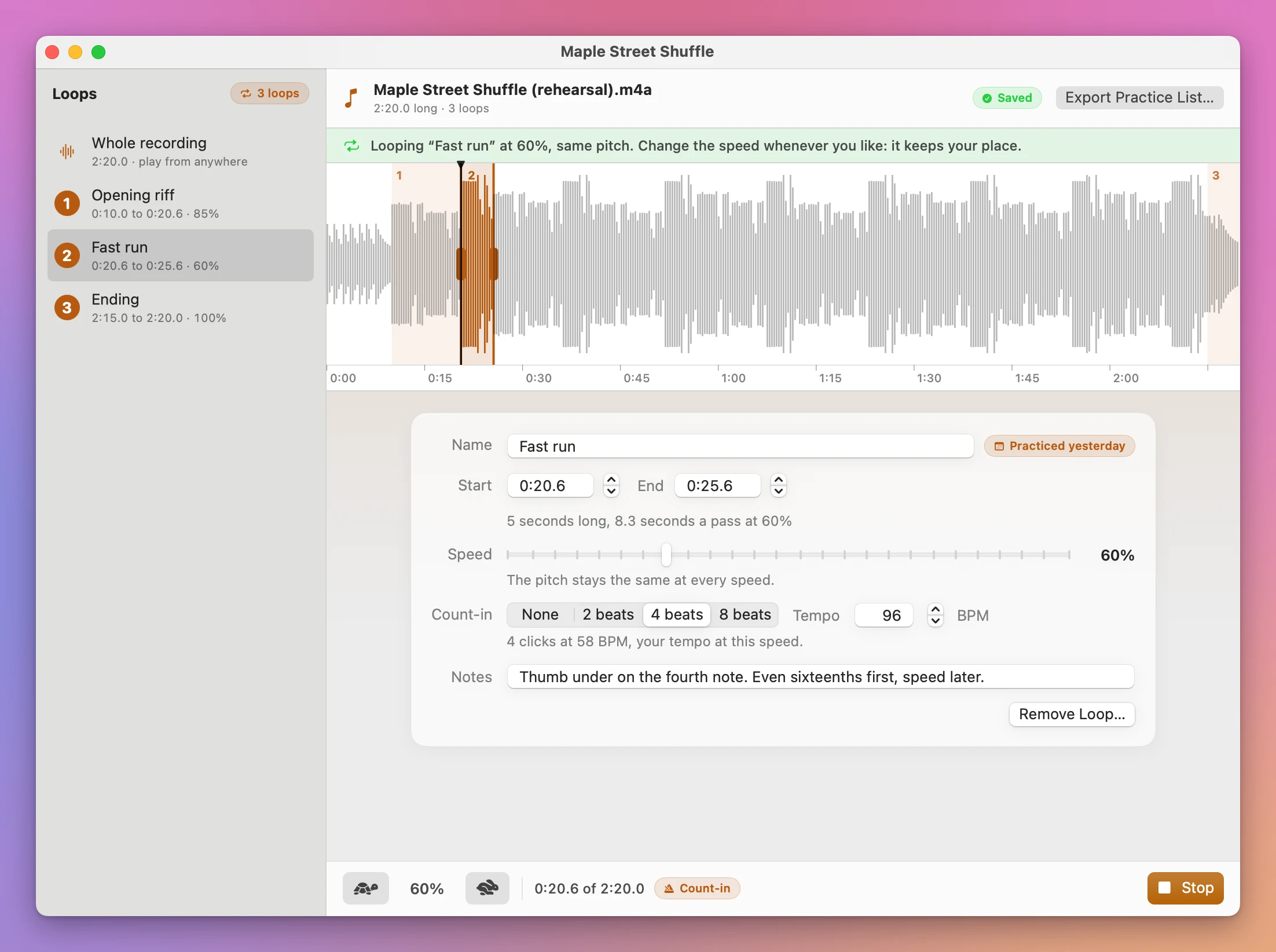
Practice Loops keeps those passages for you. Drag across the waveform to mark one, give it a name and a speed, and press Space. It repeats with no gap, slower if you like, at the same pitch. Press ↓ for the next passage. Save the project once, and the next day the app opens on the loop you were practicing.
Who it’s for
- Guitarists, bassists and keyboard players in a band. Eight songs to learn from Thursday’s rehearsal recording before Saturday’s gig. Each song gets a project with its two or three hard passages, named “Intro riff”, “Solo, bars 9 to 16”, and so on.
- Music students. Your teacher recorded the piece at full speed. You need bars 17 to 24 at 60% every evening, with four clicks to come in on, then 70% next week.
- Choir and musical-theatre singers. The rehearsal track has your two tricky entries. Loop each one until you hear the note before it, and write in the notes which beat you come in on.
- People transcribing a part. A fast run is a blur at full speed. At 50% you can hear each note, and the pitch doesn’t drop, so it’s still the note you need to write down.
- Dance teachers and dancers. The same eight counts, over and over while you work out the steps, at 85% until it sits.
How it works
- Click Choose a Recording…, or drag an MP3, M4A, WAV, AIFF or FLAC file onto the window. The waveform appears.
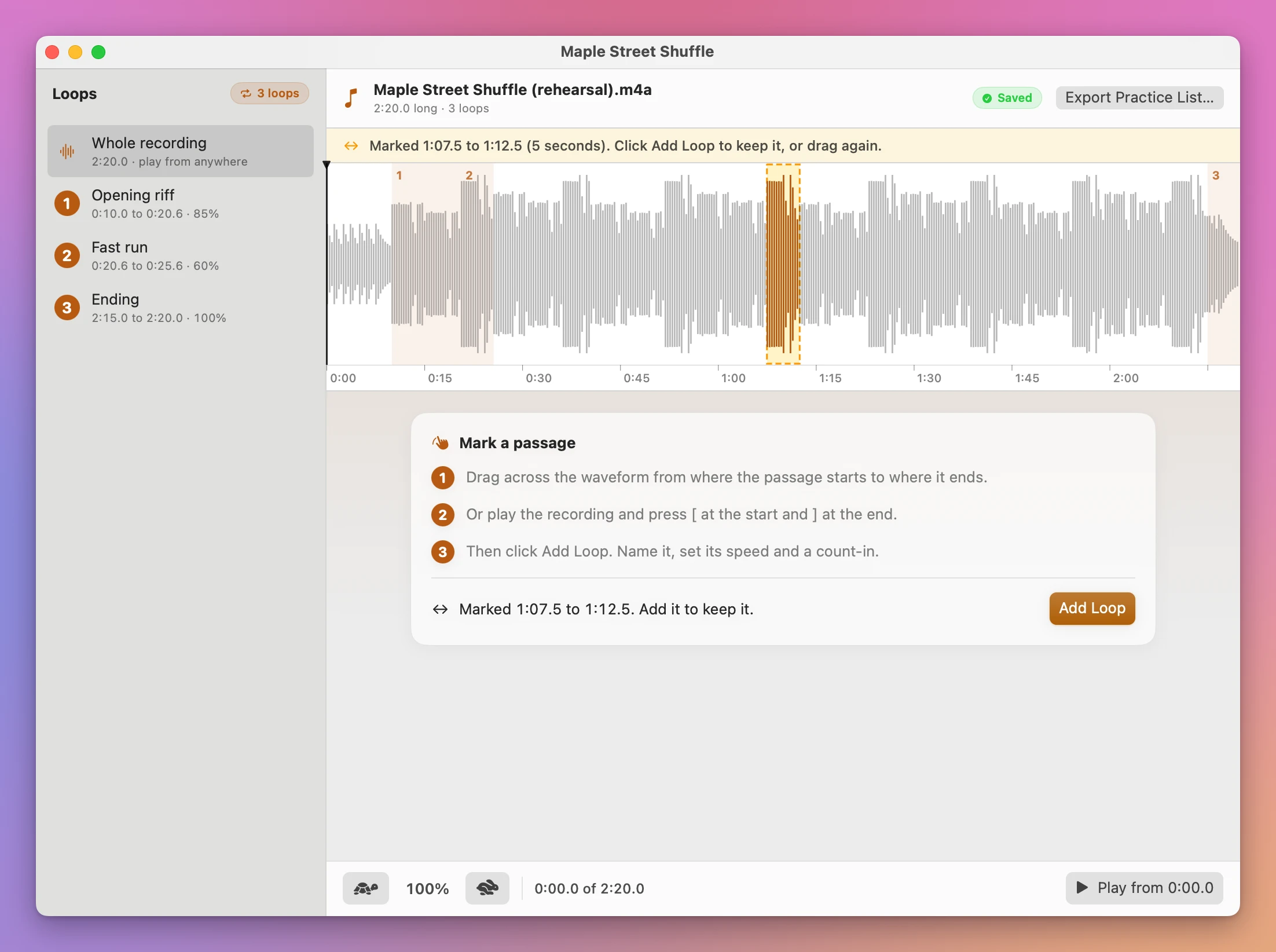
- Drag across the waveform where the hard passage is. Or click Play from 0:00.0 and press [ where it starts and ] where it ends.
- Click Add Loop. Type a name, like “Bridge, bars 17 to 24”.
- Set the Speed from 25% to 150%, and a Count-in of 2, 4 or 8 beats at the passage’s tempo.
- Press Space. The loop plays until you press it again.
- Click Save Project… once. After that every change is saved by itself.
What you get
Loops with their own speed and count-in
Each loop keeps its name, its start and end, its speed and its count-in. The start and end take a typed time like 0:42.5, the small arrows move them a tenth of a second, and you can drag the loop’s edges on the waveform. The count-in plays at your tempo times the speed, so four clicks for a passage at 96 BPM played at 60% come at 58 BPM, in time with what follows.
Change the speed while a loop plays and it carries on from where it was.
The keyboard does the work
Your hands are on the instrument, so everything is one key: Space plays and stops, ↑ and ↓ move between loops, 1 to 9 jump to a loop, − and + change the speed by 5%, and [ and ] mark a passage while you listen. Moving to another loop while one plays starts the new one at once.
Pick up where you left off
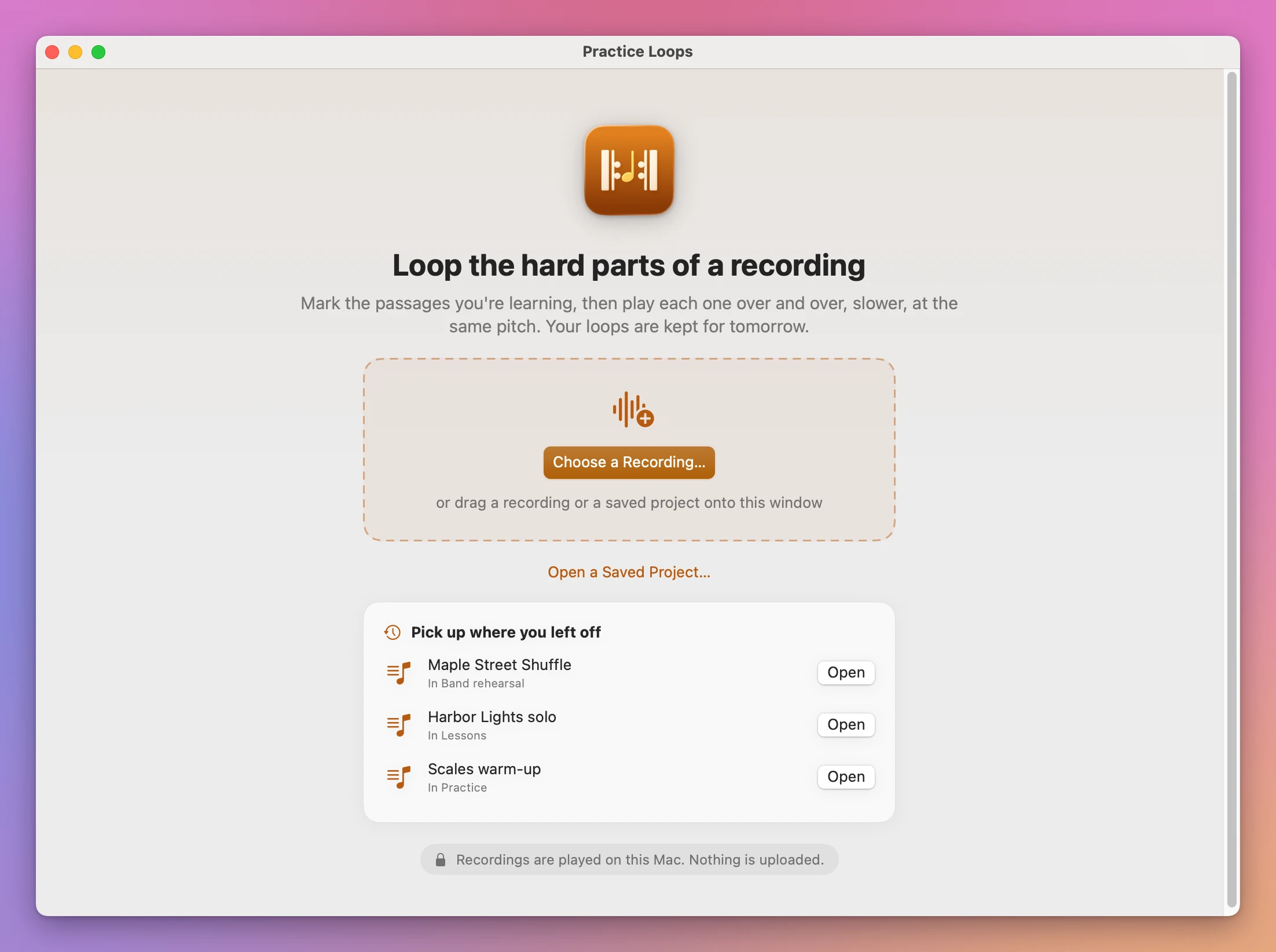
A project is a small file next to your recording. It remembers every loop and the one you were on. The start screen lists the last projects you opened: click Open, press Space, and you’re playing yesterday’s passage at yesterday’s speed.
If you move the recording, keep it in the same folder as the project and the app finds it. If not, it asks you to find it, and your loops come back as they were.
A practice list to print
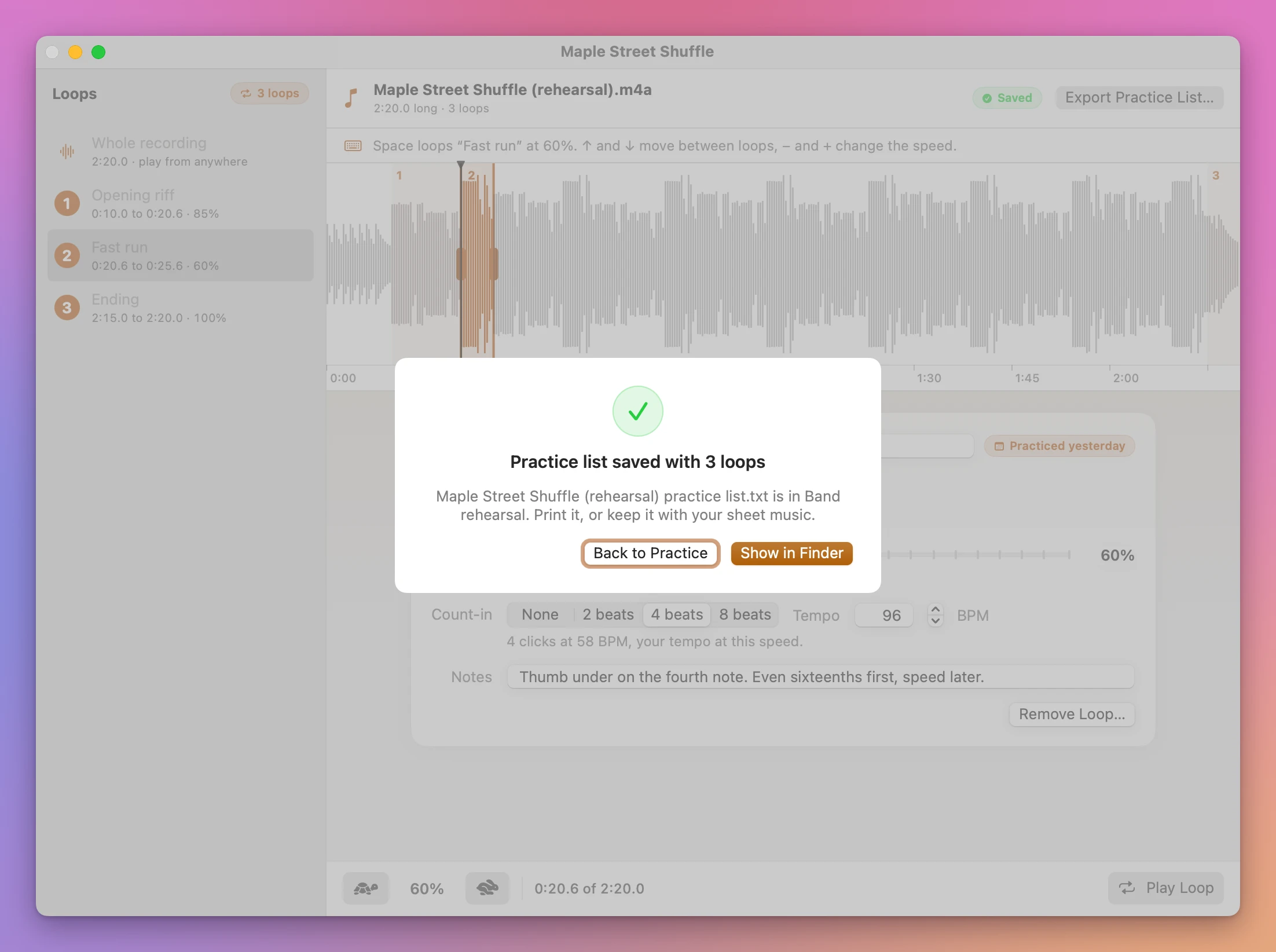
Export Practice List… saves every loop with its times, speed, count-in and notes as a text file, or as a CSV when you end the name with .csv. Print it, or send it to your teacher.
Why not use QuickTime Player
QuickTime Player comes with your Mac and plays any of these recordings. Edit › Trim… cuts the recording down to one passage with two yellow handles, View › Loop repeats it, and View › Playback Speed has Half, Normal, Fast, Faster and Double.
That’s one passage at a time. To practice the next one, you undo the trim and trim again, or save each passage as its own file. There’s nothing between half speed and normal, no count-in, and nothing remembers tomorrow where the passages were.
GarageBand, also free from Apple, can loop part of a track. It’s a recording studio, though: you import the recording into a project, set a cycle region, and move it by hand for each passage.
| QuickTime Player | Practice Loops | |
|---|---|---|
| Loop one passage | Trim, then View › Loop | Drag, then Add Loop |
| Several passages in one recording | One at a time, trim again for each | As many as you want, one key apart |
| Slower | Half speed only | 25% to 150% in 5% steps, pitch kept |
| Count-in | No | 2, 4 or 8 clicks at your tempo |
| Names and notes | No | For every loop |
| Tomorrow | Start over | Opens on the loop you left |
| Your recording | Unchanged unless you save the trim | Never changed |
What it doesn’t do
- It doesn’t change the pitch. You can’t transpose a song up or down a step.
- It doesn’t record. There’s no microphone input and no way to record yourself over the loop.
- The waveform has no zoom. For a precise start, type the time or nudge it a tenth of a second at a time.
- It plays files on your Mac. No streaming services, no Music library browsing, no YouTube links.
- It can’t hide an instrument or the vocals.
- The count-in plays once when you press Play, not before every repeat.
Questions
Is my recording uploaded anywhere?
No. The recording is played on your Mac. The app connects to the internet only to check for updates.
Does it change my recording?
No. It only reads the file. A project holds your loops and where the recording is, not a copy of the sound.
Which files does it open?
MP3, M4A, AAC, WAV, AIFF and FLAC. A recording has to be at least a second long.
Does it need any permission?
No. It reads the recording you choose and writes only where you save. It never asks for the microphone.
Will it run on my Mac?
Practice Loops runs on macOS 14 Sonoma or later, on Apple silicon and Intel Macs.
Practice Loops isn’t made by, affiliated with or endorsed by Apple or any music software maker.
Buy Practice Loops
$19 plus tax where it applies, paid once.
Download the app from the order page or your Creem receipt, unzip it and move it to Applications. I sign the app with my Apple Developer ID, and Apple notarizes the download.
The app checks for updates once a day. When a new version is ready, click Install and Relaunch. To check anytime, choose Practice Loops → Check for Updates….