
An app by Flavio
Podcast Archive Collector
Paste a podcast's feed address and keep your own copy: every episode the feed still lists, named by date and title, with show notes and artwork, and only the new ones on the next run.
Buy Podcast Archive Collector · $20One-time purchase. Plus tax where it applies.
macOS 14 or later · Apple silicon and Intel
Latest version 1.0.0, released November 20, 2026
Your favorite show just announced its last episode. The host says the feed will stay up “for a while”. You’d like every episode on your Mac before “a while” runs out: all 312 of them, with the show notes, in an order that makes sense.
A podcast app downloads episodes for listening inside the app. Clicking through the show’s website gets you files called episode.mp3, one at a time, and no idea which ones you’re missing.
Podcast Archive Collector reads the show’s feed, the same address podcast apps subscribe to. You see every episode it lists, with date, length and size, before anything downloads. Tick the ones you want, click Archive, and they land in a folder, named by date and title, next to their show notes and artwork. Next month, click Check for New Episodes and only the new ones download.
Who it’s for
- Listeners whose show is ending. The host announced the final episode and said the feed comes down at the end of the year. Archive every episode with its notes now, while the links still work.
- Podcast producers. You publish through a hosting service and want a copy of your own show off that platform: the audio, the artwork and the show notes as they appeared. Run Check for New Episodes once a month and only the new episodes download.
- Paying members of a show. Your membership comes with a private feed address for the bonus episodes. Save them on your Mac while the membership is active. The app hides the feed’s key on screen, so it doesn’t end up in a screenshot.
- Researchers and journalists. You’re studying a public-affairs podcast for a project. You need every episode with a consistent file name by date, and a list of the episodes the feed still names but whose files are gone.
- Commuters with an old MP3 player. Pick one season with Date Range, download it over a slow connection across a few evenings (it continues where it stopped), and copy the folder to the player.
From a feed address to a folder of episodes
- Paste the feed address. Copy the show’s RSS address from its website or your podcast app and click Paste Feed Address, or type it in the Podcast feed field. Addresses starting with
feed://orpodcast://, or with nohttps://, work too. - Choose where archives go. Click Choose… under Save archives in. Each show gets its own folder there, named after it, and the app remembers the place.
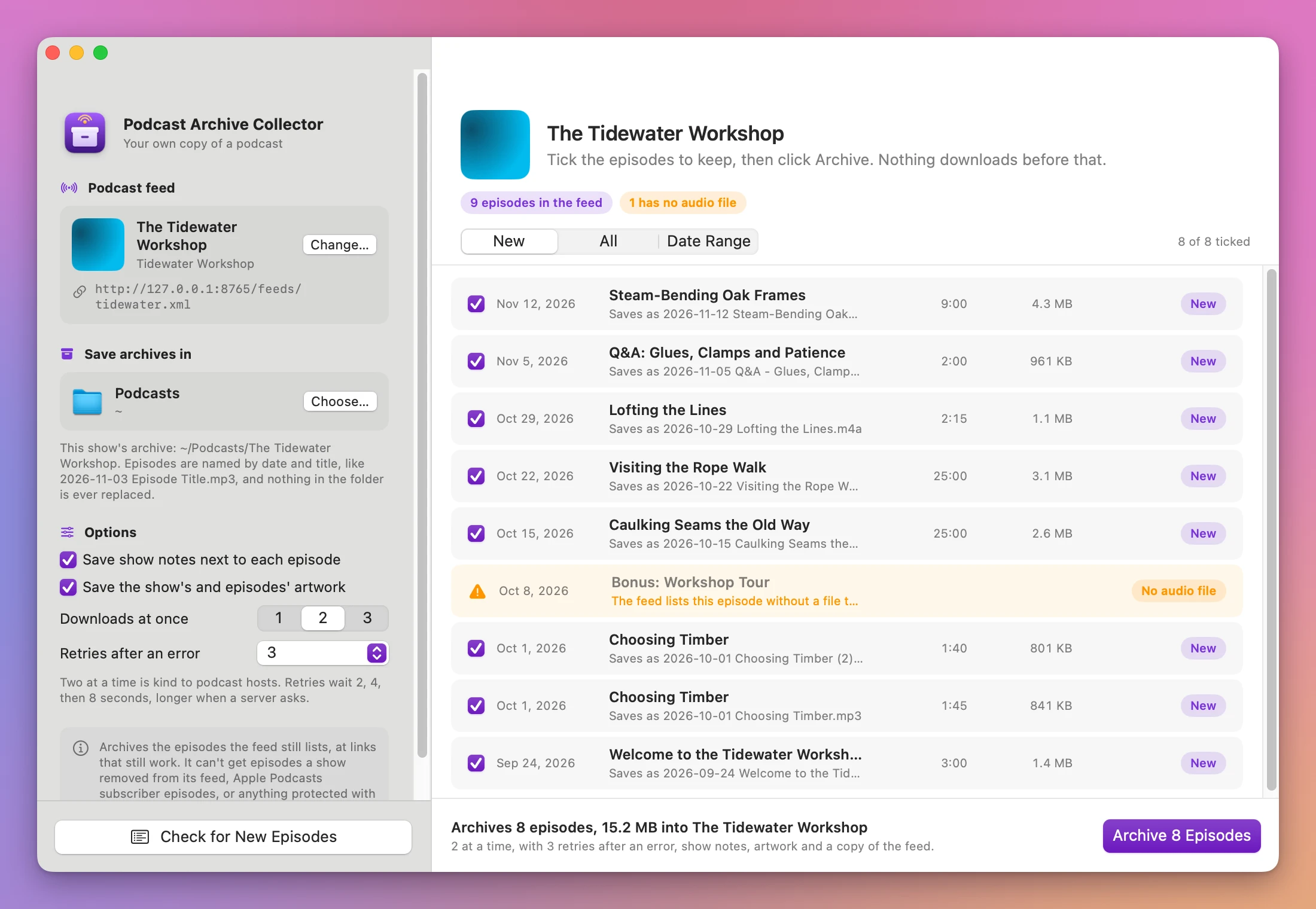
- Click Show Episodes (Command-R). You see every episode in the feed with its date, title, length, size and the name it will be saved as. Nothing has downloaded yet.
- Pick the episodes. New ticks everything you don’t have yet, All ticks every episode, and Date Range ticks the episodes between two dates. Untick any you don’t want.
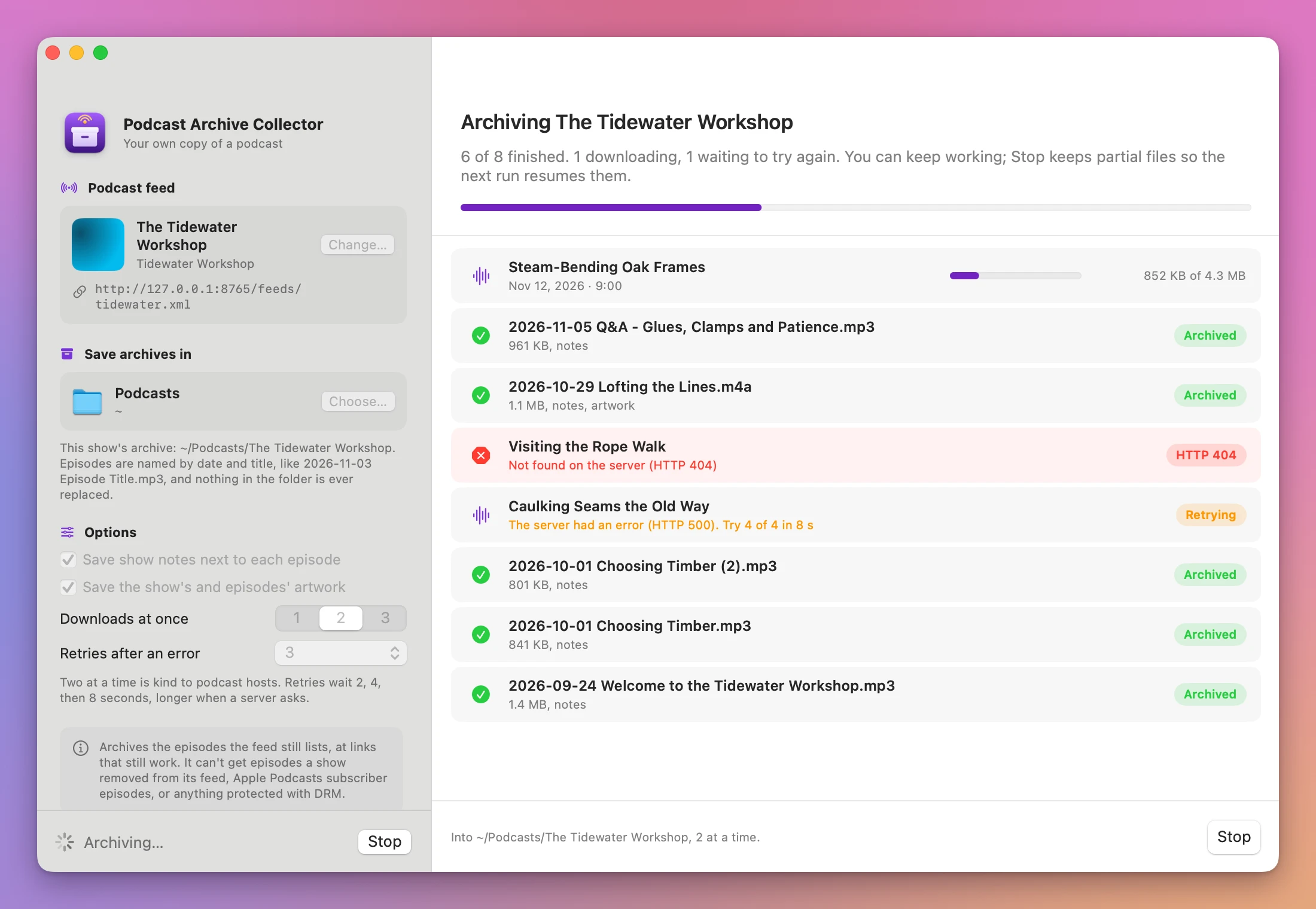
- Click Archive 8 Episodes (the number is yours). Two episodes download at a time. Each row shows its progress, a retry countdown when the server has a hiccup, or the result.
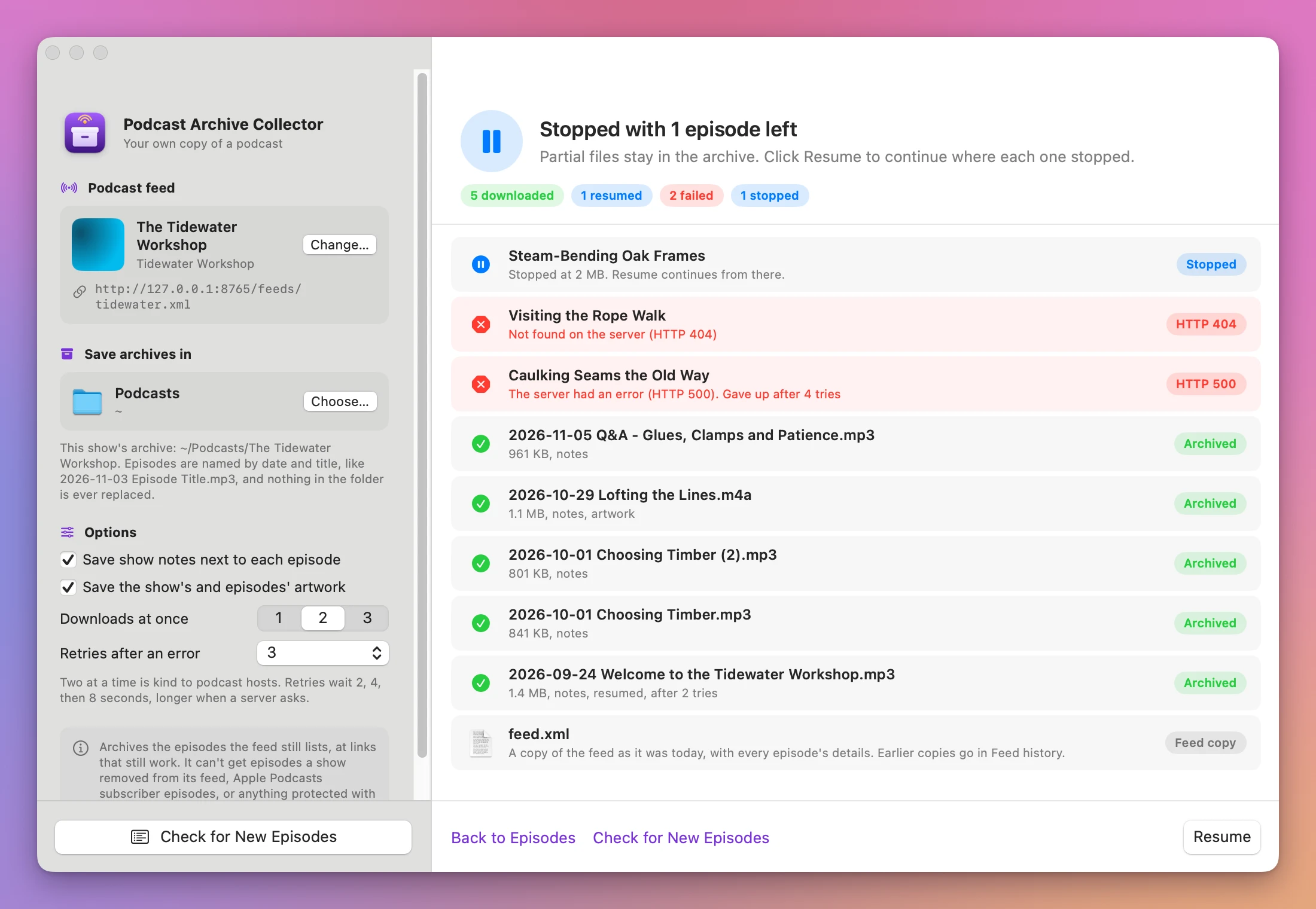
- Read the result. Episodes that couldn’t be archived come first, with the reason. Try 2 Failed Episodes Again retries them, and Show in Finder opens the Episodes folder.
What you get
A folder you can read without the app
Every show gets one folder, with the episodes inside named by publication date and title:
Podcasts/The Tidewater Workshop/
  cover.jpg
  feed.xml
  Missing episodes.csv
  Episodes/
    2026-09-24 Welcome to the Tidewater Workshop.mp3
    2026-09-24 Welcome to the Tidewater Workshop.html
    2026-10-29 Lofting the Lines.m4a
    2026-10-29 Lofting the Lines.html
    2026-10-29 Lofting the Lines.jpg
The .html file next to each episode is its show notes, with the title, the date, the length and a link to play the audio. It opens in any browser. The .jpg is the episode’s own artwork, when it has one that differs from the show’s. cover.jpg is the show’s artwork, and feed.xml is a copy of the feed as it was on the day you archived it.
Two episodes with the same date and title get Choosing Timber.mp3 and Choosing Timber (2).mp3. Nothing already in the folder is ever replaced.
Only the new episodes next time
The folder remembers what’s in it. Come back a month later, click Check for New Episodes, and the New view ticks only the episodes you don’t have. You can also open the folder later with Open Archive…, and the app reads the feed address from it, so you never paste it again. Move the folder to another drive and it still works.
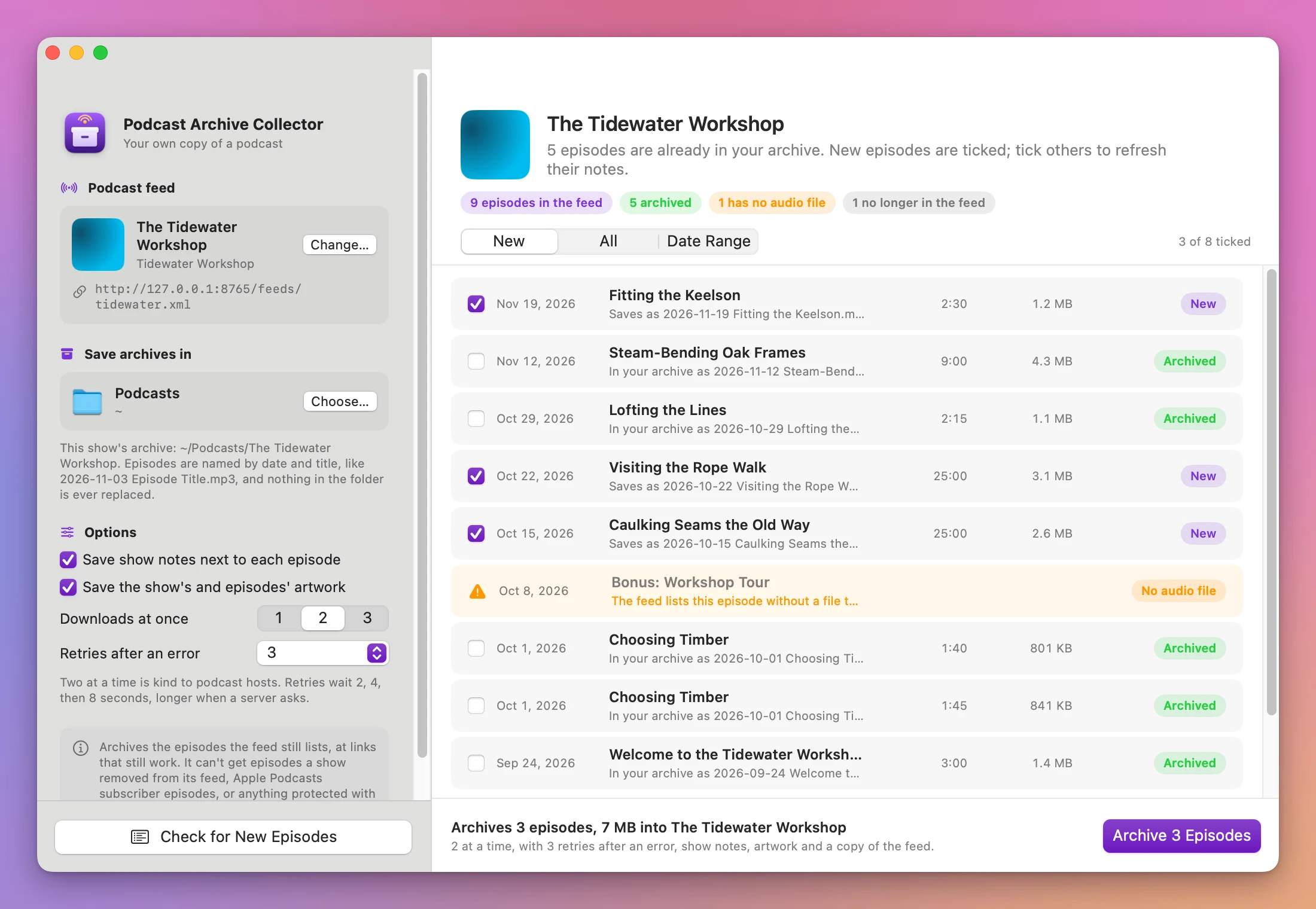
When a show removes an episode from its feed, your copy stays, and the preview lists it under “In your archive, no longer in the feed”. When the feed changes, the earlier copy goes in a Feed history folder.
Stop now, finish later
Stop (Esc) keeps the half-downloaded files. Click Resume, or come back another day, and each one continues from where it stopped, when the show’s server allows it. A dropped connection in the middle of a big episode is retried from where it broke.
A list of what’s missing
Missing episodes.csv has one row for every episode you don’t have, with the date, the title, the result, the HTTP status, the reason and the number of tries. It lists the episodes that failed, the ones the feed lists without an audio file, the ones you haven’t picked yet, and the ones the feed dropped (with “Your copy is kept”). It opens in Numbers or Excel, and it disappears when nothing is missing.
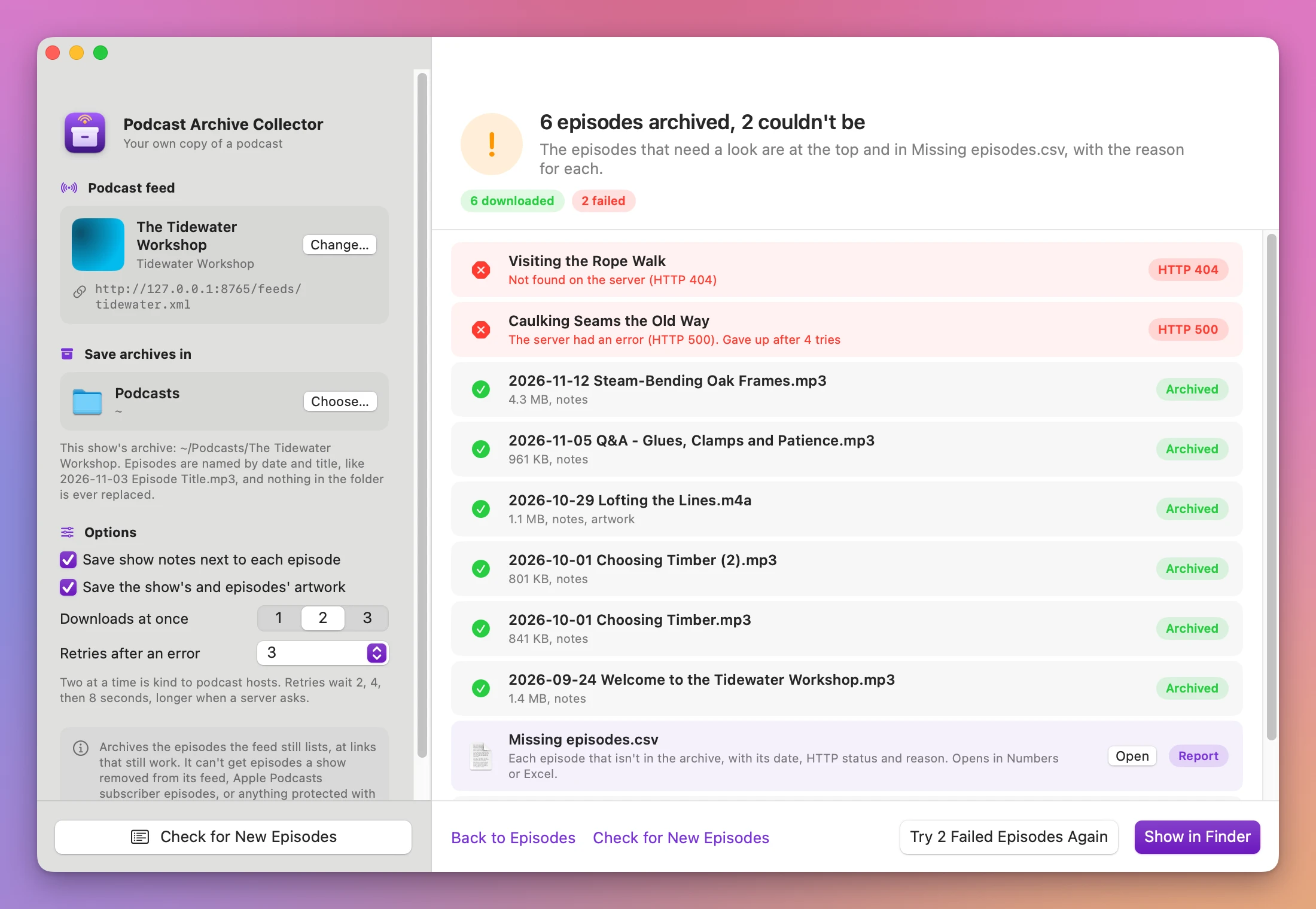
Private feeds stay private
Member feeds often carry a key in the address, like /private/a8f3k2…/feed.xml, or a user name and password. Once the feed loads, the app shows the address with the key masked as ••••, empties the field, and writes the full address only into a hidden file in the show’s folder that only your user account can read. The saved feed.xml and the report have the key masked too.
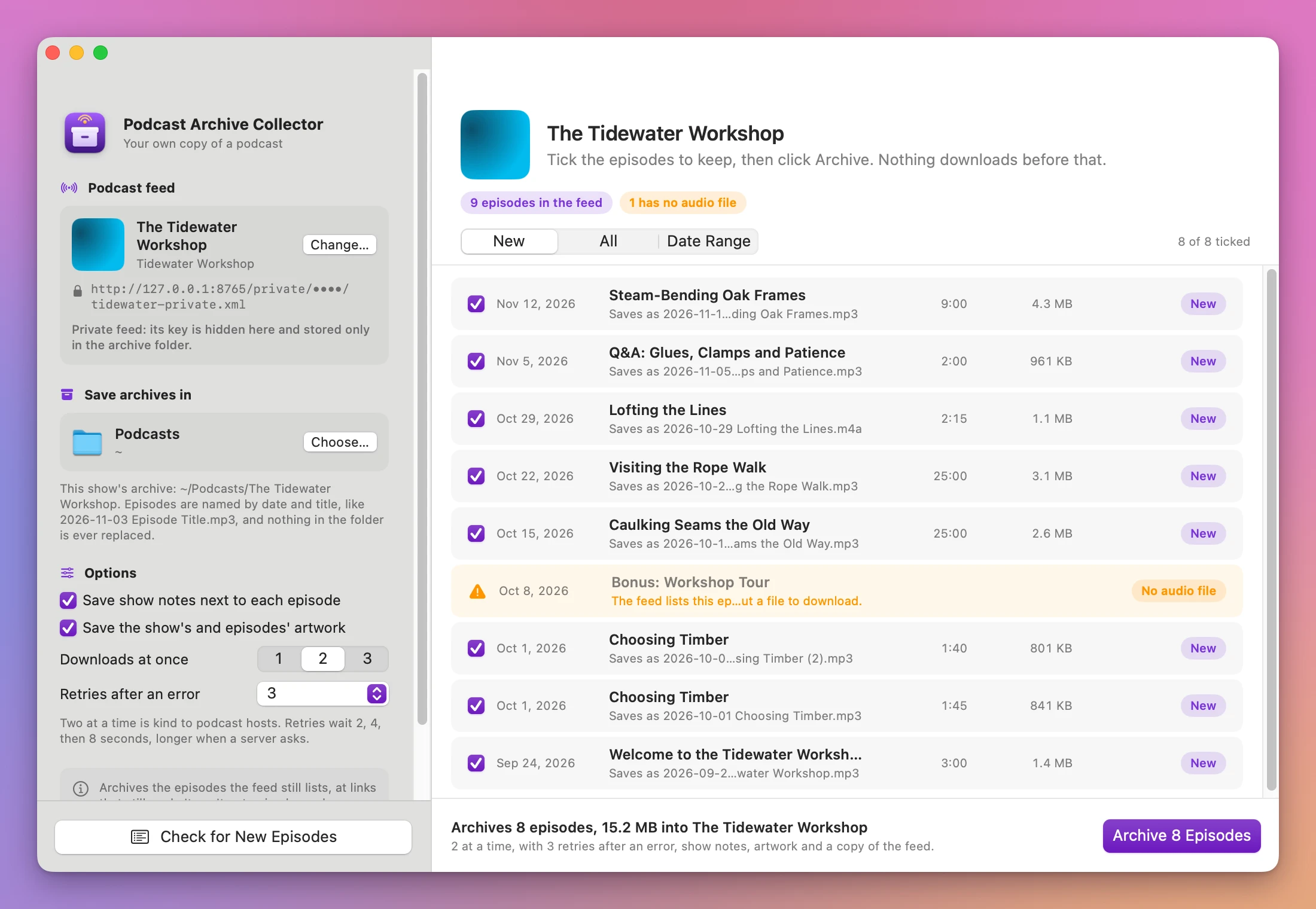
Gentle with the show’s server
Two downloads at a time by default, set by Downloads at once (1, 2 or 3). When a server answers with an error, the app waits 2, 4, then 8 seconds before trying again, or as long as the server asks, up to a minute. Retries after an error sets how many times: None, 1, 3 or 5. An episode that’s gone (404) fails at once with a sentence that says so.
Why not do it by hand
Apple Podcasts downloads episodes so you can listen offline. Those downloads are for playing inside the Podcasts app: you don’t choose a folder for them, and the show notes stay in the app. It’s built for listening, not for keeping a copy you manage yourself.
The show’s website sometimes has a download link on each episode page. In Safari you can Control-click it and choose Download Linked File. That’s fine for five episodes. For two hundred, it’s an evening of clicking, the files arrive as episode.mp3 or a name full of tracking codes, with no date, and you can’t tell which one failed.
Scripts in Terminal can read a feed and download every file in it, for free. Then you write the naming, the “only new since last time”, the resume and the report yourself, and a private feed’s key ends up in your shell history.
Podcast apps with an export feature are real alternatives. They’re full players, with subscriptions to manage, and the files follow their own naming and folders.
| By hand | Podcast Archive Collector | |
|---|---|---|
| 200 episodes | 200 clicks on the show’s website, if it has links | Paste the feed, click Archive |
| File names | episode.mp3, or a tracking code | 2026-10-29 Lofting the Lines.m4a |
| Show notes and artwork | Stay on the website | .html notes and .jpg artwork next to the audio |
| Next month | Work out which ones are new | Check for New Episodes ticks only the new ones |
| A failed download | Easy to miss | Retried, then listed in Missing episodes.csv with the reason |
| Quitting halfway | Start the file over | Resume continues where it stopped |
| Private feed key | On screen and in your history | Masked as •••• |
What it doesn’t do
- It only gets what the feed still lists, at links that still work. An episode the show already removed from its feed can’t be found. Some feeds list only the newest episodes (the last 100, say), and then that’s all the app sees.
- No DRM, and no Apple Podcasts subscriber episodes. Episodes you pay for inside Apple Podcasts aren’t in a feed the app can read. A private member feed works when the key is in the feed address, or as a user name and password in it. There’s no sign-in page.
- RSS feeds only. That’s what podcasts use. Atom and JSON feeds aren’t read, and the app says the file has no podcast channel.
- It doesn’t schedule. It checks for new episodes when you click.
- It doesn’t edit files. No renaming single episodes, no tag editing, no transcripts or chapters.
- It doesn’t play episodes. Open them in Music, QuickTime Player or any player you like.
To download a list of files that isn’t a podcast, Batch URL Download Queue takes the links and does the same retries and report.
Questions
Where do I find a podcast’s feed address?
On the show’s website, look for a link labeled RSS or Feed. Some podcast apps can also copy a show’s feed address. If you paste the address of an ordinary web page, the app says “This address is a web page, not a podcast feed” and tells you what to look for.
Can it get episodes I don’t have access to?
No. It downloads the files the feed points to, the same ones your podcast app plays, so it only gets episodes you can already listen to. It’s for keeping your own copy of them. Sharing the files with others is a different matter, and up to the show’s terms.
What if a download fails?
It’s retried after 2, 4 and 8 seconds (with the default 3 retries). If it still fails, it’s listed first on the result screen and in Missing episodes.csv, with the reason, like “Not found on the server (HTTP 404)”. Try 2 Failed Episodes Again gives them another go. When the server sends a web page instead of the audio, the app says the link may need a sign-in or has expired.
Can I archive several shows?
Yes. Each show gets its own folder inside the folder you chose. Click Change… on the show’s card to paste another feed, or Open Archive… to pick a show you archived before.
Does anything get uploaded?
No. The app connects to the show’s feed and the links in it, and to my update server to check for updates. Your list of shows stays in the folders on your Mac.
What it needs
Podcast Archive Collector runs on macOS 14 Sonoma or later, on Apple silicon and Intel Macs.
The Podcast Archive Collector docs walk through each screen.
Buy Podcast Archive Collector
$20 plus tax where it applies, paid once.
Download the app from the order page or your Creem receipt, unzip it and move it to Applications. I sign the app with my Apple Developer ID, and Apple notarizes the download.
The app checks for updates once a day. When a new version is ready, click Install and Relaunch. To check anytime, choose Podcast Archive Collector → Check for Updates….