
An app by Flavio
Photo Shortlist
Go through hundreds of photos with the keyboard on a Mac: stars with 1 to 5, reject with X, compare side by side, write notes. Then save a shortlist PDF with a number under each photo, or copy the picks to a folder. The photos are never changed.
Buy Photo Shortlist · $19One-time purchase. Plus tax where it applies.
macOS 14 or later · Apple silicon and Intel
Latest version 1.0.1, released November 22, 2026
You come back from a shoot with 600 photos in four folders, and the client needs to choose about 30. First you have to cut the 600 down to the 60 worth showing. Then you have to send them in a form the client can answer without a login, a library or a call.
By hand that’s Finder, Quick Look and a lot of renaming or dragging into a “picks” folder. You lose track of which ones you already looked at, the client replies “the one with the boat, third from the left”, and you spend ten minutes working out which file they mean.
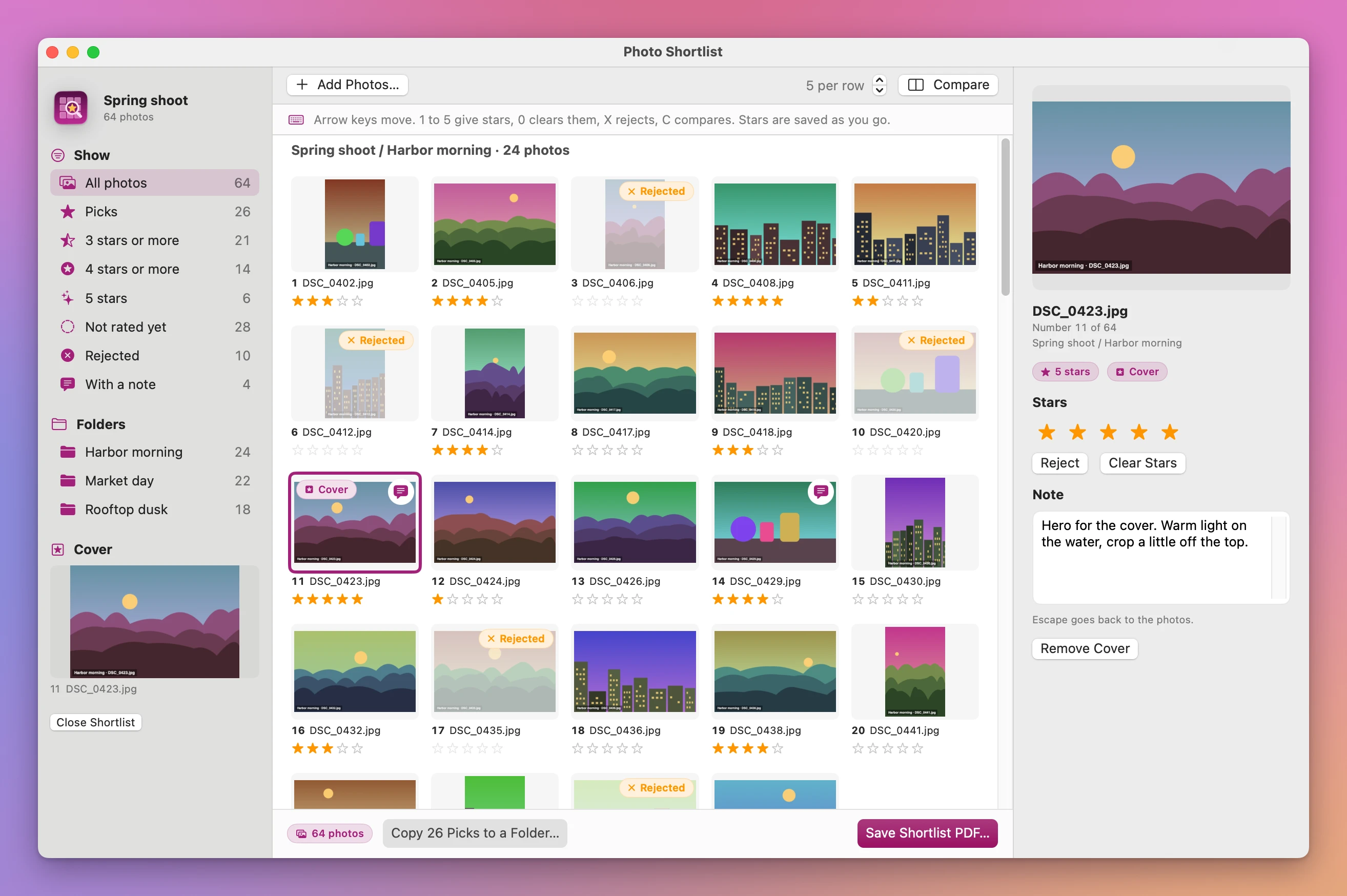
Photo Shortlist is the step in between. You go through the grid with the keyboard, give stars with 1 to 5, reject with X, compare two to four photos side by side and write a note where it helps. Then you save a shortlist PDF where every photo has a number and its file name under it. The client replies “14, 22 and 31”, and you know exactly which files those are. Your photos are never moved, renamed or changed.
Watch a 30-second demo of Photo Shortlist:
Who it’s for
- Event and wedding photographers. You shot 900 frames on Saturday and want to pick 60 before you edit anything, then let the couple circle their favorites in a PDF on their phone, without importing a single file into a photo library.
- Art directors. The studio sent 300 product shots. You need the hero image, and the client has to answer “14 or 22?” by email, with no shared account anywhere.
- Illustrators. Forty exported sketches and color roughs for a book cover. Compare the close ones side by side, keep five, write a line under each, and send the editor the shortlist.
- Property and interiors photographers. 200 rooms from one house, and the agent approves the 25 for the listing from one PDF, by number.
- Photo club and small magazine editors. 150 submitted photos in folders named after their authors. Give stars, write why, and print the shortlist for the meeting.
How it works
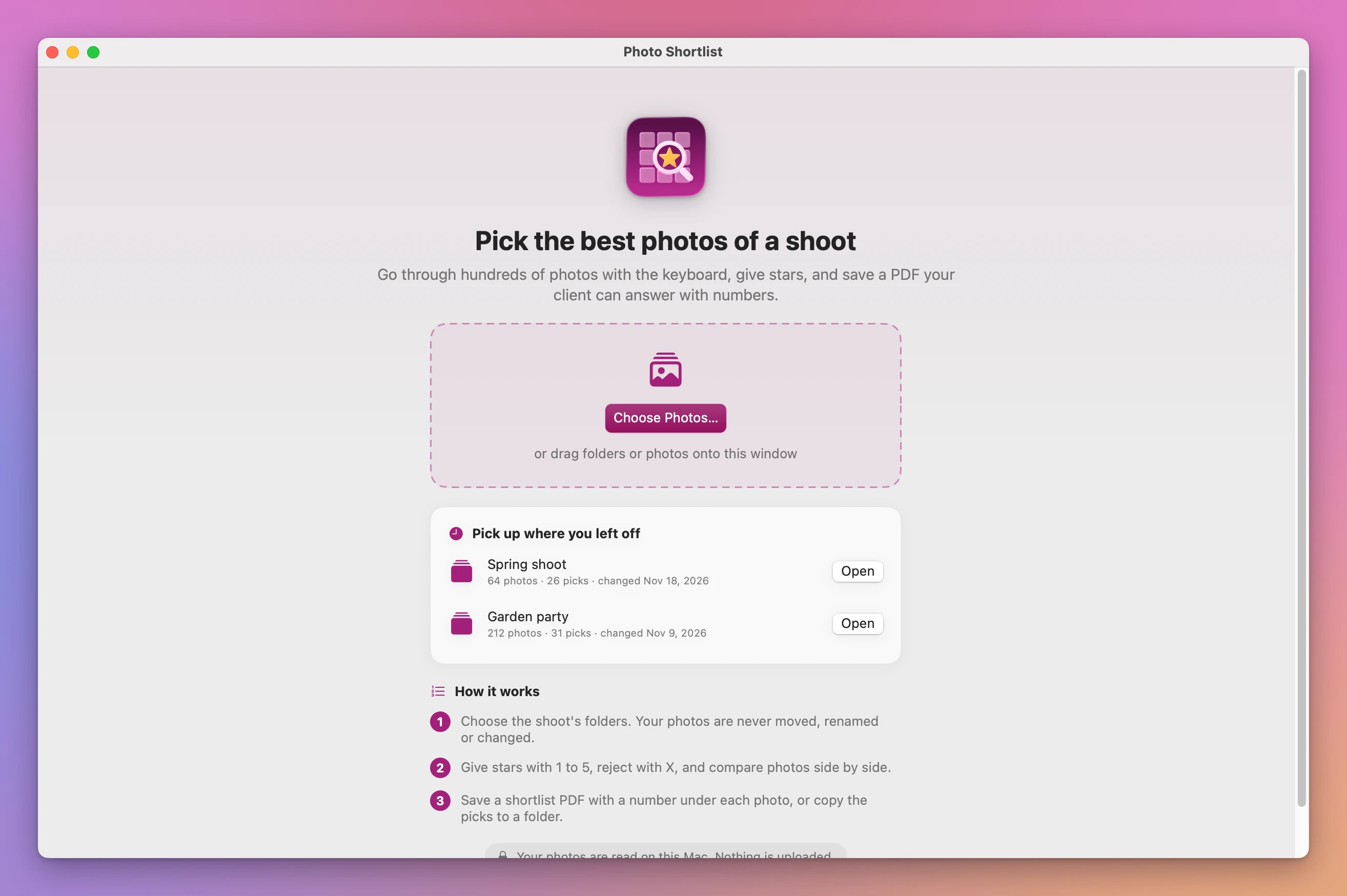
- Click Choose Photos…, or drag the shoot’s folders onto the window. Each folder becomes a group in the grid.
- Move with the arrow keys. Press 1 to 5 to give stars, 0 to clear them, X to reject.
- Press C to compare two to four photos side by side, and Escape to go back to the grid.
- Write a note on the right, and click Use as Cover on the photo for the first page.
- Click Save Shortlist PDF…, choose what goes in, and save.
What you get
A grid made for going through a shoot
The photos sit in a grid grouped by folder, with the folder’s name pinned at the top while you scroll. Each one shows its number, its file name and its stars. Per row sets how many photos each row shows, from 3 for a close look to 10 for an overview. The grid stays quick with hundreds of photos: it reads a small version of each one instead of the whole file, and keeps them in memory while you scroll back and forth.
Stars, rejections and notes, from the keyboard
The arrow keys move through the grid, and the stars go to the selected photo as you press the number. Shift-click or Command-click to select several, and 3 gives all of them three stars. X rejects a photo, which stays where it is, dimmed and labelled. A note typed on the right can say what the client should know, like “crop a little off the top”. The Show list on the left keeps the count of each: picks, 3 stars or more, not rated yet, rejected, with a note. Click one and the grid shows only those.
Side by side when it’s close
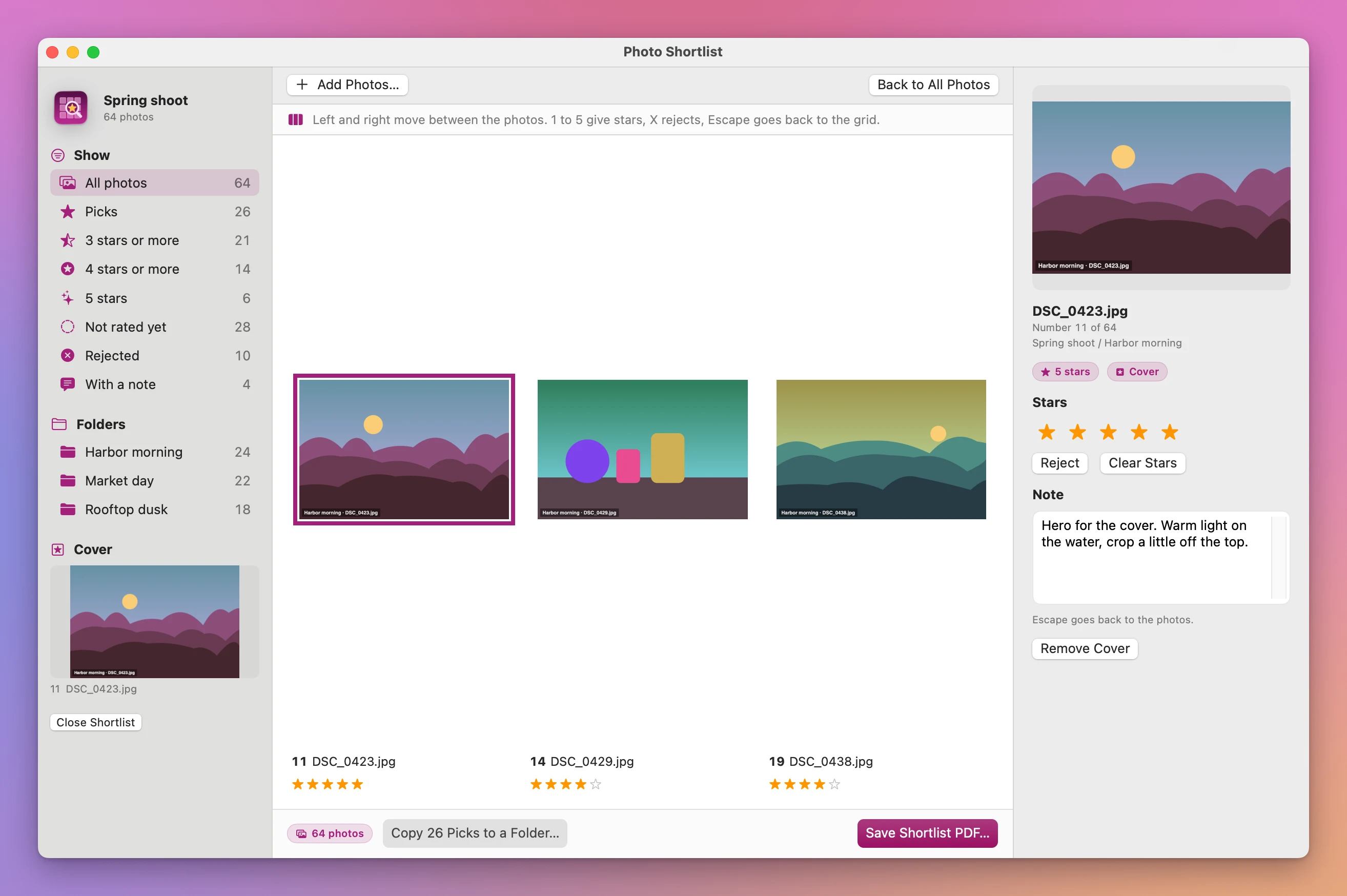
Press C with two to four photos selected and they fill the middle of the window, as big as it allows. The arrow keys move between them, and the stars go to the one with the frame.
A shortlist PDF anyone can answer
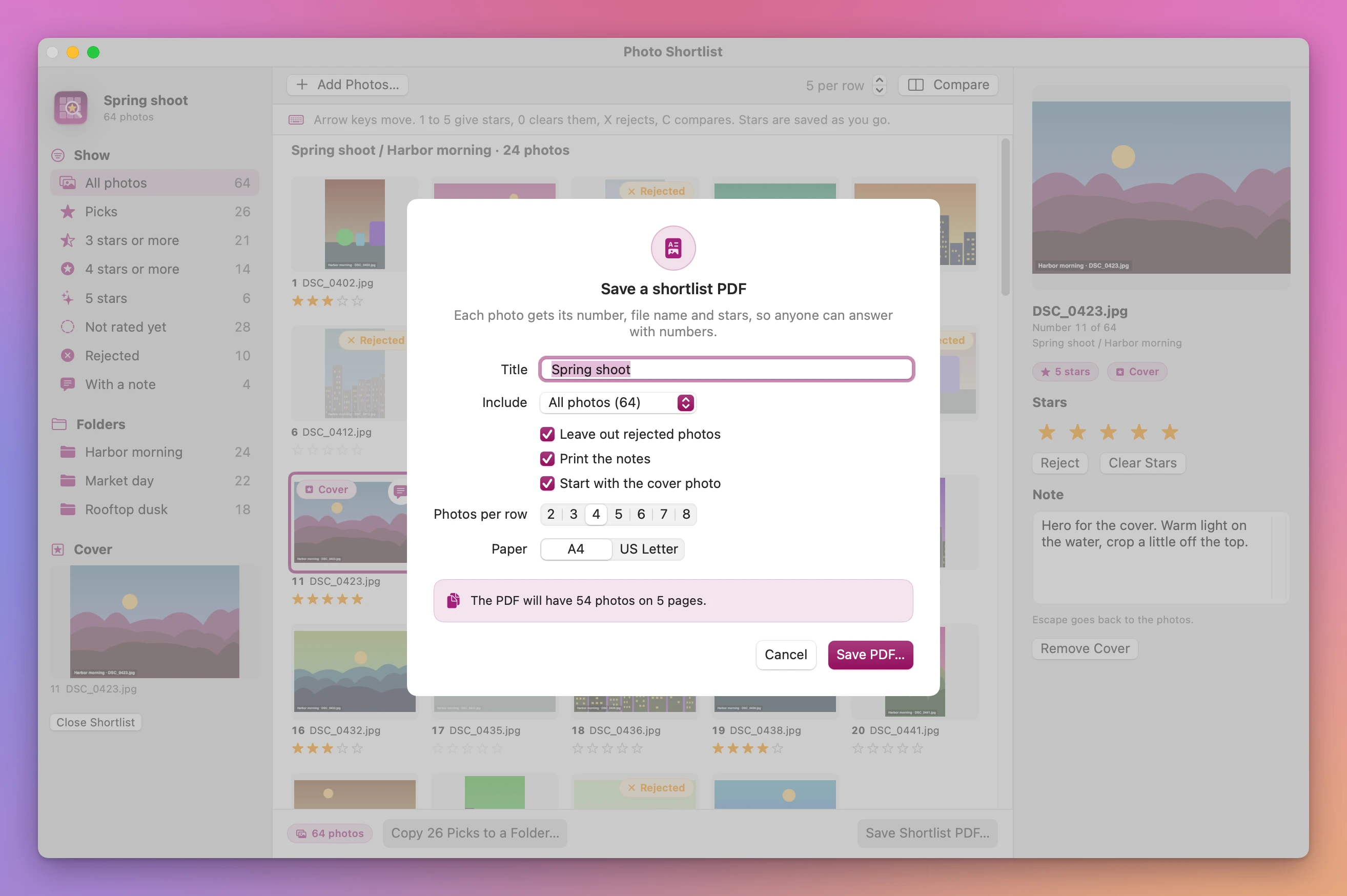
Save Shortlist PDF… asks what goes in before it saves: all the photos or only the picks with 1, 3, 4 or 5 stars, whether the rejected photos and the notes are left out, the cover page, the photos per row and A4 or US Letter. It tells you how many photos and pages that makes. In the PDF, each photo has its number, its file name, its stars and its note. The first page can be the cover photo with a line that tells the reader to answer with numbers. The numbers are the ones in the app, so number 14 is the same photo whatever you left out.
The picks, copied to a folder
Copy Picks to a Folder… copies every photo with stars that isn’t rejected. When they come from several folders, each gets a folder of its own inside, so two DSC_0412.jpg from two cards don’t collide. A file already there is never replaced: the copy gets a ” 2” at the end of its name.
Saved as you go, and your photos left alone
Stars, rejections, notes and the cover are saved in the app’s own shortlist file a moment after each change. Open the same folders again, or click Open next to it on the start screen, and everything comes back. Nothing is written into the photos: no tags, no ratings in their metadata, no files next to them.
Why not do it by hand
The free tools on your Mac can get you part of the way.
Finder and Quick Look show the photos big, one at a time, and Finder’s color tags can mark the good ones. The tags are written onto the files themselves, there are no stars and no notes, and there’s no way to print the tagged photos with their names under them. You end up dragging the picks into a new folder and making the PDF some other way.
Photos has a favourite heart, one level, after you import the whole shoot into your library. That’s a copy of every photo for a job you’ll finish in an hour, and the heart can’t tell a maybe from a definitely.
Preview opens a folder of photos and can print them, but it has no rating and no notes, so you’d sort the files first, and nothing on the printout says which number is which file.
Pro photo software like Lightroom or Photo Mechanic does all of this and much more. It costs a subscription or a few hundred dollars, it’s a lot to learn for one shortlist, and most of it writes the ratings into the photos or into files next to them.
| Finder and Quick Look | Photos | Photo Shortlist | |
|---|---|---|---|
| Stars | Colour tags | One heart | 1 to 5, plus reject |
| Notes per photo | No | Captions, in the library | Yes, printed in the PDF |
| Needs an import | No | The whole shoot | No |
| Compare side by side | No | No | Two to four photos |
| A PDF with a number and name under each photo | No | No | Yes |
| Writes to your photos | Tags on the files | Into the library | Never |
What it doesn’t do
- It doesn’t edit photos. No crop, no color, no rotation. It doesn’t rename, move or delete anything either.
- No camera RAW files in this version. JPEG, PNG, HEIC, TIFF, GIF and WebP are shown. RAW files (CR2, NEF, ARW, DNG and so on) are counted and left out, so if your camera saves RAW and JPEG, go through the JPEGs.
- It doesn’t write ratings into the photos. No XMP, no Finder tags. The stars stay in the app, in the PDF and in the copies you make.
- It doesn’t upload or share. The PDF and the copies are files on your Mac, and you send them the way you like.
- One shortlist holds up to 20,000 photos.
Questions
Are my photos uploaded anywhere?
No. The photos are read on your Mac. The app connects to the internet only to check for updates.
Does it change my photos?
No. It only reads them. Stars, rejections and notes are saved in the app’s own file in your Library, and the PDF and the copies are new files where you choose.
What if I move the folder?
The shortlist remembers the folders by where they were. Choose them again in their new place and you start a new shortlist. Keep the shoot where it is while you work on it.
Will it run on my Mac?
Photo Shortlist runs on macOS 14 Sonoma or later, on Apple silicon and Intel Macs. Choosing a folder or dragging it onto the window asks for nothing. If you reopen a recent shortlist whose photos are in Documents, Desktop, Downloads or on an external disk, macOS may ask once whether the app can read them. Click Allow.
Photo Shortlist isn’t made by, affiliated with or endorsed by Apple, Adobe, Camera Bits or any camera maker.
Buy Photo Shortlist
$19 plus tax where it applies, paid once.
Download the app from the order page or your Creem receipt, unzip it and move it to Applications. I sign the app with my Apple Developer ID, and Apple notarizes the download.
The app checks for updates once a day. When a new version is ready, click Install and Relaunch. To check anytime, choose Photo Shortlist → Check for Updates….