
An app by Flavio
Photo Date Folder Sorter
Read the capture date inside each exported photo, preview a year/month path for it, and copy the photos into a new sorted folder. Originals stay put.
Buy Photo Date Folder Sorter · $20One-time purchase. Plus tax where it applies.
macOS 14 or later · Apple silicon and Intel
Latest version 1.3.1, released November 20, 2026
You have a folder with 4,000 photos in it. They came from an old phone, a cloud export or a relative’s laptop. In Finder they all show the same date: the afternoon you copied them.
The day each photo was taken is still there. The camera wrote it inside the file, in the EXIF capture date. Finder’s date columns don’t show it, so sorting the folder by date gives you the day of the copy.
Photo Date Folder Sorter reads that capture date and copies each photo into a folder for its year and month, like 2023/07/Harbor.jpg. You see every path in a preview first. The photos you exported stay where they are, untouched.
Who it’s for
- Families with years of loose photos. You copied the camera roll of three old phones into one folder before recycling them. You want
2016/08for the summer at the lake, not one folder of 6,000 files. - People leaving a cloud photo service. A takeout export arrives as thousands of photos together, with names like
IMG_2041.HEIC. You want them in year and month folders before they go on an external drive. - Photographers archiving old shoots. Your card dumps have RAW and JPEG pairs,
DSC_0412.NEFnext toDSC_0412.JPG. You want both in the same month folder, even when only one of them carries a readable date. - The family member who inherited the photos. You got a drive full of pictures from a parent’s computer. You want the dated ones in order, and a list of which ones have no date, so you know what’s left to work out.
- Anyone moving photos to a NAS or a Windows PC. A plain
Year/Monthfolder tree is something every system can browse, with no app or library needed to read it.
From a messy folder to a dated archive
Say you exported your old phone’s photos into a folder called Old iPhone.
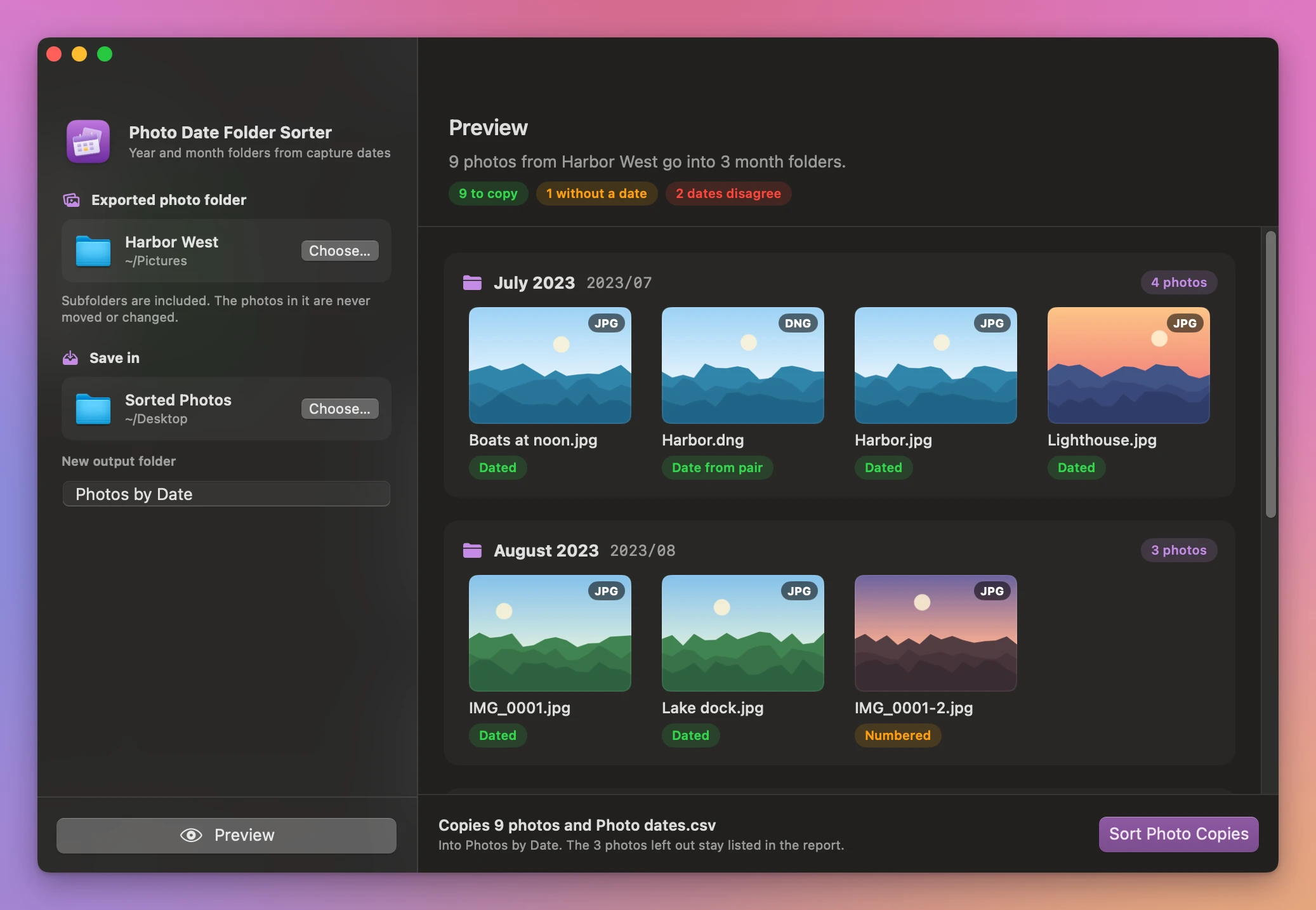
- Pick the photos. Click Choose… next to Exported photo folder, or drop the folder on it. The app looks inside its subfolders too.
- Pick where the copy goes. Choose a Save in location outside that folder, like your Pictures folder or an external drive. Type a name under New output folder. The default is
Photos by Date. - Click Preview. You get a card for each month folder, like July 2023
2023/07, with a thumbnail of every photo that goes in it. - Check the pills. Most photos say Dated. A RAW file that got its date from its JPEG says Date from pair, and a renamed copy says Numbered. Photos with no date are listed under Not copied, with the reason.
- Click Sort Photo Copies. The app creates the new folder with a folder per year and a folder per month inside it. The done screen lists each month folder with its number of photos, and Show in Finder takes you there.
The whole thing is one preview and one click. Sorting the same 4,000 photos by hand means opening each photo’s info to read its date, then dragging it into the right folder. That’s 4,000 rounds of look, decide, drag, an estimate of several evenings.
What it does
Reads the date the camera wrote
The app reads the EXIF original capture date, the one a camera or phone writes when you press the shutter. It ignores the file’s created and modified dates, which change every time a photo gets copied.
It reads that date as written. A photo taken at 11:30 PM on July 31 goes in July, wherever your Mac is today. No time zone shift moves it into August.
It handles JPEG, HEIC, HEIF, TIFF and PNG, and these RAW types: DNG, CR2, CR3, NEF, ARW, RAF, ORF and RW2. The date has to be one macOS can read from the file.
Keeps RAW and JPEG pairs together
When a RAW and a JPEG have the same name in the same folder, the app treats them as a pair. If only one of them has a readable date, the other one uses it, so the pair lands in the same month folder.
When the two dates point to different months, the app doesn’t guess. Both files are listed with RAW and JPEG dates disagree and left out of the copy, so you can look at them yourself.
Handles repeated filenames
Two phones both make an IMG_0001.JPG. If both were taken in the same month, the second one becomes IMG_0001-2.JPG, and its status says so. Names that differ only in capitalization count as the same name, because most drives treat them that way.
Tells you what it left out
Photos with no capture date aren’t copied. Scans, screenshots and pictures saved from a messaging app often have no camera date, and the app won’t invent one from the file date. Links, macOS packages and other special files are skipped too. All of them are listed in the preview with the reason.
Writes a report
The new folder has a file called Photo dates.csv next to the year folders. It has one row per file: where it came from, the path it got, and where the date came from or why it was left out. Open it in Numbers or Excel and filter on the undated photos to get your to-do list.
Doesn’t touch your originals
The app copies the photo files as they are. It doesn’t re-save them, convert them or change their metadata.
The new folder only appears when every copy has finished. If a copy fails halfway, or you click Cancel, you don’t end up with half a folder. And if a photo changes after the preview, the app stops and asks you to preview again instead of copying something you haven’t checked.
Why not sort by date in Finder
Finder can sort a folder by date created, date modified or date added. Those are the file’s dates, and they change when a photo gets copied, exported or downloaded. Ten years of photos copied in one afternoon all show that afternoon.
You can see a photo’s capture date in the inspector of the Preview app. But that’s one photo at a time. Then you still create the year and month folders and drag each photo into the right one.
Photos on your Mac does know the capture dates. If your pictures are already in your library, it sorts them for you. This app is for the photos that live in folders: exports, takeouts, card dumps and backups.
| By hand in Finder | Photo Date Folder Sorter | |
|---|---|---|
| The date it uses | The file’s date, often the day of the copy | The capture date inside the photo |
| A folder of 4,000 photos | Open, read, drag, 4,000 times | One preview, one click |
| RAW and JPEG pairs | Easy to split across months | Kept in the same month folder |
| Same filename in one month | Finder asks you to replace or keep both | Numbered, and shown in the preview |
| Photos with no date | Easy to miss | Listed in the preview and in the CSV |
| Your original folder | Files moved one by one | Untouched, the sorted set is a copy |
What it doesn’t do
- It doesn’t sort videos. Only the photo types listed above are read.
- It doesn’t make day folders or rename the photos. Each photo keeps its name inside
Year/Month. - It doesn’t give a date to photos that have none. Photo Date Fixer does that for scans and photos saved from WhatsApp.
- It doesn’t read your Photos library directly. Export the pictures to a folder first. Exporter for Apple Photos does that and keeps the original names.
- It doesn’t move or delete anything. When you’re happy with the sorted copy, you decide what to do with the originals.
- It doesn’t find duplicate photos. Two copies of the same picture both get copied, one with a
-2name.
Questions
Are my original photos changed?
No. The app reads them and copies them into a new folder. The originals stay where they were, with their names and metadata.
Does anything get uploaded?
No. File processing happens on your Mac. The app goes online only to check for updates.
What happens if the output folder already exists?
The app won’t write into it or replace it. Pick a different name or location, then preview again.
Can I save the sorted copy on an external drive?
Yes. Choose the drive under Save in. It has to be outside the folder you’re sorting, so the copies don’t end up inside the source.
What if some photos come out with no date?
They’re listed as No embedded capture date and left where they are. The CSV gives you the full list, so you can date them another way or sort them by hand.
The documentation walks through the preview with the same Harbor example as the screenshot.
Buy Photo Date Folder Sorter
$20 plus tax where it applies, paid once. Download the app from the purchase page or your Creem receipt.
Unzip the download and drag the app to Applications. It runs on macOS 14 Sonoma or later on Apple silicon and Intel Macs. File processing happens on your Mac.
The app checks for updates once a day. When a new version is ready, click Install and Relaunch. To check anytime, choose Photo Date Folder Sorter → Check for Updates….