
An app by Flavio
Network Share Reconnector
Keep your NAS and file server shares mounted on your Mac. After sleep, a network change or a server restart the app puts them back, and when one can't come back it says why in one sentence.
Buy Network Share Reconnector · $19One-time purchase. Plus tax where it applies.
macOS 14 or later · Apple silicon and Intel
Latest version 1.0.1, released November 22, 2026
Your video projects live on a Synology in the next room. You come back from lunch, open the MacBook, open the project, and half the clips are red. The Media share is gone. You open the Finder, press Command-K, pick the server, type the password, and wait for the clips to come back.
macOS doesn’t put a network share back after sleep, a Wi-Fi change or a server restart. When it can’t, it tells you “Server connections interrupted”, or nothing at all.
Network Share Reconnector sits in the menu bar and keeps a list of the shares you want connected. When one drops, it connects it again in the background, with no Finder window. When it can’t, it says why in a sentence: the server isn’t on this network, the password was turned down, the share name doesn’t exist.
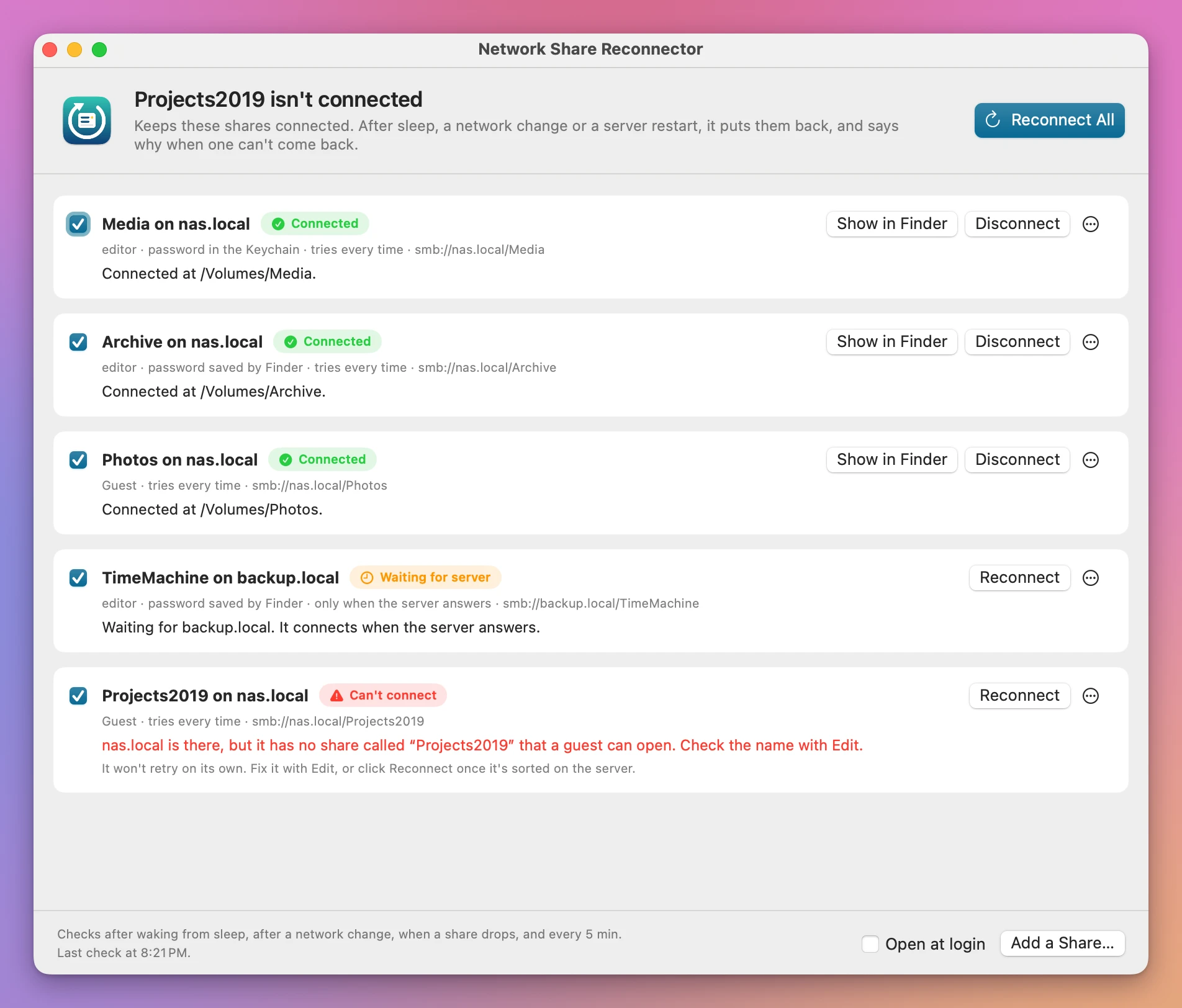
Who it’s for
- Video editors with projects on a NAS. Your Final Cut library or Premiere project points at a Synology share. After the MacBook sleeps, the share is gone and the project opens with “media offline” clips. The app connects the share again after the Mac wakes, so it’s there before you open the library.
- Small offices with a file server. Everyone has
AccountsandSharedmounted from a Windows or Mac server. When IT reboots the server overnight or the Wi-Fi drops, each Mac reconnects on its own instead of someone calling for help. - Photographers with an archive on a NAS. Lightroom expects the archive volume to be there. The app keeps it mounted, and the menu bar icon gets an exclamation mark when it can’t.
- Laptop users who move between office and home. Mark the office share “only when the server answers”. At home it waits quietly, with no error, and it connects when the server answers again at the office.
- Home users with a media share for Plex or Infuse. The router restarts, the share disappears. The app puts it back, and the menu says “The server isn’t on this network right now” instead of a Finder error code.
From a share that keeps dropping to one that stays
- Open the app. A drive icon appears in the menu bar, and the window opens with Add a Share… and Pick a Connected Share….
- Add your shares. If they’re connected now, click Pick a Connected Share…. The app lists the network shares mounted right now, all ticked. Click Add 3 Shares (the count follows what you tick). Otherwise click Add a Share… (Command-N) and paste the address you use in the Finder’s Connect to Server, like
smb://nas.local/Media. - Choose how it signs in. With a user name and password saves the password in your login keychain. With the password Finder saved uses the one the Finder already remembers. As a guest uses no password.
- Choose when it connects. Every time, and tell me when it can’t, or Only when the server answers (quiet when I’m away from it) for a share you only reach at the office.
- Click Add and Connect. The share connects right away, without opening a Finder window.
- Tick Open at login. The app starts with the Mac and keeps checking from the menu bar. You can close the window: the app stays in the menu bar.
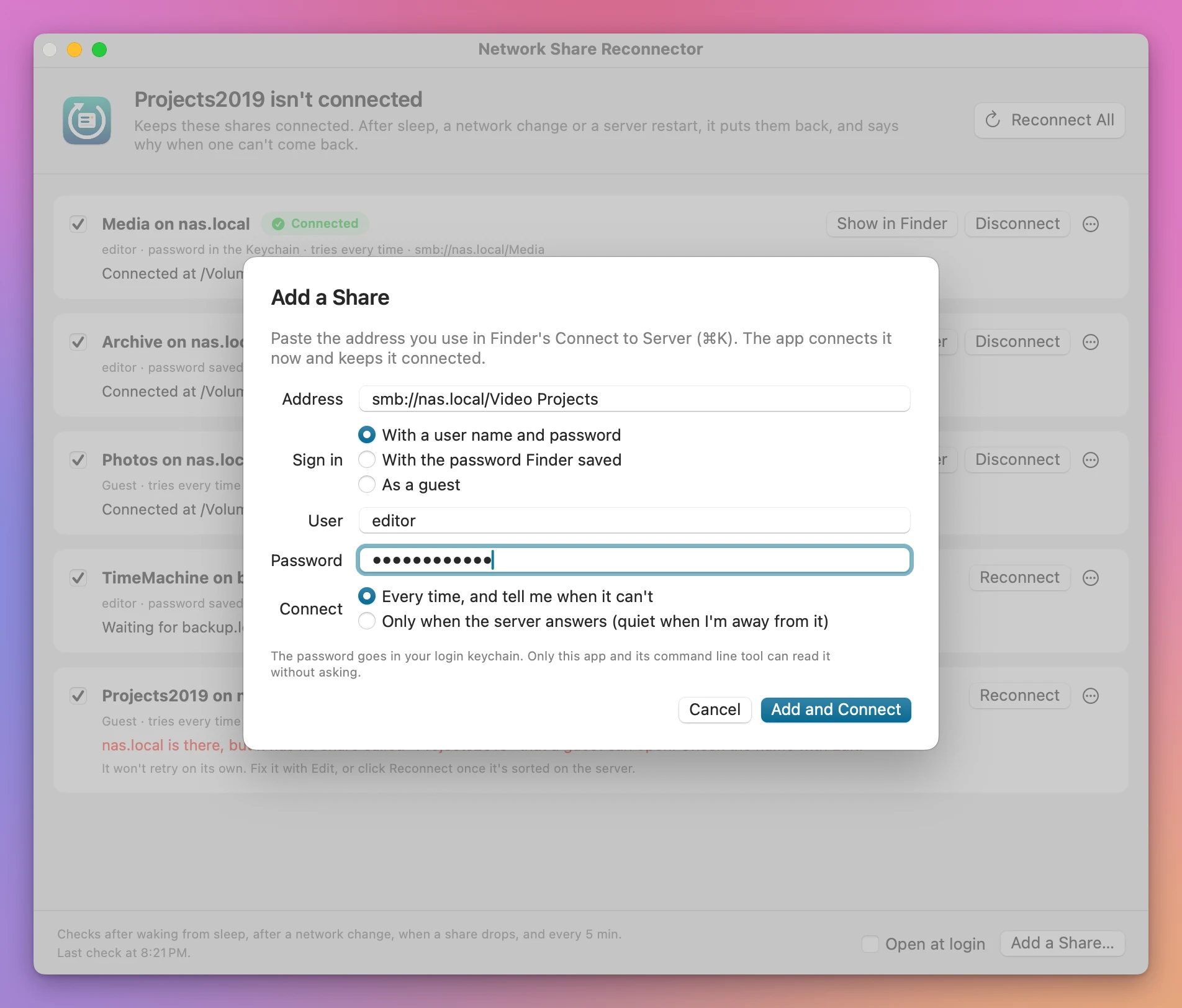
The address field takes the forms people copy from different places: smb://nas.local/Media, nas.local/Media, \\NAS\Media from a Windows colleague, and afp:// for older servers. If the address has a user name in it, the app moves it into the User field. When Add and Connect is greyed out, the line under the fields says what’s missing.
What you get
Checks at the moments shares drop
The app checks your shares when it starts, 5 seconds after the Mac wakes from sleep (so the Wi-Fi has time to join), right after a network change, as soon as one of the shares disconnects, and every 5 minutes. You can change the interval to 1, 2, 10, 15, 30 or 60 minutes in Settings.
No hanging when the server is away
Before connecting, the app asks the server if it’s there, and gives up after 3 seconds. A NAS that’s switched off fails in seconds with “The server isn’t on this network right now. nas.local didn’t answer on port 445.” instead of a spinning Finder.
When a server is away, the app tries again after 30 seconds, then 1, 2, 5 and 10 minutes, then every 15 minutes. A wake or a network change tries right away.
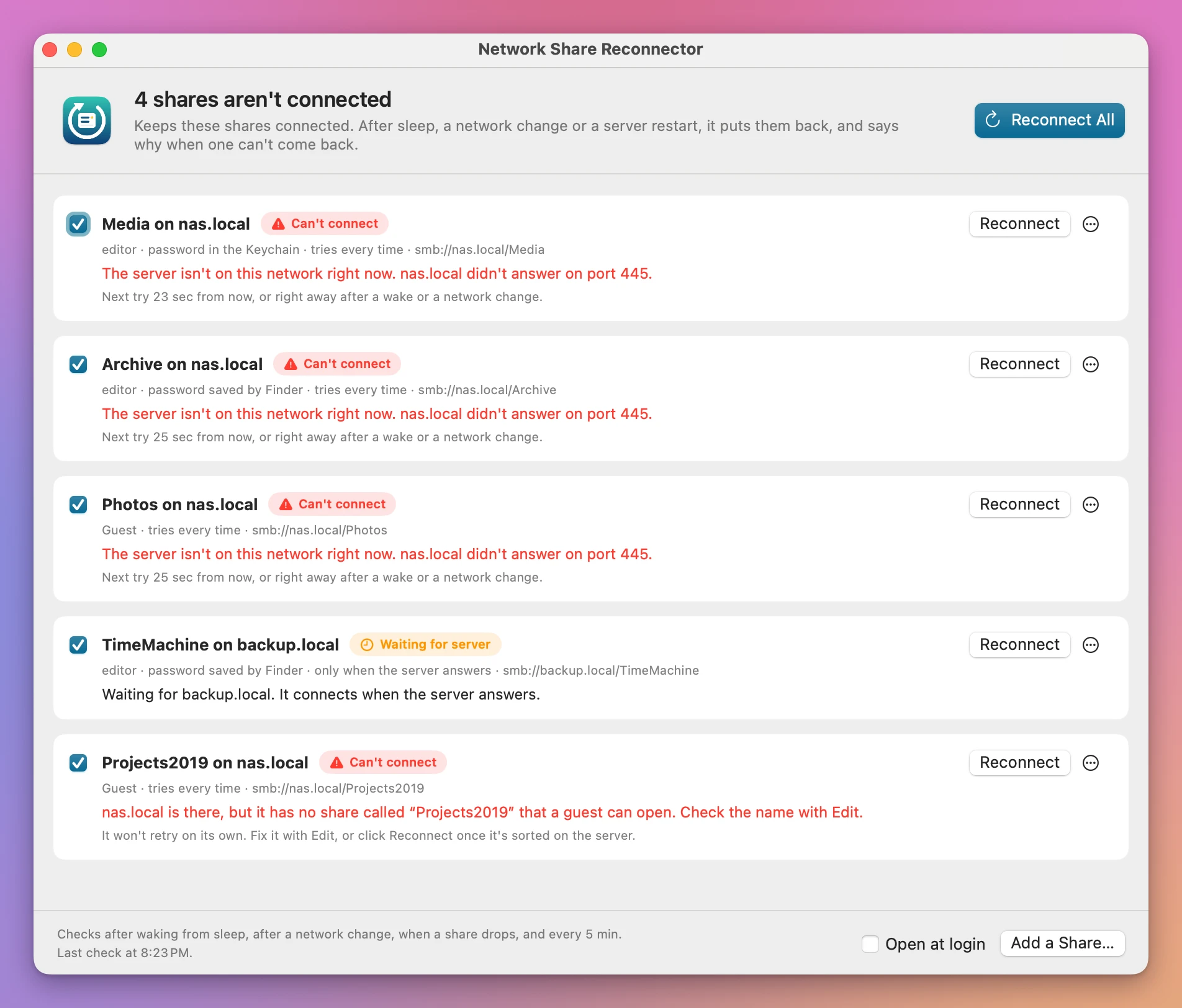
When the server came back in testing, all three shares connected again on their own within about a minute.
A sentence for every failure
The app turns the error codes macOS returns into plain sentences:
- “The server turned down the user name or password for editor. Check them with Edit.”
- “nas.local is there, but it has no share called “Projects2019”…”
- “nas.local doesn’t let guests in right now…”
- “There’s no saved password…”
- “macOS is keeping this app off your local network…”, with where to turn it on in System Settings.
No retries with a wrong password
Some servers lock an account after a few wrong passwords. When the server turns down the password, or the share doesn’t exist, the app stops trying and says “It won’t retry on its own.” Fix it with Edit…, or click Reconnect once it’s sorted on the server.
It respects a share you ejected
Eject a share yourself in the Finder and the app pauses it: “You ejected it at 8:12 PM. Click Reconnect when you want it back.” It doesn’t fight you by mounting it again a minute later. Untick a share’s checkbox to pause it too.
Status in the menu bar
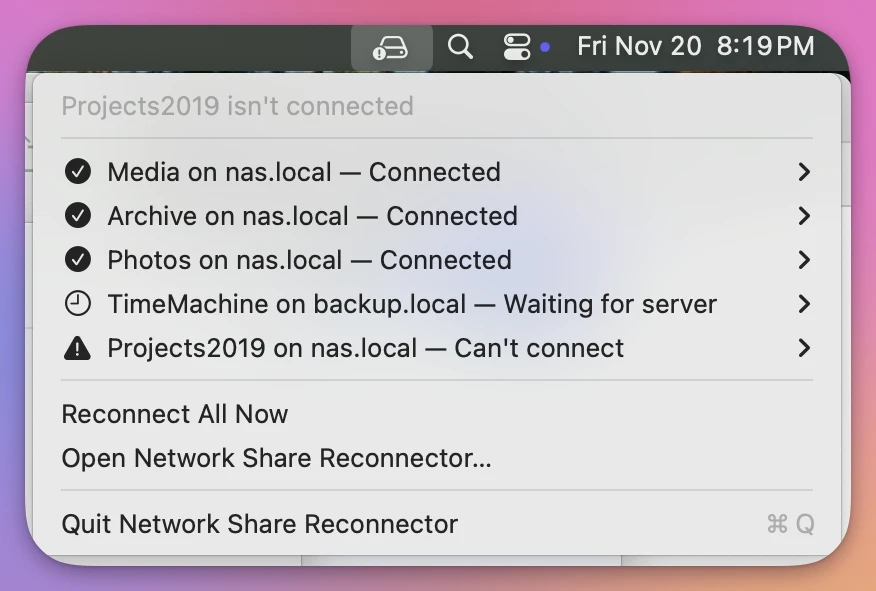
The menu bar icon is a plain drive when there’s nothing to do, a connected drive when every share is there, and a drive with an exclamation mark when one can’t connect. The menu lists each share with its state, and each one has a submenu with Show in Finder and Disconnect, or Reconnect.
Why not use Login Items and the Finder
macOS can mount a share at login. Connect to it in the Finder, then add it to the Login Items in System Settings › General. That’s free, and for a desktop Mac that never sleeps it may be all you need. It mounts the share once, when you log in, often with a Finder window. After sleep, a Wi-Fi change or a server restart, it does nothing.
The Finder’s Go › Connect to Server… (Command-K) is the right tool to put a share back by hand, and its list of favorite servers saves typing. You have to notice the share is gone first, which usually happens when an app complains about a missing file.
macOS sometimes reconnects on its own after a short drop. After sleep or a server reboot, the share often just disappears, or you get the “Server connections interrupted” dialog.
A script on a timer, through Automator, Shortcuts or a login script, is free and can work. It hangs for a while when the server isn’t there, the “mount volume” way opens Finder windows, the password ends up in the script, and it can’t tell a wrong password from a switched-off NAS. It also mounts again a share you ejected on purpose.
| Login Items and the Finder | A script on a timer | Network Share Reconnector | |
|---|---|---|---|
| After login | Mounts once | Yes | Yes |
| After sleep or a network change | You do it by hand | At the next run | Right after the wake or change |
| Server switched off | Finder error or a long wait | Hangs | ”The server isn’t on this network right now” in about 3 seconds |
| Wrong password | A Finder dialog | Keeps trying | Stops, and says so |
| A share you ejected | Stays ejected | Mounted again | Paused until you click Reconnect |
| Where the password is | Keychain | Often in the script | Keychain |
| Finder windows | Often | With “mount volume” | None |
What it doesn’t do
- It doesn’t pick networks by Wi-Fi name. There’s no “only on the office Wi-Fi” rule. Only when the server answers covers that case: the share waits quietly until the server is reachable.
- It doesn’t sync or copy files. It keeps the share mounted. What’s on the share stays on the server.
- It doesn’t find servers for you. You paste the address, or pick a share that’s already connected.
- It can’t stop macOS reusing a sign-in. macOS uses one sign-in per server, so a guest share on a server where you’re already signed in as a user can end up mounted as that user.
- AFP isn’t tested. The app accepts
afp://addresses and connects to port 548, but it was tested with SMB servers, which is what current NAS and Windows servers use.
Questions
Does it work with my Synology, QNAP or Windows server?
It connects to SMB shares, the kind Synology, QNAP, TrueNAS, Windows and macOS file sharing offer. If the Finder’s Connect to Server opens the share with an smb:// address, the app can keep it connected.
Where is my password?
With With a user name and password, it goes into your login keychain. With With the password Finder saved, the app reads the one the Finder saved, and macOS may ask the first time whether the app can use it. The password never goes in a file or on the command line.
What happens the first time it checks?
On macOS 15 Sequoia, macOS asks whether Network Share Reconnector may find devices on local networks. Click Allow. Until you answer, the first check can report the server as unreachable. The next try, 30 seconds later, works.
Does removing a share from the list eject it?
No. Remove… stops the app from reconnecting it and forgets its saved password. If the share is connected, it stays connected until you eject it.
Does it need the window open?
No. Close the window and the app keeps running in the menu bar, without a Dock icon. Open the app again from the Finder or Spotlight to get the window back.
Can I control it from a script?
Yes. The app includes a command line tool, inside the app bundle, that lists the shares, reports their status, and connects them. It reads the same list as the app.
What it needs
Network Share Reconnector runs on macOS 14 Sonoma or later, on Apple silicon and Intel Macs.
Buy Network Share Reconnector
$19 plus tax where it applies, paid once.
Download the app from the order page or your Creem receipt, unzip it and move it to Applications. I sign the app with my Apple Developer ID, and Apple notarizes the download.
The app checks for updates once a day. When a new version is ready, click Install and Relaunch. To check anytime, choose Network Share Reconnector → Check for Updates….