
An app by Flavio
Mailbox Duplicate Cleaner
Find the duplicate emails in .mbox files and mailboxes exported from Mail, compare the copies side by side, and write a cleaned copy with a CSV of every decision. The originals are only read.
Buy Mailbox Duplicate Cleaner · $19One-time purchase. Plus tax where it applies.
macOS 14 or later · Apple silicon and Intel
Latest version 1.0.1, released November 22, 2026
You have an Inbox you exported from Mail last year, another export from the old laptop, and the Sent mailbox. You want one clean archive. Put them together and the March invoice is in there three times, the meeting notes twice, and the nightly backup report twice, one of them with no Message-ID at all.
Mail can’t show you which emails are copies. You could sort by subject and delete by hand, but two emails with the same subject aren’t always the same email, and once you delete the wrong one it’s gone.
Mailbox Duplicate Cleaner works on the exported files. Add the mailboxes, click Find Duplicates, look at what it found, and click Write Cleaned Copy. You get new mailboxes without the extra copies, every copy it left out in a mailbox of its own, and a CSV that lists each decision. The files you started from are only read.
Who it’s for
- Anyone merging two email archives. You have a Gmail Takeout
.mboxand an old export from Mail, and they overlap by a couple of years. Clean them together with Match copies across mailboxes on, and every email that’s in both comes out once. - Anyone who imported a backup twice. You clicked Import Mailboxes… again, or brought an old backup in on top of a newer one, and now Inbox and “Import 2” hold the same messages. Export both, clean them, import the result.
- Small businesses handing over correspondence. An accountant or a lawyer asks for a client’s emails. You send one clean mailbox, and
Duplicate report.csvshows what was removed and why, row by row. - People moving to a new email provider. The new provider charges for storage, and the upload takes hours. Upload the deduplicated archive, not three copies of every newsletter.
- Anyone tidying years of exports. “Old laptop”, “Office iMac”, “Backup 2021”: add the whole folder, the app finds the mailboxes inside, and you archive one clean set.
From exported mailboxes to a cleaned copy
The app works on exported mailboxes, never on Mail itself. In Mail, select a mailbox and choose Mailbox › Export Mailbox… first. A Gmail Takeout download is already an .mbox file.
- Add the mailboxes. Click Add Mailboxes… (or File › Add Mailboxes…, Command-O), or drop files on the window. The app takes
.mboxfiles, theName.mboxfolders Mail exports, and folders that hold several of them. Each one shows as a card, like “mbox file, 7 KB” or “Exported from Mail, 4 KB”. Anything that isn’t a mailbox gets an orange line that says why. - Choose where to save. Click Choose… under Save in. The app writes into a new folder there, called “Cleaned mailboxes” unless you type another name. If the name is taken, it becomes “Cleaned mailboxes 2”.
- Click Find Duplicates (Command-R). The app reads every email, which for a big archive shows a running count with a Stop button.
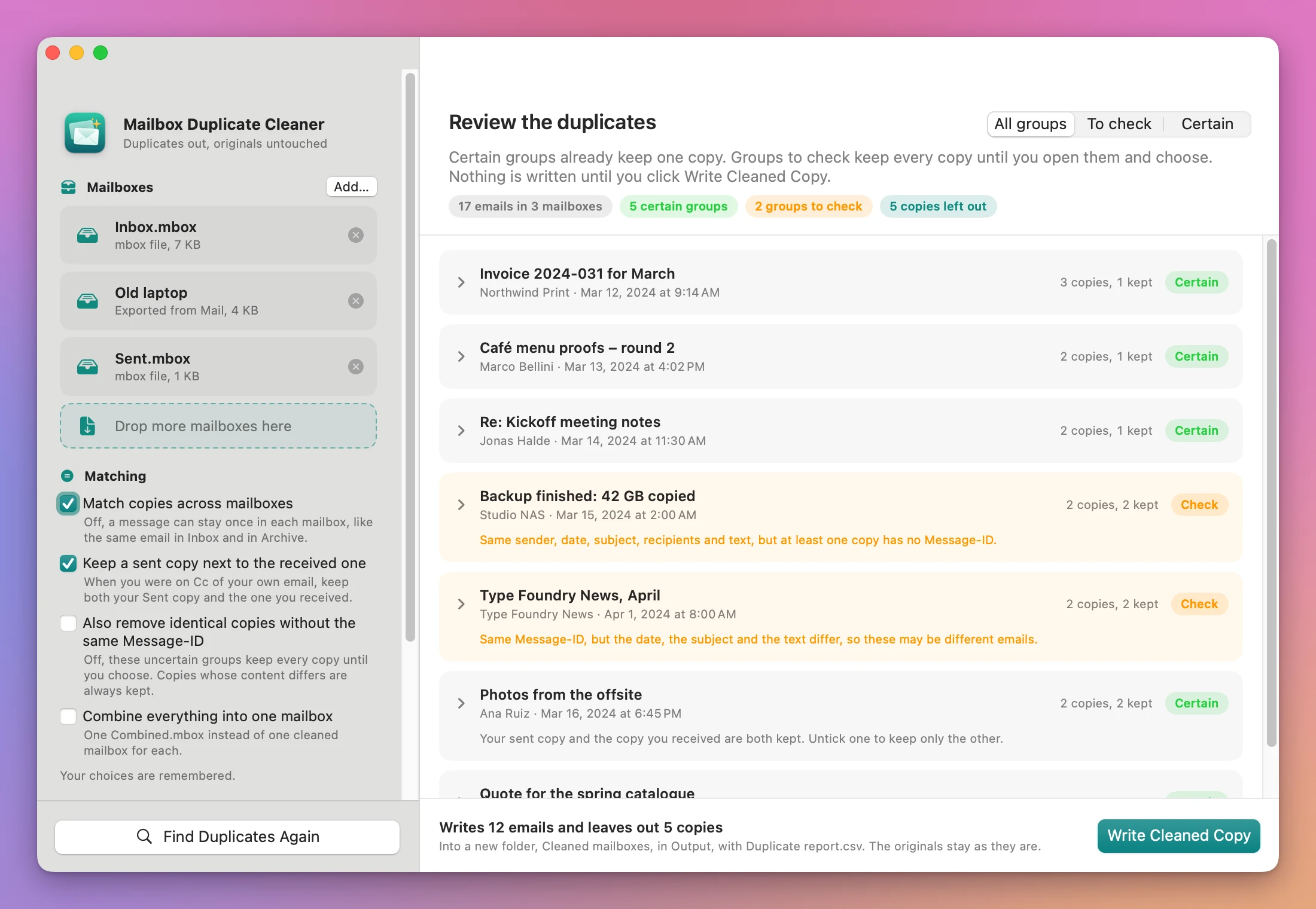
- Review the groups. Each group of copies is a card with the subject, sender, date and “3 copies, 1 kept”. Certain groups already keep one copy. Groups marked Check keep every copy until you open them and choose. The All groups, To check and Certain filter shows just one kind.
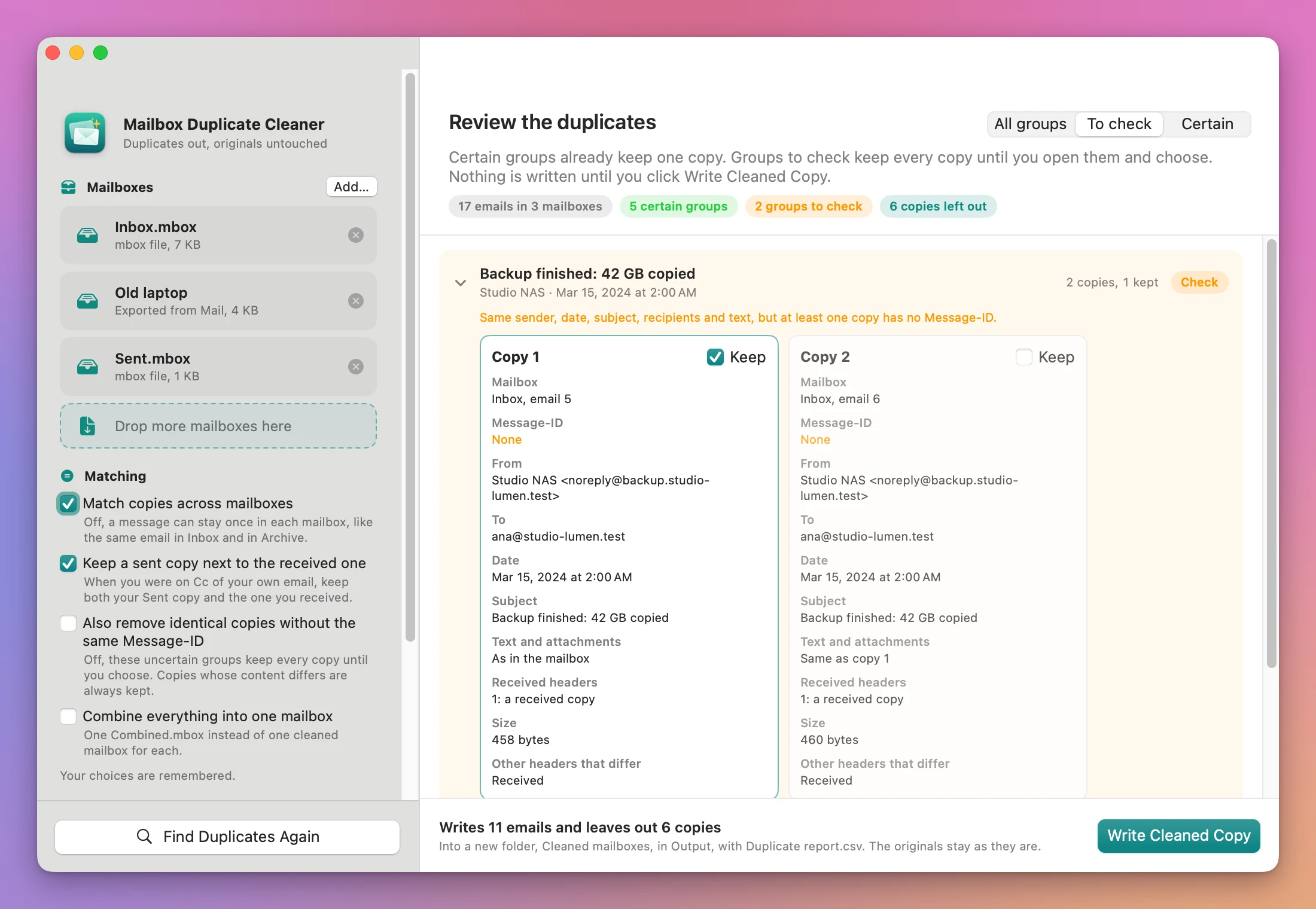
- Compare the copies. Click a group to see its copies side by side: mailbox and position, Message-ID, From, To, Date, Subject, whether the text and attachments match copy 1, the Received headers, the size, and the other headers that differ. What’s different from copy 1 is highlighted. Tick Keep on the copies you want, or use Keep One of Each, Keep All or Suggested.
- Click Write Cleaned Copy. The bar above the button says exactly what will happen, like “Writes 12 emails and leaves out 5 copies”.
What you get
A new folder, and nothing changed in the old ones
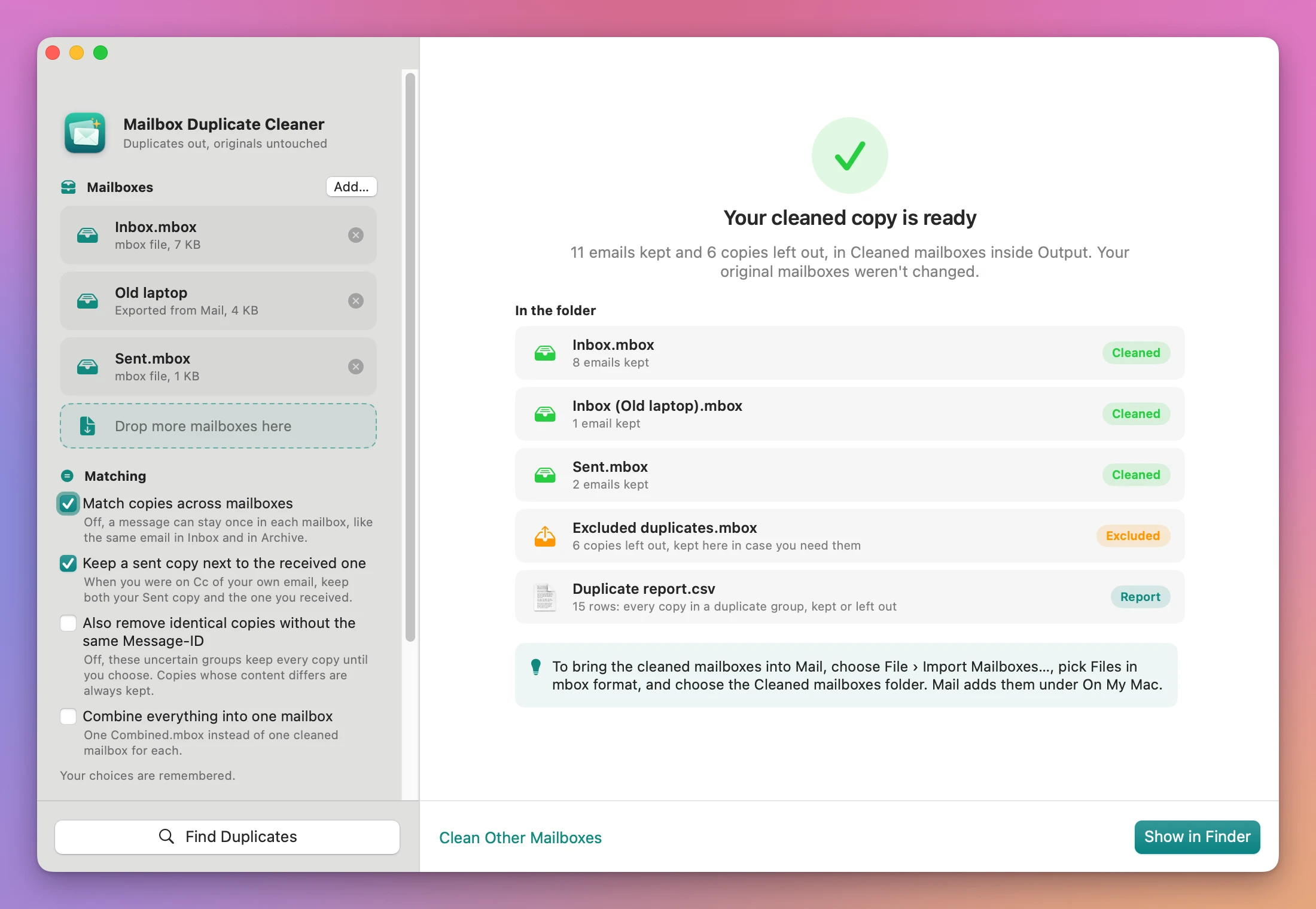
The Done screen lists what’s in the new folder:
- One cleaned mailbox for each one you added, named after it:
Inbox.mbox,Sent.mbox, andInbox (Old laptop).mboxwhen two are called Inbox. Tick Combine everything into one mailbox to get a singleCombined.mboxinstead. Excluded duplicates.mbox, with every copy that was left out, in case you need one back.Duplicate report.csv, one row per copy in a duplicate group: the group, Certain or Uncertain, why, Kept or Excluded, mailbox, position, Message-ID, From, To, Date, Subject and size.
Your original mailboxes are only read. If one changed after the app read it, the app refuses to write.
Certain duplicates, and the ones you should look at
Two emails are linked when they have the same Message-ID (the unique label a mail server gives each message), or the same sender, date, subject, recipients and text. The headers that change when an email is imported or delivered again don’t count, so the same email imported twice still matches. The same moment written in two time zones counts as the same date.
A group is Certain when every copy has the same Message-ID and the same content. The first copy stays.
A group is Check when something doesn’t line up, and the card says what in plain words:
- “Same sender, date, subject, recipients and text, but at least one copy has no Message-ID.”
- “Same Message-ID, but the date, the subject and the text differ, so these may be different emails.” Some newsletter tools reuse one ID for every issue, and a corrected email sent again can do the same.
Every copy in a Check group stays until you decide. Tick Also remove identical copies without the same Message-ID and the groups whose content is identical lose their extra copies too. Copies whose content differs are never removed on their own.
Your sent copy and the one you received
When you were on Cc of your own email, you have it twice: the copy in Sent and the copy that came back to your Inbox. Keep a sent copy next to the received one is on by default, so both stay. Untick it, or untick one copy in the group, to keep only one.
Options it remembers
Match copies across mailboxes is on by default. Turn it off when the same email should stay once in each mailbox, like an email filed in both Inbox and Archive. Changing an option regroups the emails right away.
Why not do it in Mail
Mail has no duplicate finder. There’s no way to list the emails that are copies of each other, so you sort by subject or date and compare them one by one.
Mail’s File › Import Mailboxes… does drop some duplicates. In my tests it kept only one email per Message-ID inside a mailbox, without saying which ones it dropped. It also treated two different emails that share a Message-ID as one: an April and a May newsletter with the same ID came in as one email, and the other one was gone. Copies without a Message-ID stayed, and so did the same invoice in two different mailboxes. The result lives inside Mail, with no list of what happened.
A script on the command line can deduplicate an .mbox file by Message-ID. That needs Terminal, and care with the way mbox files mark where each email starts.
| Mailbox Duplicate Cleaner | ||
|---|---|---|
| Find the copies | Sort and compare by hand | Find Duplicates groups them |
| Copies without a Message-ID | Kept as separate emails | Matched by sender, date, subject, recipients and text |
| Different emails with one Message-ID | Import Mailboxes… keeps one, silently | Marked Check, both kept until you choose |
| The same email in two mailboxes | Stays in both | Kept once, or once per mailbox if you prefer |
| Compare two copies | Open each one | Side by side, differences highlighted |
| What was removed | No record | Excluded duplicates.mbox and Duplicate report.csv |
| Your original files | You delete from the mailboxes you use | Only read, a new folder is written |
What it doesn’t do
- It doesn’t touch Mail, Gmail or any account. It works on exported mailboxes only. To clean what’s in Mail, export, clean, then import the cleaned folder with File › Import Mailboxes….
- It doesn’t read Outlook
.pstfiles, or folders of.emland.emlxfiles. A single.emlis refused with “It’s a single email, not a mailbox.” - It doesn’t merge an email whose attachments were re-encoded by another app. That shows as “same Message-ID, different content” for you to decide.
- It doesn’t make PDFs. To turn emails into PDFs, with the attachments in a folder next to each one, there’s Mailbox to PDF.
Questions
Are my mailboxes changed?
No. The app only reads them, and writes the cleaned copy into a new folder. The new folder is written under a temporary name first and only appears when it’s complete.
Is anything deleted for good?
Every copy left out goes into Excluded duplicates.mbox in the same folder. If you change your mind, import that one too.
Does it upload my email?
No. Everything happens on your Mac. The app uses the internet only to check for updates.
Which mailboxes does it read?
.mbox files and the mailboxes Mail exports with Mailbox › Export Mailbox…, also inside folders up to five levels down. I built it and tested it with mailboxes made for the purpose, with attachments, accented text, Windows line endings and both ways of marking where an email starts. It wasn’t tested on real exports from Gmail Takeout, Thunderbird or Outlook for Mac.
How big can a mailbox be?
It handled 200,000 emails in a 168 MB file in about 13 seconds on my Mac. Memory grows with the number of emails, about 2 KB each, not with the size of the file.
How do I get the cleaned mailboxes back into Mail?
In Mail, choose File › Import Mailboxes…, pick Files in mbox format, and choose the new folder. Mail adds them under On My Mac. Mail keeps only one email per Message-ID in a mailbox, so if you kept two different emails that share an ID, Mail shows one of them.
What it needs
Mailbox Duplicate Cleaner runs on macOS 14 Sonoma or later, on Apple silicon and Intel Macs.
The Mailbox Duplicate Cleaner docs walk through each step.
Buy Mailbox Duplicate Cleaner
$19 plus tax where it applies, paid once.
Download the app from the order page or your Creem receipt, unzip it and move it to Applications. I sign the app with my Apple Developer ID, and Apple notarizes the download.
The app checks for updates once a day. When a new version is ready, click Install and Relaunch. To check anytime, choose Mailbox Duplicate Cleaner → Check for Updates….