
An app by Flavio
Mail Attachment Filer
Save the attachments of the Apple Mail messages you select into a folder per sender and a subfolder per date, and skip the copies you already have.
Buy Mail Attachment Filer · $20One-time purchase. Plus tax where it applies.
macOS 15 or later · Apple silicon and Intel
Latest version 1.3.0, released November 20, 2026
Your supplier sends a report every Monday. Every file is called report.pdf. Your accountant sends statements, your landlord sends receipts, and a client sends drawings in three emails a week. By March you need all of it in folders, and it’s still sitting in Mail.
Saving them one by one means opening each message, saving the file, finding the right folder, and renaming it so it doesn’t clash with last week’s. The tenth report.pdf is where it goes wrong.
Mail Attachment Filer does the filing. Select the messages in Apple Mail, click Read Mail Selection, then Export. Every attachment lands in a folder named after the sender’s address, inside a subfolder named after the message date. Files you already filed are skipped, and each message gets a short text report of what was saved.
Who it’s for
- Freelancers and small business owners. Three suppliers email invoices and reports every month, all called
invoice.pdforreport.pdf. Select the year’s messages once and get one folder per supplier, with the files sorted by the day they arrived. - Bookkeepers. A client forwards forty receipts in January, from their phone, one email each. Before you start the books, file them all into that client’s folder by date, without saving forty files by hand.
- Teachers. Thirty students email an assignment the night before the deadline. Each student’s files go into a folder named after their email address, and the date folder shows who sent it on time.
- Project managers and architects. A contractor sends revised drawings with the same filename every week. Each revision keeps its own dated folder, so last Tuesday’s version is still there when someone asks.
- Anyone leaving an email account. Your work mailbox closes at the end of the month, or you’re moving away from a provider. Save the contracts, scans and photos people sent you, sorted by who sent them.
From inbox to folders
Here’s a typical end of the month with it.
- In Apple Mail, search for the supplier or the subject, then select the messages. A whole year of them is fine.
- In Mail Attachment Filer, click Read Mail Selection. The first time, macOS asks whether the app may control Mail. Allow it.
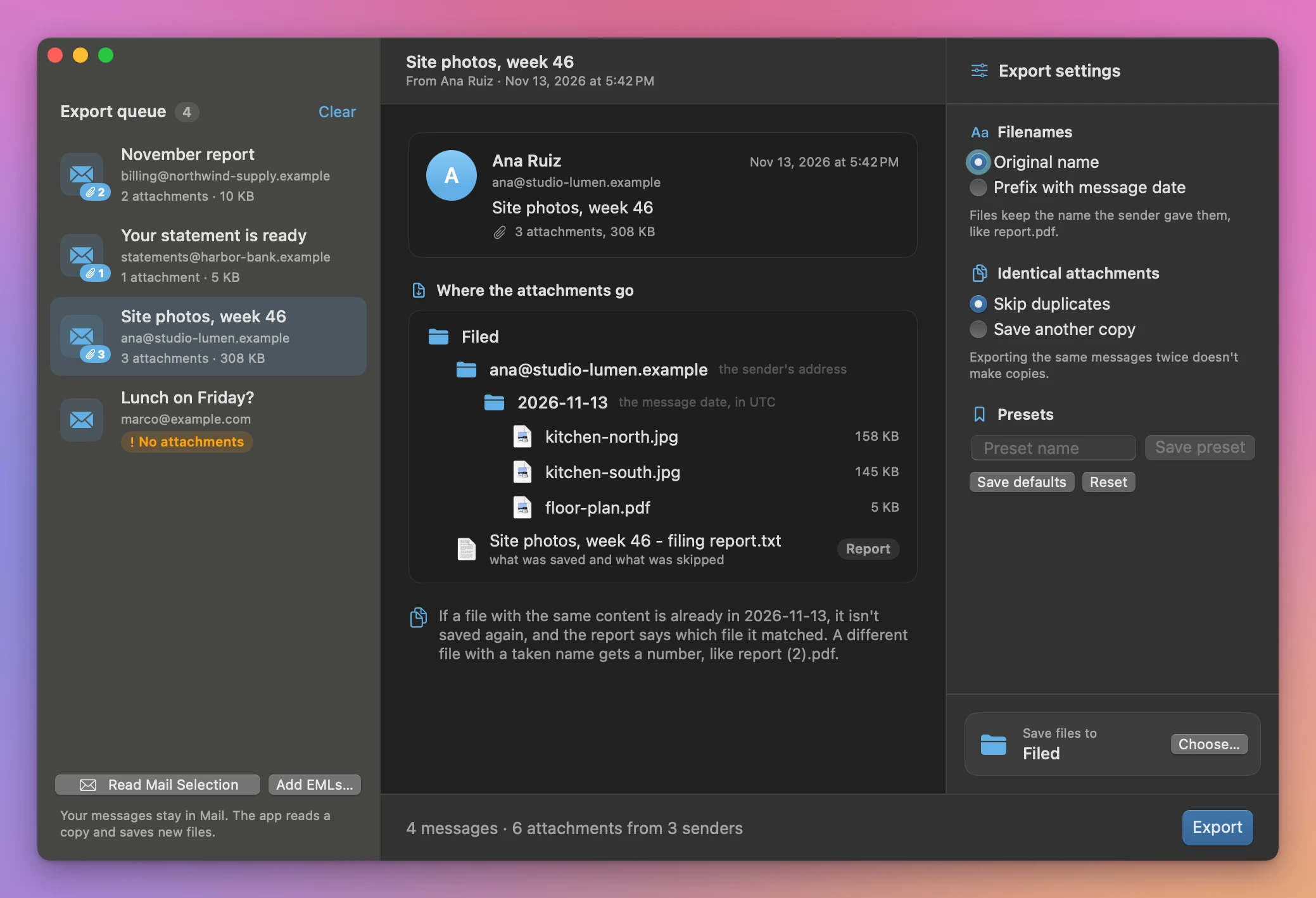
- The messages appear in the Export queue, with their subject, the sender’s address and how many attachments each has. A message with nothing attached says No attachments. Remove any you don’t want with the small cross that appears when you point at a message.
- Click a message to see where its attachments go: the sender folder, the date folder and the name each file gets, plus the filing report.
- In Export settings, pick how to name files under Filenames, and what to do with repeats under Identical attachments. The preview follows your choice.
- Click Choose… under Save files to to pick where the files go, then click Export.
- Each message gets a green label with a count, like 3 saved. The results list the saved files grouped by sender, with an Open button for each, then the files that were already filed and the filing reports. Click Show output to open the folder in Finder.
The bar at the bottom sums it up, for example Finished · 6 attachments saved · 1 message without attachments.
Next month, select the new messages and do it again. If you select a few old ones by mistake, Skip duplicates leaves their files alone.
What you get
Say you export a month of reports from one supplier and a statement from your bank. The output folder looks like this:
Reports/
  billing@supplier.example/
    2026-11-02/
      report.pdf
    2026-11-09/
      report.pdf
    2026-11-16/
      report.pdf
  statements@bank.example/
    2026-11-01/
      statement.pdf
  November report - filing report.txt
  Your statement is ready - filing report.txt
The sender folder is the email address, not the display name, so a supplier who changes the name on their emails still lands in the same folder. A message with no readable sender goes in Unknown sender, and one with no date goes in Undated.
Filenames
Original name keeps the name the sender gave the file. Prefix with message date adds the date at the start, like 2026-11-09 - report.pdf. That helps when you move files out of their folders later, into a tax folder or a shared drive.
Slashes and colons in a name become underscores, and very long names are cut to 60 characters. A file sent without a name gets one, like Attachment 2.pdf. A forwarded email attached to a message is saved as an .eml file named after its subject.
Repeats and collisions
Skip duplicates compares the content of each attachment with the files already in that sender and date folder. If the bytes match, the file isn’t saved again, and the report says which file it matched. That makes it safe to export the same selection twice.
Save another copy saves it anyway. Either way, the app never replaces a file. If report.pdf is taken by a different file, the new one becomes report (2).pdf.
The filing report
Every message gets a text file in the output folder, named after its subject. It lists the subject, the sender and the date, then one line per attachment: saved under which name, or skipped because it matched which file. When someone asks where the March invoice went, the report answers.
What counts as an attachment
The files attached to the message, including pictures sent inline in the body of the email. Digital signature files that Mail hides, like smime.p7s, are left out.
Why not save them from Mail
Apple Mail can save attachments. Select some messages and choose File → Save Attachments…, and Mail asks for one folder. Everything goes in there, from every sender and every date.
That’s fine for three files. For a year of monthly reports, you get a pile of files with the same name and no sign of who sent which one, or when. Sorting them means opening each one, or going back to Mail to check. You can also drag attachments out of a message one at a time, into folders you made yourself, renaming as you go.
Say you file 60 messages a year from four suppliers. By hand that’s 60 rounds of open the message, save the file, find or create the sender and date folder, and rename it if the name is taken. At about a minute each, it’s an hour of clicking, and the mistakes happen in the renaming. With Mail Attachment Filer it’s one selection and one click per batch.
| Save Attachments in Mail | Mail Attachment Filer | |
|---|---|---|
| Where files go | One folder for everything | A folder per sender, a subfolder per date |
| Files with the same name | You sort them out afterwards | Each date has its own folder, and a taken name gets a number |
| Running it twice | You get more copies | Identical files are skipped |
| Record of what happened | None | A text report per message |
| A year of messages | Up to an hour of saving and renaming, by estimate | One selection, one export |
| Your files | Stay on your Mac | Stay on your Mac |
What it doesn’t do
- It works on the messages you select. It doesn’t watch your inbox or file new mail automatically.
- It reads Apple Mail only. For another mail app, export the messages as
.emlfiles and add them with Add EMLs… or drag them into the queue. - It doesn’t search or filter. Use Mail’s search to pick the messages, then read the selection.
- The date is the message date in UTC. A message sent late in the evening in New York can land in the next day’s folder.
- Folders follow the email address. A sender who writes from two addresses gets two folders.
- Each message can be up to 100 MB. Larger ones show an error in the queue.
- It doesn’t open, convert or rename by content. For invoices, Invoice Filename Assistant names PDF copies by supplier, date and number.
- It doesn’t delete or move anything in Mail. Your messages stay where they are.
Questions
Does it change my email?
No. The app asks Mail for a copy of each selected message, reads the attachments from that copy, and writes new files in the folder you chose. When you clear the queue or close the window, the temporary copies are removed.
Does anything get uploaded?
No. The messages are read and the files are written on your Mac. The app uses the internet only to check for updates.
What if a message fails?
That message gets a red Failed label in the queue, and the others carry on. The results screen says why. A message without attachments says so. If Mail hasn’t downloaded the full message yet, the app tells you to download it in Mail first. Cancel stops the batch, and the files saved so far stay in the folder.
Can I save my settings?
Yes. Type a name and click Save preset to keep a combination of settings, like dated filenames for invoices and original names for drawings. Save defaults makes the current settings the ones the app starts with.
What if I turned off access to Mail?
Turn it back on in System Settings → Privacy & Security → Automation. Until then, you can still add exported .eml files. The documentation covers both.
Will it run on my Mac?
Mail Attachment Filer runs on macOS 15 Sequoia or later, on Apple silicon and Intel Macs. Files are processed locally.
The app processes messages you choose and needs Automation permission to read Apple Mail. It also accepts exported EML files up to 100 MB.
Buy Mail Attachment Filer
$20 plus tax where it applies, paid once.
Download the app from the order page or your Creem receipt, unzip it and move it to Applications. I sign the app with my Apple Developer ID, and Apple notarizes the download.
The app checks for updates once a day. When a new version is ready, click Install and Relaunch. To check anytime, choose Mail Attachment Filer → Check for Updates….