
An app by Flavio
Duplicate Clip Name Finder
Every camera starts again at C0001.MP4. Duplicate Clip Name Finder compares your cards and footage folders, lists every name used by two different clips with the card, timecode, length and a frame of each, and gives them names of their own before your editing app links the wrong one.
Buy Duplicate Clip Name Finder · $19One-time purchase. Plus tax where it applies.
macOS 14 or later · Apple silicon and Intel
Latest version 1.0.1, released November 22, 2026
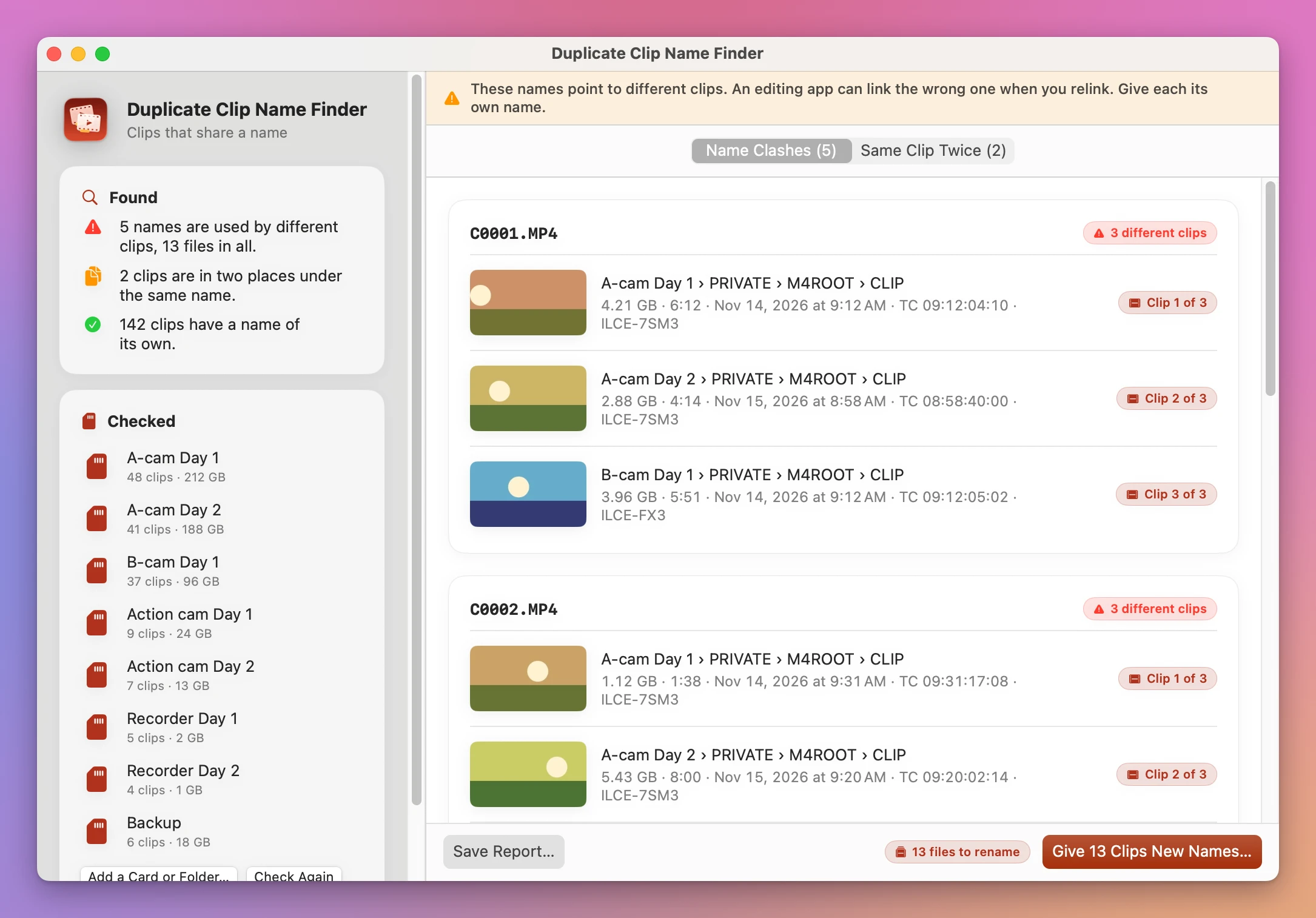
You shot two days with two cameras. Both cameras name their first clip C0001.MP4, and the second day starts at C0001.MP4 again. So the project now has three different files called C0001.MP4, three called C0002.MP4, and two action camera clips called GX010012.MP4.
Most of the time nothing goes wrong. Then you move the project to another drive, the editing app asks you to relink, and it finds a C0001.MP4 from the wrong card. The ceremony is suddenly the B-camera’s wide shot, and you notice two days later.
Duplicate Clip Name Finder looks at all your cards at once and lists every name that’s used by more than one clip. Each clip shows its card, its length, the time it was recorded, its start timecode and a frame, so you can see they’re different. Then one button gives each of them a name of its own.
Watch a 30-second demo of Duplicate Clip Name Finder:
Who it’s for
- Wedding and event filmmakers with two Sony bodies. Both cameras write C0001.MP4 from the first clip of the day. You put both cards in one project and the editing app shows two clips with the same name in the bin, until a relink picks the wrong one.
- Assistant editors at ingest. You get a week of cards from a documentary shoot and have to hand over a project where no two media files share a name. The report lists every clash with its card and timecode, ready to send to the editor.
- YouTubers with a camera and a couple of action cameras. Every action camera repeats the same names on every card. Copy two cards into one folder and the Finder asks whether to replace one with the other.
- Podcast and interview producers. The field recorder starts again at ZOOM0001.WAV on every card, and sound files are the ones that end up synced to the wrong video.
- Small video teams on a shared drive. Everyone drops their cards into one footage folder. Nobody checks the names until a clip goes missing.
From your cards to clips with names of their own
- Click Choose Cards or Folders… and pick your cards or footage folders. Hold Command to pick more than one, or drag them onto the window. A folder with one folder per card is read as separate cards.
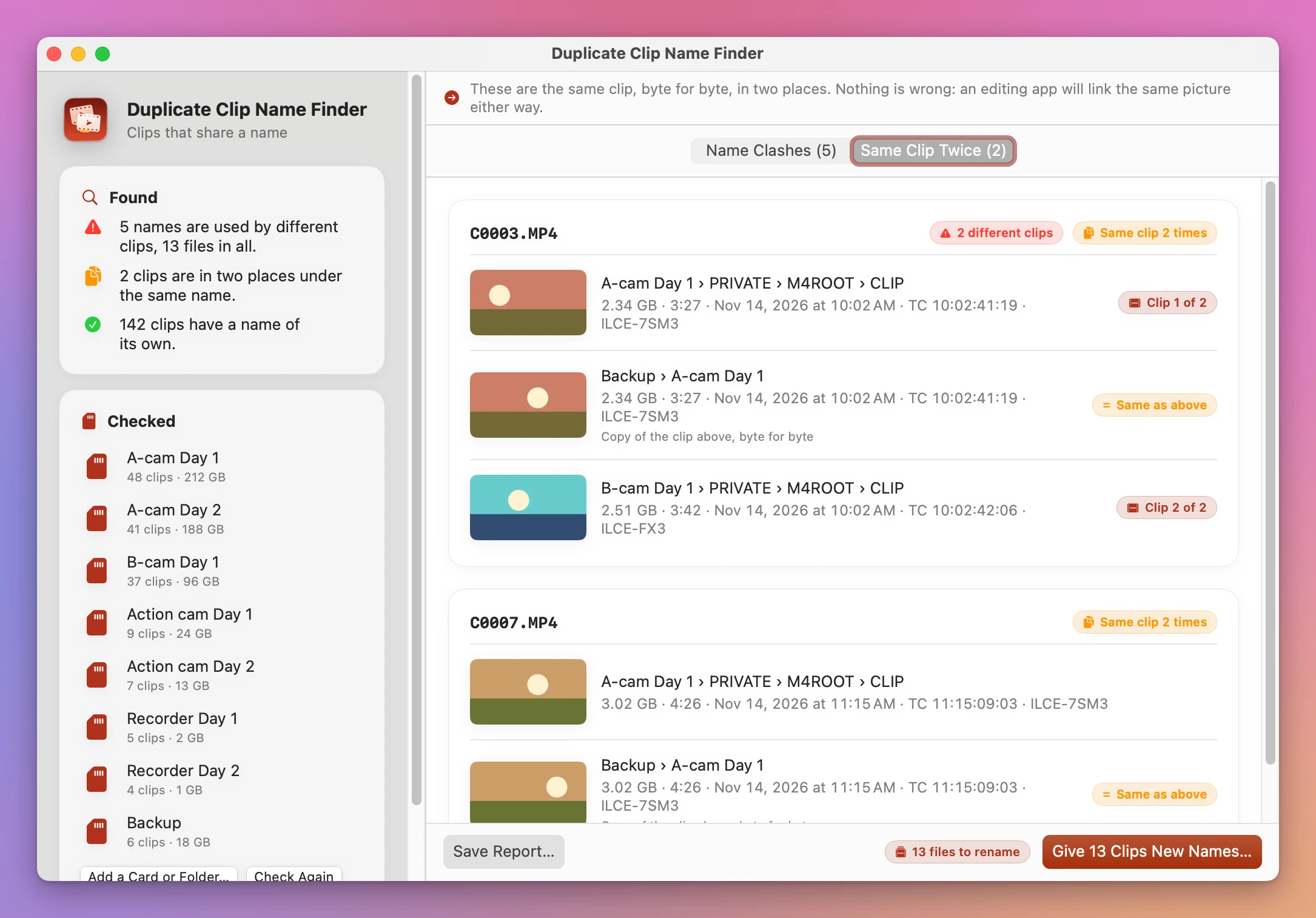
- The list shows every name used by different clips, with a frame and the details of each one. Same Clip Twice lists files that are the same clip copied to two places, which is fine.
- Click Save Report… if you want the list as a spreadsheet.
- Click Give 13 Clips New Names… (the number is yours). Choose what goes in front of each name: the card or folder name, the recording date, the camera model.
- Pick Save renamed copies in a folder I choose, or Rename the files where they are, and click the button.
What you get
Every name that’s used twice, across every card
Duplicate Clip Name Finder goes through every folder on the cards you choose, including the deep ones cameras use, like PRIVATE › M4ROOT › CLIP and DCIM › 100GOPRO. It reads video files (MP4, MOV, MXF, MTS, BRAW, R3D and more) and sound files (WAV, MP3, M4A, AIFF).
Two names are the same when an editing app would mix them up, so C0001.MP4 and c0001.mp4 count as one name. Files with the same name and the same size are read and compared byte for byte, so the app can tell two different clips from the same clip copied twice.
Each clip in the list shows:
- a frame from near the start, or a sound symbol for an audio file;
- the card and the folders it’s in;
- its size and length;
- when it was recorded;
- its start timecode, from the file’s timecode track or from the XML file the camera writes next to it (Sony’s
C0001M01.XML); - the camera model, when the file or its XML says it.
The same clip twice, kept apart
If you copied a card to a backup folder, every clip on it now has a twin with the same name. Those aren’t a problem, because both files are the same picture. They’re listed under Same Clip Twice, so the clashes list only shows the names that point to different clips.
New names that keep the camera’s name
The new name puts the card or folder in front of the camera’s own name, so C0001.MP4 from the card “A-cam Day 1” becomes A-cam-Day-1_C0001.MP4. You can add the recording date (20261114) and the camera model too. The camera’s clip number stays at the end, so you can still match it to the camera, the sound report or the timecode.
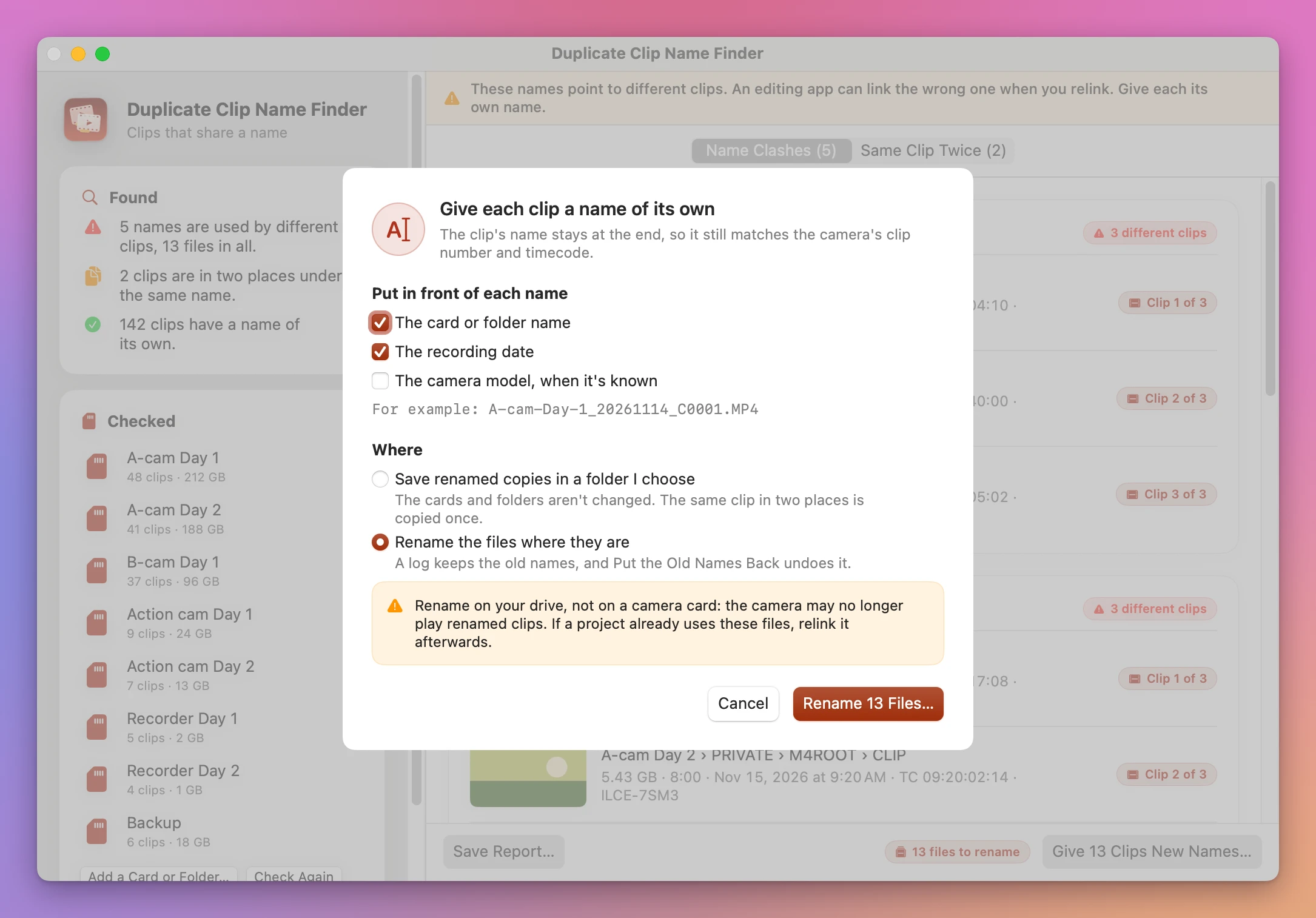
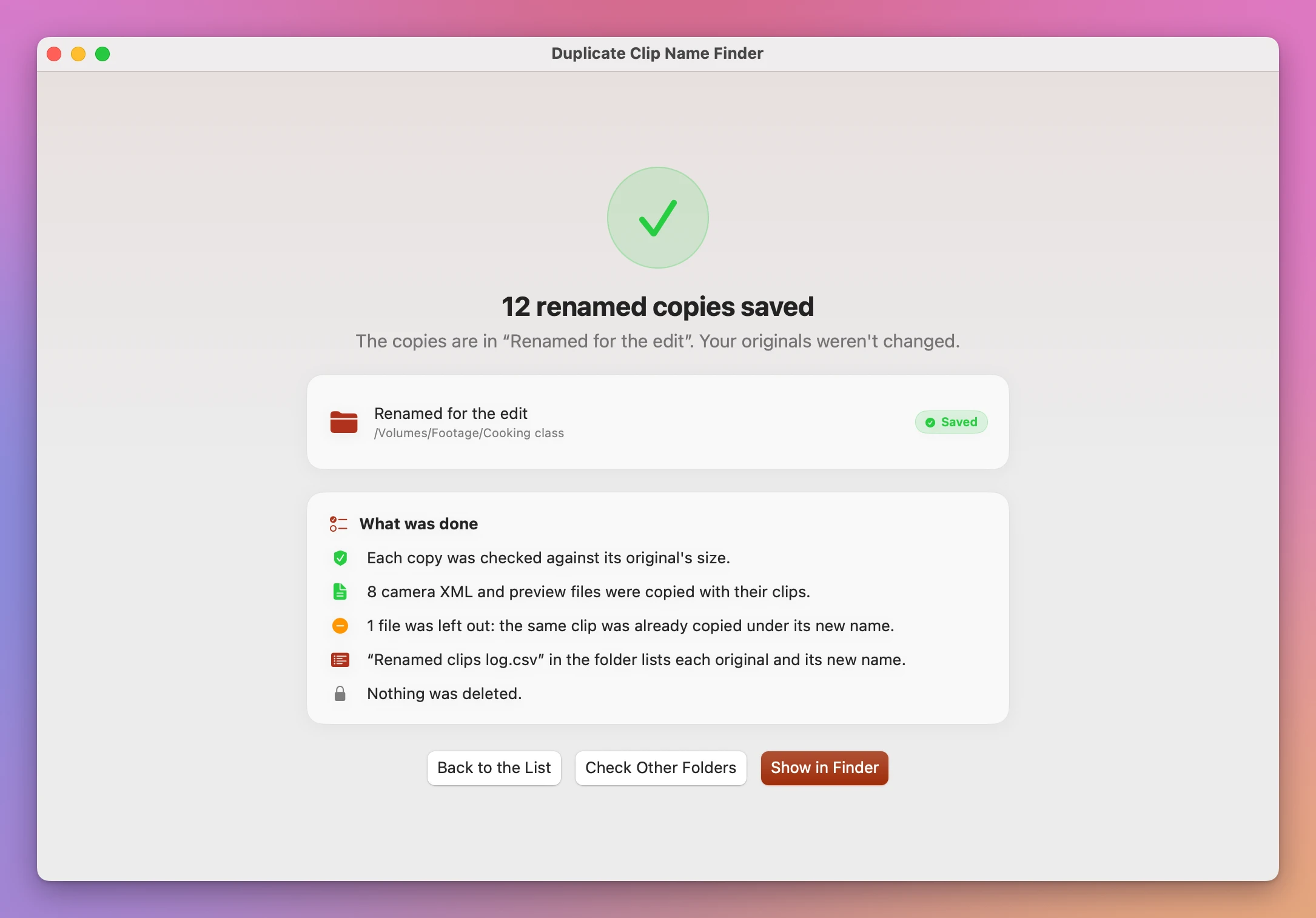
Renamed copies are the safe choice. They go into a folder you pick, with a log that lists every original and its new name, and your cards and folders aren’t touched. The same clip in two places is copied once.
Renaming in place changes the files where they are, after you confirm. The camera’s XML file next to each clip is renamed with it. A log keeps every old name, and Put the Old Names Back undoes the whole rename.
A report for the editor
Save Report… writes a CSV file you can open in Numbers or Excel: one line per file, with the name, whether it’s a different clip or a copy, the card, the folder, the size, the length, the recording date, the start timecode and the camera.
Why not do it by hand
The Finder shows one folder at a time. To see that two cards both have a C0001.MP4, you open each card’s clip folder in its own window and compare the lists by eye. With four cards and a hundred clips each, that’s a long scroll for every name.
Copying the cards into one folder makes the Finder ask whether to replace a file or keep both. Replace deletes a clip, and keep both adds a number to the name, which is easy to miss. The Finder can also rename a group of files and add text in front of their names, but one card at a time, without knowing which names actually clash, and it leaves the camera’s XML file with the old name.
Editing apps import two clips with the same name without a word, and they relink by name. That’s when it goes wrong. Professional ingest apps can rename at offload, and they cost much more each year.
| The Finder | Ingest software | Duplicate Clip Name Finder | |
|---|---|---|---|
| Cost | Free | A yearly subscription | $19 once |
| Compares every card at once | No, one window per folder | At offload | Yes |
| Tells a copy from a different clip | No | Some do | Yes, byte for byte |
| Shows timecode, length and a frame | Length and frame in Get Info | Yes | Yes |
| Renames only the clashing clips | No, you pick them | It renames everything | Yes |
| Renames the camera’s XML too | No | Depends | Yes |
| Undo for a rename | Edit › Undo, right after | Depends | Put the Old Names Back, any time |
| Report to send | No | Yes | CSV |
What it doesn’t do
- It doesn’t copy or check whole cards. It reads them, and it copies only the clips you rename.
- It never deletes anything, including the copies it finds.
- It doesn’t relink an editing project that already uses the old names. Rename before you import, or relink afterwards.
- It reads start timecode from QuickTime timecode tracks and from Sony-style XML files. It doesn’t read timecode inside MXF, BRAW or R3D files, and it can’t show a frame of those.
- It treats
C0001.MP4andC0001.MOVas different names. - It doesn’t rename by a spreadsheet or follow your own naming pattern. The new name is the pieces you tick, then the camera’s name.
Questions
Does it change my cards?
Not unless you choose Rename the files where they are and confirm. Renamed copies and the report are new files in a folder you pick. Rename on your drive, not on a camera card you’ll put back in the camera: a camera may not play clips it didn’t name.
Does it upload anything?
No. Everything happens on your Mac. The app connects to the internet only to check for updates.
How long does it take?
Listing the files takes seconds. Clips with the same name and size are read to compare them, which takes as long as reading those files from the card. Clips of different sizes are never read whole.
What it needs
Duplicate Clip Name Finder runs on macOS 14 Sonoma or later, on Apple silicon and Intel Macs.
Buy Duplicate Clip Name Finder
$19 plus tax where it applies, paid once.
Download the app from the order page or your Creem receipt, unzip it and move it to Applications. I sign the app with my Apple Developer ID, and Apple notarizes the download.
The app checks for updates once a day. When a new version is ready, click Install and Relaunch. To check anytime, choose Duplicate Clip Name Finder → Check for Updates….
Duplicate Clip Name Finder is an independent app. It’s not made by, affiliated with or endorsed by Sony, GoPro, Zoom, Adobe, Blackmagic Design, Apple or any camera or recorder maker.