
An app by Flavio
Draft to Listening Copy
Turn a text or Markdown draft into numbered audio files, one per chapter, read by the voices already on your Mac, to proofread by ear anywhere.
Buy Draft to Listening Copy · $20One-time purchase. Plus tax where it applies.
macOS 15 or later · Apple silicon and Intel
Latest version 1.3.0, released November 20, 2026
You’ve read chapter 7 so many times that your eyes slide over it. The repeated word, the sentence with two “which”, the paragraph that goes on a beat too long: you don’t see them anymore. Hear the chapter read aloud and they jump out.
Reading it aloud yourself takes an evening and a sore throat. Having the Mac read it means sitting in front of the Mac, and losing your place every time you stop.
Draft to Listening Copy turns your draft into audio files you can take anywhere. Add a text or Markdown file, pick a voice and a speed, and click Export. Every chapter becomes its own numbered file, like 001 - The morning route - Arrival.aiff, read by a voice already installed on your Mac. Listen on a walk, in the car or on the train, and note what to fix.
Who it’s for
- Novelists and memoir writers. Your manuscript is 22 chapters in Markdown. Export the whole book once, put it on your phone, and listen to a chapter a day with a notebook in your pocket. The clunky dialogue tags are obvious when you hear them.
- Newsletter writers and bloggers. You write in Obsidian or iA Writer, which save
.mdfiles. Before Thursday’s issue goes out, listen to it once at 200 words per minute and catch the sentence you rewrote halfway. - Students. Your 12,000-word dissertation is due Friday. Listening to each section on the bus finds the typos and missing words your eyes skip on the tenth read.
- People with dyslexia or tired eyes. A long document is easier to review by ear. Split by headings, a 40-page report becomes short files you can take one at a time.
- Speakers and podcasters. You need your talk to fit 20 minutes. Export the script at the pace you speak and look at how long each section runs.
A Sunday with your manuscript
- Save the draft as a Markdown file. Each chapter starts with a
#or##heading. - Drag the file into the Export queue, or click Add Drafts…. You can add several drafts at once.
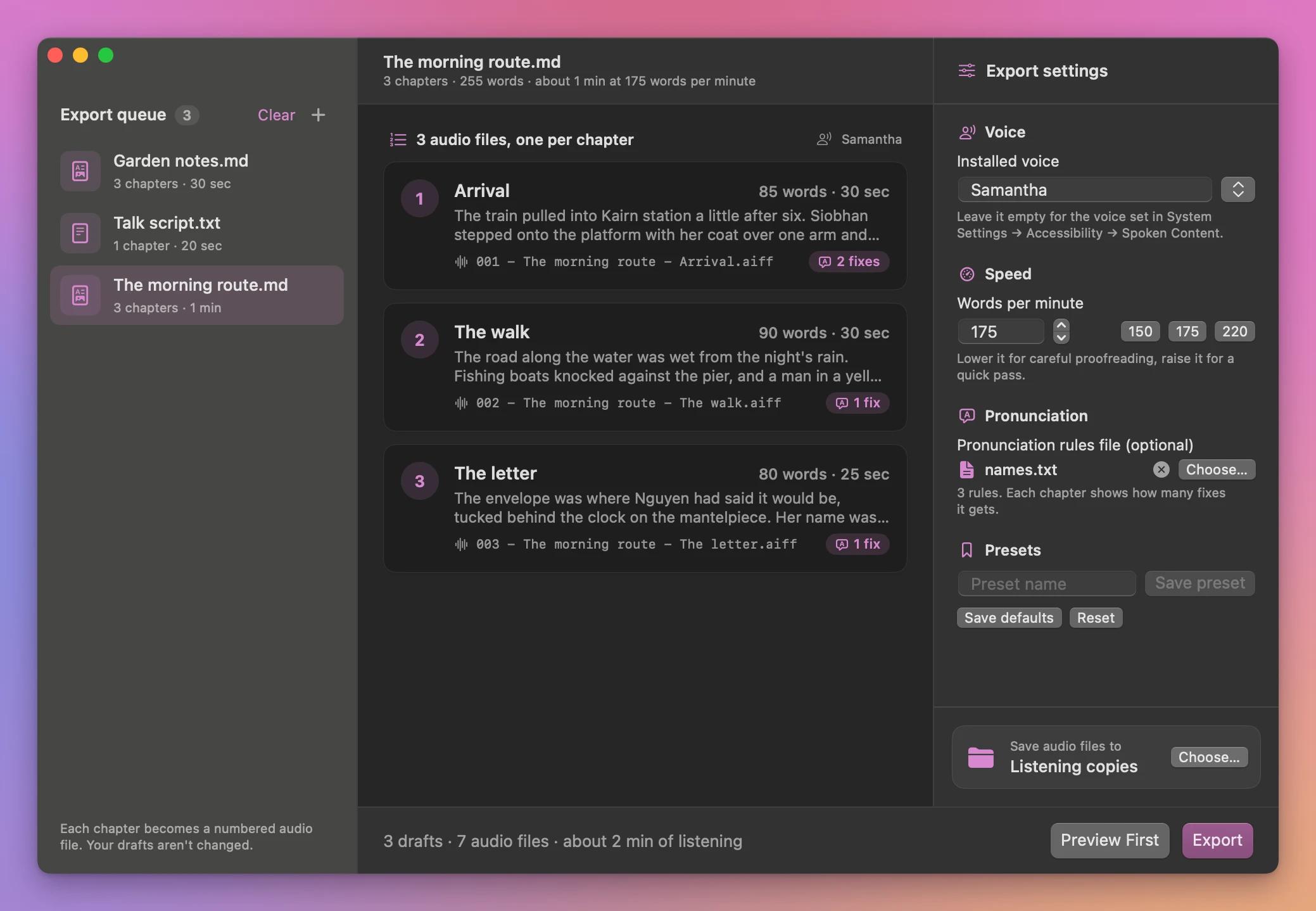
- Click a draft in the queue. The window lists its chapters, with the first lines of each, its word count, how long it runs and the name of the file it becomes.
- In Export settings, pick a voice from the list next to Installed voice, like
Samantha, or leave the field empty for your Mac’s spoken content voice. - Set Words per minute. The default is 175. Lower it for careful proofreading, raise it for a quick pass. The buttons next to it set 150, 175 or 220 in one click.
- Click Preview First. The app renders the first draft in a temporary folder and opens its first chapter in Quick Look, so you hear the voice and the speed before you commit.
- Under Save audio files to, click Choose…, pick a folder, and click Export.
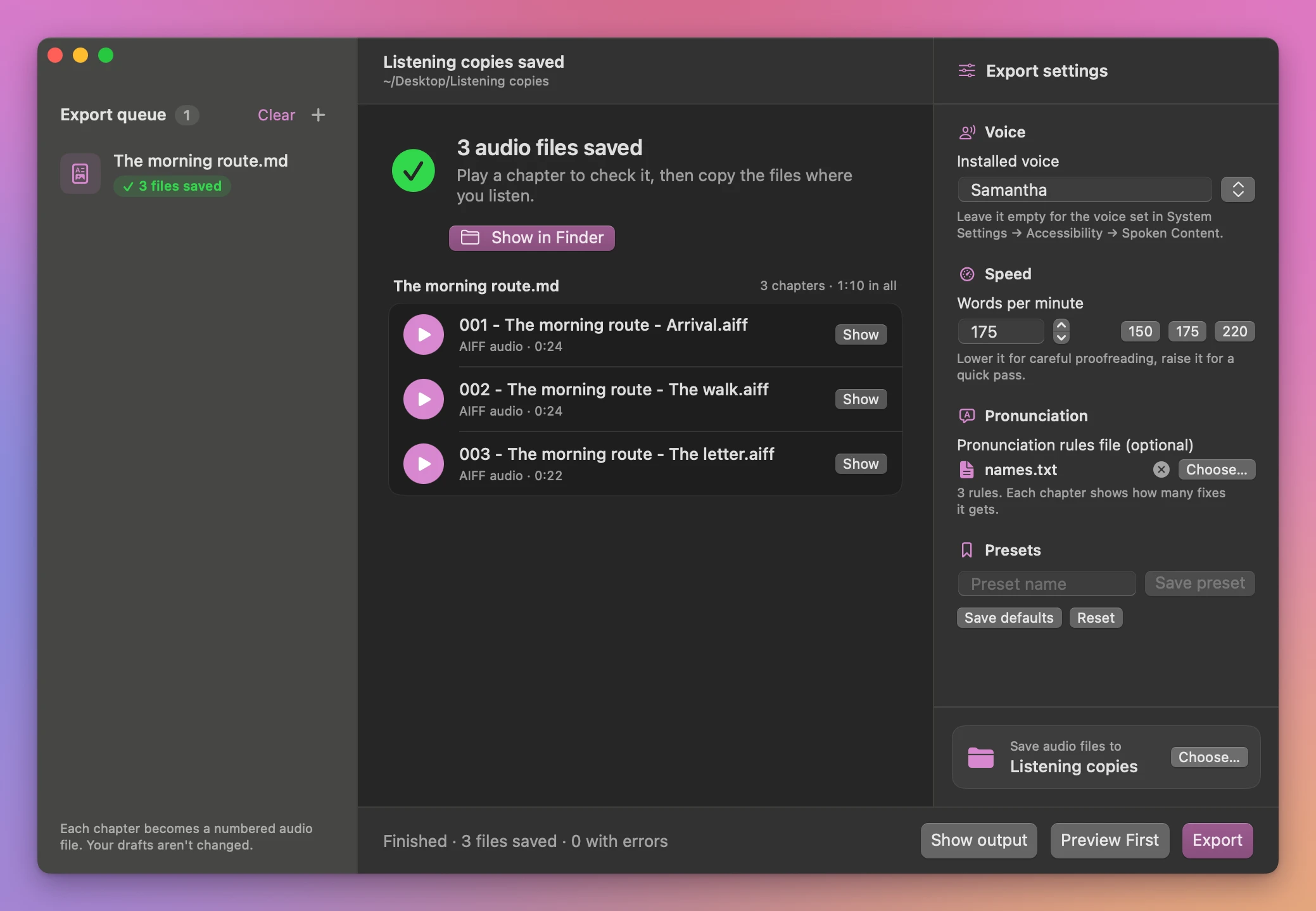
- Each draft gets a green pill with a count, like 3 files saved, and the window shows the saved files by draft. Click the play button next to a file to hear it, or Show in Finder to open the folder.
Drag the files into the Music app, or copy them wherever you listen. The numbers at the start of the names keep the chapters in order in any player.
How it splits and reads the draft
Chapters
In a Markdown file, every top-level (#) and second-level (##) heading starts a new chapter. The heading becomes part of the filename, and it’s spoken at the start of the file, so you always know where you are. Anything before the first heading becomes a chapter called Introduction. Smaller headings, like ###, are read as part of the chapter.
A plain text file becomes one audio file, like 001 - Talk script - Draft.aiff.
What gets read
The words you wrote, without the Markdown around them. For a link, you hear its text, not the web address. For an image, you hear its description. Fenced code blocks are skipped completely, so a technical post doesn’t read out twenty lines of code. Heading marks, quote marks and list stars at the start of a line aren’t read either.
Names it gets wrong
Speech voices stumble on character names, places and made-up words. Put your fixes in a plain text file, one per line, written form first:
Siobhan=Shivawn
Nguyen=Win
Kairn=Cairn
Under Pronunciation rules file (optional), click Choose… and pick that file. Each chapter in the list then shows how many fixes it gets. Every time the written form appears, the voice says the spoken one instead. The replacement is exact and case-sensitive, and it matches inside longer words too, so pick written forms that don’t appear elsewhere. Your draft isn’t changed: the rules only affect what the voice hears.
Settings you reuse
Type a name and click Save preset to keep a voice, a speed and a rules file together, like one preset per book. Save defaults makes the current settings the ones the app starts with, and Reset goes back to the original ones.
Why not use the Mac’s Speak Selection
macOS can read text aloud. Turn on Speak Selection in System Settings under Accessibility → Spoken Content, select text, press the shortcut, and the Mac reads it. For a paragraph, that’s all you need.
For a book, you have to stay at the Mac while it reads, select each chapter yourself, and start over if you stop. Nothing is saved, so you can’t listen on a walk.
If you’re at home in Terminal, macOS’s say command can save a text file as audio. It’s the speech engine this app uses too. But it reads the file as written, Markdown symbols and code included, and makes one file. For a 22-chapter manuscript, that’s 22 rounds of copying a chapter into its own file, running the command and naming the output. By estimate that’s an hour of fiddling every time you revise, and it’s easy to export chapter 14 twice and miss 15.
Speak Selection or say | Draft to Listening Copy | |
|---|---|---|
| A 22-chapter manuscript | Select or split each chapter yourself | One file in, 22 numbered files out |
| Listening away from the Mac | Only with say and a file per chapter | Every chapter is a file |
| Markdown, links and code | Read as written, symbols and all | Link text read, code skipped |
| Names the voice gets wrong | Wrong every time | Fixed with a rules file |
| Checking the voice first | Start and stop | Preview First |
| Your text | Stays on your Mac | Stays on your Mac |
How long it takes to listen
At the default 175 words per minute, a 3,500-word chapter runs about 20 minutes, and a 90,000-word novel about eight and a half hours. At 220 words per minute the novel takes under seven hours. That’s arithmetic on the speed you set, so you can estimate the running time before you export.
What it doesn’t do
- It saves AIFF only. There’s no MP3 or M4A export. AIFF files are uncompressed, so they’re bigger than an MP3 of the same length.
- It reads text and Markdown only. Word, Pages, RTF and PDF files aren’t supported. Export the draft as Markdown or plain text from your writing app first. The file must be UTF-8, which is what most apps save.
- It uses the voices on your Mac. No cloud voices, no AI voices. Download more voices in System Settings, under Accessibility → Spoken Content, and they appear by name.
- It doesn’t follow along. There’s no highlighting of the words as they’re read. You listen to the file, then fix the draft in your own editor.
- It splits at
#and##only. You can’t choose a different heading level. - It doesn’t put the files on your phone. You copy them yourself.
Questions
Is my draft uploaded anywhere?
No. The voices are the ones installed on your Mac, and the audio is made on your Mac. The app uses the internet only to check for updates.
Does it change my draft?
No. The app reads your file and writes new audio files in the folder you choose. If a name is already taken, the new file gets a number, so an earlier export isn’t replaced.
Which voice should I pick?
Try a few with Preview First. The voices you download in System Settings usually sound more natural than the built-in ones. Pick them from the list next to Installed voice, which shows every voice on your Mac. If you type a name that doesn’t match an installed voice, the app warns you under the field.
What if I stop halfway through a book?
Click Cancel. The chapters already exported stay in the folder.
Will it run on my Mac?
Draft to Listening Copy runs on macOS 15 Sequoia or later, on Apple silicon and Intel Macs. Files are processed locally.
Uses voices already installed on the Mac. The chapter and pronunciation rules are designed for proofreading drafts. The documentation covers each setting.
Buy Draft to Listening Copy
$20 plus tax where it applies, paid once.
Download the app from the order page or your Creem receipt, unzip it and move it to Applications. I sign the app with my Apple Developer ID, and Apple notarizes the download.
The app checks for updates once a day. When a new version is ready, click Install and Relaunch. To check anytime, choose Draft to Listening Copy → Check for Updates….