
An app by Flavio
Calendar Duplicate Review
Find the Calendar events an import or a migration copied twice, compare the copies side by side, and delete only the copies you confirm, after an .ics backup of each one is saved.
Buy Calendar Duplicate Review · $19One-time purchase. Plus tax where it applies.
macOS 14 or later · Apple silicon and Intel
Latest version 1.0.1, released November 22, 2026
You moved your work calendar over from another app by exporting an .ics file and importing it. Then you weren’t sure it had worked, so you imported it again. Now the dentist is there three times, every client call shows up twice, and only one copy of the client call has the Zoom link in it.
Calendar can’t show you which events are copies. You open each one, check which has the notes, delete the other, and hope you picked right. Once a copy is gone, so are the notes that were only in that copy.
Calendar Duplicate Review finds the copies for you. Tick the calendars, click Find Duplicates, compare the copies side by side, and pick the one to keep. Before anything is deleted, every copy that goes is saved in an .ics backup you can import back into Calendar.
Who it’s for
- Anyone who switched calendar apps. You exported your calendar from Google Calendar as an
.icsfile and imported it on the Mac, then imported it a second time. Every event is there twice, and the app puts it back to one of each. - Freelancers who merged an old work calendar into a new one. The same client meetings are now in both, and some copies have the notes or the meeting link and some don’t. The side-by-side view shows which one to keep.
- Small office managers. A shared calendar seems to show everything twice after someone added a second account. The app tells you whether those are real duplicates you can delete, or the same calendar shown twice that you should hide instead.
- Anyone who restored a calendar backup on top of their events. You want one copy of each again, with a backup in case the wrong one goes.
- Teachers who imported the term’s
.icsagain after a correction. A few events moved by a few minutes. Set Times can differ by to 5 or 15 minutes and the shifted copies still match, so you can see which one has the updated room.
Duplicates, or one calendar shown twice?
There are two reasons the same event can show up twice in Calendar, and they need different fixes.
Real duplicates are separate records with the same title and time. Importing a file twice or a migration leaves them behind. These are safe to clean up: keep one copy, delete the others.
The same calendar shown twice happens when two accounts show one calendar, for example a Google calendar added directly and through another account. It’s one event seen through two accounts, and deleting either copy deletes the event everywhere. The fix is to turn one of them off in Calendar’s sidebar.
The app tells them apart. When two calendars in different accounts share their events, it shows a banner that says so, lists those events under Shown twice, and never deletes them.
From duplicates to one copy each
- Allow Calendar access. The first time, click Allow Calendar Access and choose Allow Full Access when macOS asks. The app needs full access to compare and delete events. If access was set to Add Events Only, the button becomes Open Privacy Settings.
- Tick the calendars to look in. The sidebar lists your calendars grouped by account, with All to tick or untick them all. Read-only calendars, like subscriptions, have a lock: their copies are compared but never deleted.
- Set the matching. Times can differ by goes from Exactly the same time to 1 hour, and applies to the start and the end. Look at events goes from a year back and ahead to 20 years. Ignore capitalization and extra spaces in titles matches “yoga class” with “Yoga class”. Match copies in different calendars finds a copy in “Work (imported)” of an event in “Work”. The app remembers these settings.
- Click Find Duplicates (Command-R). If something is missing, a “Next:” line under the button says what.
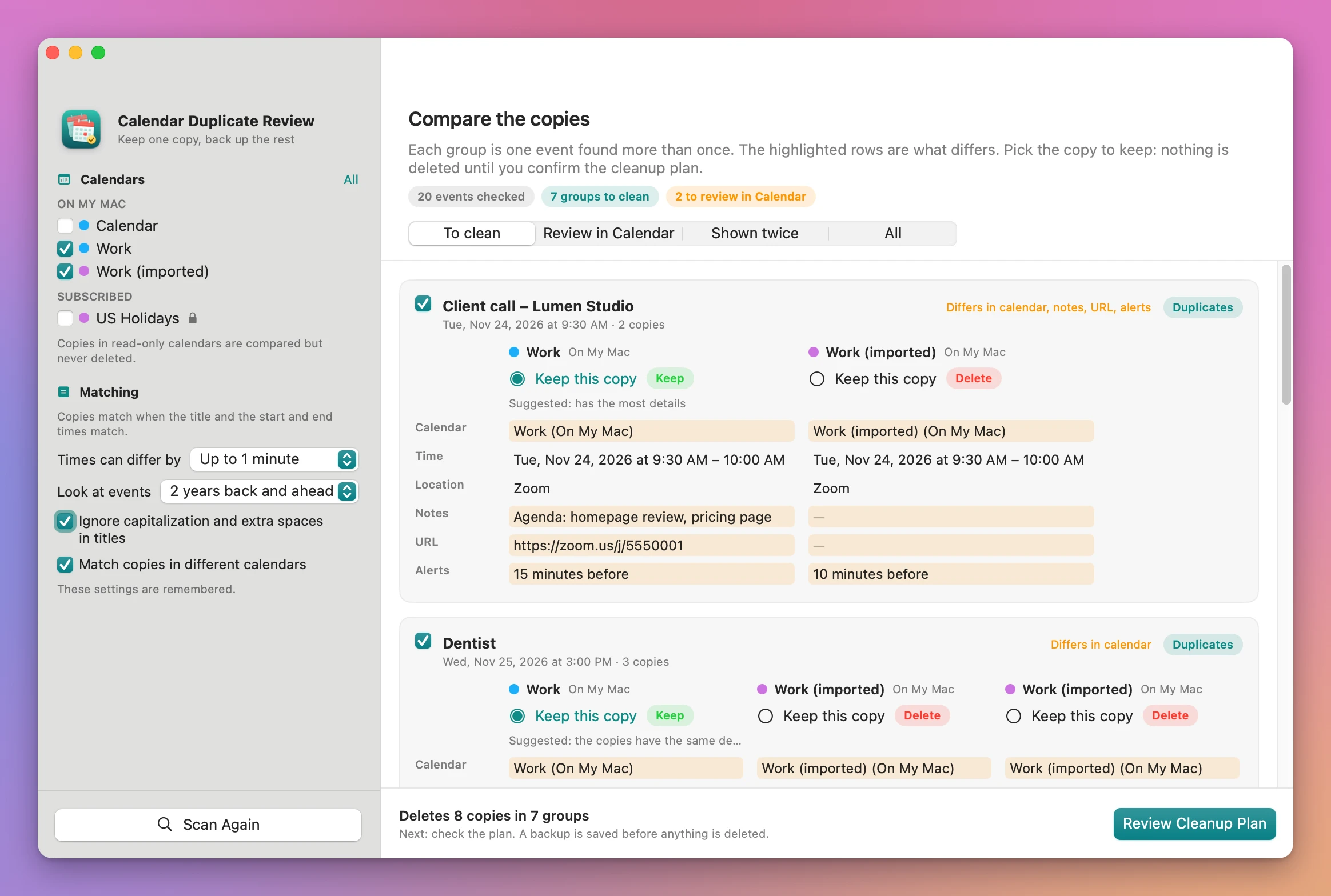
- Compare the copies. Each group shows its copies in columns: calendar, time, location, notes, URL, alerts, invitees and repeats, with the rows that differ highlighted. The app suggests a copy to keep, the one with the most details or else the oldest. Click Keep this copy on another one to change it, or untick a group to leave it out.
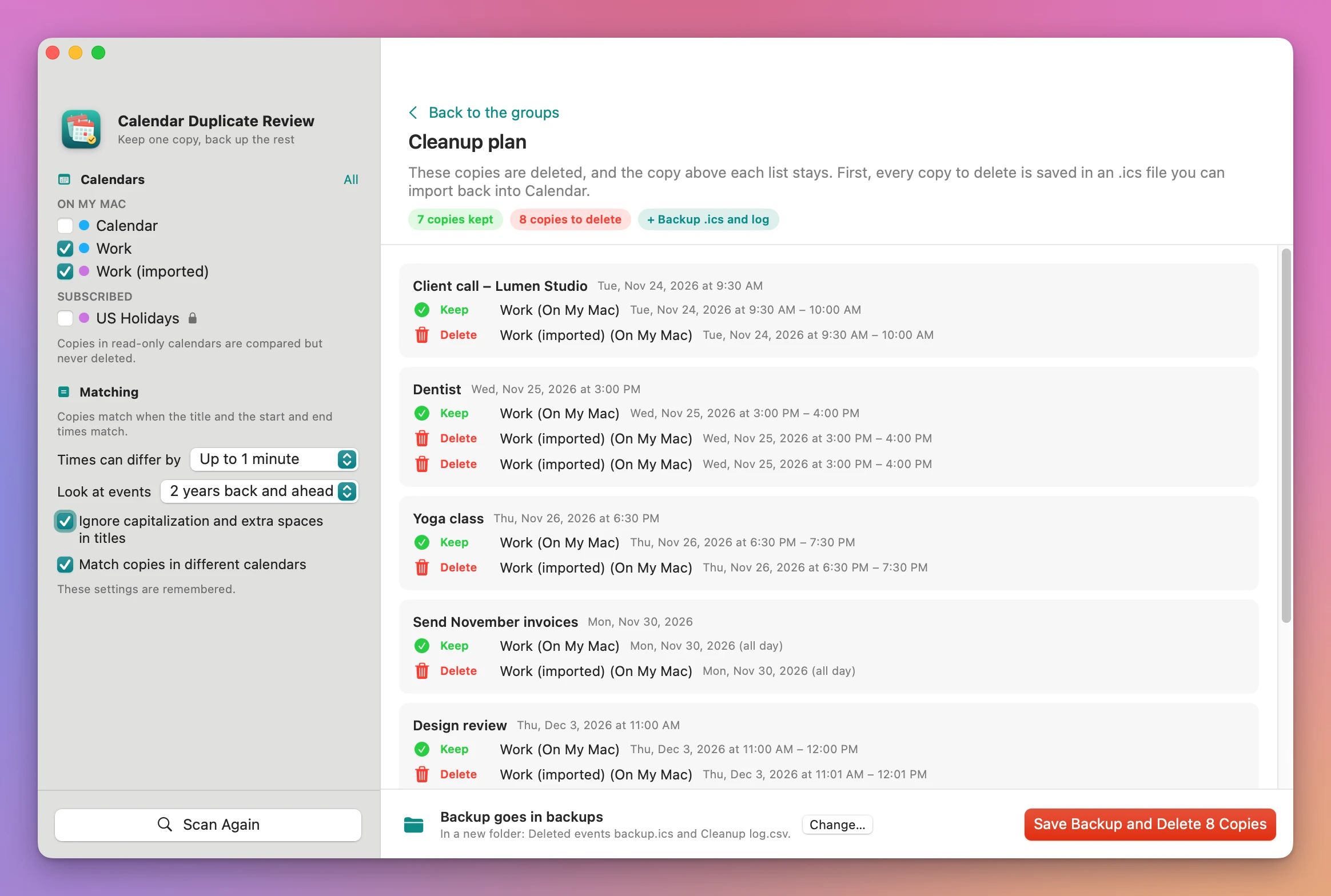
- Click Review Cleanup Plan. You see, for each group, the copy that stays and the copies that go.
- Choose Backup Folder…, then Save Backup and Delete and confirm. The app writes the backup first and deletes only after it has read the backup back and found every copy in it.
What you get
A backup of every copy it deletes
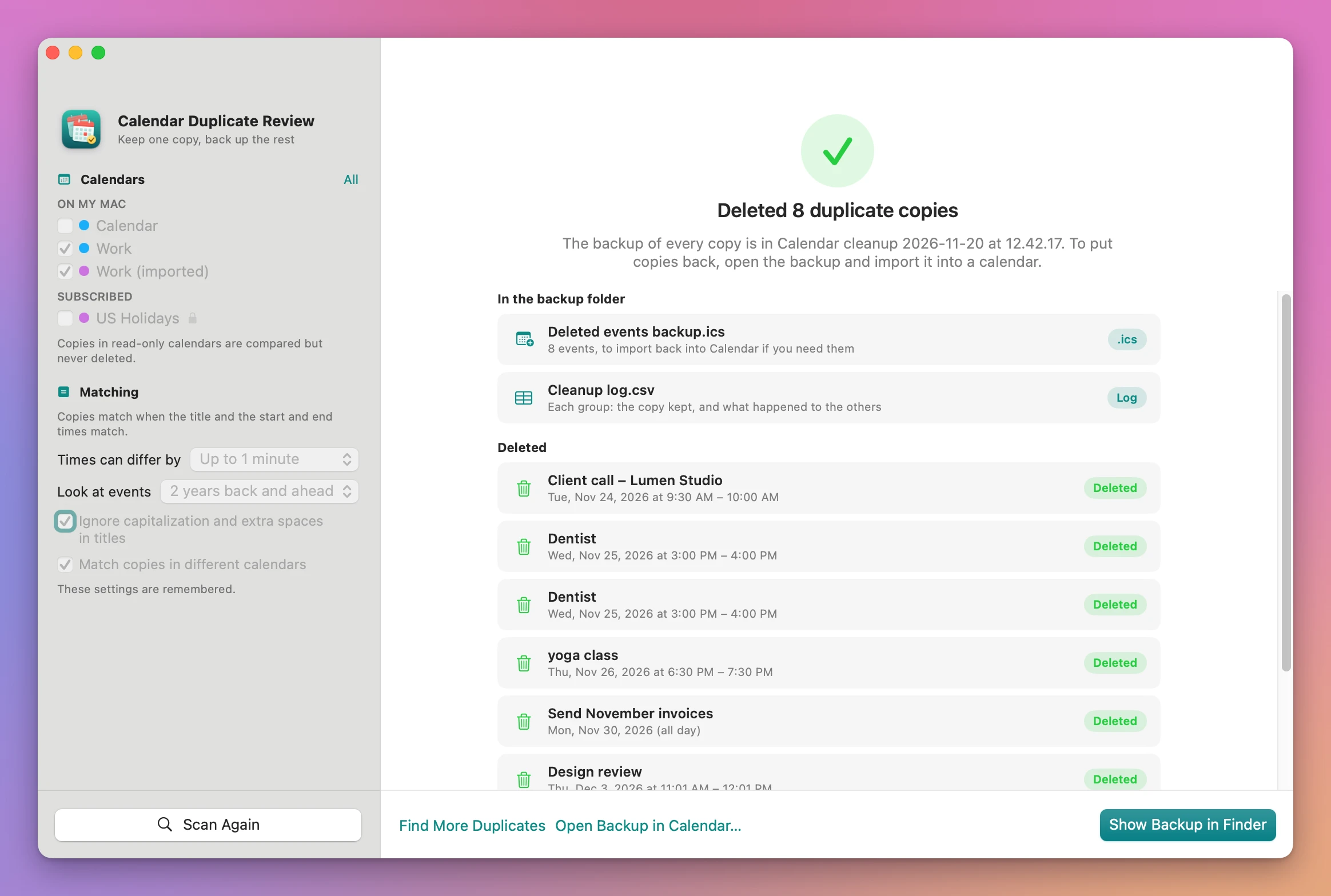
Each cleanup makes a new folder called Calendar cleanup followed by the date and time, with two files in it:
Deleted events backup.ics, every copy that was deleted, with its notes, URL, alerts and times.Cleanup log.csv, one row per copy: title, start, calendar, and whether it was kept or deleted.
To put copies back, click Open Backup in Calendar… on the done screen. Calendar asks which calendar to import them into. The backup gives each event a new ID, so importing it never replaces the copy you kept.
What it never deletes
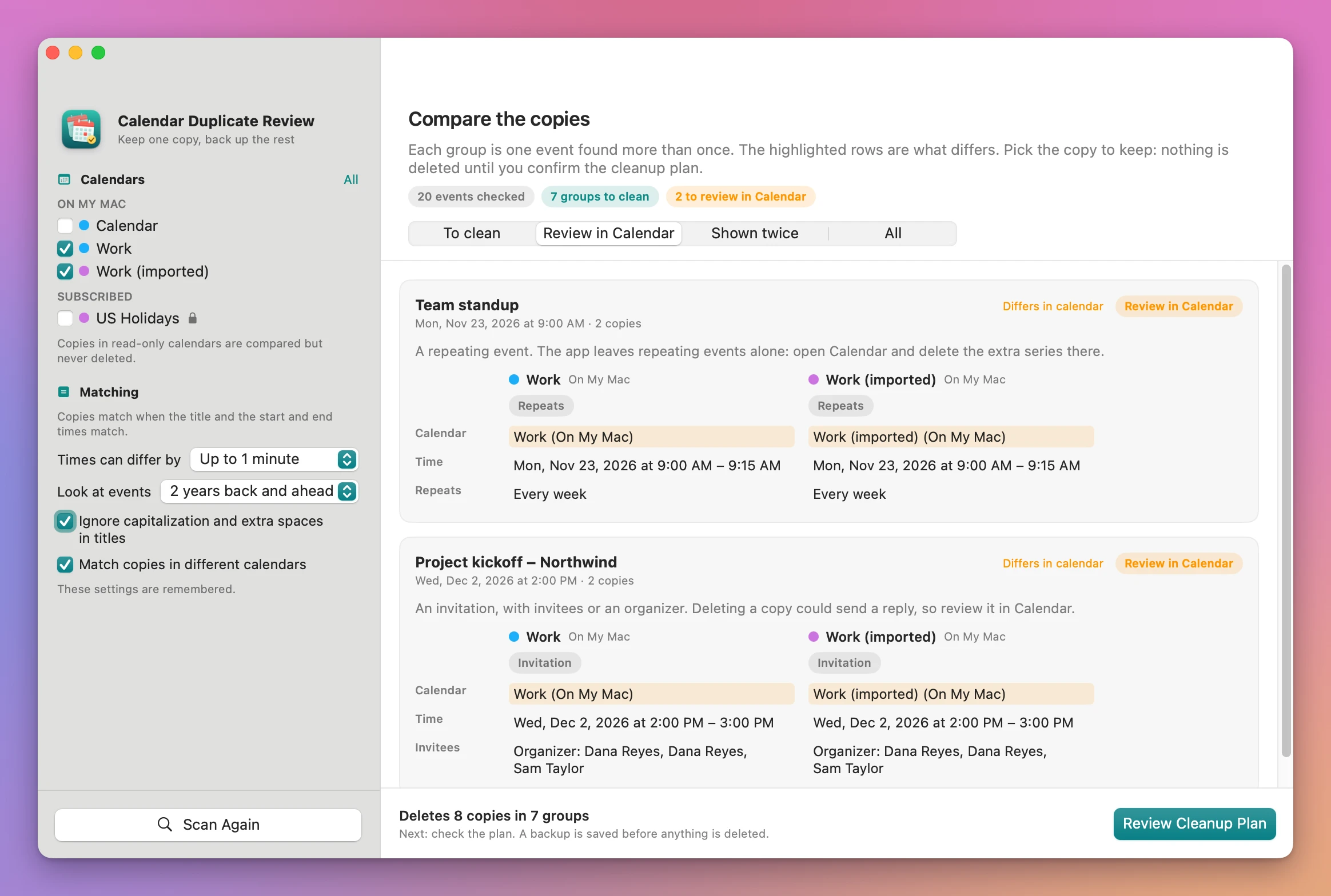
Some copies need a person to look at them in Calendar. The app shows them, explains why, and leaves them alone:
- Repeating events. “A repeating event. The app leaves repeating events alone: open Calendar and delete the extra series there.”
- Invitations, events with invitees or an organizer, because deleting one could send a reply.
- Copies in read-only calendars, like a subscribed holidays calendar.
- The same event shown through another account.
Groups with a repeating event or an invitation are listed under Review in Calendar, and nothing in them is deleted.
Checks right before deleting
Before it deletes a copy, the app reads the event again. If it’s gone, or its title, time or calendar changed since the scan, the app skips it and tells you. If the backup folder was moved or the backup can’t be written, nothing is deleted.
Why not do it by hand in Calendar
Calendar has no duplicate finder. You can search for a title and see the matching events listed, then open each one to see which has the notes, the link or the right alert, and delete the others one at a time. For five duplicates that’s fine, and you don’t need this app.
If the second import went into its own new calendar and you added nothing to it since, deleting that whole calendar in Calendar’s sidebar is quicker still. When the copies are mixed in with events you want to keep, that doesn’t work.
Calendar’s File › Export saves a whole calendar, not the copies you’re about to delete. Free scripts and shortcuts that delete events by title and time do it blindly: no comparison, no choice of the copy to keep, no care for repeating events or invitations, and no backup.
| By hand in Calendar | Calendar Duplicate Review | |
|---|---|---|
| Find the copies | Search each title, or scroll | Find Duplicates groups them |
| Copies a few minutes apart | You have to notice | Times can differ by up to 1 hour |
| Which copy has the notes | Open each one | Side by side, differences highlighted |
| Same calendar shown twice | Looks like duplicates | Told apart, never deleted |
| Repeating events and invitations | You decide each time | Listed to review, never deleted |
| Backup of what you delete | Export the whole calendar first | .ics of only the deleted copies, and a log |
| Undo | Retype the event | Open Backup in Calendar… |
What it doesn’t do
- It doesn’t delete repeating events or invitations. Those you clean up in Calendar, where you can see the whole series and who’s invited.
- It doesn’t restore by itself. The undo is importing the backup
.icsin Calendar, one click from the done screen. - It matches on title and time only. Two different events with the same title at the same time are grouped. Untick the group to keep both.
- It looks up to 20 years back and ahead. A repeating series counts once, at its first occurrence in that range.
- It doesn’t change events. It deletes copies and leaves the one you keep exactly as it was.
Questions
Which calendars does it work with?
It reads the calendars Calendar on your Mac shows. I tested the cleanup on calendars stored On My Mac. I haven’t tested deleting from iCloud, Google or Exchange calendars, or the “shown twice” detection with real iCloud and Google accounts. Before you delete, the confirmation says: “Deleted events sync to your other devices like any change in Calendar.”
Can I undo a cleanup?
Click Open Backup in Calendar… on the done screen. Later, you can import Deleted events backup.ics from the backup folder with Calendar’s File › Import…. Calendar asks which calendar to import the copies into. In my tests, importing the backup and scanning again found the same 20 events and 7 groups as before the cleanup.
How does it pick the copy to keep?
The copy with the most details (location, notes, URL, alerts) wins. If they’re equal, the oldest copy. A copy in a read-only calendar is kept anyway, since it can’t be deleted. You can always pick another with Keep this copy.
Does anything leave my Mac?
No. The app reads and changes your calendars through macOS, on your Mac. It uses the internet only to check for updates.
What it needs
Calendar Duplicate Review runs on macOS 14 Sonoma or later, on Apple silicon and Intel Macs. It needs full access to your calendars.
The Calendar Duplicate Review docs walk through each step.
Buy Calendar Duplicate Review
$19 plus tax where it applies, paid once.
Download the app from the order page or your Creem receipt, unzip it and move it to Applications. I sign the app with my Apple Developer ID, and Apple notarizes the download.
The app checks for updates once a day. When a new version is ready, click Install and Relaunch. To check anytime, choose Calendar Duplicate Review → Check for Updates….