
An app by Flavio
Alpha Channel Checker
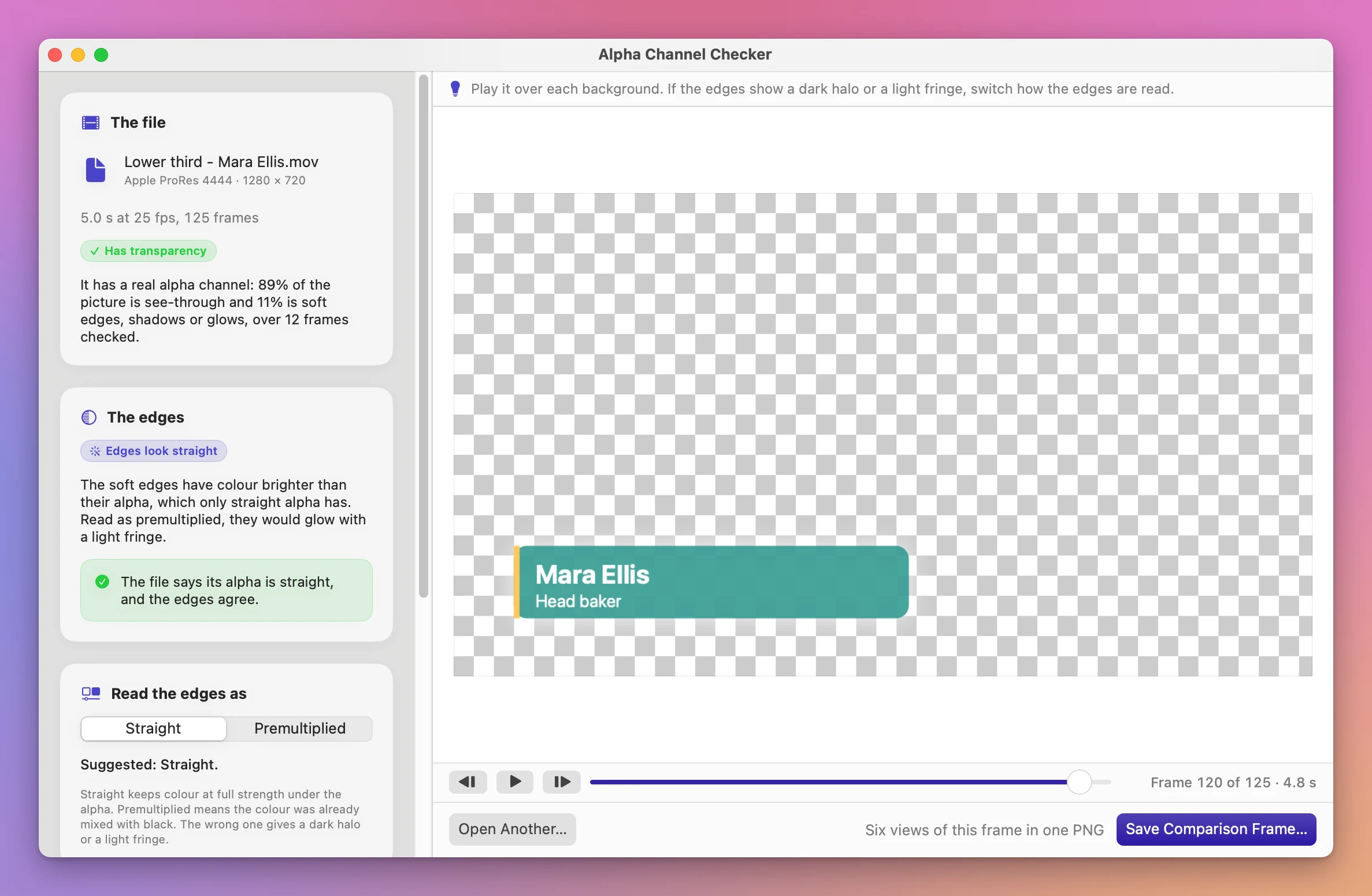
Open a lower third, logo or overlay and play it over a checkerboard, black, white, a colour or your own background. Find out if it really has an alpha channel, see the alpha on its own, switch between straight and premultiplied to catch dark halos, and save a comparison frame to send. The file is never changed.
Buy Alpha Channel Checker · $19One-time purchase. Plus tax where it applies.
macOS 14 or later · Apple silicon and Intel
Latest version 1.0.2, released November 22, 2026
You animated a lower third for a client, exported it as ProRes 4444 and double-clicked it to check. QuickTime Player shows it over black. So does the Finder’s preview. Is the transparency there, or did the export settings drop it? You can’t tell from either window.
The usual way to find out is to import it into an editing app, put it on a timeline over something bright and zoom in on the edges. That takes a few minutes per file, and it still doesn’t tell you the thing editors complain about most: the dark outline around soft edges, which comes from straight and premultiplied alpha getting mixed up.
Alpha Channel Checker opens the file and answers both questions. It says whether there’s a real alpha channel, which codec the file uses, and whether its soft edges are stored straight or premultiplied. Then it plays the file over a checkerboard, black, white, a colour or your own background, so you see what the editor will see.
Watch a 30-second demo of Alpha Channel Checker:
Who it’s for
- Motion designers. You hand a lower third or a logo sting to an editor, and you want to know the ProRes 4444 kept its alpha and its glow before the email goes out, not after the editor writes back about a black box.
- Video editors. An overlay from a client shows a dark outline in your timeline. You need to know whether the file is wrong or the clip setting is, so you know who fixes it.
- YouTubers and streamers. You bought or made animated overlays, subscribe buttons and stingers. QuickTime Player shows them on black, and you’d like to see them on something closer to your video.
- Assistant editors. A batch of graphics came in from an agency, and the spec says ProRes 4444 with straight alpha. You open each one, check, and attach a comparison frame to the reply.
- Small teams. The designer exports from one app and the editor works in another, and straight and premultiplied keep getting mixed up between the two.
How it works
- Click Choose a Video or Image…, or drag a video, an image or a folder of frames onto the window.
- Read the answer on the left: Has transparency, No alpha channel, Alpha is all solid or Everything is see-through, with a sentence that says what to do.
- Pick a Background: Checkerboard, Black, White, Colour or Image.
- Press Space to play. The arrow keys step one frame.
- Under Read the edges as, switch between Straight and Premultiplied and watch the edges.
- Click Save Comparison Frame… to save one PNG with six views of the frame.
What you get
Whether the alpha is really there
ProRes 4444 can be exported with or without an alpha channel, and the codec name is the same either way. The app reads the file’s header and then counts the pixels of 12 frames spread over its length: how much is see-through, how much is soft edges, shadows or glows, and how much is solid.
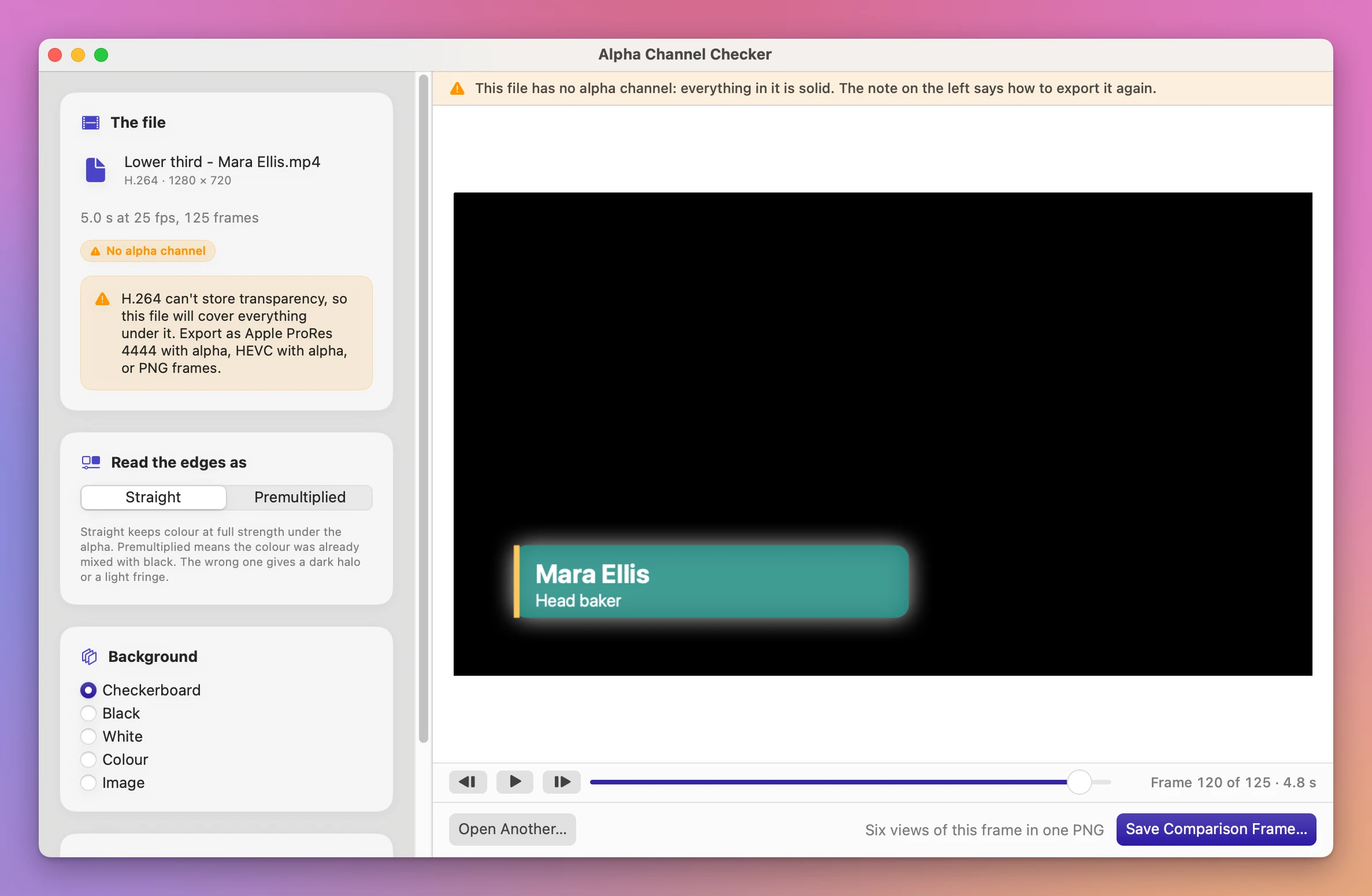
When there’s no alpha, it says why in your terms. An H.264 file gets “H.264 can’t store transparency”, a ProRes 4444 without alpha gets told to export again with the alpha channel turned on. A file with an alpha channel that’s solid everywhere, because the background layer was left on, is caught too.
Straight or premultiplied, and which one the file says
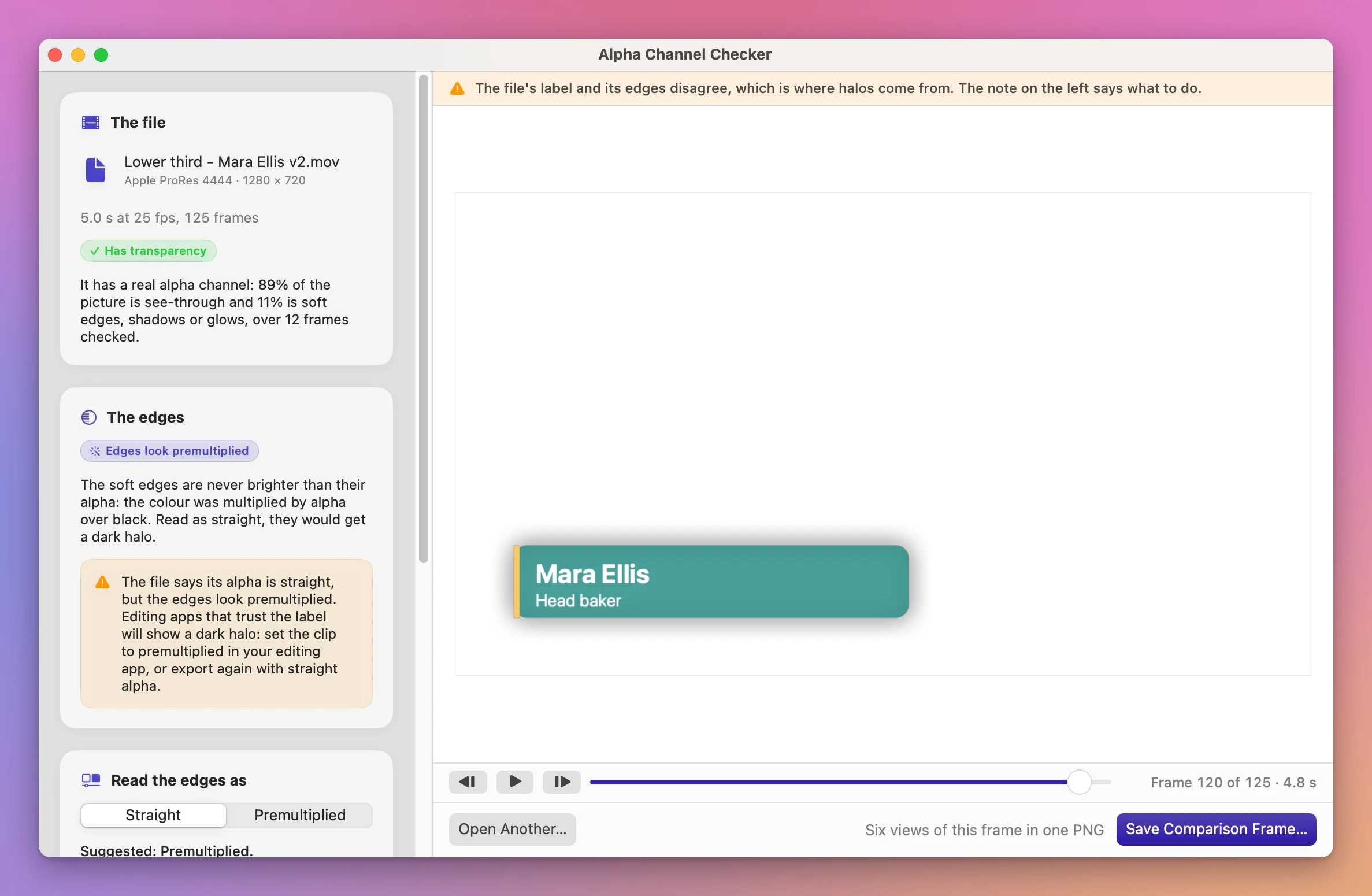
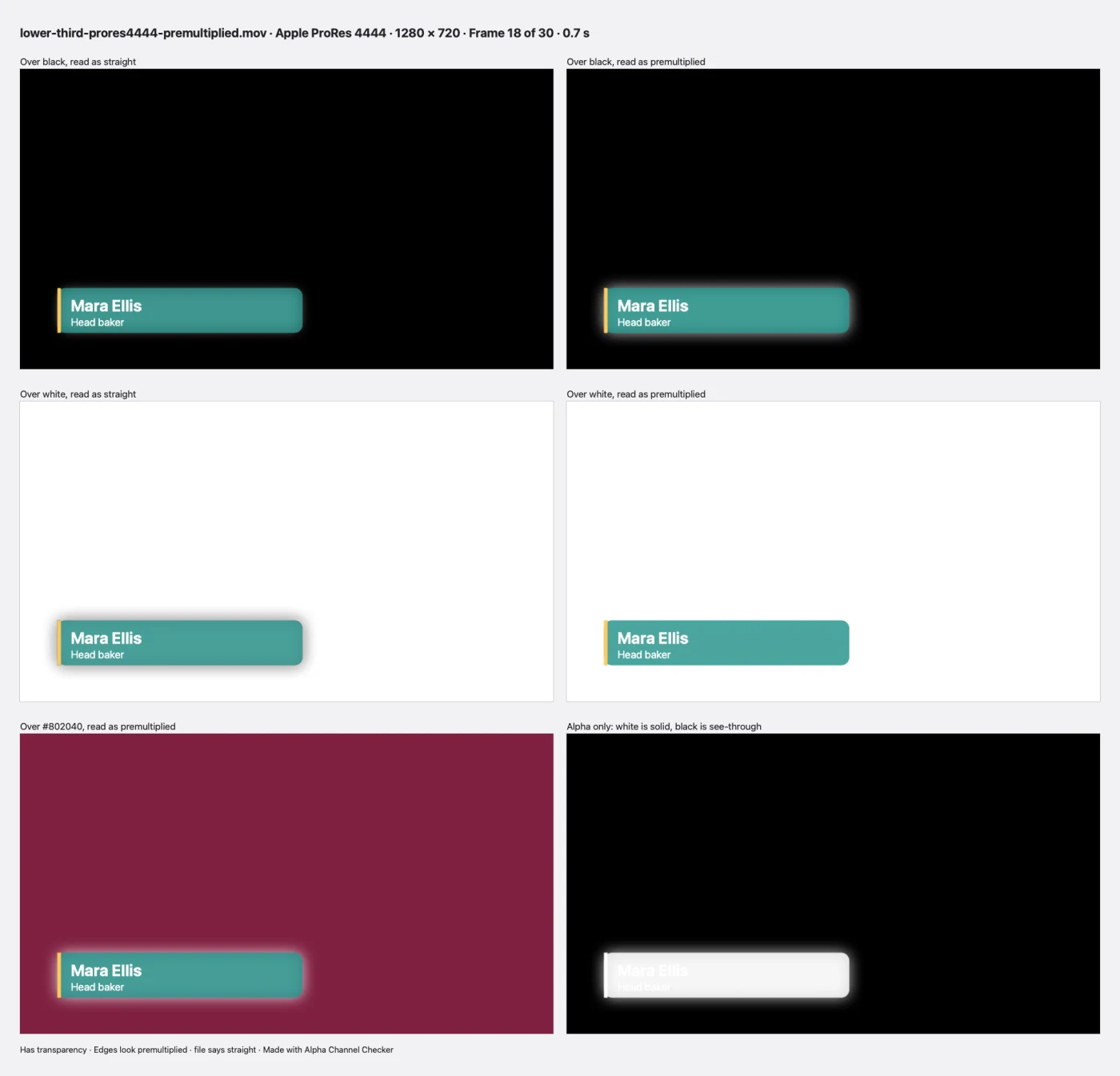
Straight alpha keeps the colour at full strength and lets the alpha say how much shows. Premultiplied alpha stores the colour already mixed with black. Read one as the other and soft edges get a dark halo or a light fringe.
The app looks at the soft pixels. Colour brighter than its alpha only happens in straight files, so that’s what it checks. It also reads the file’s own label: QuickTime files can say straight or premultiplied, and PNG is always read as straight. When the label and the edges disagree, an orange note says so and what to do about it.
Five backgrounds and the alpha on its own
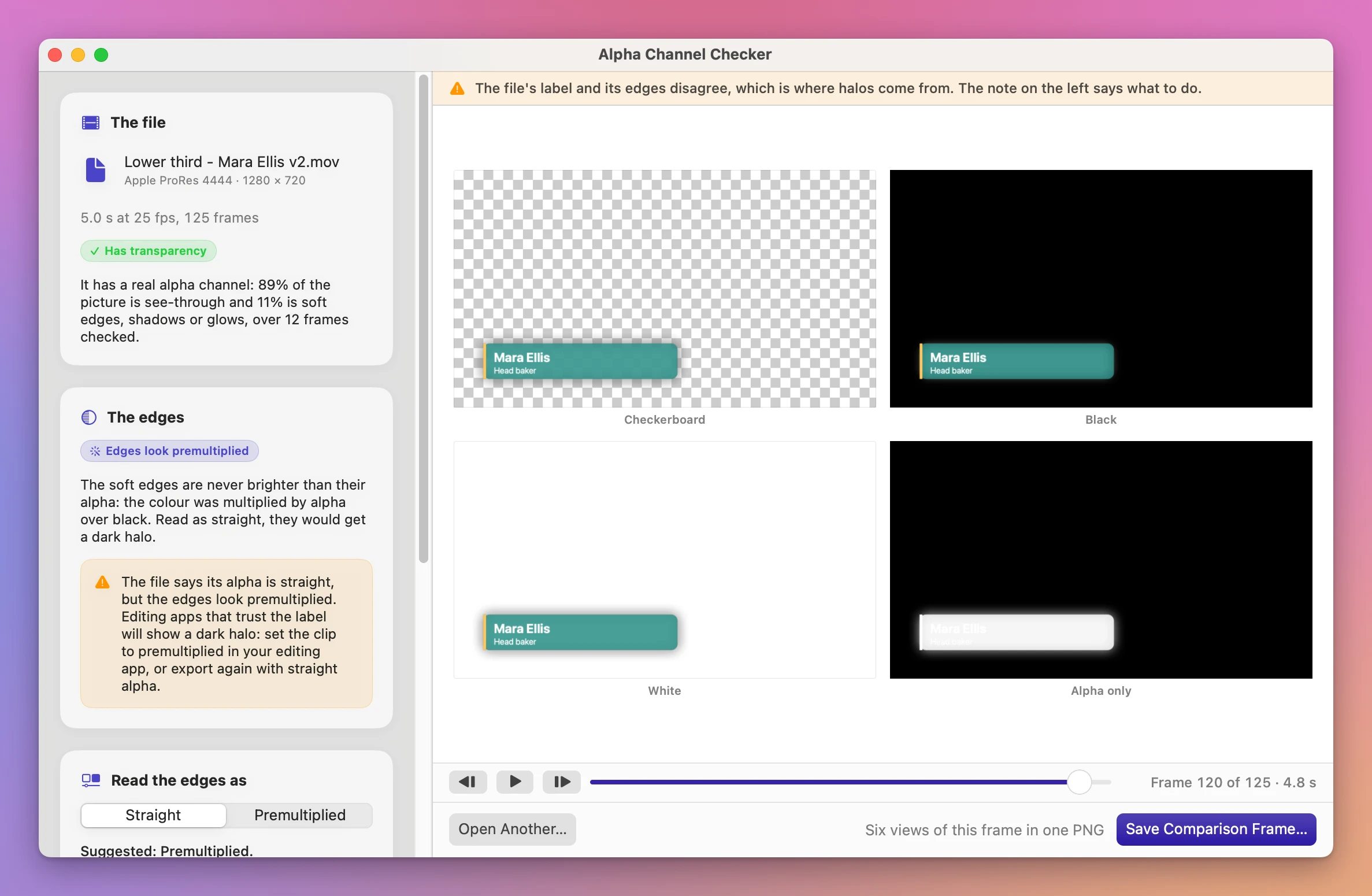
Checkerboard, black, white, any colour (pick it, or type it like #1E2A3A), or an image. Choose a video as the background and the app takes its middle frame, so you can check a lower third over the shot it goes on. Alpha only shows the channel as grey, white where it’s solid. Four at once puts the checkerboard, black, white and the alpha side by side.
A comparison frame to send
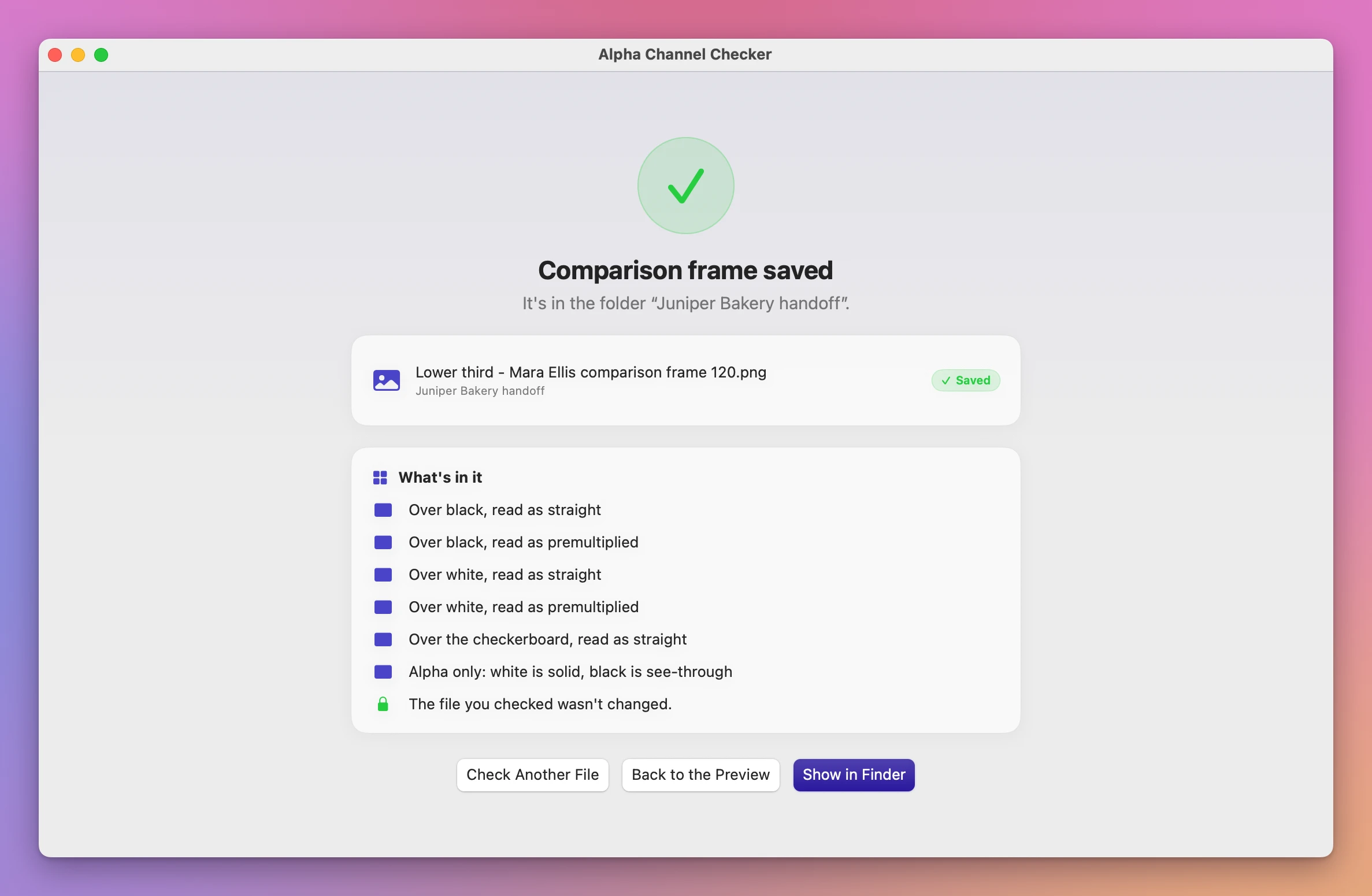
Save Comparison Frame… writes one PNG with six views of the frame: over black read as straight and as premultiplied, the same over white, over your background, and the alpha. A line at the top names the file, the format and the frame, and a line at the bottom says what the check found. Attach it to the handoff.
Why not do it by hand
macOS gives you part of this for free. The Finder’s Get Info names the codec, so you can see “Apple ProRes 4444”. QuickTime Player plays the file. Any editing app shows transparency over a checkerboard once it’s on a timeline, and most have a clip setting for straight or premultiplied.
What’s slow is everything around that. The codec name is the same whether the alpha was exported or not, and QuickTime Player shows the file over black either way. The editing app needs an import, a timeline and a background clip before you see anything, and it never tells you which alpha setting is right: you flip it and squint at the edges. Free web testers answer “has alpha or not” for one file, without the halo question.
| By hand | Alpha Channel Checker | |
|---|---|---|
| Is the alpha there? | Get Info names the codec, not the alpha | Has transparency or No alpha channel, with why |
| See the transparency | Import into an editing app, add a timeline | Open the file, pick a background |
| Straight or premultiplied | Flip the clip setting and compare by eye | Read from the edges, compared with the file’s label |
| Dark halos | Zoom in on the edges over white | Both readings over black and white, side by side |
| The alpha alone | A matte view in some editing apps | Alpha only, one click |
| Something to send | A screenshot you crop yourself | One PNG with six views and what was found |
What it doesn’t do
- It doesn’t fix the file. No re-export, no conversion. It tells you which setting to change and in which app.
- It doesn’t open WebM, MKV, AVI or MXF. macOS can’t play them. It says so, and suggests ProRes 4444 or PNG frames.
- HEVC with alpha needs a Mac that can decode it. It was checked on a Mac with Apple silicon. When a Mac can’t decode a file, the app says the frames couldn’t be read.
- It reads premultiplied as “over black”. Files premultiplied over white or another colour, which are rare, will look wrong in the premultiplied reading.
- It looks at 12 frames for the check. You can play and step through every frame, but the numbers on the left come from 12 spread over the file.
- It doesn’t manage colour. The frame is shown as stored, so a wide-gamut or log file looks flatter than in your grading app. The alpha is what it checks.
Questions
Does it change my files?
The app only reads the file you open. The comparison frame is a new PNG saved where you choose, and the app refuses to save it over the file you’re checking.
Does anything get uploaded?
Nothing. Everything happens on your Mac. The app connects to the internet only to check for updates.
Which files does it open?
MOV, MP4 and M4V videos your Mac can play, including Apple ProRes 4444 and 4444 XQ and HEVC with alpha. Older exports in the Animation or PNG codec won’t open, because macOS no longer plays them: export those again as ProRes 4444 or PNG frames. PNG, TIFF, TGA, PSD, EXR, WebP and GIF images, animated PNGs, and folders of PNG, TIFF, TGA or EXR frames, which play at 24 frames a second.
Is it made by Apple or Adobe?
No. Alpha Channel Checker isn’t made by, affiliated with or endorsed by Apple, Adobe or Blackmagic Design. Their product names only describe the files it opens.
What it needs
macOS 14 Sonoma or later, on Apple silicon and Intel Macs. The app asks macOS for no permission.
Buy Alpha Channel Checker
$19 plus tax where it applies, paid once.
Download the app from the order page or your Creem receipt, unzip it and move it to Applications. I sign the app with my Apple Developer ID, and Apple notarizes the download.
The app checks for updates once a day. When a new version is ready, click Install and Relaunch. To check anytime, choose Alpha Channel Checker → Check for Updates….