# Setting up authentication using Laravel Breeze
> Learn how to add authentication to a Laravel app with Breeze, scaffolding registration, login, and a dashboard with php artisan breeze:install.
Author: [Flavio Copes](https://flaviocopes.com/about/) | Published: 2023-06-19 | Topics: [Laravel](https://flaviocopes.com/tags/laravel/) | Canonical: https://flaviocopes.com/setting-up-authentication-using-laravel-breeze/
We don’t want random people to come to the website and edit data.
We want people to log in first.
If logged out they will see the list of dogs.
If logged in they will have the ability to edit the list.
Laravel provides us built-in authentication support in the framework.
To make things even easier, it provides [Breeze](https://github.com/laravel/breeze), an application starter kit tool that will create what we need in no time. Breeze scaffolds user registration, login, password reset, profile page, dashboard… and even API authentication. It’s great. For more advanced needs we also have [JetStream](https://jetstream.laravel.com/), but Breeze is easier to set up.
First, create a new Laravel project, so we start from a clean slate.
The first one was named `first`, so to continue the tradition we’ll call this second project `second`:
```shell
composer create-project laravel/laravel second
```
Go into that folder:
```shell
cd second
```
Install breeze using [composer](https://flaviocopes.com/php-composer-packagist/):
```shell
composer require laravel/breeze --dev
```
Now run
```shell
php artisan breeze:install
```
and pick option 0, “blade”, and pick the default options for the other questions artisan asks you:

Now you can run `php artisan serve` and go to [http://127.0.0.1:8000/](http://127.0.0.1:8000/).
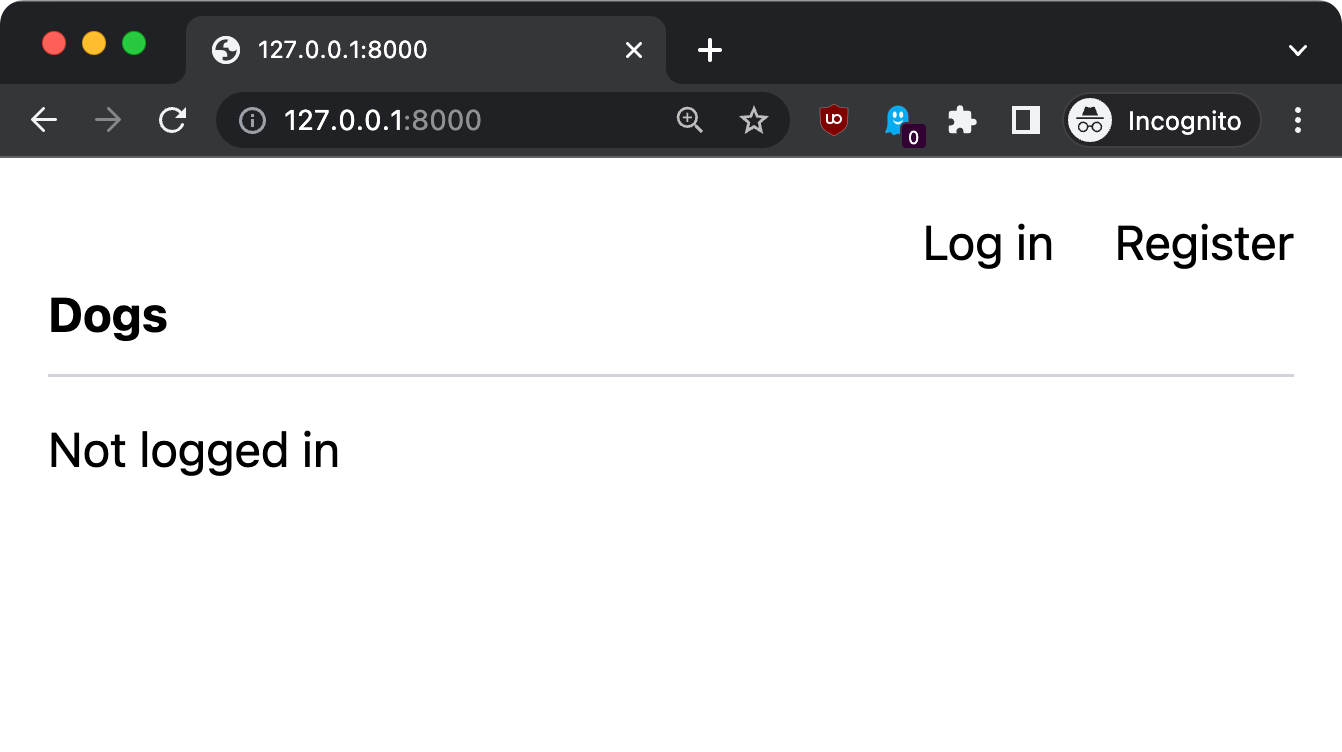
You’ll see the “Log in” and “Register” links:
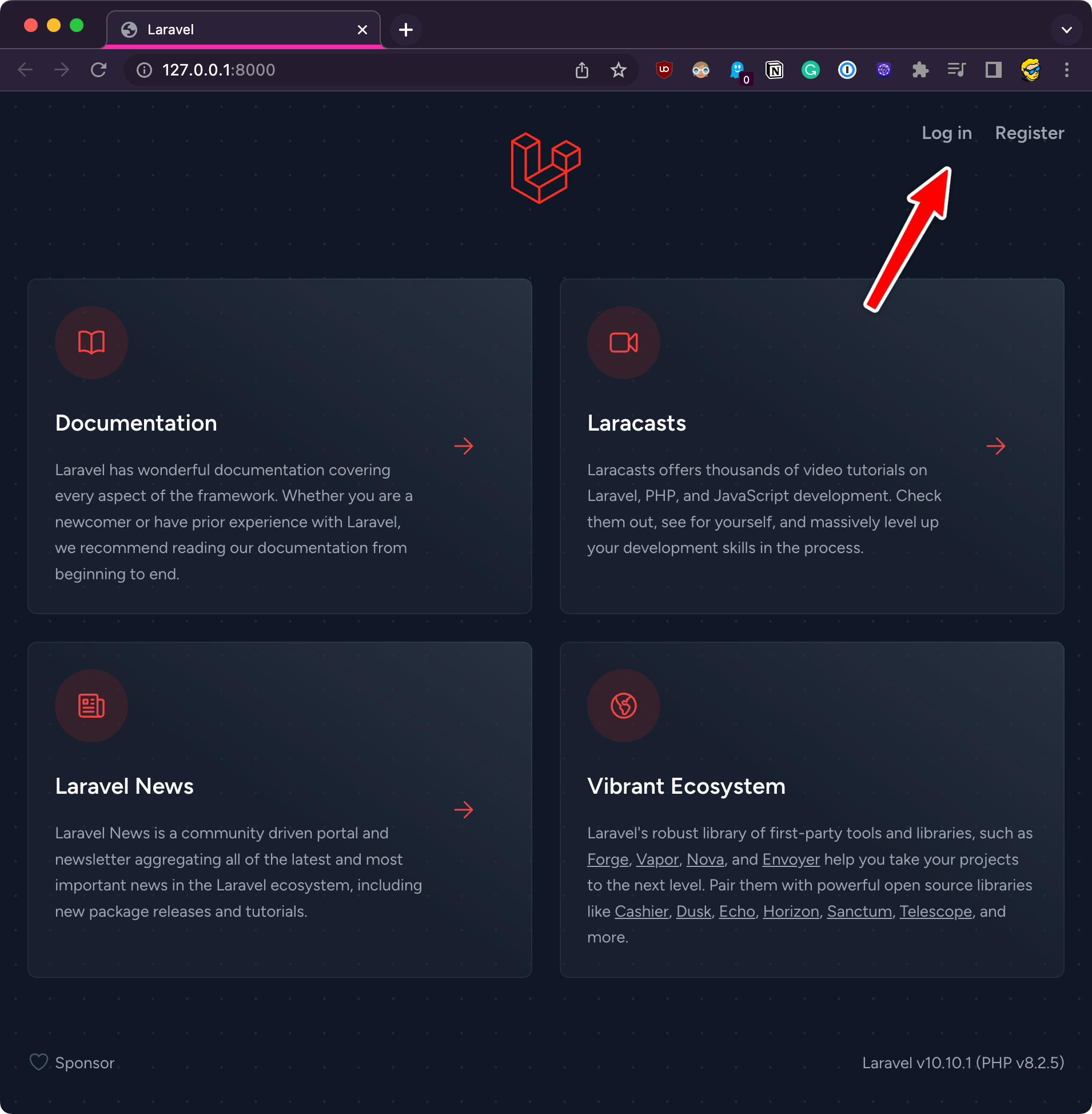
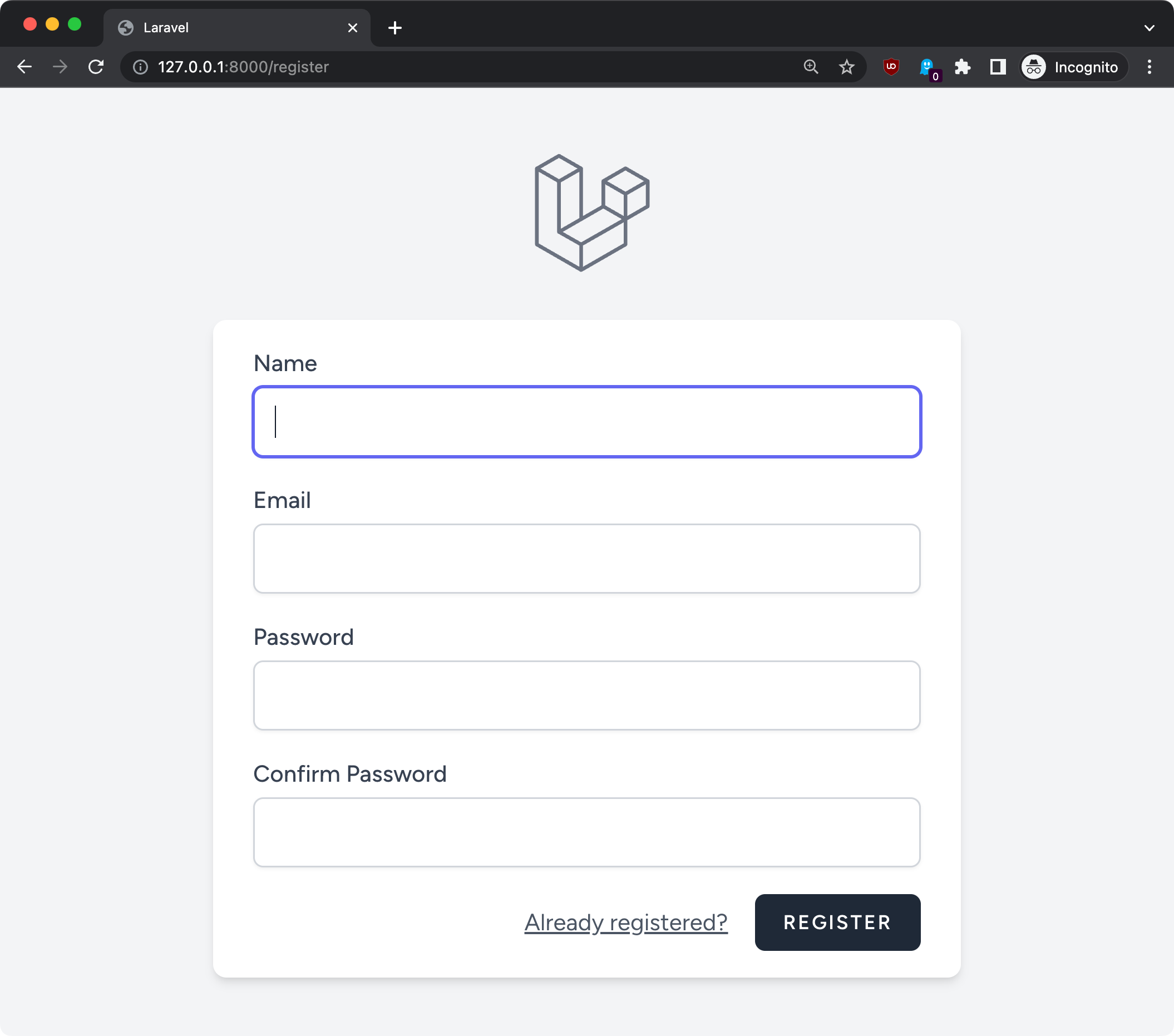
All the login functionality is working out of the box:
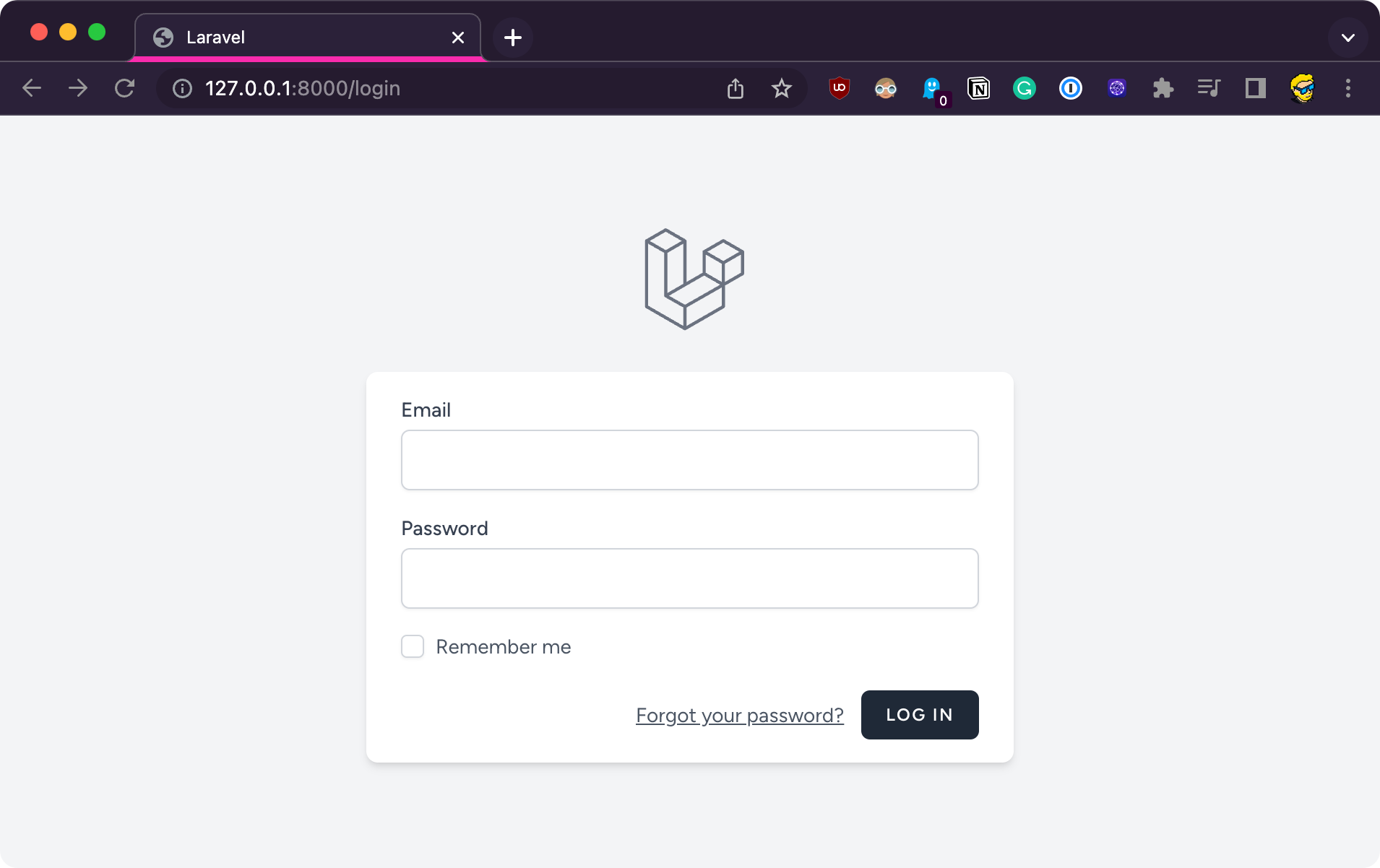

Laravel added a _ton_ of resources to achieve this.
Easily days of work for a developer, and it’s battle-tested code which you don’t want to write yourself, as it’s a quite important and needs to be well tested for security issues.
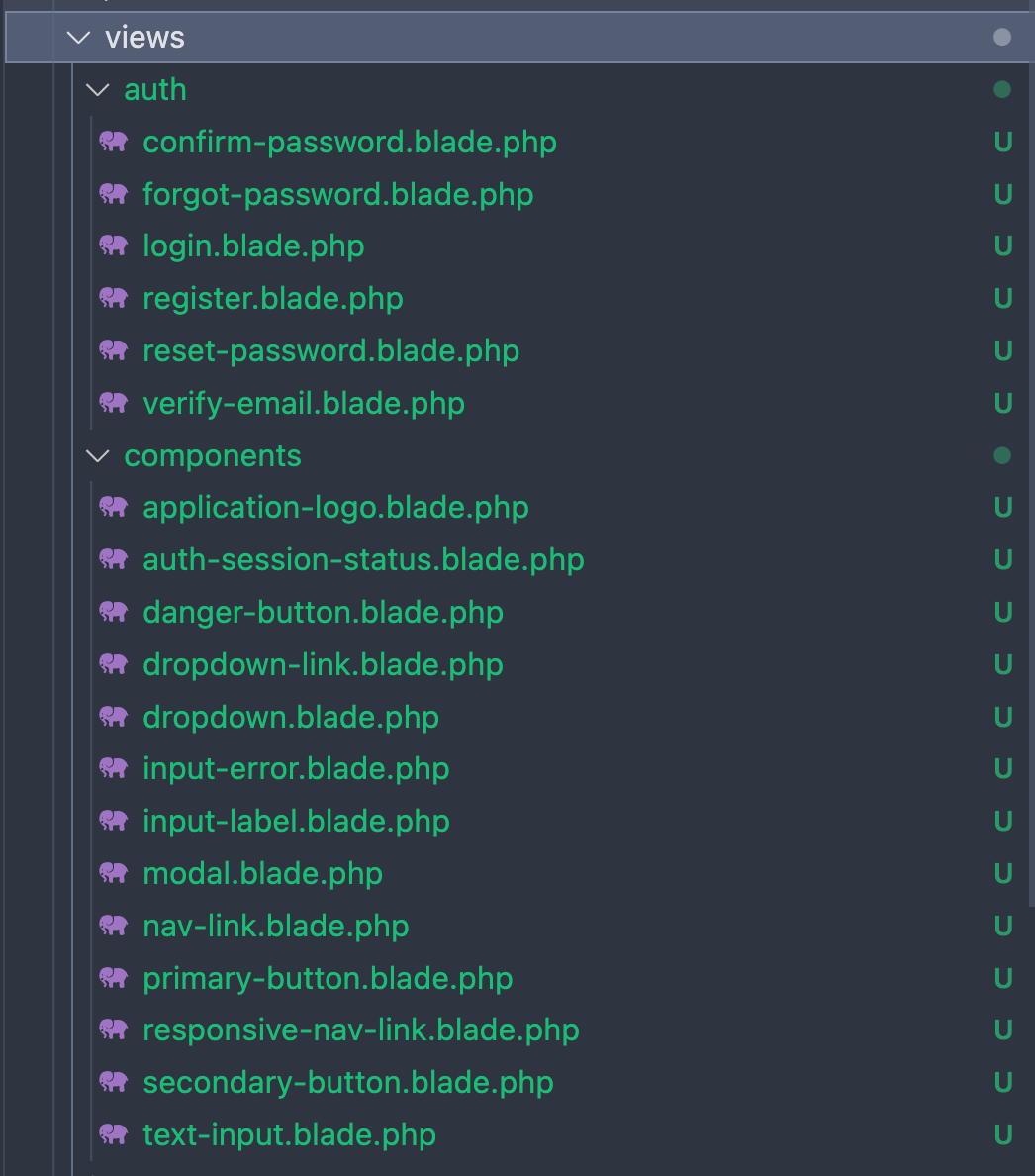
I recommend you take a look at the file structure and compare it to the first project. Lots of new stuff has been added, for example views:
But before we can go on, we have to set up the database for this project, doing what we did in the first one. We go to the `.env` file and comment those lines:
```shell
# DB_CONNECTION=mysql
# DB_HOST=127.0.0.1
# DB_PORT=3306
# DB_DATABASE=laravel
# DB_USERNAME=root
# DB_PASSWORD=
```
and add
```shell
DB_CONNECTION=sqlite
```
to configure the SQLite database.
Now run
```shell
php artisan migrate
```

In another terminal folder, run `npm install` followed by `npm run dev`, which is a long running process you’ll keep running alongside `php artisan serve` (⚠️ just make sure you’re running those in the `second` folder and not the `first` project, I just spent 15 minutes trying to figure out why I had a problem).
The Blade templates provided by Breeze use Tailwind CSS, and the setup of Tailwind was done automatically when we ran `php artisan breeze:install`
As you can see we already have a `tailwind.config.js` file.
Now you can open `resources/views/welcome.blade.php` and look at all that content. For the sake of simplicity, swap everything in that file with this trimmed-down version:
```shell
@vite('resources/css/app.css')
@if (Route::has('login'))
```
`@auth` / `@endauth` and `@guest` / `@endguest` are two Blade directives that allow you to show content (or not) depending on the logged in state.
This should be the result in the browser:
Click the Register link to create a new account:
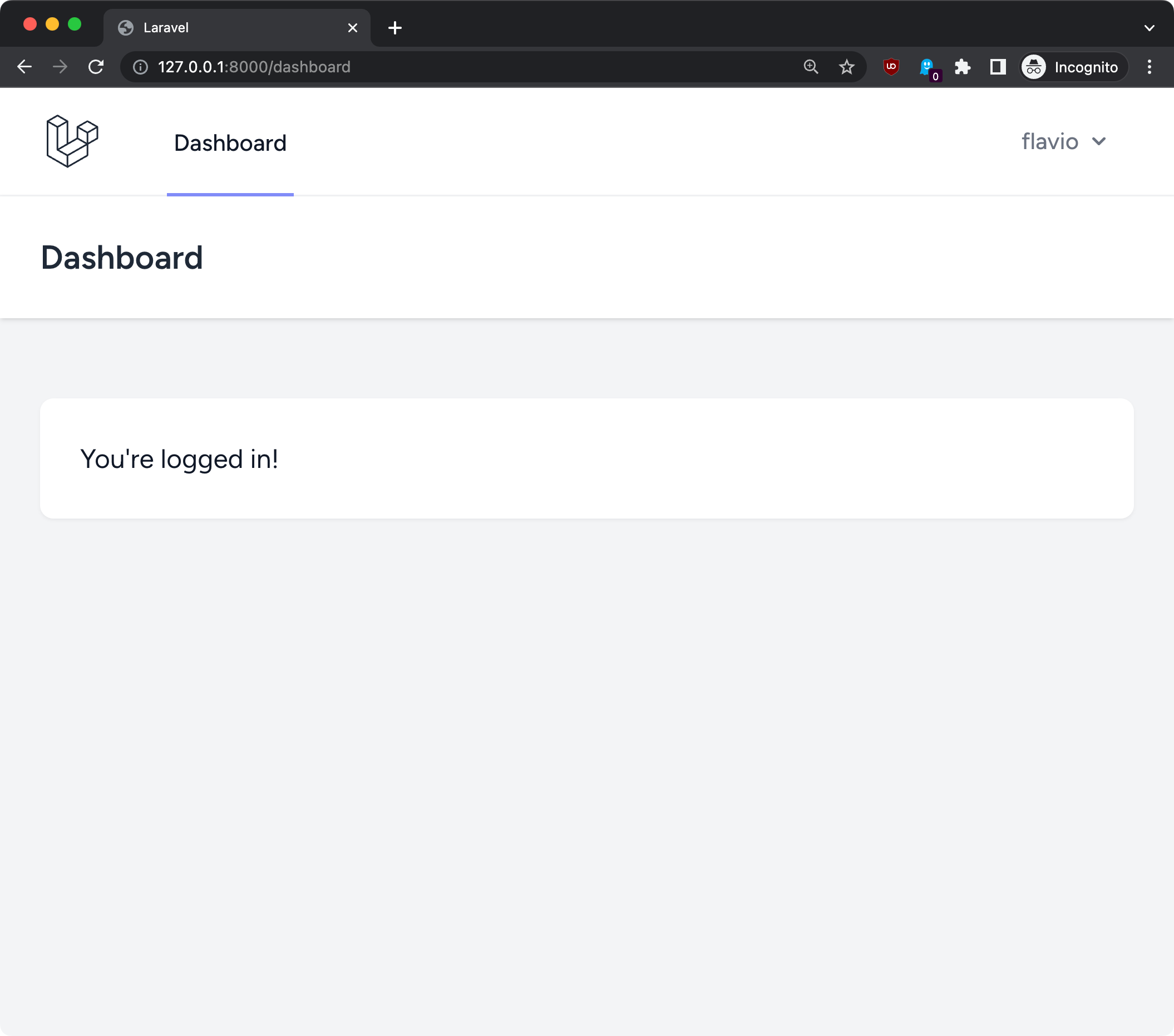
Create an account and you will be shown a dashboard page at the `/dashboard` route:
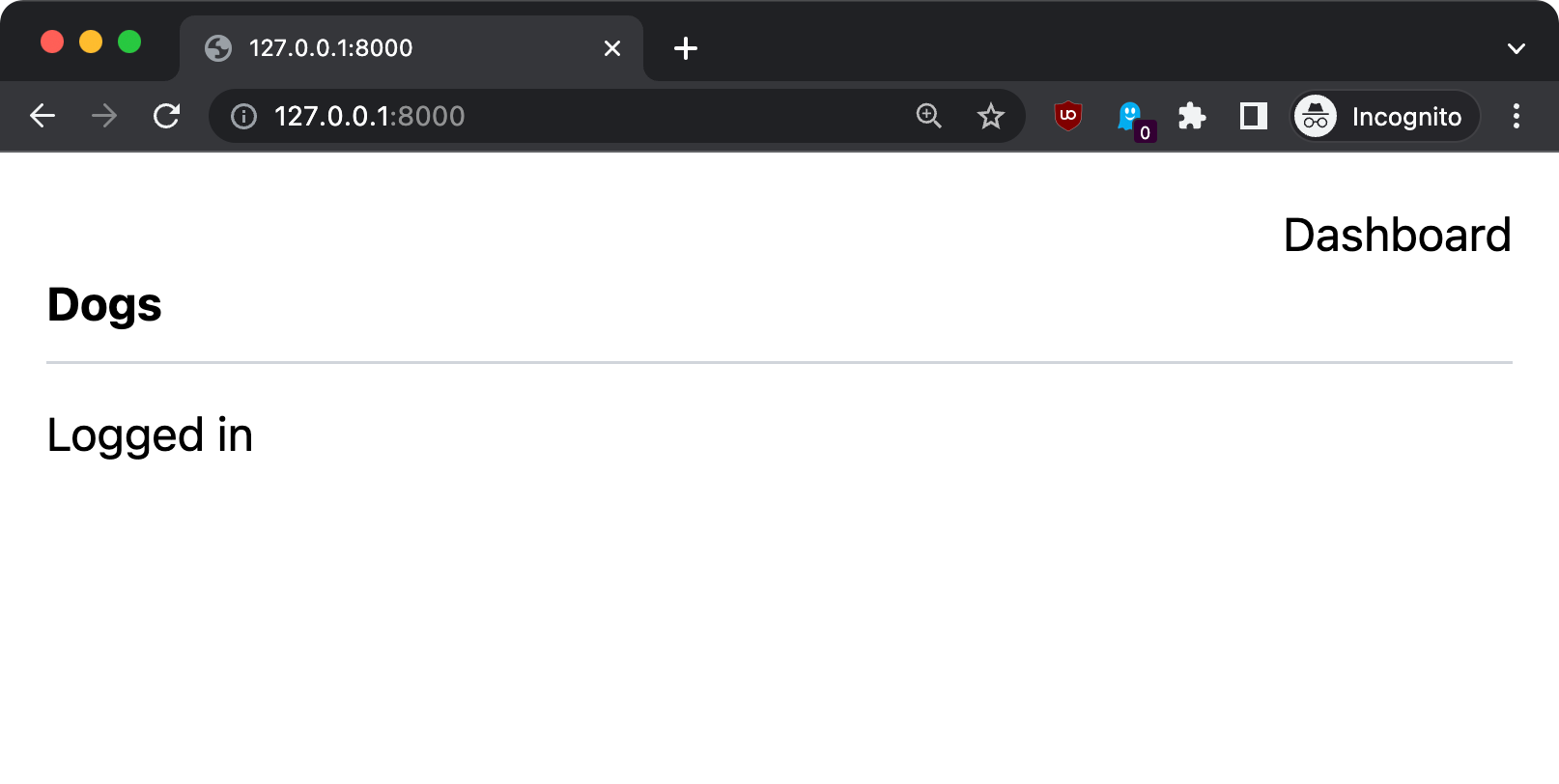
If you go back to the home, you will see the page in the logged in state: