# How to use getUserMedia()
> Learn how to use navigator.mediaDevices.getUserMedia() to access the user's camera and microphone, passing a constraints object for video and audio input.
Author: [Flavio Copes](https://flaviocopes.com/about/) | Published: 2019-08-04 | Topics: [Web Platform](https://flaviocopes.com/tags/platform/) | Canonical: https://flaviocopes.com/getusermedia/
The `MediaDevices` object exposed by `navigator.mediaDevices` gives us the `getUserMedia` method.
> Warning: the `navigator` object exposes a `getUserMedia()` method as well, which might still work but is **deprecated**. The API has been moved inside the `mediaDevices` object for consistency purposes.
This is how we can use this method.
Say we have a button:
```html
```
We wait until the user clicks this button, and we call the `navigator.mediaDevices.getUserMedia()` method.
We pass an object that describes the media constraints we want. If we want a video input we'll call
```js
navigator.mediaDevices.getUserMedia({
video: true,
})
```
We can be very specific with those constraints:
```js
navigator.mediaDevices.getUserMedia({
video: {
minAspectRatio: 1.333,
minFrameRate: 60,
width: 640,
heigth: 480,
},
})
```
You can get a list of all the constraints supported by the device by calling `navigator.mediaDevices.getSupportedConstraints()`.
If we just want the audio we can pass `audio: true`:
```js
navigator.mediaDevices.getUserMedia({
audio: true,
})
```
and if we want both:
```js
navigator.mediaDevices.getUserMedia({
video: true,
audio: true,
})
```
This method returns a promise, so we'll use async/await to get the result in a `stream` variable:
```js
document.querySelector('button').addEventListener('click', async (e) => {
const stream = await navigator.mediaDevices.getUserMedia({
video: true,
})
})
```
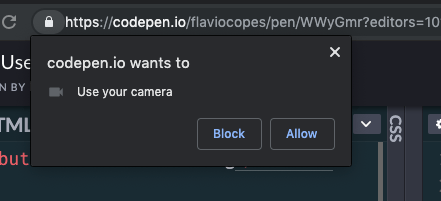
Clicking the button will trigger a panel in the browser to allow for the permission to use the media devices:
See on Codepen: [https://codepen.io/flaviocopes/pen/WWyGmr](https://codepen.io/flaviocopes/pen/WWyGmr)
Once we are done, the `stream` object we got from `getUserMedia()` can now be used for various things. The most immediate is to display the video stream in a `video` element in the page:
```html
```
```js
document.querySelector('button').addEventListener('click', async (e) => {
const stream = await navigator.mediaDevices.getUserMedia({
video: true,
})
document.querySelector('video').srcObject = stream
})
```
See on Codepen: [https://codepen.io/flaviocopes/pen/wZXzbB](https://codepen.io/flaviocopes/pen/wZXzbB)
## An example
Here is a Codepen example that asks you to access the video camera and plays the video in the page:
We add a button to get access to the camera, then we add a `video` element, with the `autoplay` attribute.
```html
```
The JS listens for a click on the button, then calls `navigator.mediaDevices.getUserMedia()` asking for the video. Then we access the name of the camera used by calling `stream.getVideoTracks()` on the result of the call to `getUserMedia()`.
The stream is set to be the source object for the `video` tag, so that playback can happen:
```js
document
.querySelector('#get-access')
.addEventListener('click', async function init(e) {
try {
const stream = await navigator.mediaDevices.getUserMedia({
video: true,
})
document.querySelector('video').srcObject = stream
document.querySelector('#get-access').setAttribute('hidden', true)
setTimeout(() => {
track.stop()
}, 3 * 1000)
} catch (error) {
alert(`${error.name}`)
console.error(error)
}
})
```
The arguments of getUserMedia() can specify additional requirements for the video stream:
```js
navigator.mediaDevices.getUserMedia(
{
video: {
mandatory: { minAspectRatio: 1.333, maxAspectRatio: 1.334 },
optional: [{ minFrameRate: 60 }, { maxWidth: 640 }, { maxHeigth: 480 }],
},
},
successCallback,
errorCallback,
)
```
To get an audio stream you would ask for the audio media object too, and call `stream.getAudioTracks()` instead of `stream.getVideoTracks()`.
After 3 seconds of playback we stop the video streaming by calling `track.stop()`.