How to check a video export for black frames, silent audio and the wrong size on a Mac
By Flavio
Before you upload a video, check that it doesn't open on black, that its sound can be heard and that it's the right size. QuickTime Player shows the size and plays the start, but it can't tell you a sound track is silent. Here's how to check by hand, and the faster way for several exports.
You exported a video four times: an HD upload, a master for the client, a vertical cut and an older version. Before any of them goes out, you want to know three things. Does it start on picture or on black? Can you hear the sound? Is it the size and shape the upload needs?
QuickTime Player, which comes with every Mac, answers two of them, one file at a time. It shows the picture size and lets you look at the first frame. It can’t tell you that a sound track is silent, so you have to listen. For one export that’s fine. For four, Video Export Checker checks them all at once.
The files here are made up: four 10-second exports called “Lakeside promo”, made for this test. One opens on a second and a half of black, one has a silent sound track, one is vertical, and one is fine.
How do I check a video in QuickTime Player?
Double-click the export to open it in QuickTime Player. It opens on its first frame, before you press play.
That first frame is the first check. Here’s the old cut: the window is black, at 00:00, even though the video has picture a moment later.
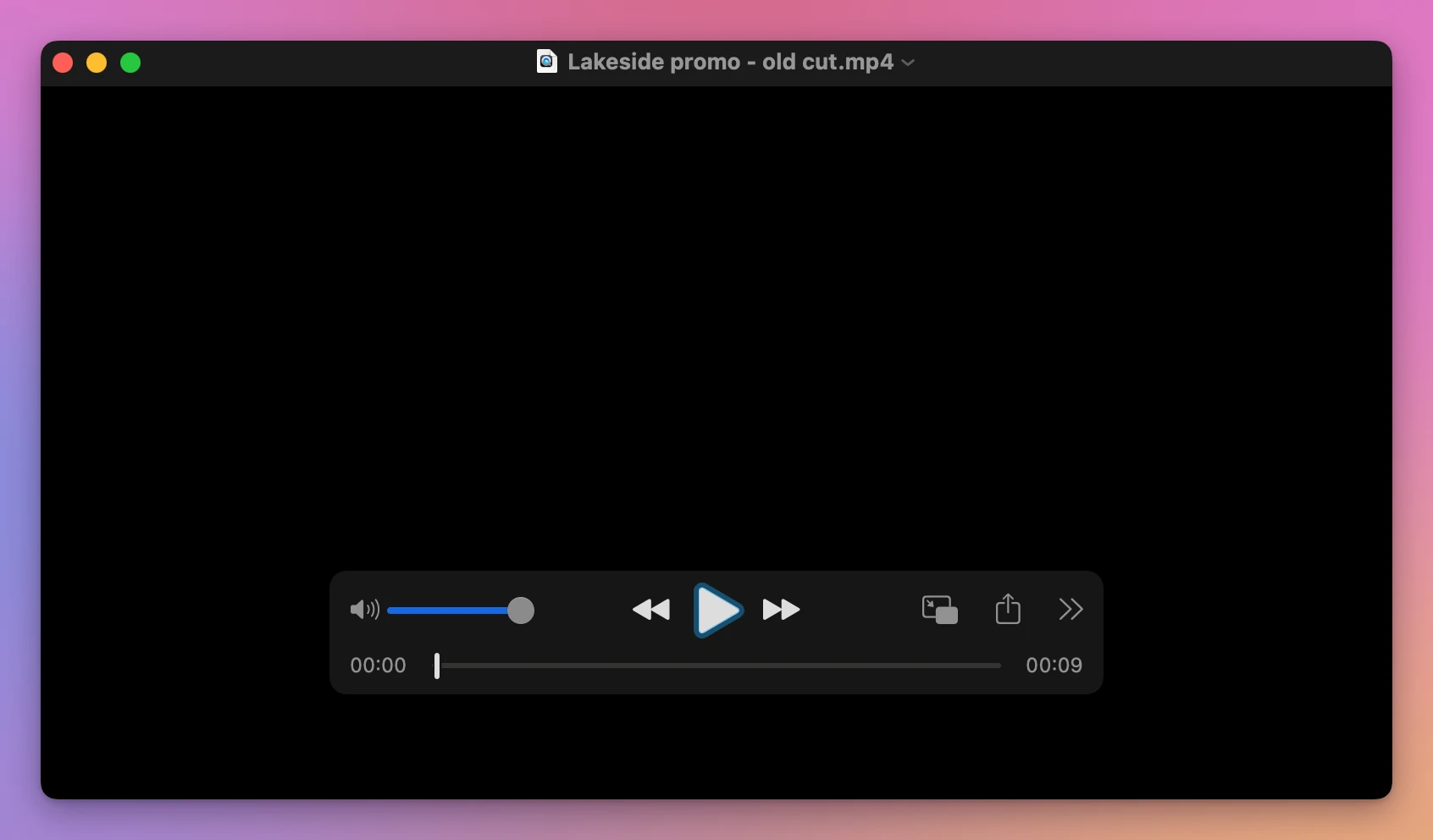
Many videos start with a short fade from black, so a black first frame isn’t always a mistake. Drag the playhead a little to the right and see how long the black lasts. Then drag it to the end and check the last frame too.
Next, choose Window › Show Movie Inspector. The Inspector lists the Resolution, which is the picture size, the Video Format and the Audio Format. Compare the resolution with what the upload needs: 1920 × 1080 for an HD upload, 1080 × 1920 for a vertical one.
Can QuickTime Player tell me the sound is silent?
No. Here’s the Inspector for the master, whose sound track is silent all the way through:
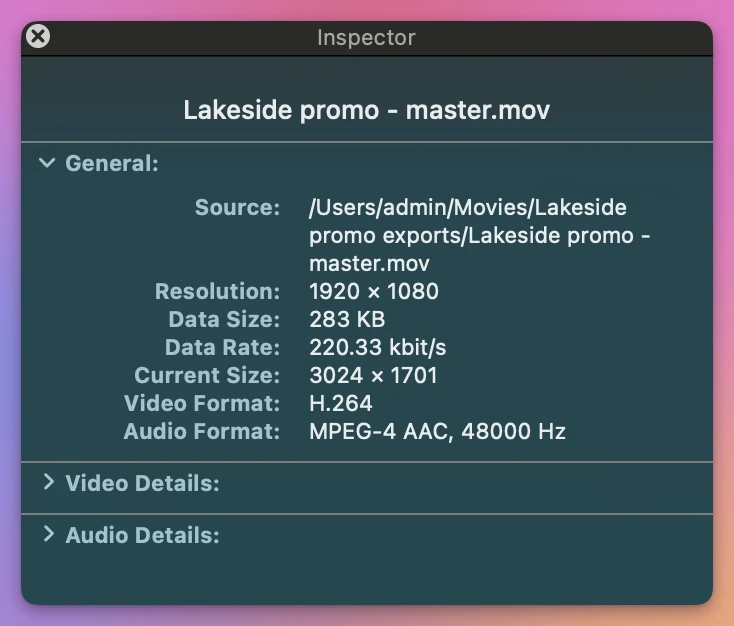
It says MPEG-4 AAC, 48000 Hz, exactly like the exports with sound, and the player shows its volume slider as usual. The track is there, it just has nothing in it. The only way to know with QuickTime Player is to play the video with the sound on and listen.
How long does checking by hand take?
For each export you open it, look at the first frame, scrub to the end, open the Inspector, read the resolution, and play a stretch with the sound on. Then you compare the lengths, which QuickTime Player rounds to the second (the old cut shows 00:09 for 8.6 seconds).
| Check | QuickTime Player, one file at a time | Video Export Checker, all at once |
|---|---|---|
| Picture size and shape | Resolution in the Inspector, you compare | Checked against a preset, wrong shape in orange |
| Black opening or end | Look at the first frame, scrub to the end | Five frames per export, black ones outlined |
| Silent sound track | Play it and listen | Measured all the way through |
| Length | Rounded to the second, compared by eye | To the tenth, against the others or a length you type |
| A record for the client | None | A PDF and a spreadsheet |
The faster way, for several exports
Video Export Checker is a Mac app I made for this. It costs $19, paid once.
Click Choose Videos… and pick the folder with the exports. Pick a Delivery preset, like YouTube HD. The app reads every file, plays each sound track through, takes five frames from each one, and shows them side by side.
For the Lakeside promo exports against YouTube HD, it found:
- the old cut: “0:08.6 is 1.4 s shorter than the other exports (0:10.0).” and “Black picture at the opening (0:00.5).”;
- the master: “The sound track is there but silent all the way through.”;
- the vertical cut: “Wrong shape: 9:16 (1080 × 1920). The preset wants 16:9 (1920 × 1080).”;
- the HD upload: Ready.
A text file named like a video was listed as Can’t be read, with the reason.
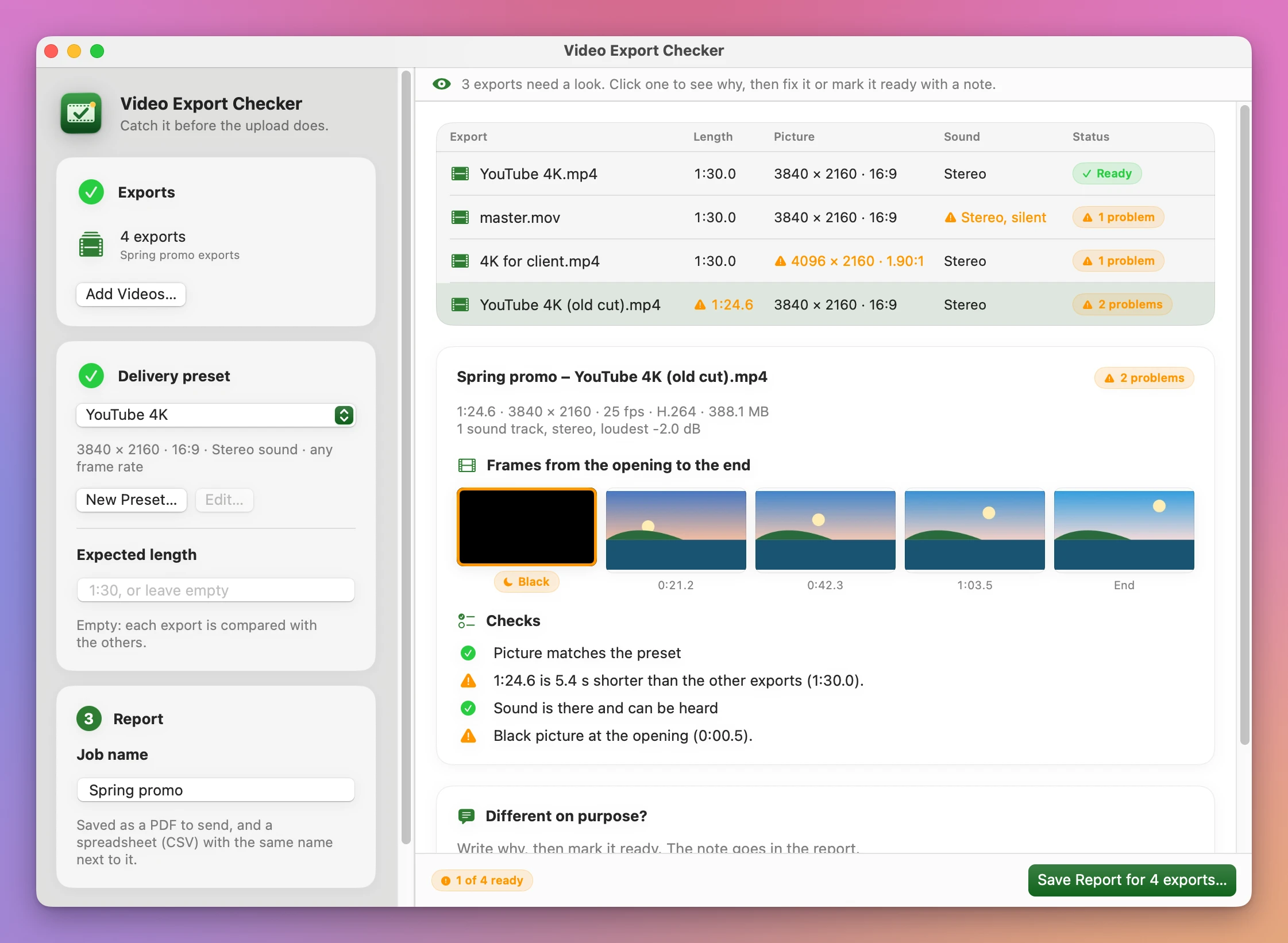
The silent master was on purpose in this test, so it got a note: select it, type why under Different on purpose?, and click Mark Ready. Then Save Report for 4 exports… saves a PDF with every export’s numbers and frames, and a spreadsheet with the same name next to it. The videos are only read.
The screenshots are from macOS 15 Sequoia.
Get Video Export Checker
Drop in every export of one video and compare their length, picture size and sound side by side, with frames from the opening to the end. Black openings, silent sound tracks, the wrong shape and odd lengths are marked against a delivery preset, and a preflight report goes out as a PDF and a spreadsheet. The videos are never changed.
See Video Export Checker → · Read the docs · $19. See the app page for tax details.
Want me to talk about your product? You can sponsor this site.