How to change the default app for all files of a type on a Mac
By Flavio
Select a file, choose File › Get Info, pick an app under Open with and click Change All. That changes one file type. Here's how to do it for many types at once, and how to undo it.
You double-click a .json file and it opens in the wrong app. You want every file of that kind to open in the app you picked, not just this one.
The Mac can do it from the Finder. Select a file of that kind, open Get Info, pick the app under Open with, and click Change All…. Every file with that extension now opens in that app. If you have many kinds of files to move, like all your code files to a new editor, there’s a quicker way further down.
How do I change it for one file type?
- Click a file of that type in the Finder, for example
notes.md. - Choose File › Get Info, or press Command-I.
- Open the Open with section and pick the app from the menu. If it isn’t listed, choose Other… and find it in Applications.
- Click Change All… under the menu.
- Confirm with Continue.
From now on every .md file opens in that app when you double-click it.
Why doesn’t “Open With” in the right-click menu do it?
Right-click a file and choose Open With and an app, and the file opens there once. The default stays the same. The next double-click goes to the old app again. Only Change All… in Get Info changes the default.
What if I need to change 30 file types?
That’s where the Finder gets slow. Change All… works on one extension at a time, and you need a file of each kind to start from.
Say you switched to a new code editor. Your code files are .js, .mjs, .ts, .json, .css, .scss, .py, .sh, .yml, .xml, .md, .txt and a dozen more. That’s one round of find a file, Get Info, pick, Change All, Continue for each of them. There’s also no list of which app opens what, so you only find a wrong one when you double-click it.
Change many file types at once
File Association Presets is a Mac app I built for this. It shows 113 common file types in one table, with the app that opens each one now. It costs $19, paid once.
The screenshots here are from a test Mac running macOS 15 Sequoia, with the code editor Zed installed (its app name is ZedEditor).
The types are grouped in categories: Images, Video, Audio, Documents, Code & text, Archives, Ebooks and Web. Each row has a menu to pick a new app, and each category has a Set All To button that picks one app for every row in it.
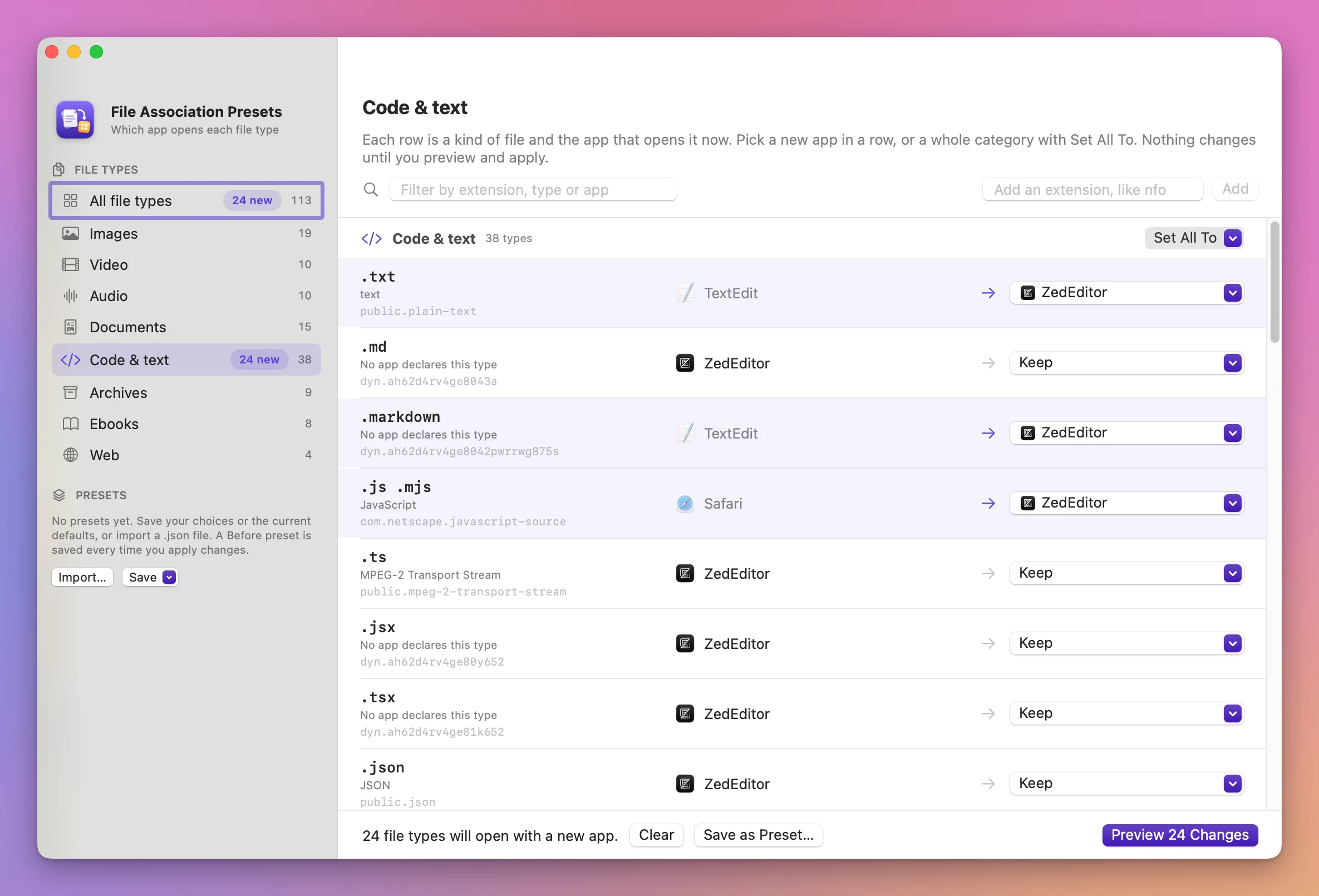
Here’s what happened on the test Mac:
- In the sidebar, click Code & text. Its 38 rows showed TextEdit for
.txtand.swift, Safari for.jsand.css, and ZedEditor for a few others. - Click Set All To and choose ZedEditor. The footer said “24 file types will open with a new app”. The rows already set to ZedEditor stayed as they were.
- Click Preview 24 Changes. Each row showed the app that opens it now, an arrow, and the new app.
- Uncheck
.swiftto keep it in TextEdit. Its pill changed to Left alone. - Click Apply.
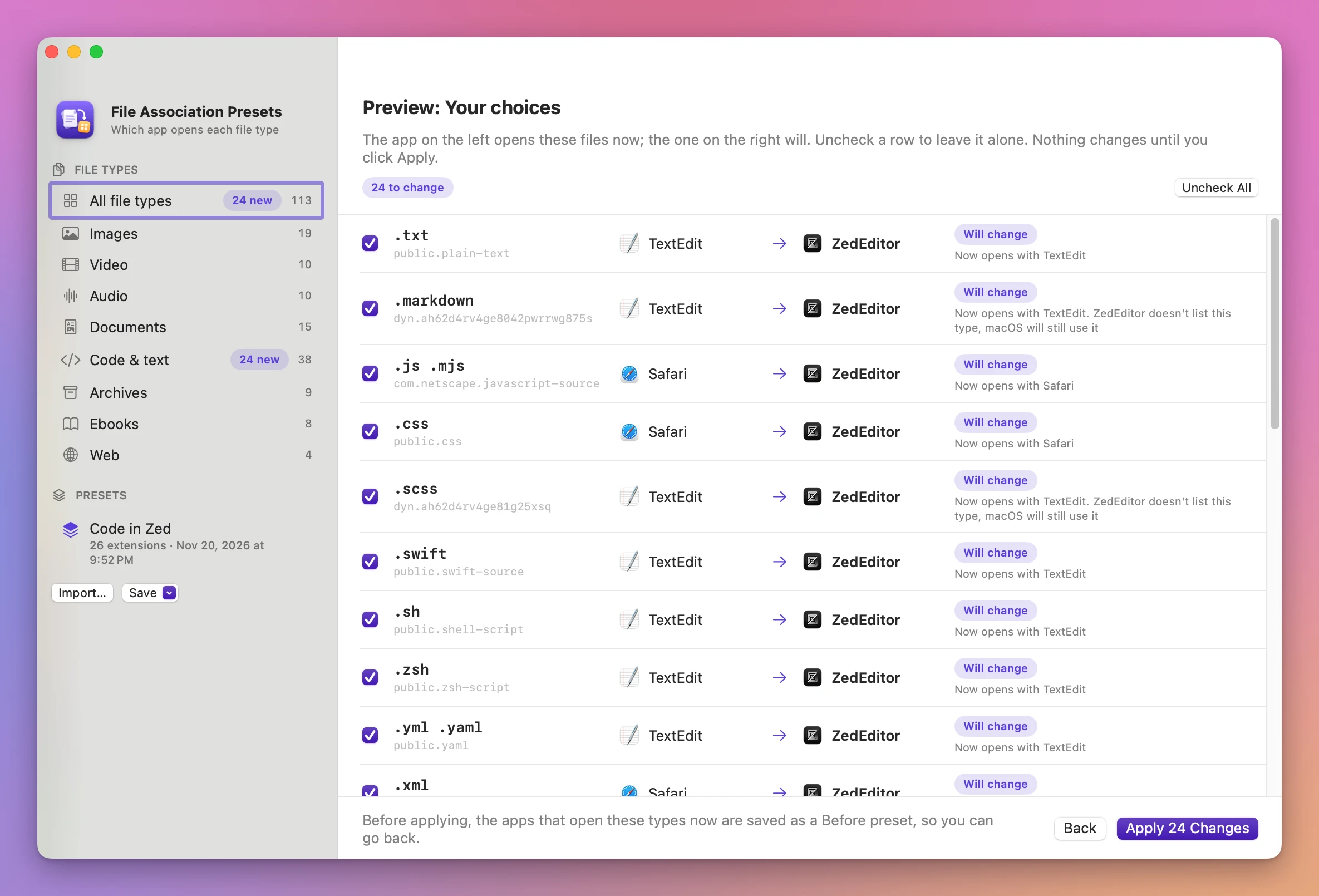
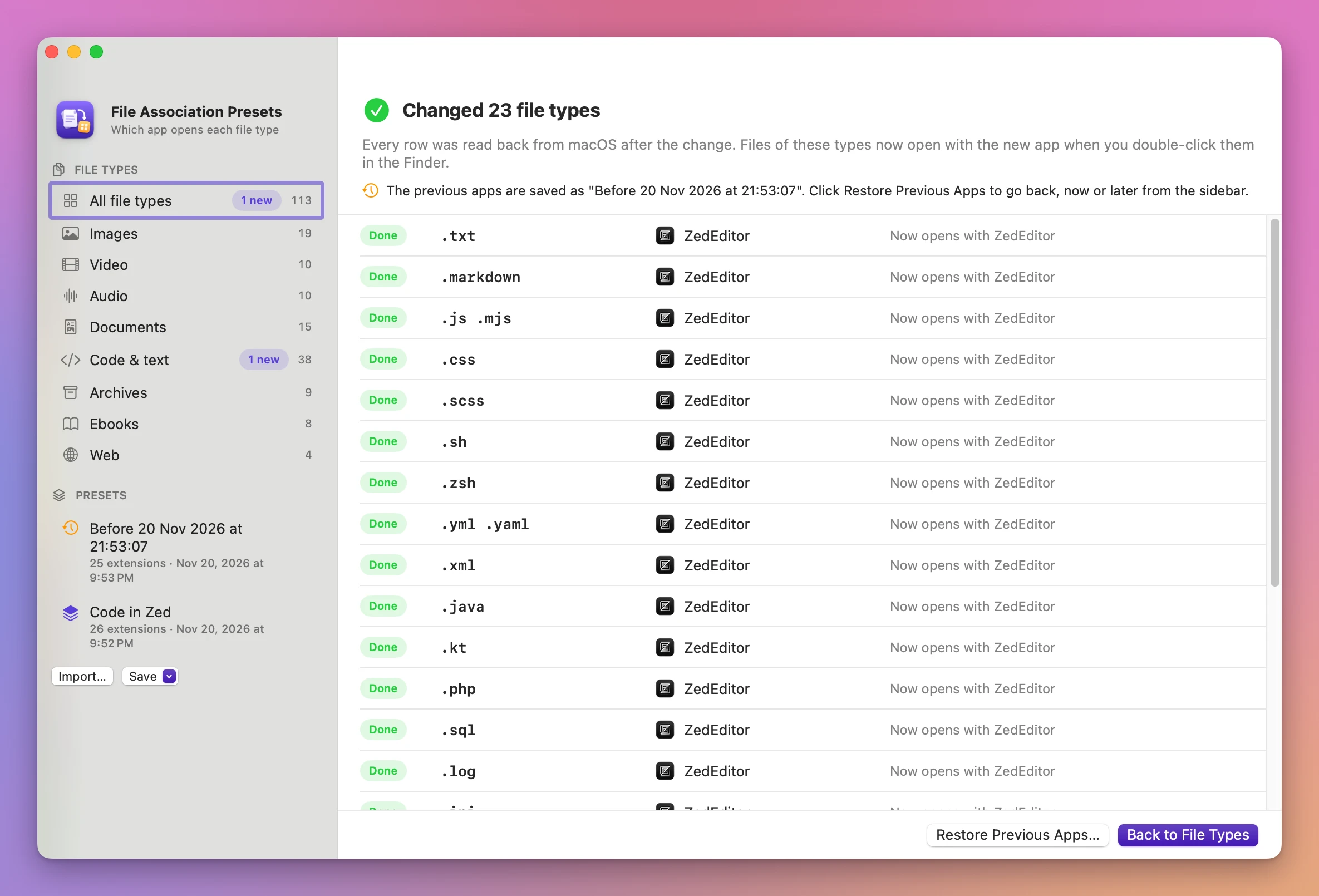
The done screen said “Changed 23 file types”, with Done on every row. Double-clicking a .py file then opened it in Zed, and .swift files still opened in TextEdit.
Done means the app asked macOS after the change, and macOS answered with the new app. If macOS says no, the row says Failed and why.
How do I undo it?
Before anything changes, the app saves the apps you had as a preset, named with the date and time, like “Before 20 Nov 2026 at 21:53:07”. The done screen has a Restore Previous Apps… button that opens it, and it stays in the sidebar for later.
On the test Mac, restoring put all 23 types back: .txt opened in TextEdit again, and .js and .css in Safari.
Can I take the same setup to a new Mac?
Yes. A preset is a small file you can copy. Save your current setup from the Save menu in the sidebar, right-click it and choose Export…. On the other Mac, click Import… and pick the file. Nothing changes until you click Apply.
If an app in the preset isn’t installed on that Mac, its rows say App not on this Mac and are skipped. A test preset that sent code files to Visual Studio Code and videos to IINA, neither of them installed, showed 11 rows like that and 5 already set. Install the apps and import it again.
Which file types can’t be changed?
HTML. On the test Mac, macOS refused to change .html and .htm and kept them with the default web browser. Every other type the app tried was accepted. To change which app opens HTML files, change the default browser in System Settings › Desktop & Dock.
One more catch: on a Mac without a TypeScript editor, .ts is a video format (MPEG-2 Transport Stream), so changing it changes those videos too.
The two ways side by side
| Finder’s Get Info | File Association Presets | |
|---|---|---|
| One file type | A few clicks, free | A few clicks |
| 24 code file types | 24 rounds of Get Info and Change All | Set All To, then Apply |
| See what opens what | Get Info on a file of each type | One table |
| Check it worked | Double-click a file | Each row checked with macOS |
| Undo | Do it again by hand | Restore Previous Apps… |
| Another Mac | Start over | Export and import a preset |
For one or two file types, the Finder is all you need. For a new editor, a new photo app or a new Mac, File Association Presets does the whole batch and keeps a way back.
Get File Association Presets
See which app opens each file type, switch a whole category to a new app at once, check every change, and save the setup as a preset for another Mac.
See File Association Presets → · Read the docs · $19. See the app page for tax details.
Want me to talk about your product? You can sponsor this site.